How to Connect TikTok with Rows Add Row

The integration will allow you to get new leads from TikTok and transfer them to Rows. This allows you to efficiently automate workflows and save a lot of time by not having to manually add each row to the table.
Let's go through the entire TikTok with Rows setup steps together!
Navigation:
1. What will integration TikTok with Rows do?
2. How to connect TikTok account?
3. How to connect Rows account?
4. How to setup data transfer from TikTok to Rows?
5. An example of the data that will be sent to your Rows.
6. Auto-update.
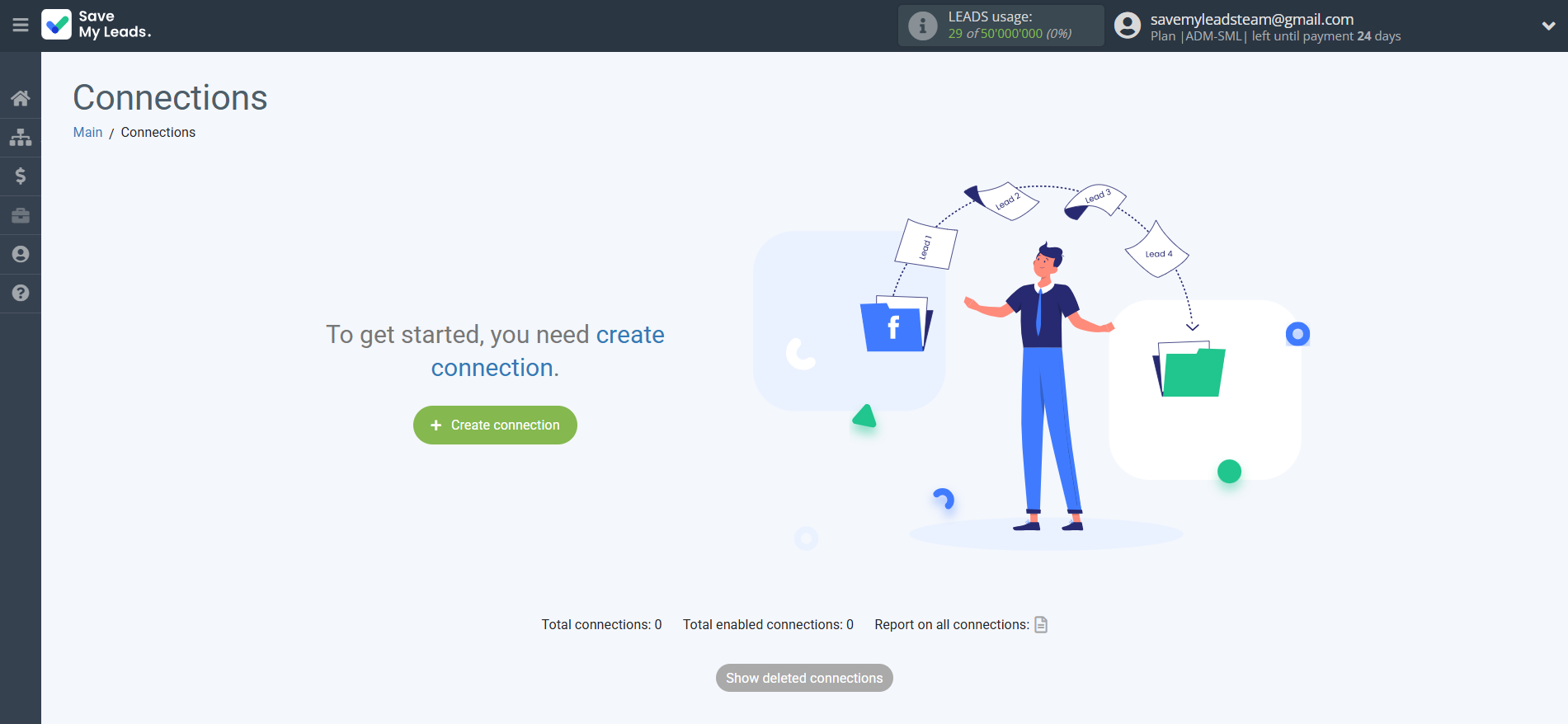
To start setup new connection, click "Create connection".
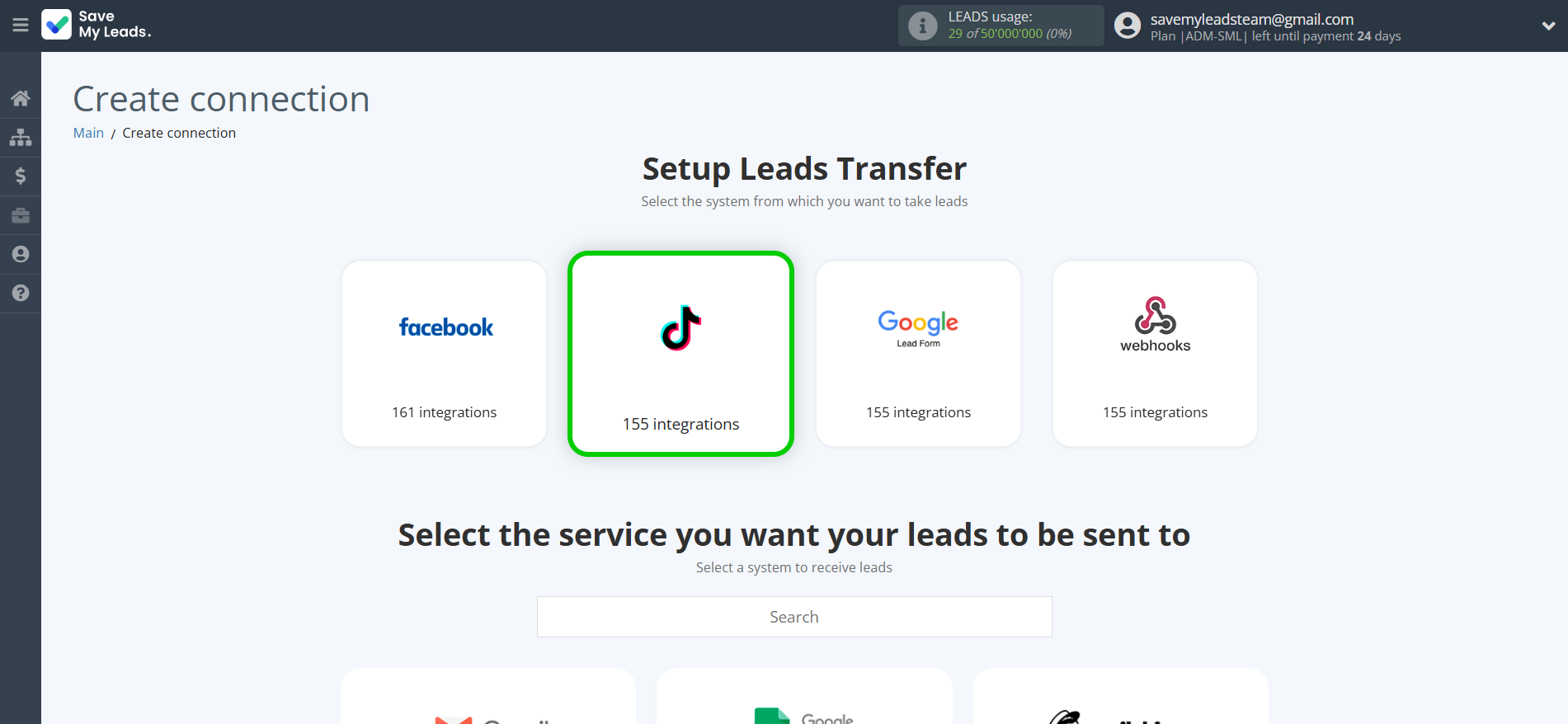
Select a system as the Data Source. In this case, you must specify the TikTok.
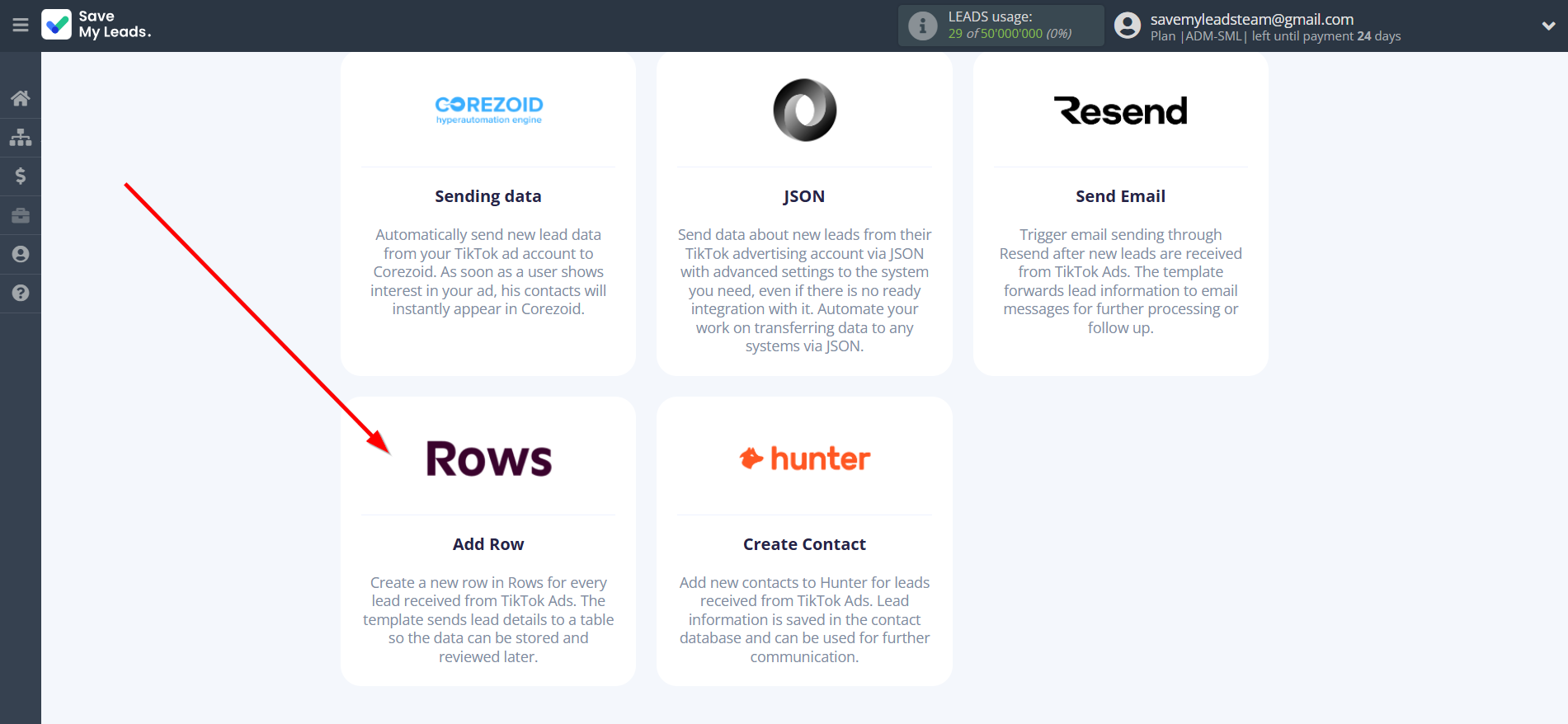
Next, you need to specify the system to which the data from the TikTok will be transferred. In this case, you must specify Rows Add Row.
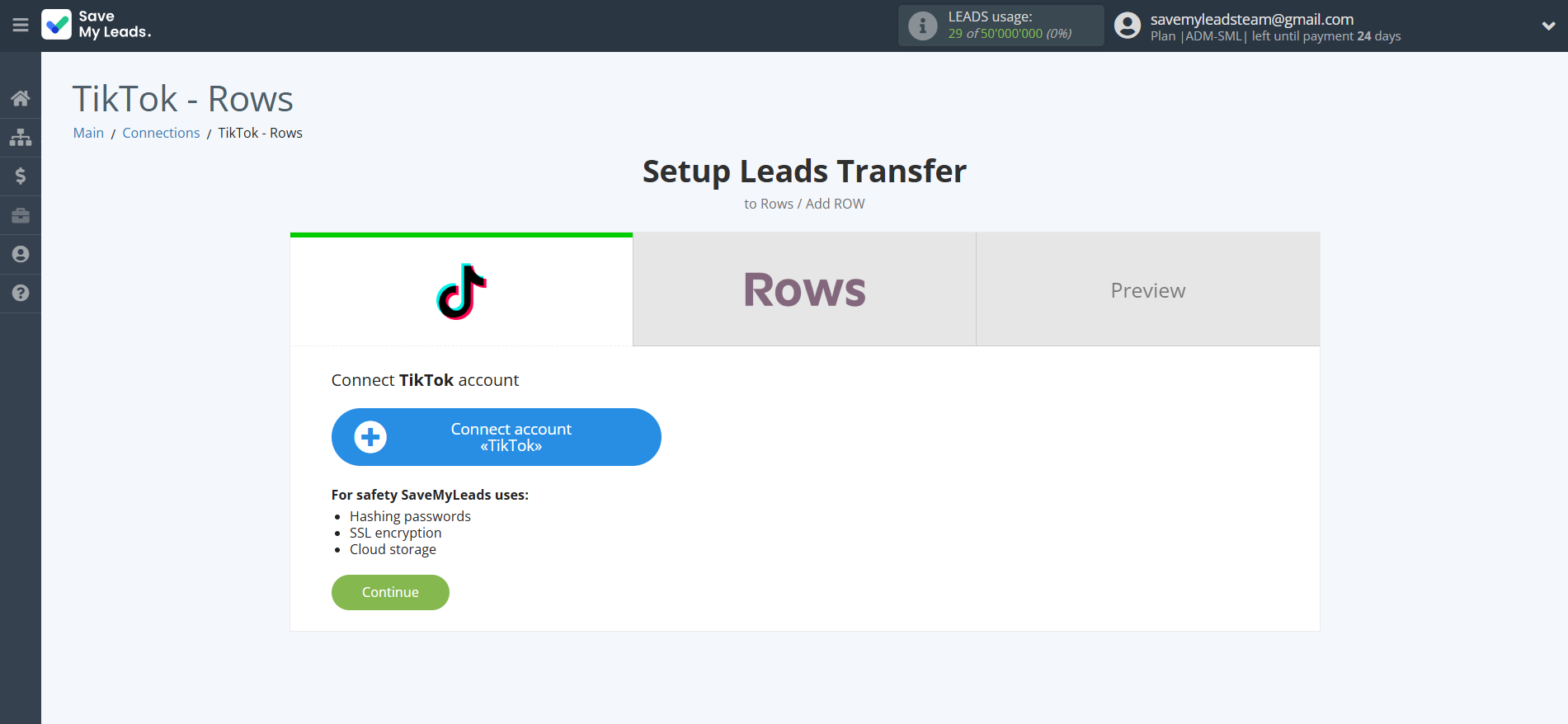
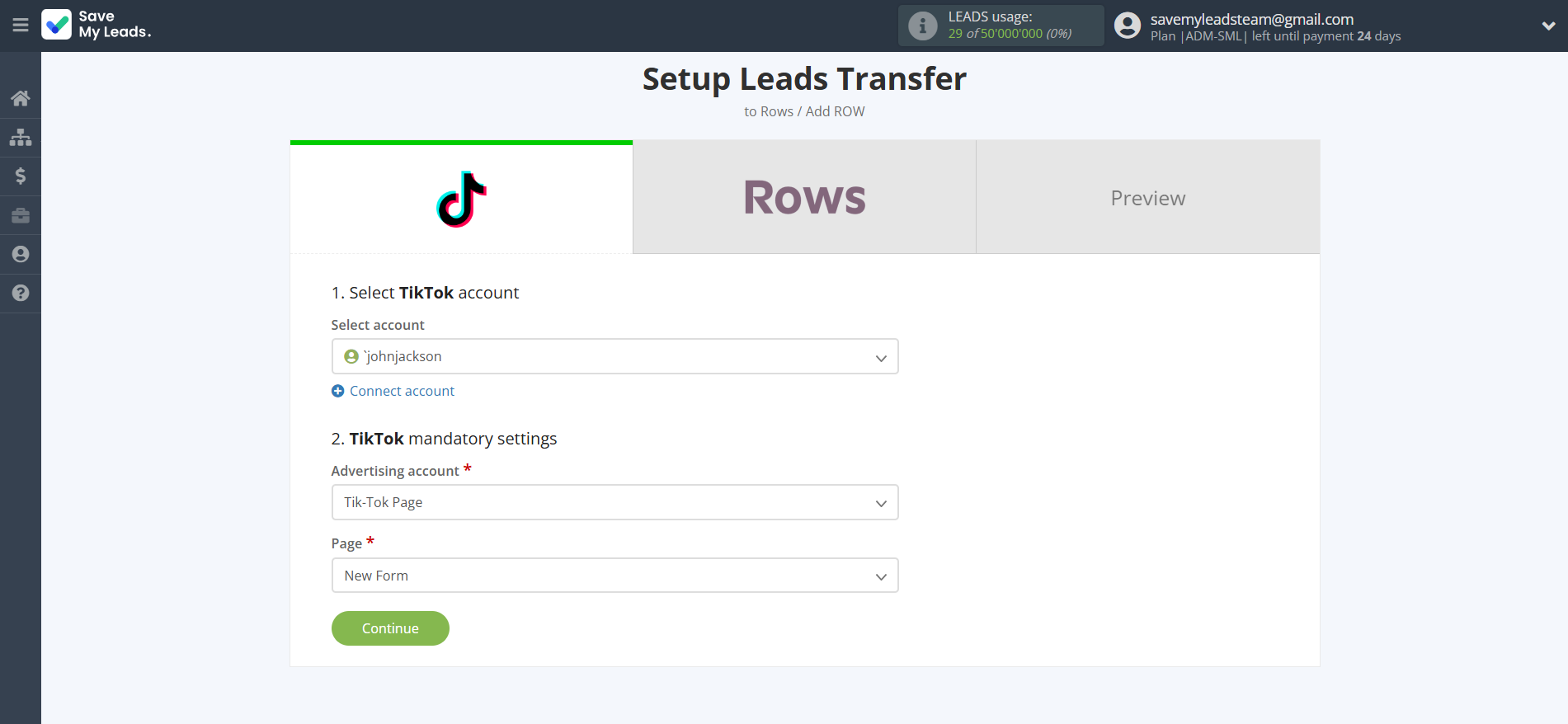
The next step is to select TikTok account from which SaveMyLeads get leads.
If there are no accounts connected to the system, click "Connect account".
Enter your email and password and give all access to work with this account.
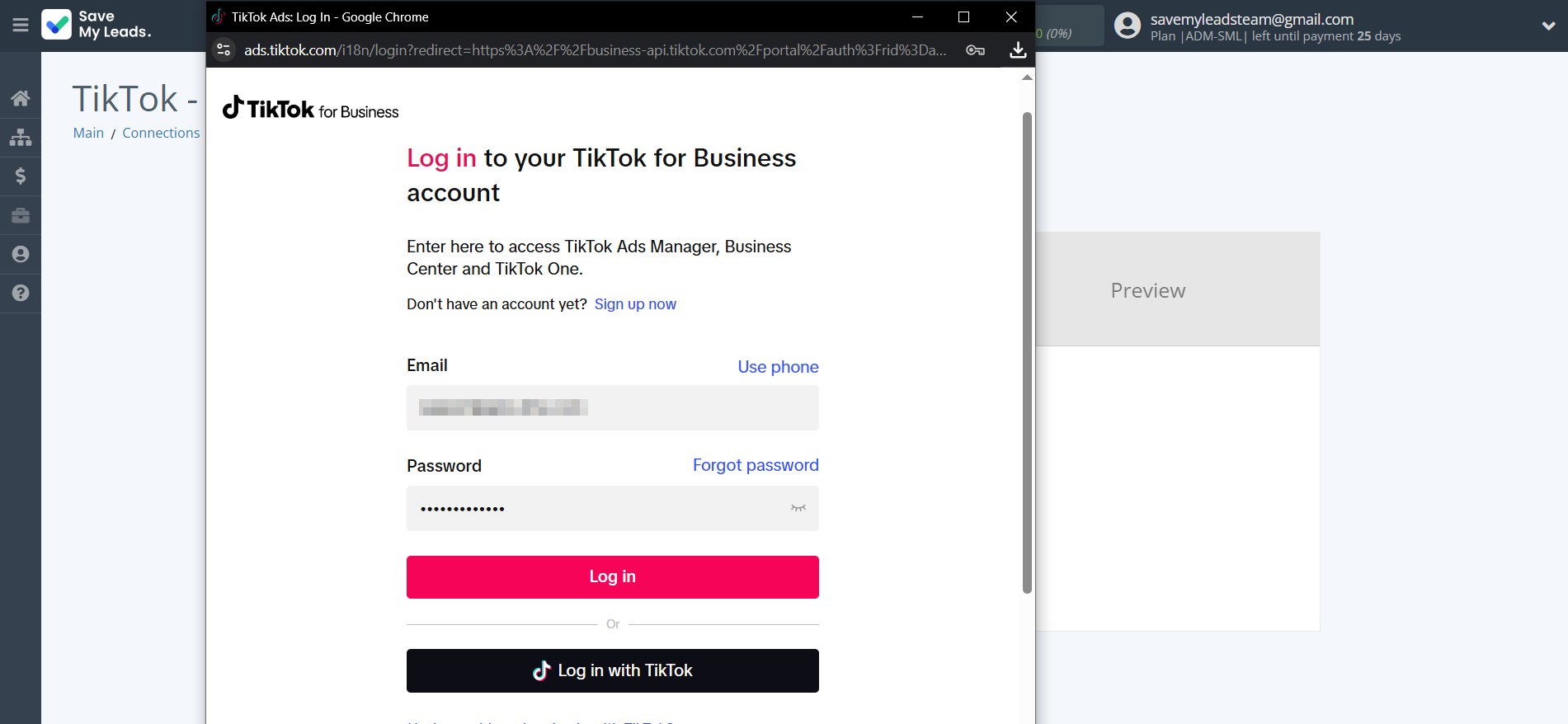
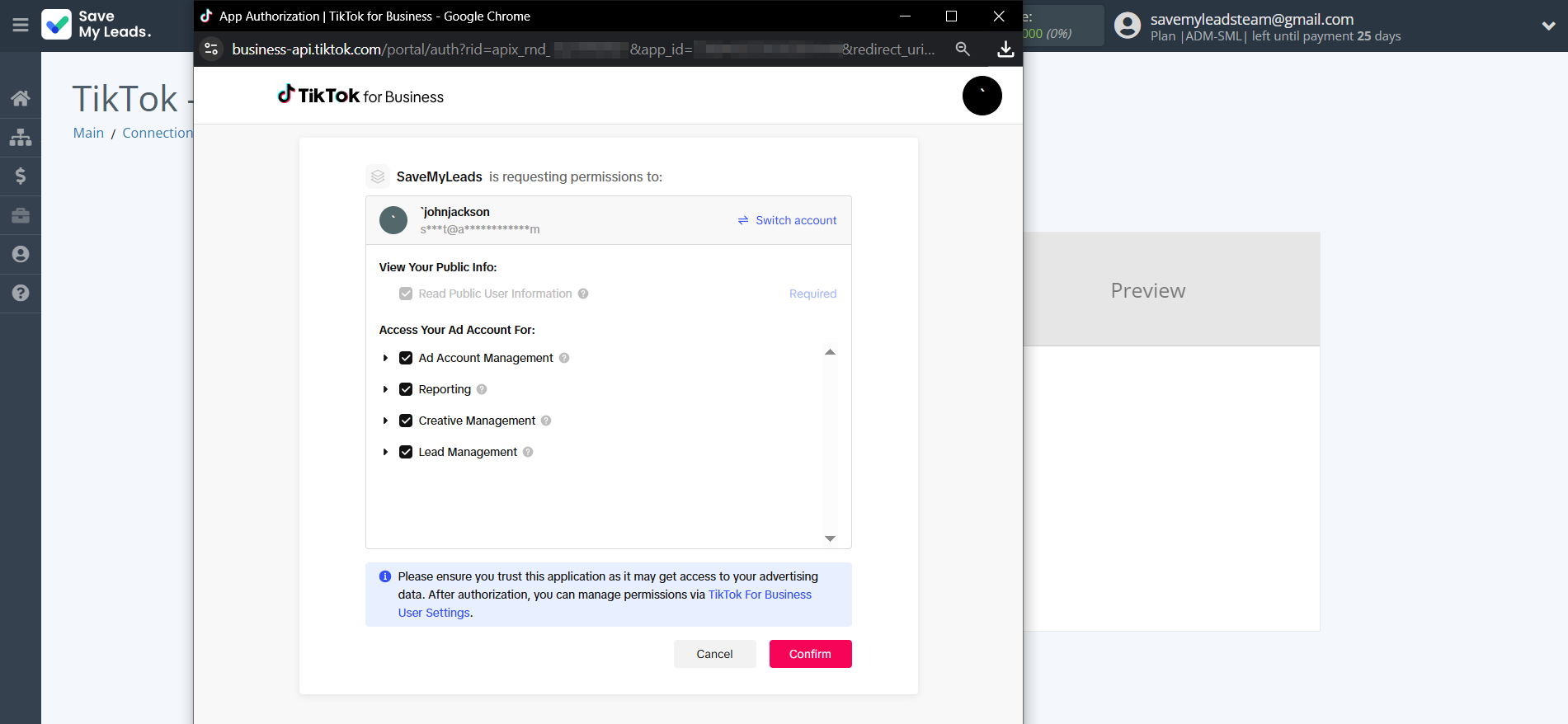
When the connected account is displayed in the "active accounts" list, select it.
Attention! If your account is in the "inactive accounts" list, check your access to this account!
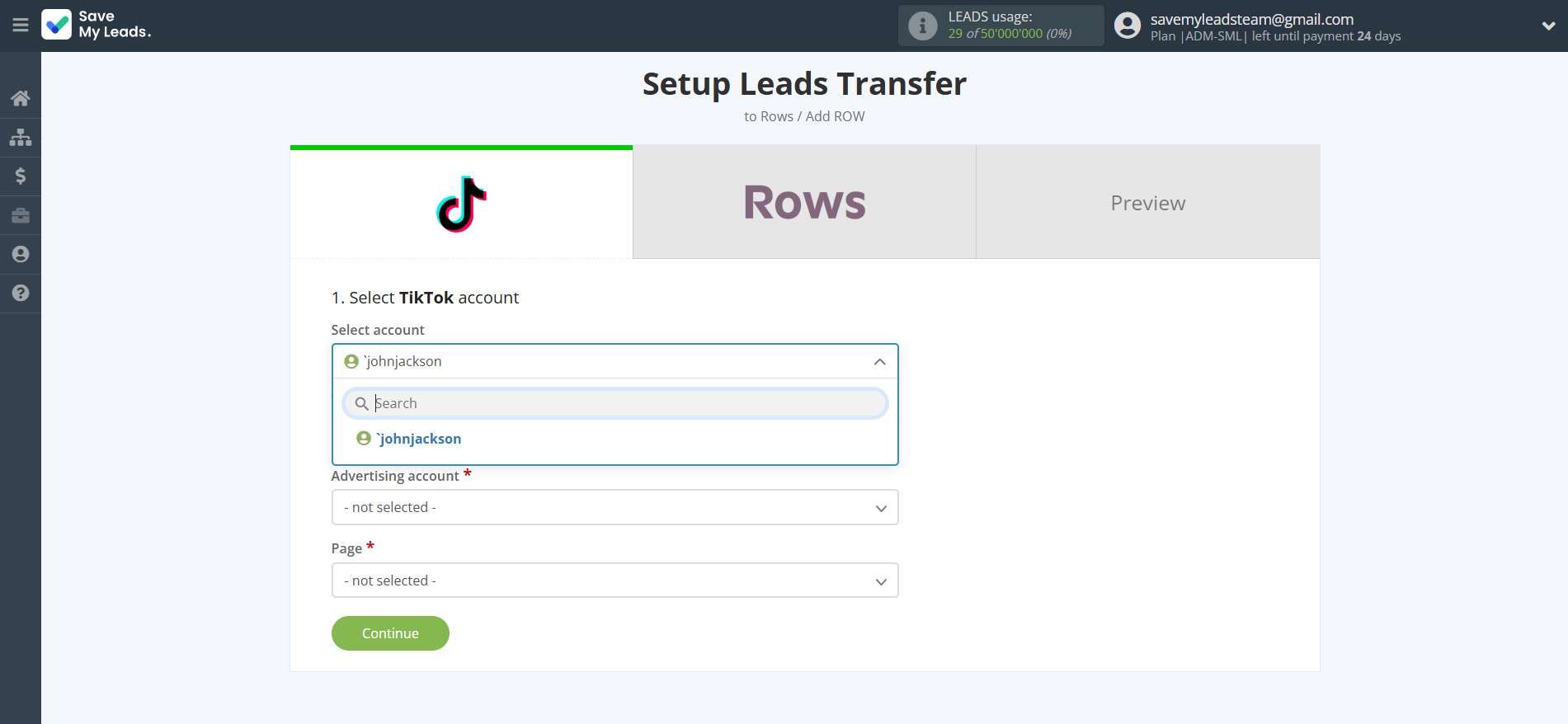
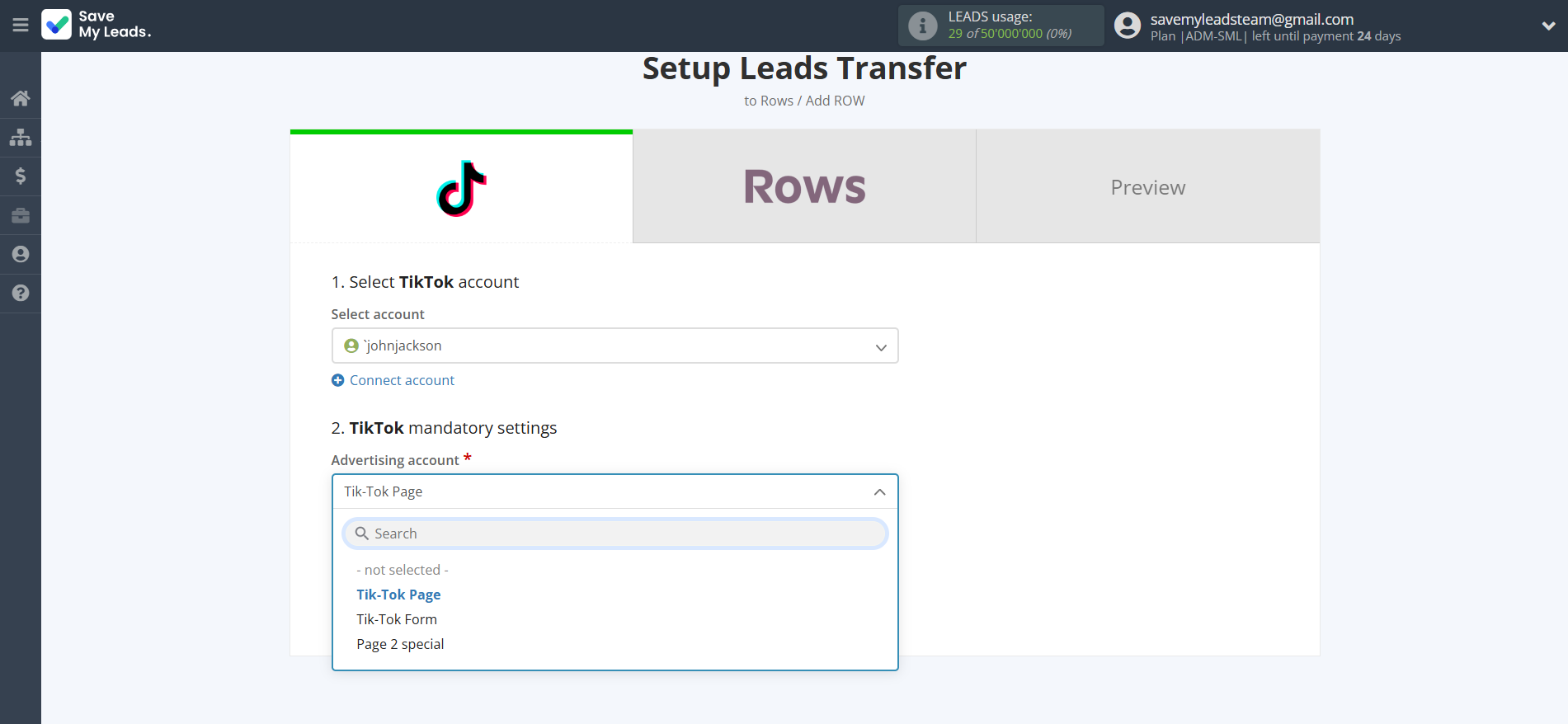
Select the Advertising Account and Page from the drop-down list and click Continue.
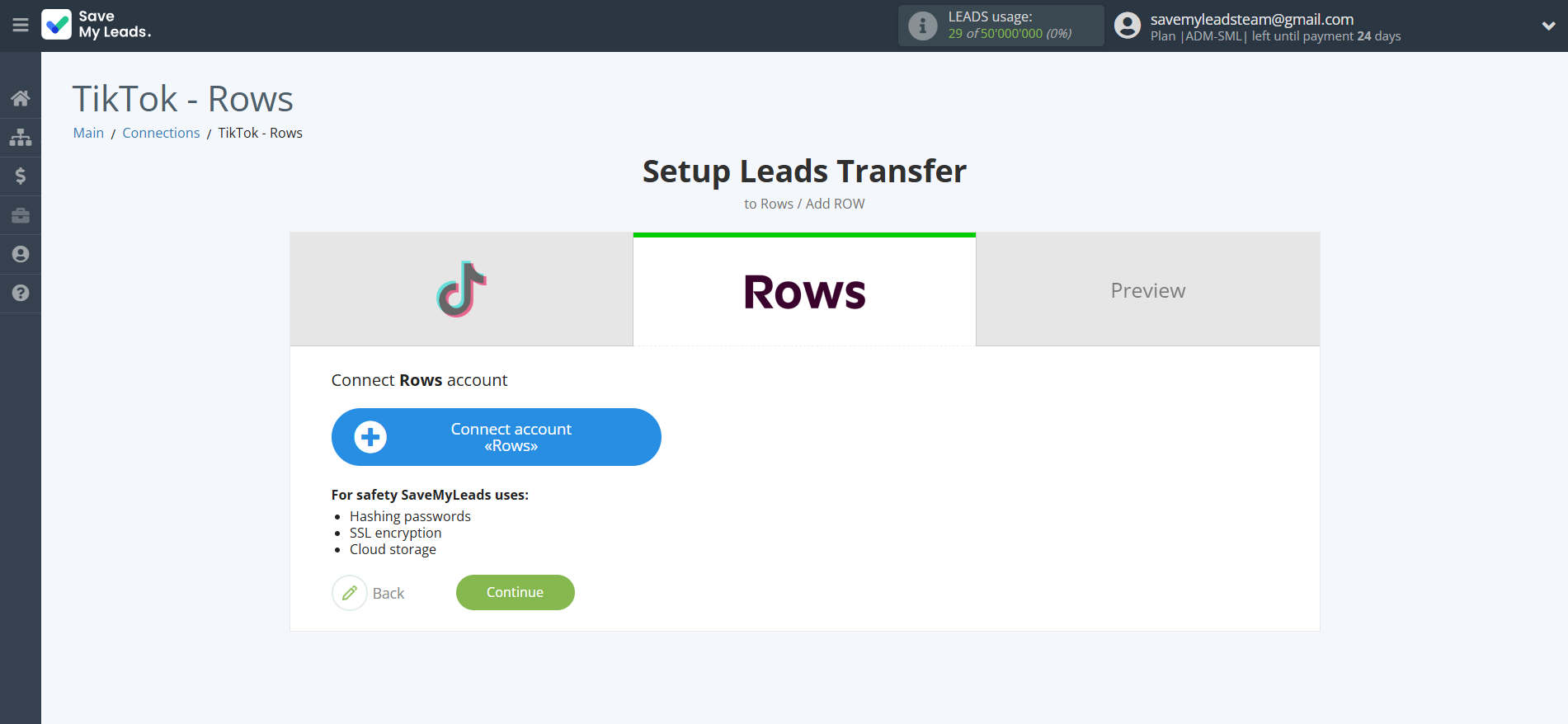
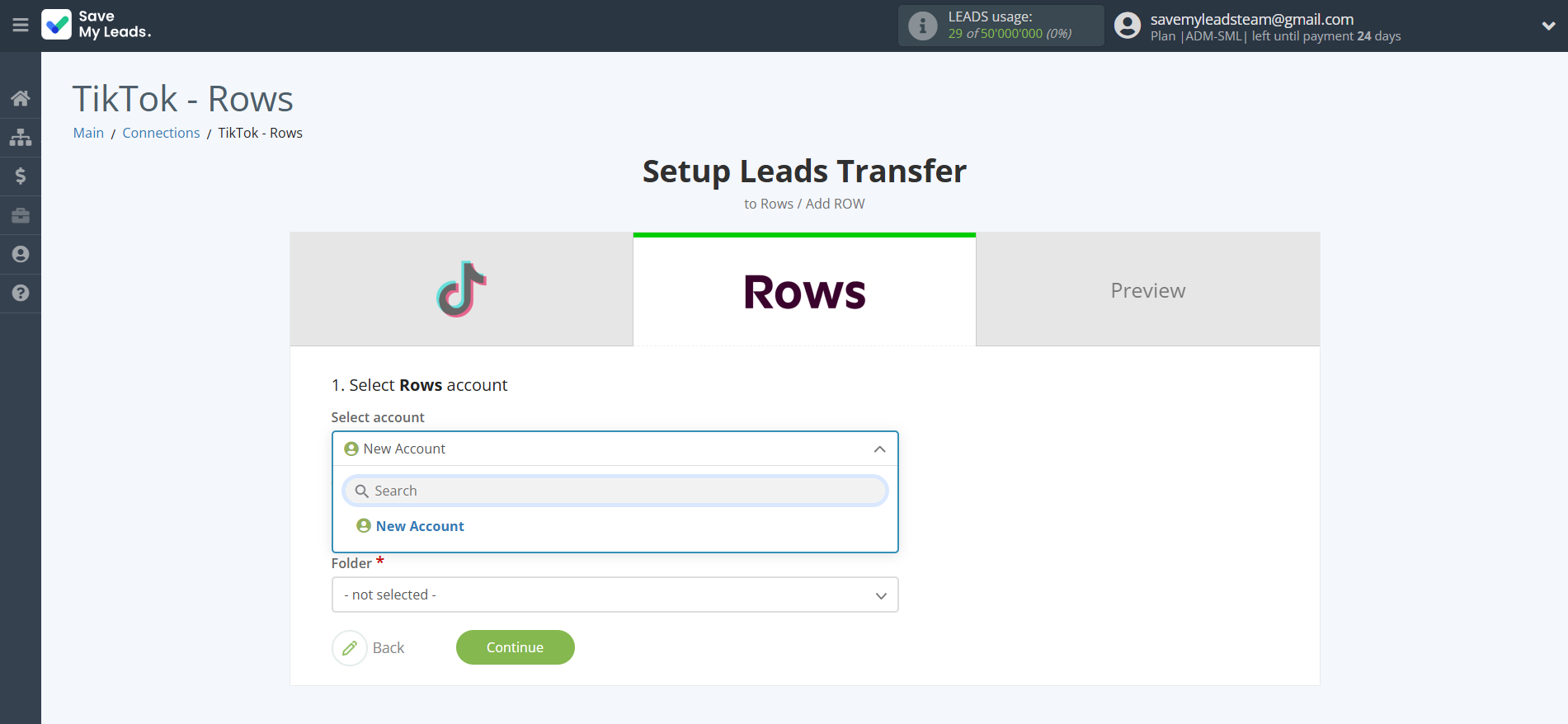
The next step is to select Rows account to which leads will be sent.
If there are no accounts connected to the system, click "Connect account".
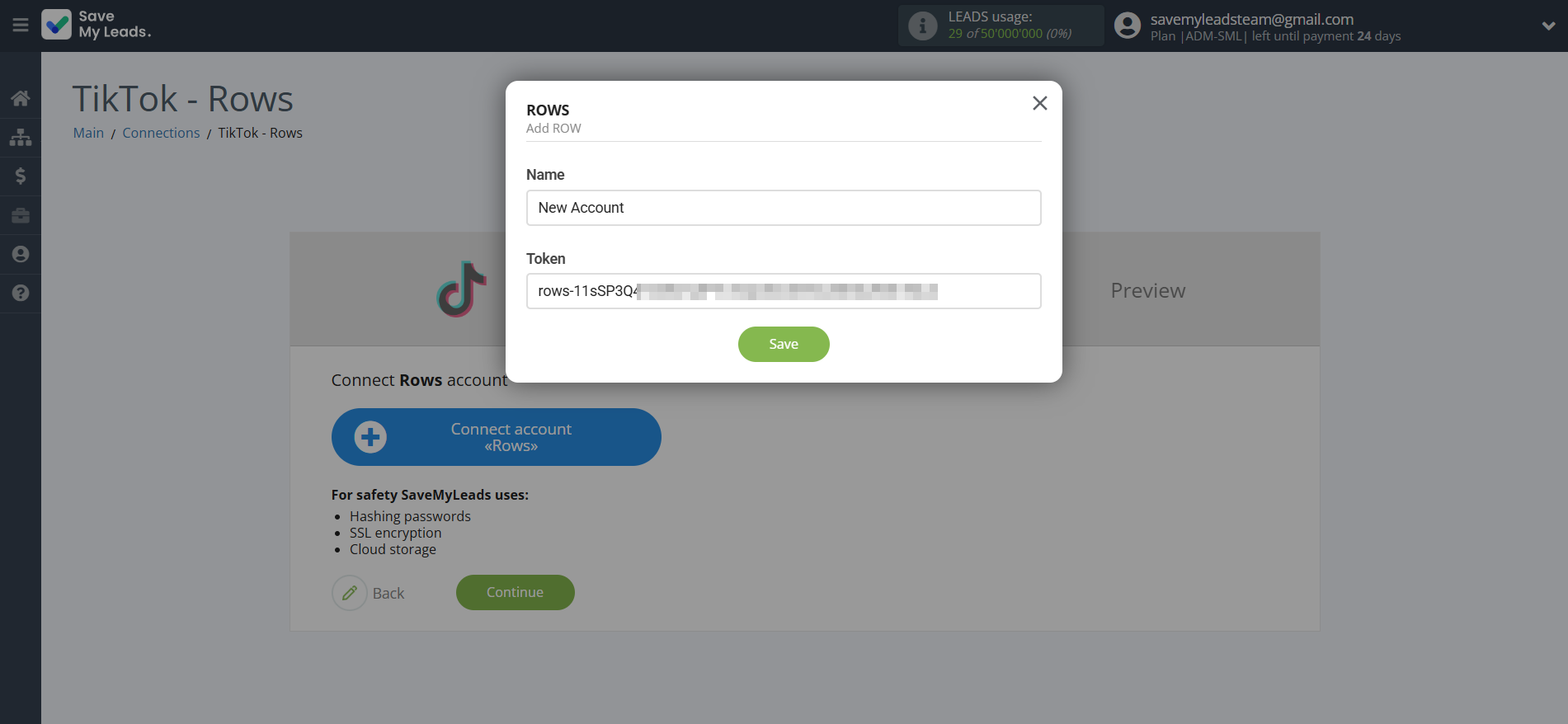
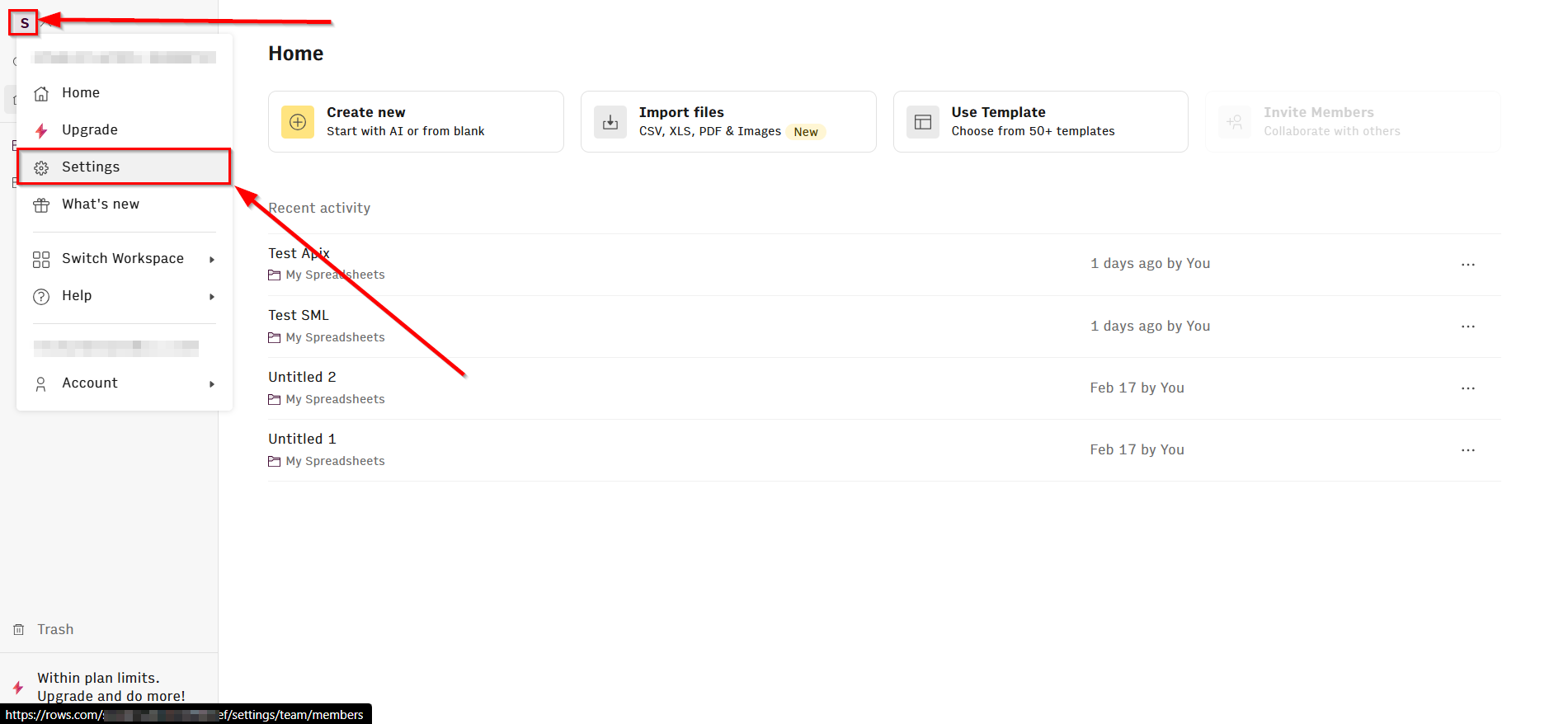
In the window that opens, you need to fill in the "API key" field, which is located in "Settings - Rows API" in your Rows account.
Copy the "API key" and paste it into the corresponding field in the SaveMyLeads system.
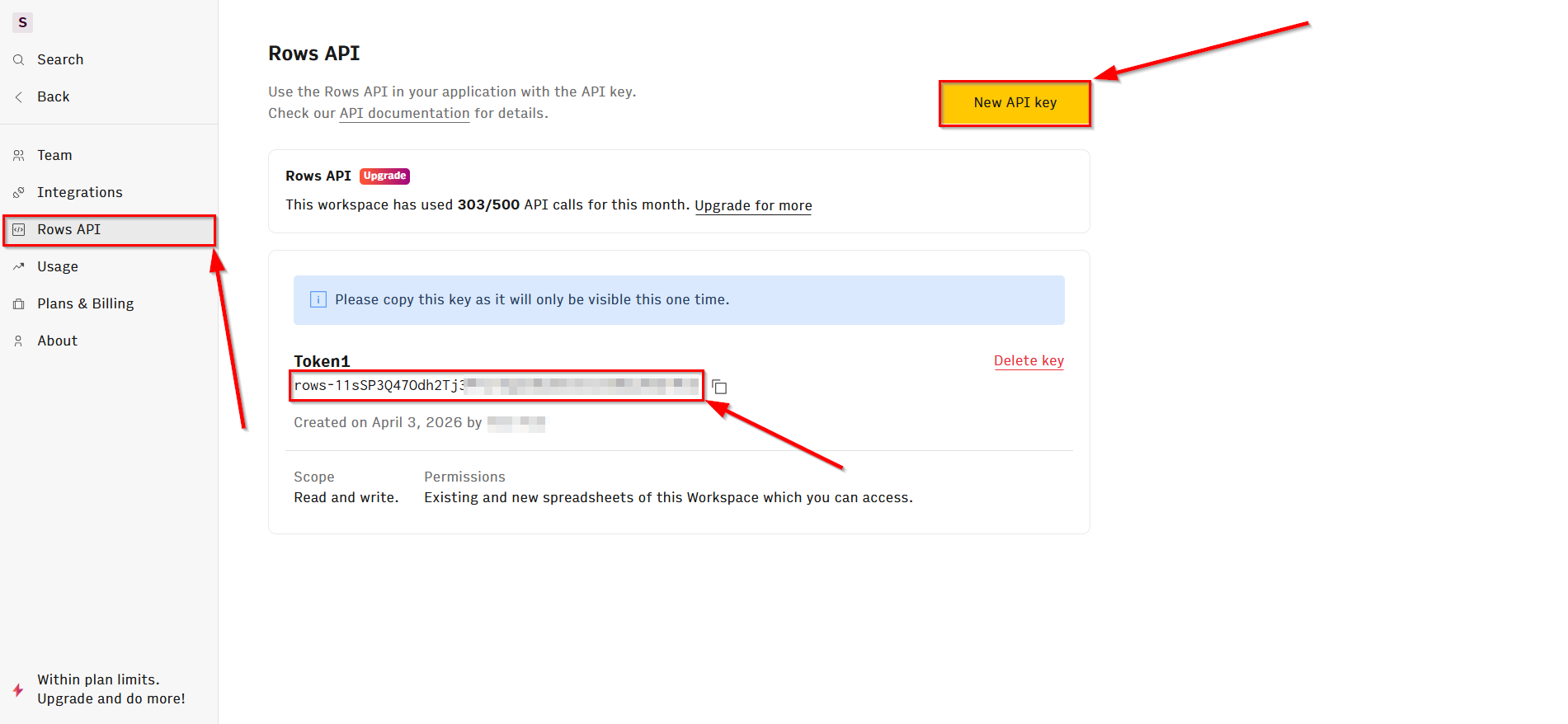
When the connected account is displayed in the "active accounts" list, select it.
Attention! If your account is in the "inactive accounts" list, check your access to this account!
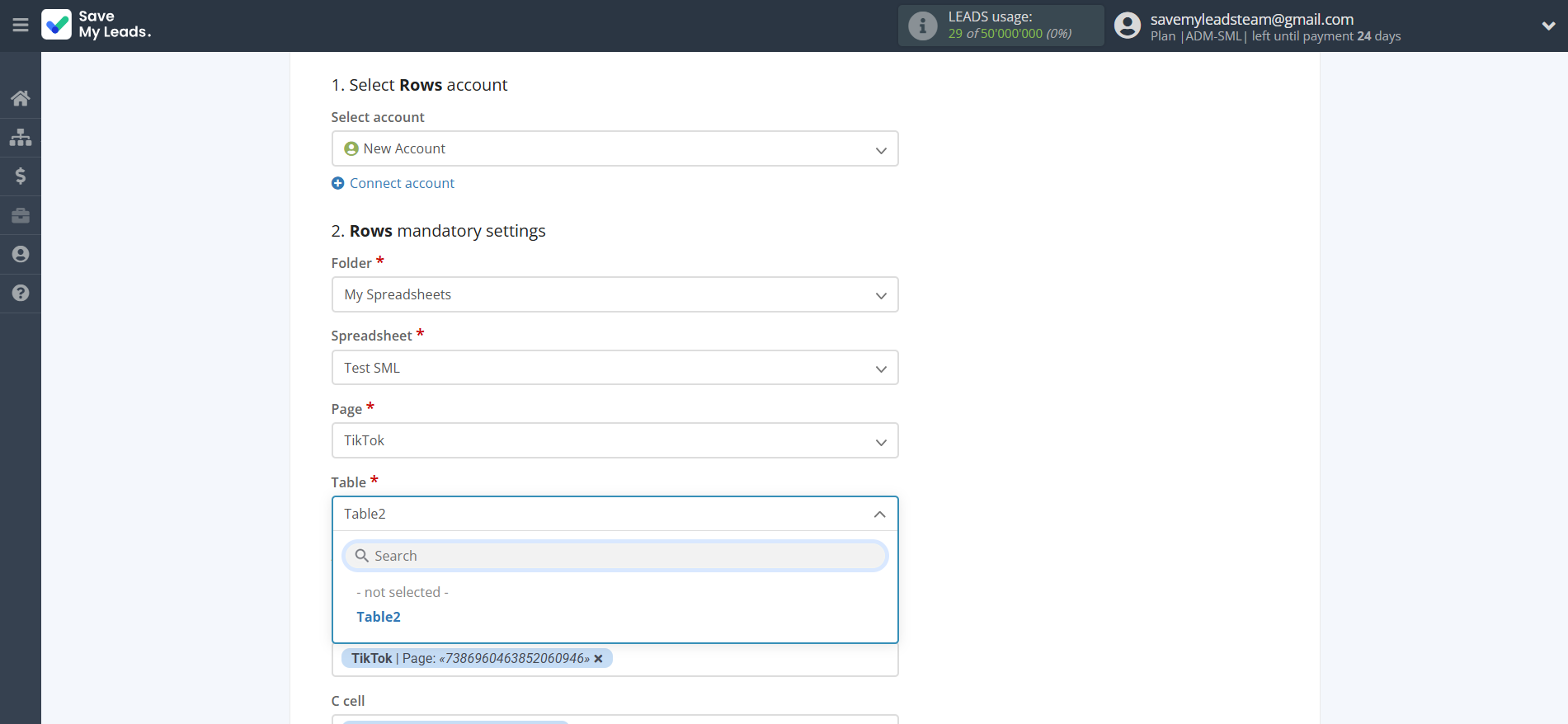
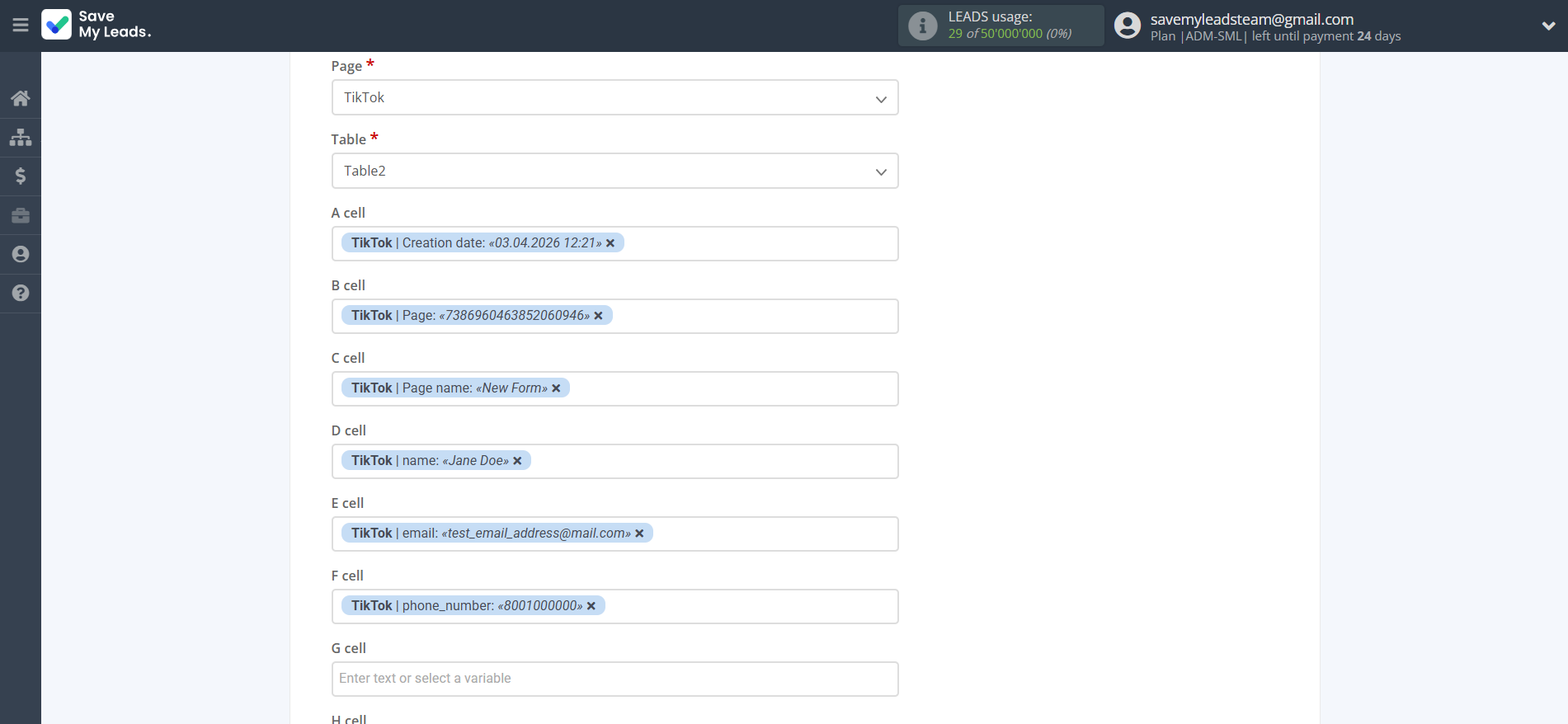
Select the folder, spreadsheet, page and table in Rows where the lead data will be delivered.
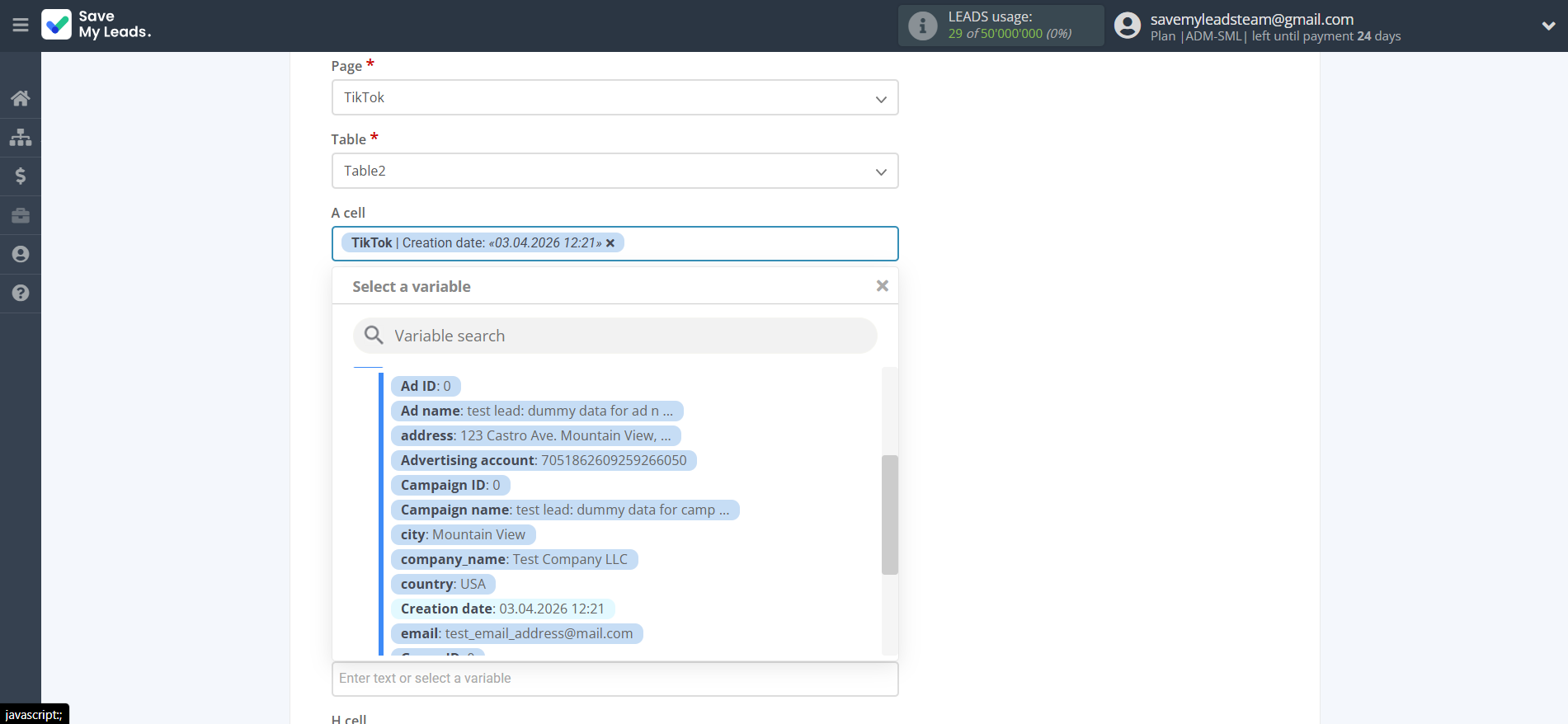
Next, you need to assign variables from the data source system to the columns of the table you want.
In this section, the fields will be assigned according to the template. You can change it completely or leave it as is.
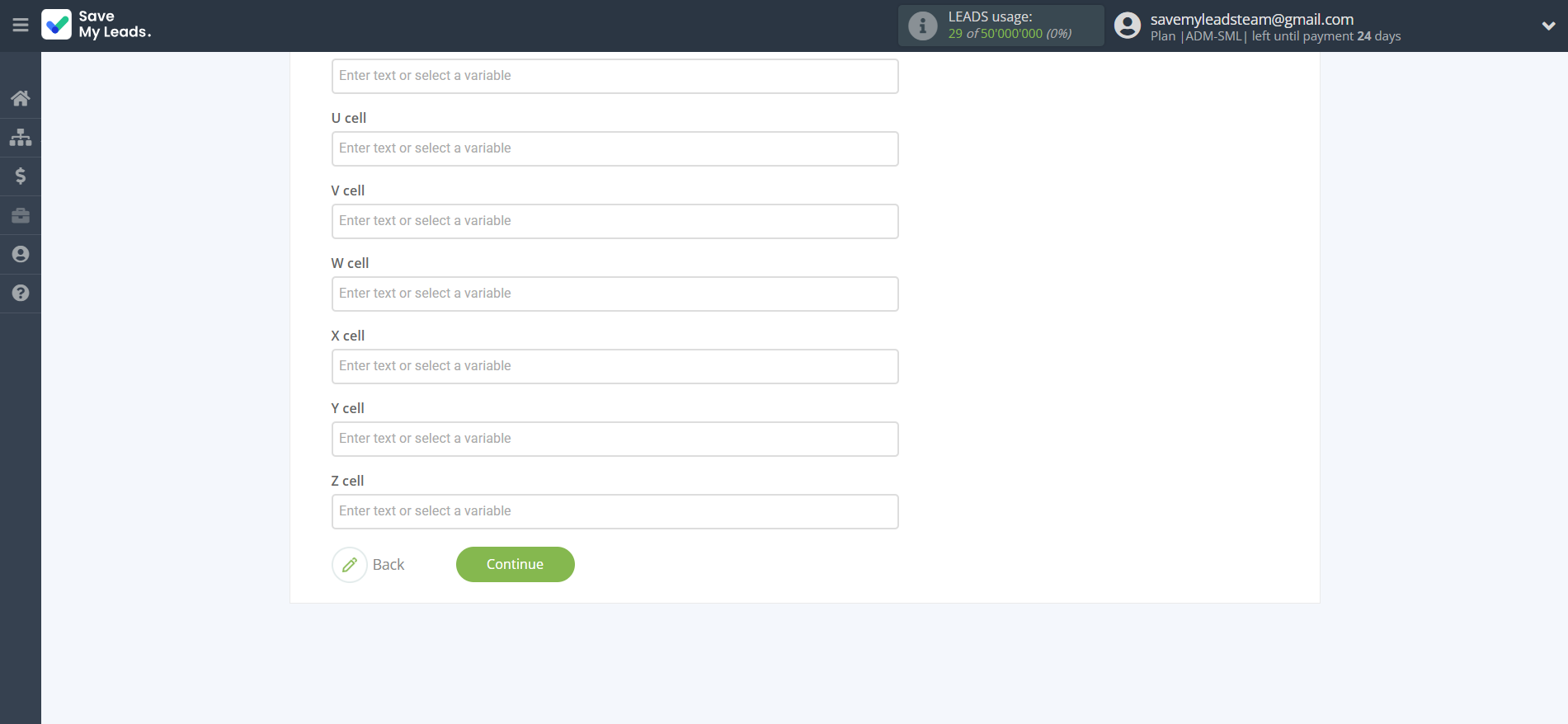
To add a variable, click on the column field and select the desired variable from the drop-down list. Note that you can use not only variables from the data source, but also manually entered data.
Click "Continue" when you are finished assigning fields.
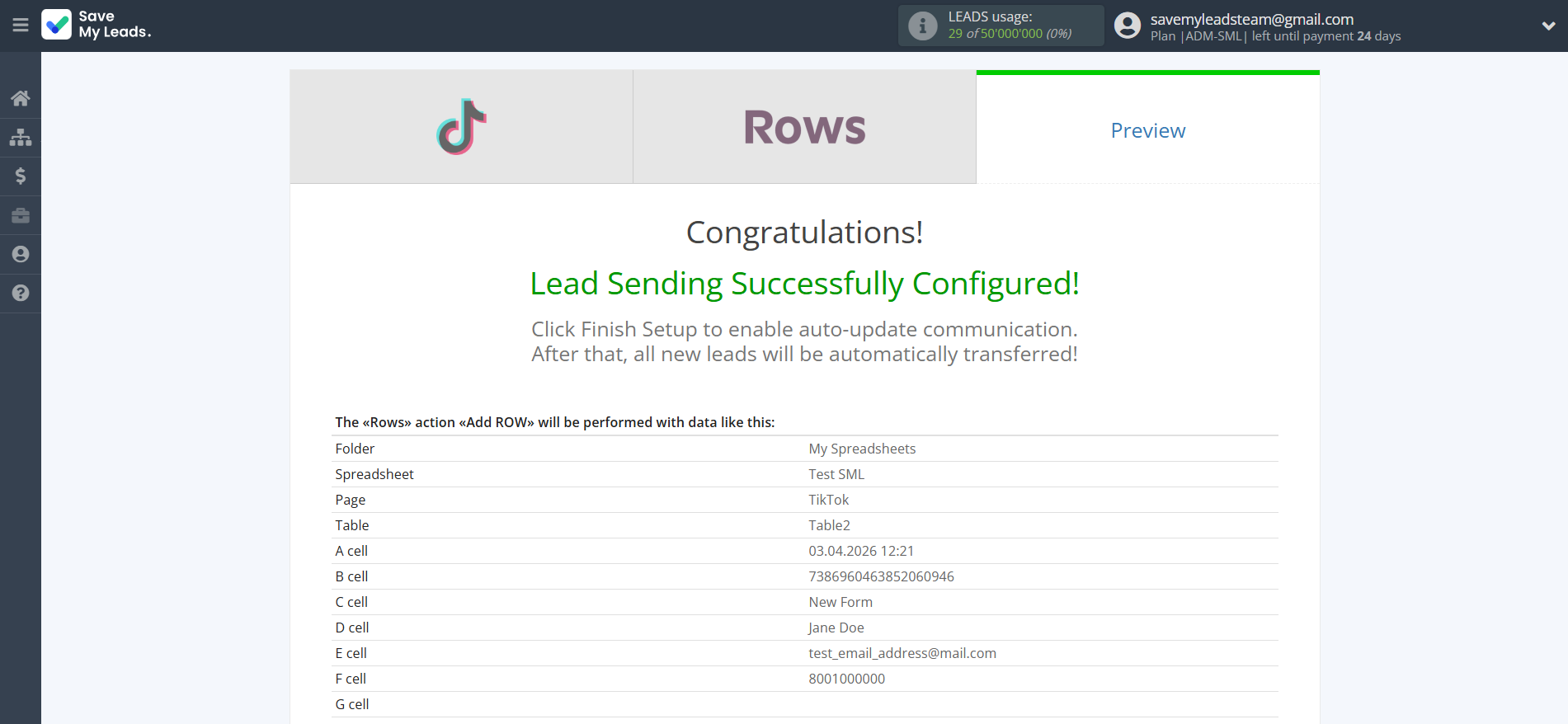
Now you can see Test data.
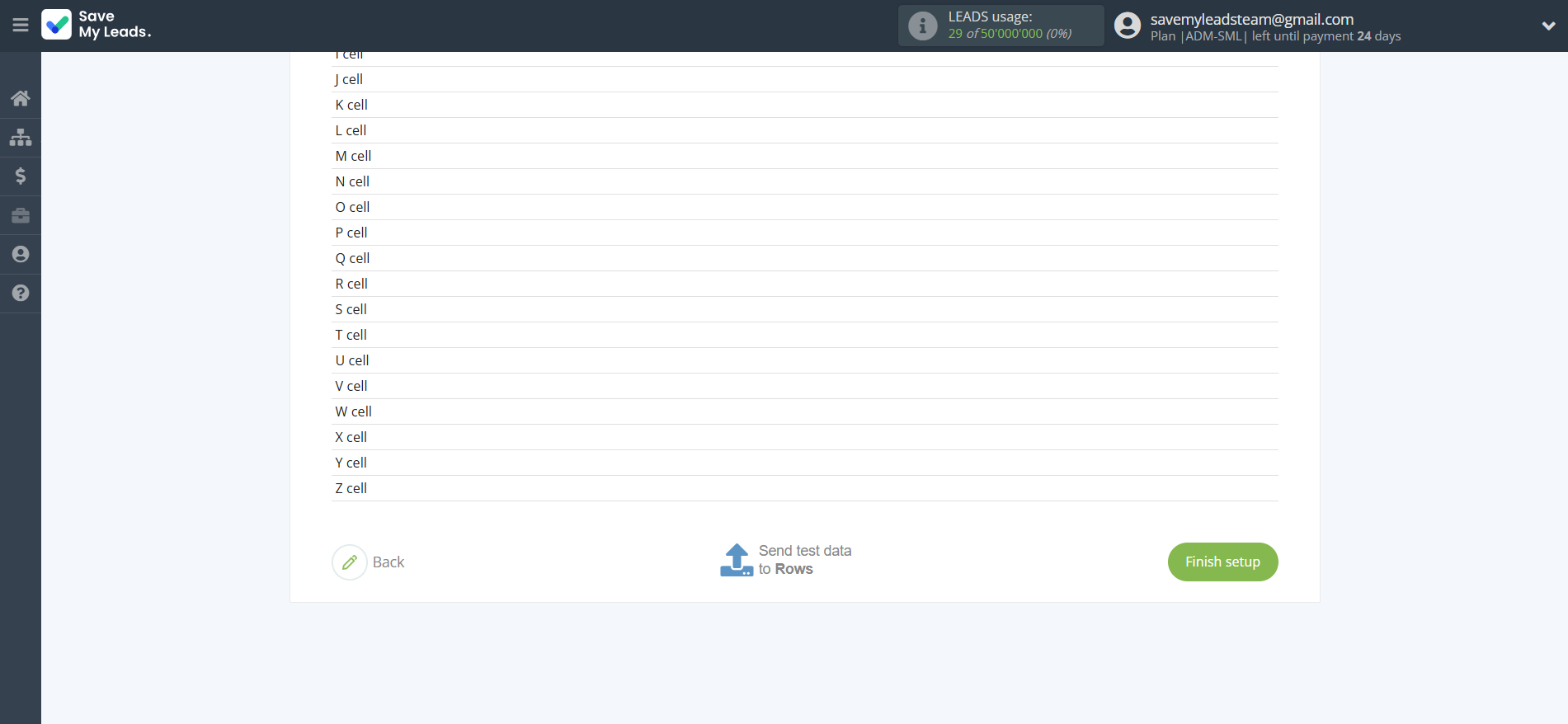
Click "Send test data to Rows" and test the table and sheet in Google Sheets.
If something does not suit you, click "Back" and go back one step.
In order for data from TikTok to be transferred multi-venously to Rows, click "Finish setup".
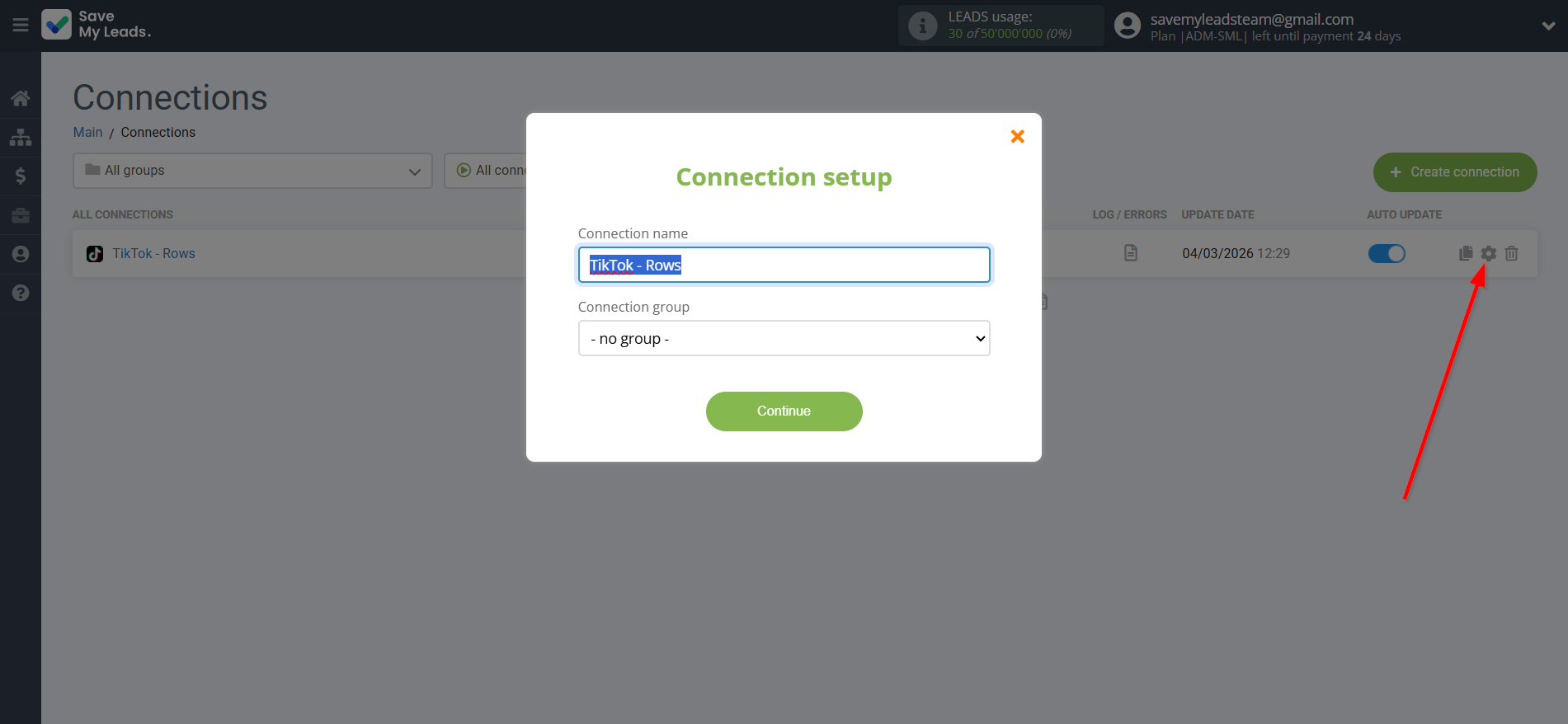
On the main screen, click on the gear icon to select name of the connection and select a group for it, if necessary.
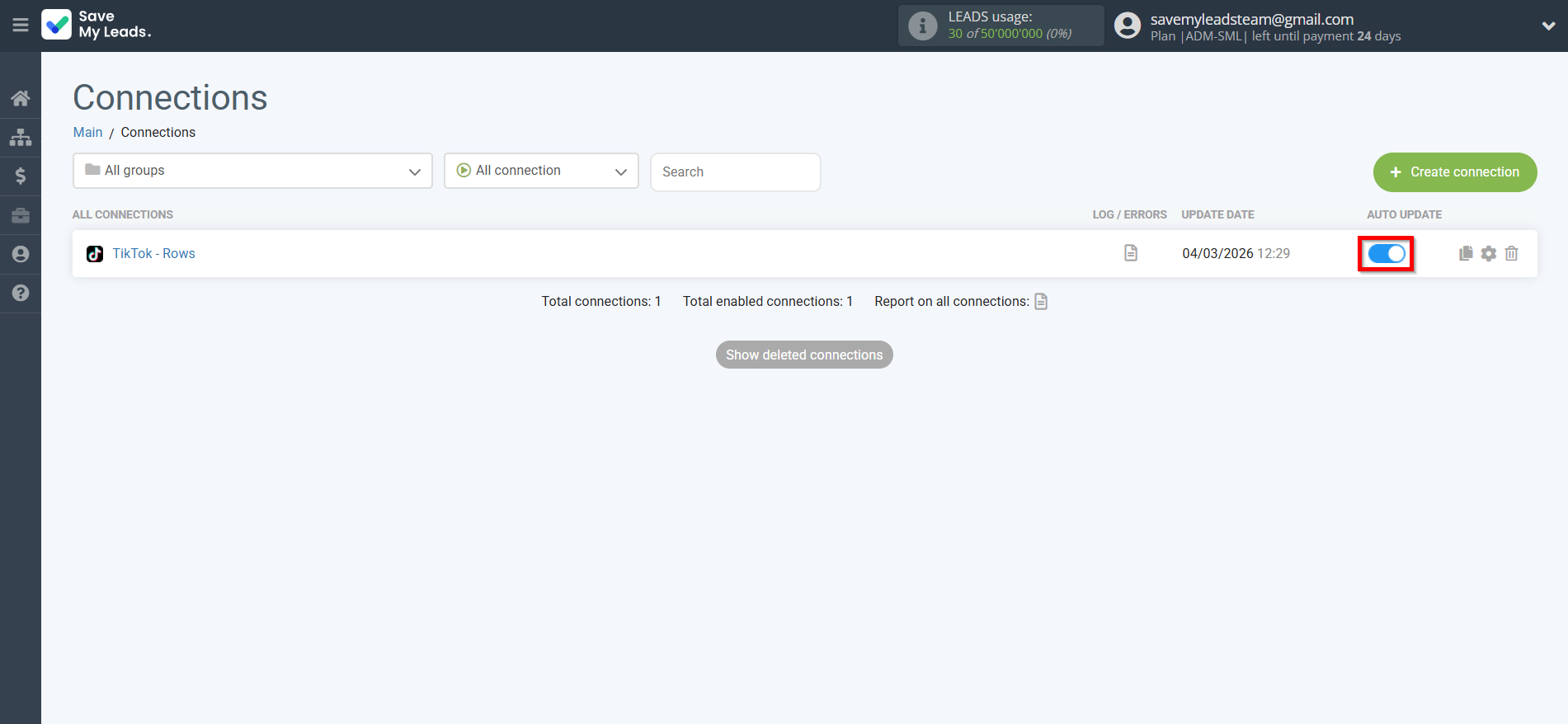
When the slider is in the position as shown in the picture - auto-update works. If you want to disable communication, click this slider.
This completes the integration setup between TikTok and Rows Add Row! See how easy it is!?
Now you don't have to worry, SaveMyLeads will do everything on its own!