TikTok advertising campaigns can generate a lot of leads for a business, but without the efficient and timely processing of incoming requests, this potential can easily be lost. TikTok and GetResponse integration allows you to automate the transfer of lead data to the email marketing system, where the next steps of interaction are triggered. This reduces the number of tasks for the manager, shortens the time to the first contact with the lead, and minimizes customer losses. In this article, we will tell you how to easily and quickly set up this integration to start receiving its benefits right now.
How TikTok and GetResponse Integration Helps with Comprehensive Business Automation
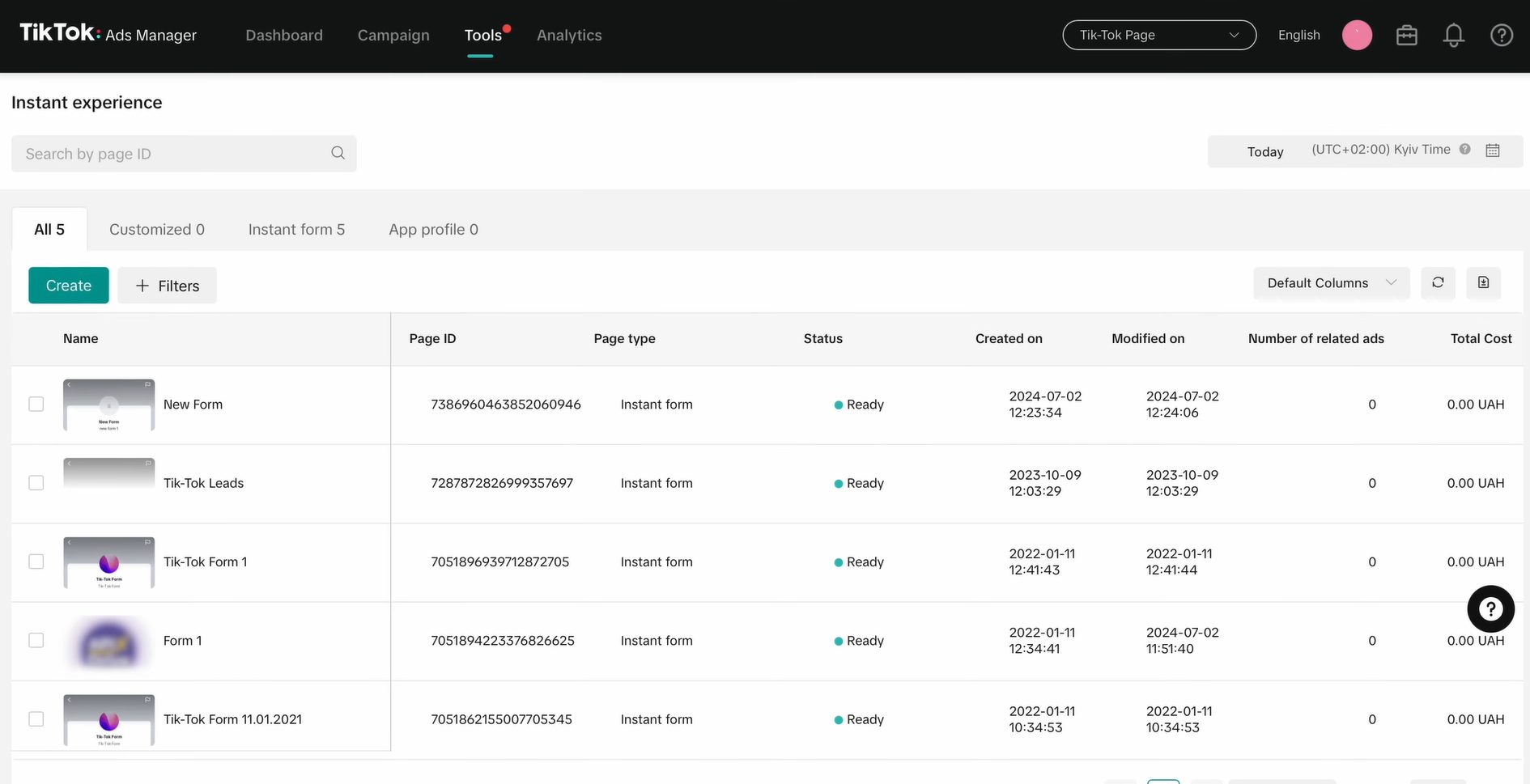
GetResponse and TikTok integration fully automates the transfer of lead data. When potential customers submit their applications (orders or inquiries) through the TikTok Instant form, the data is automatically transferred to GetResponse.
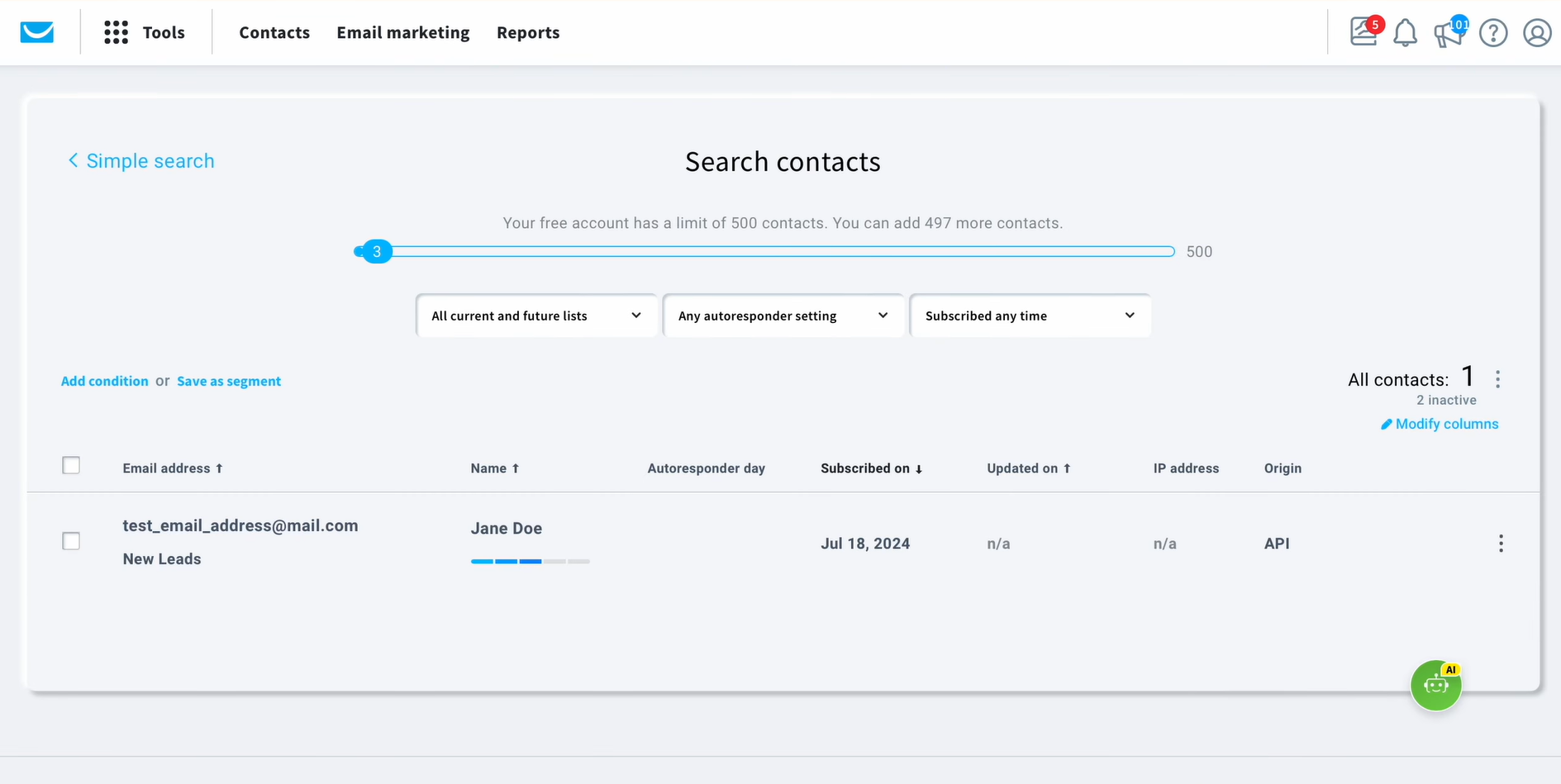
After that, with the appropriate settings, the lead can be sent welcome emails, trigger messages, or email series. And all this without manual copying, exporting, and importing CSV files and delays associated with manual work.
This automation is particularly valuable for businesses where the speed of data processing and contacting the lead directly affects the conversion rate and sales success rate. For example, in the e-commerce sector, automated lead transfer makes it possible to promptly send bonuses, promotional codes, and personal offers. For service companies (beauty services, medical care, consulting), it allows you to confirm client requests or submissions as quickly as possible, thus providing them with a positive first impression even before a manager makes contact.
GetResponse integration with TikTok is a valuable component of overall business process automation. Many companies today use email marketing, CRM systems, analytics, project management platforms, and artificial intelligence. At the same time, often, the transfer of lead data from social networks to marketing platforms is still done manually. This gap slows down overall process automation and negatively affects sales funnel efficiency. Setting up automatic transfer of leads from TikTok to GetResponse eliminates this drawback — the process becomes fast, continuous, and reliable.
How to Connect TikTok to GetResponse
The easiest way to set up this integration is by using an online connector. You won't need highly specialized technical knowledge or IT specialists to do this. We recommend using the no-code SaveMyLeads connector. It's intuitive, convenient, and allows you to connect TikTok and GetResponse in just a few minutes.
First, you'll set TikTok as the data source and select the form from which the lead data will be transferred. The next step is to connect GetResponse as a data receiver. You will need to copy and paste the API key and match the fields from TikTok with the fields in GetResponse to correctly transfer data. After that, you can enable auto-update mode, and from that moment, the system will automatically transfer leads from TikTok to GetResponse.
As you can see, the process is straightforward. So let's configure this integration immediately. Below is a step-by-step guide for each stage with screenshots to help you do everything quickly and without errors.
Data Source Settings: TikTok
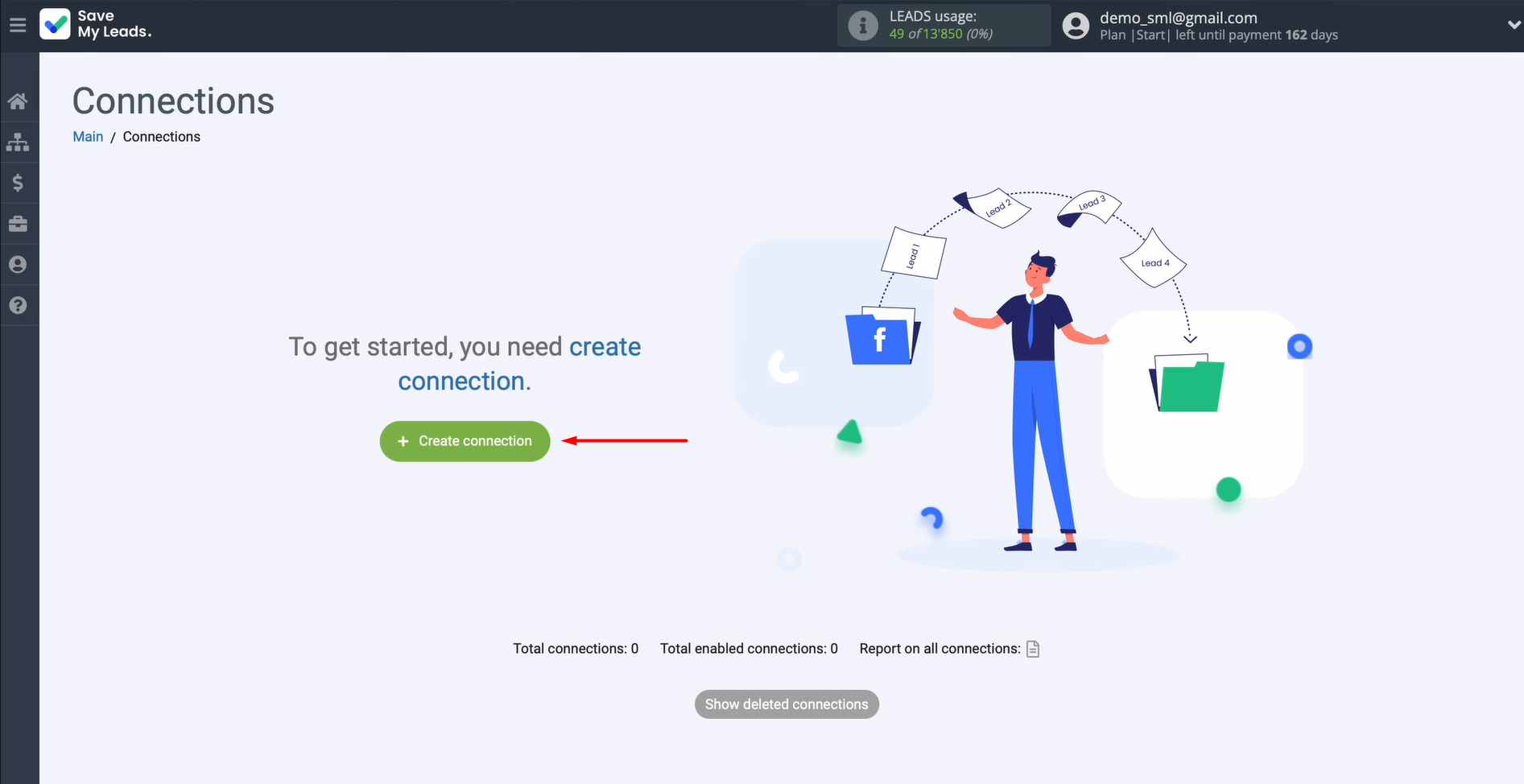
Log in to SaveMyLeads and create a new connection.
Select the data source system. In this case, you need TikTok.
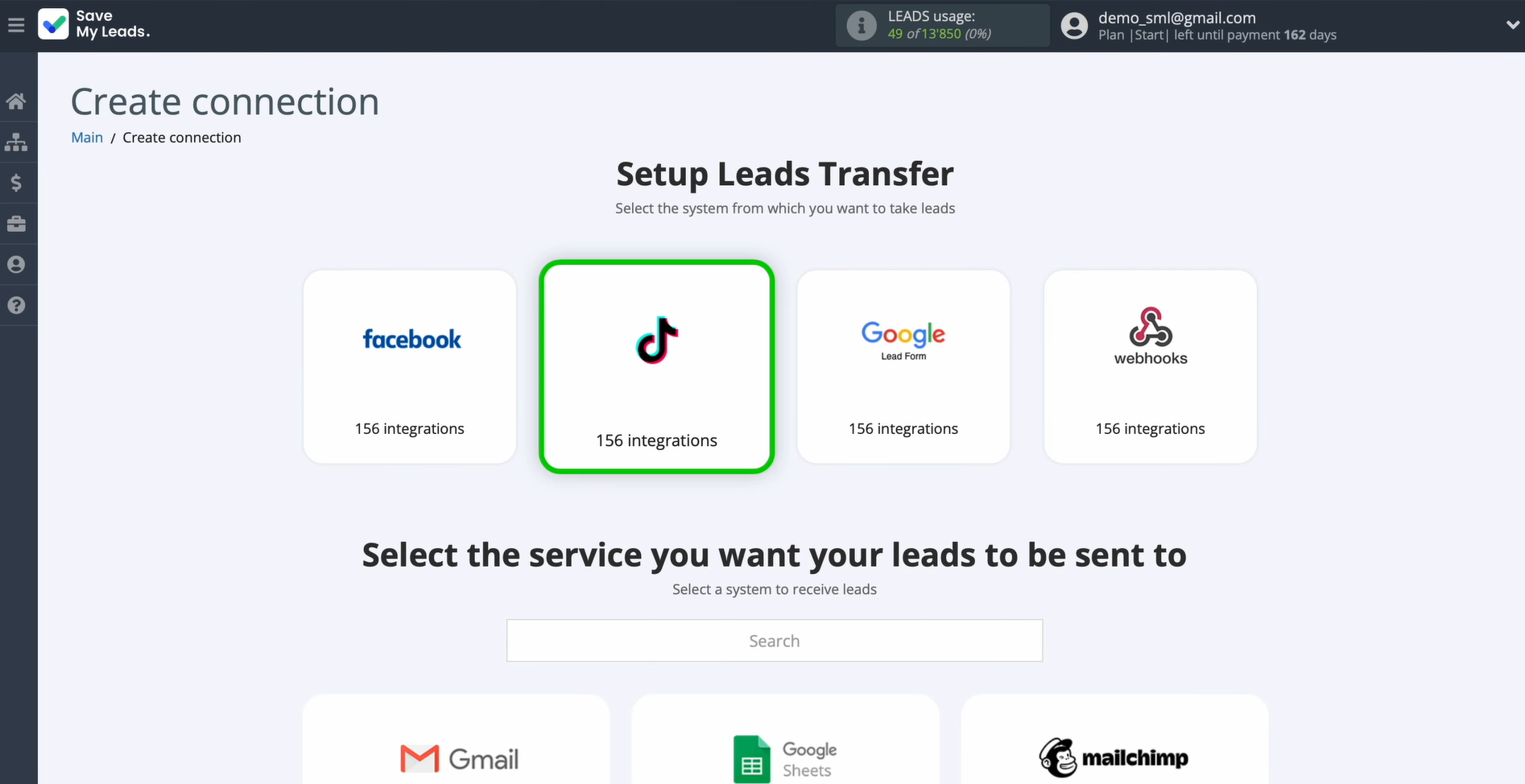
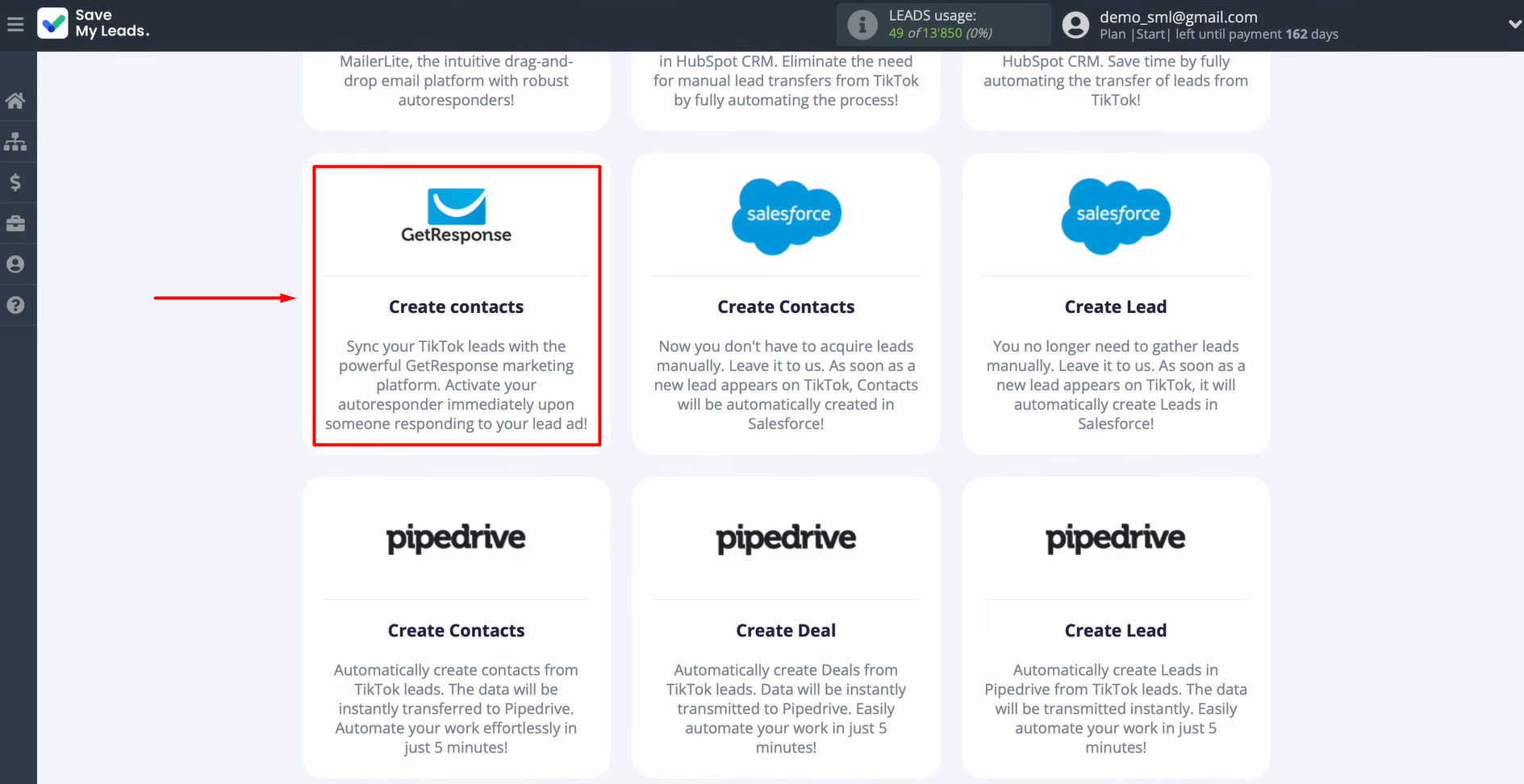
Choose the system where you want to send new leads from TikTok. You need GetResponse (Create contacts).
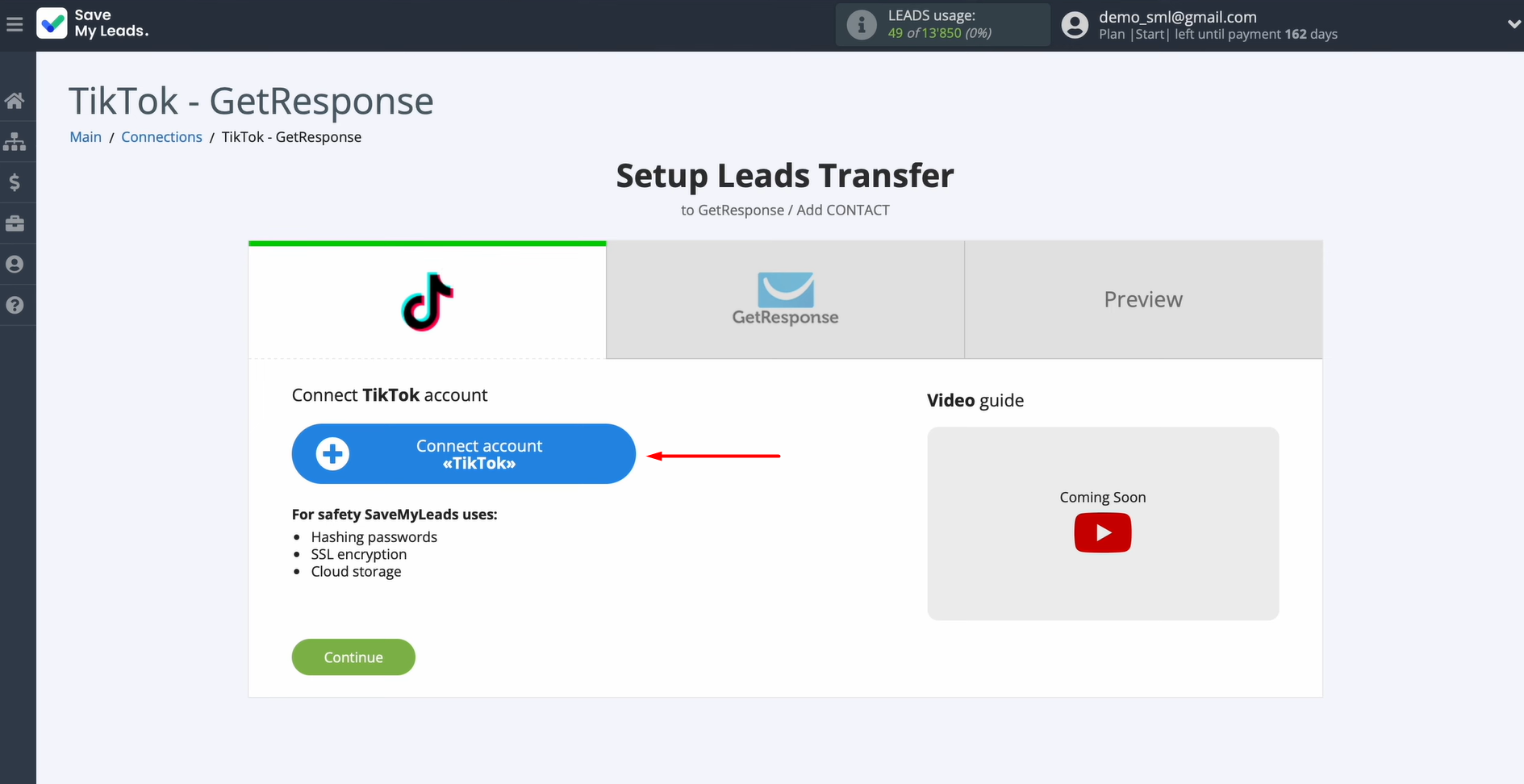
Now, connect your TikTok account to SaveMyLeads.
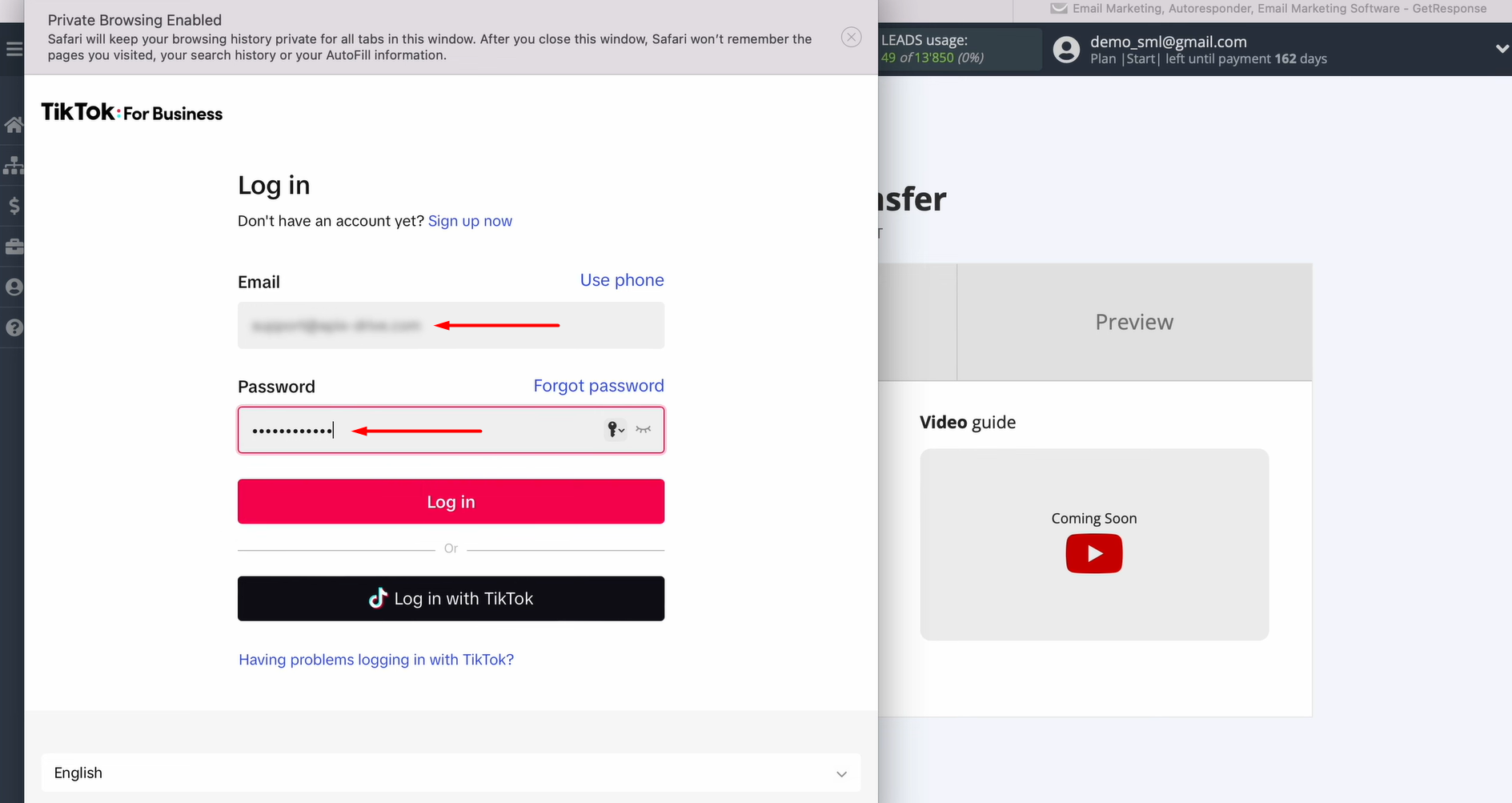
Enter your TikTok login credentials.
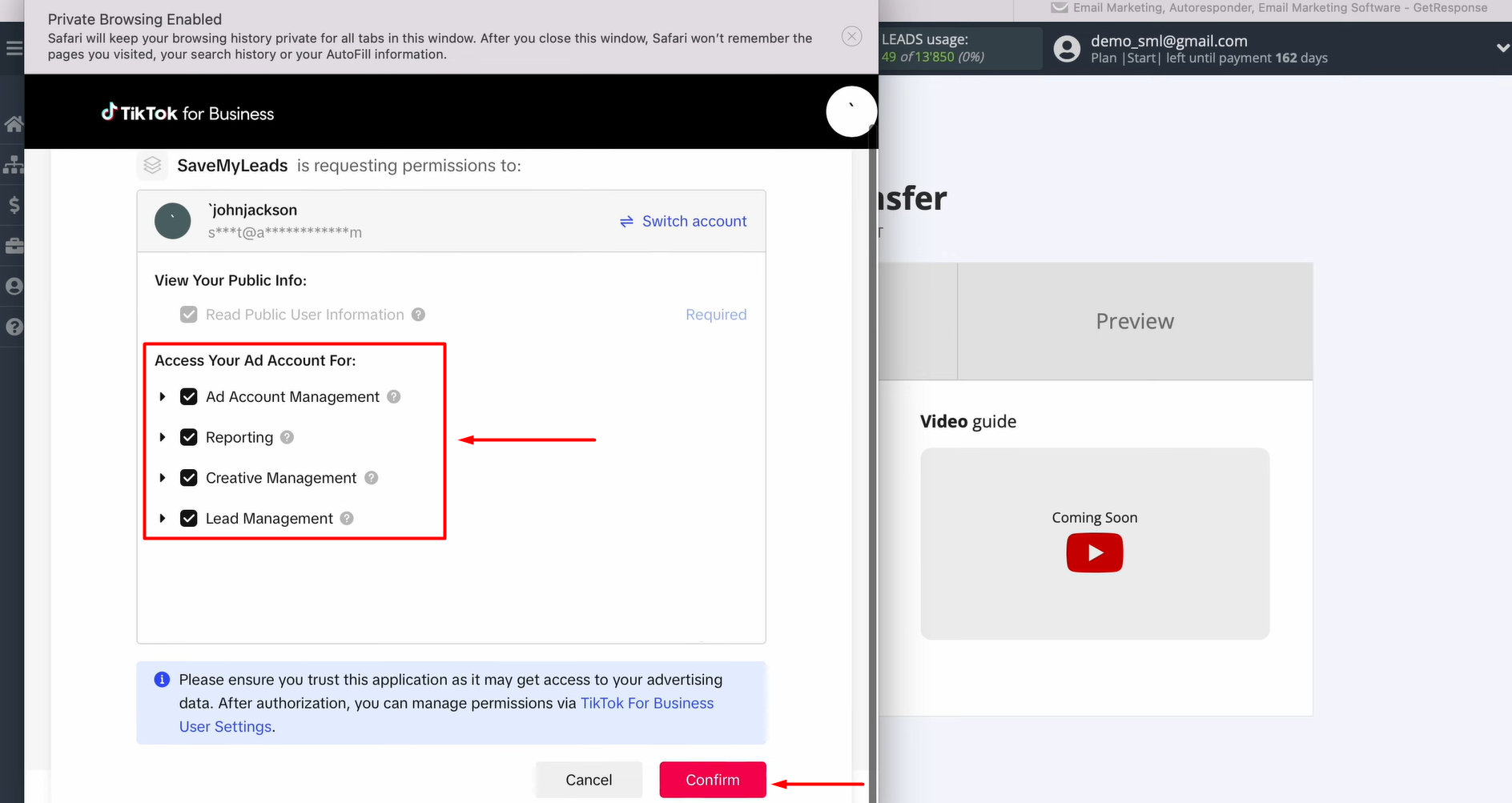
Grant SaveMyLeads access to your TikTok account by enabling all permission checkboxes.
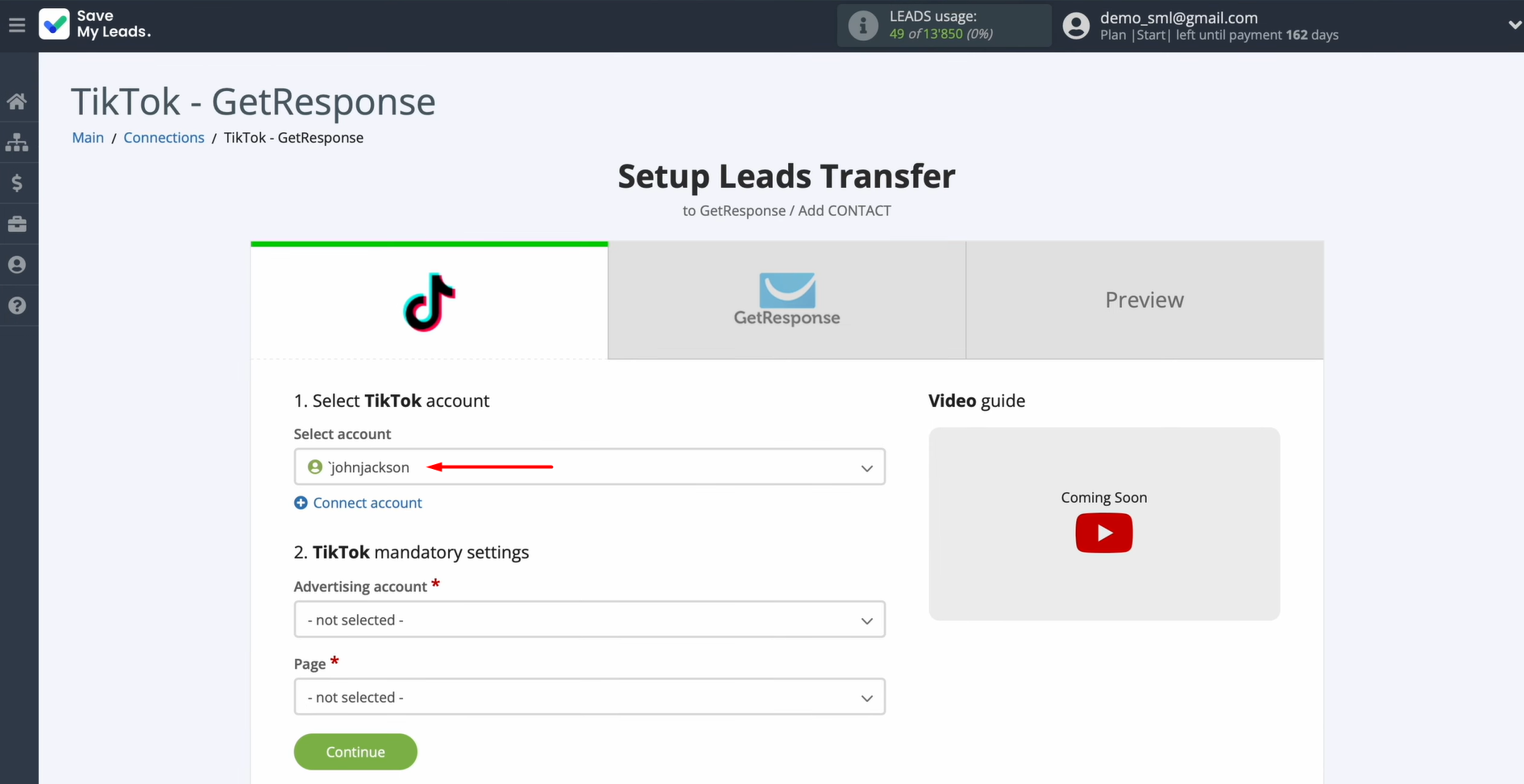
Once your account appears in the list, select it.
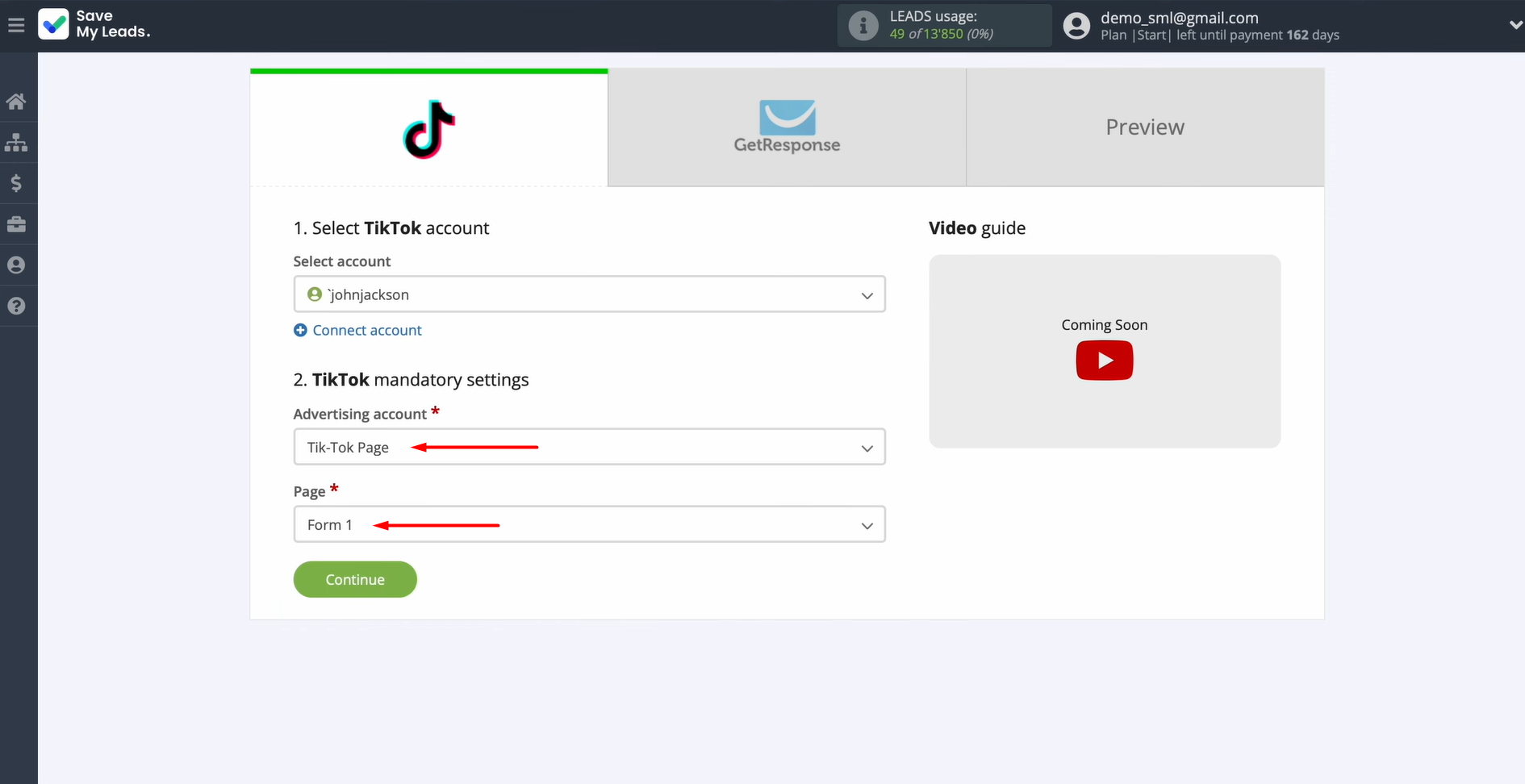
Select your TikTok ad account and the lead form you want to use. Once you're done, click Continue.
Data Destination Settings: GetResponse
Now, you need to connect your GetResponse account to SML.
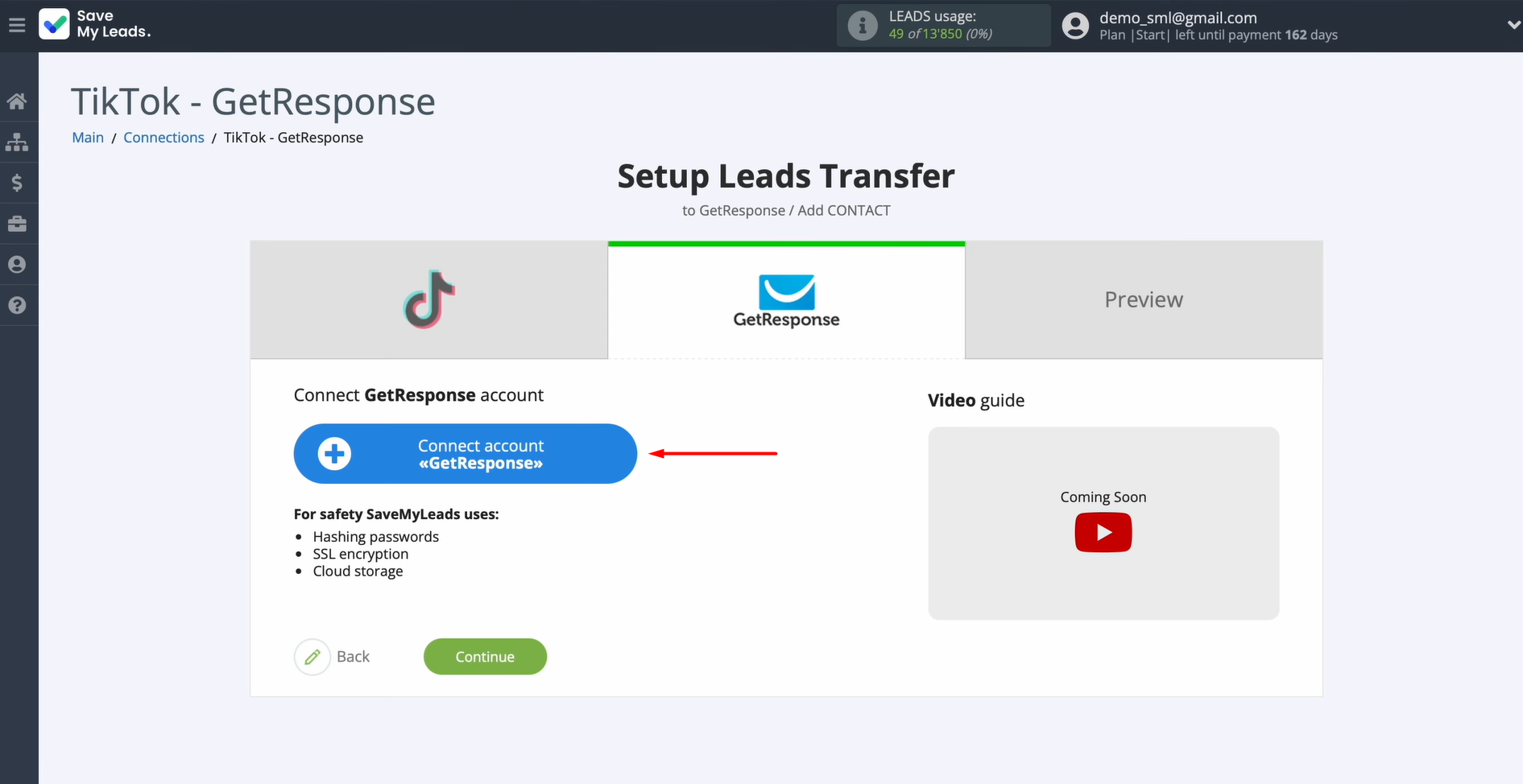
In this step, specify the API endpoint. To find out which address you need to use, you have to contact GetResponse support.
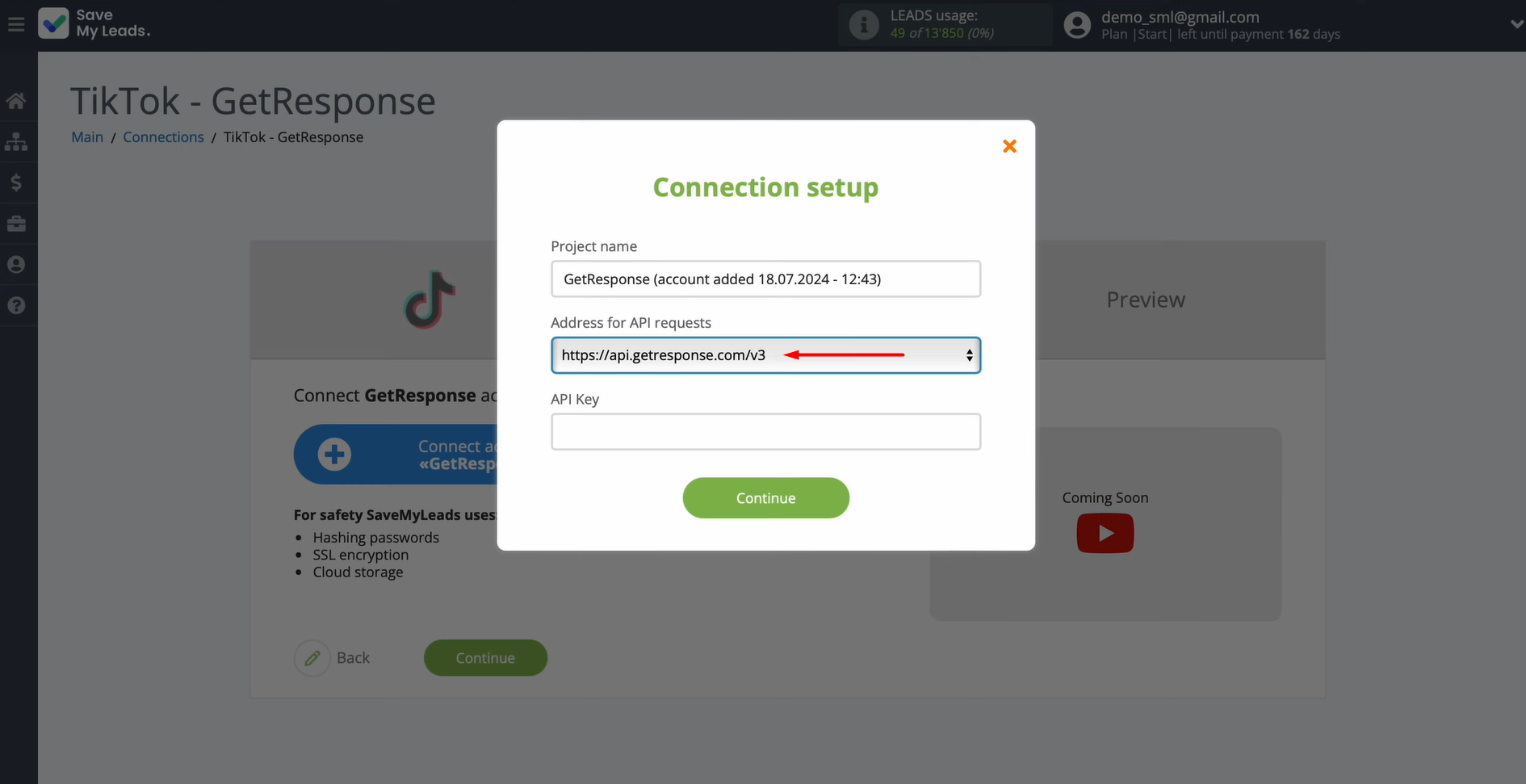
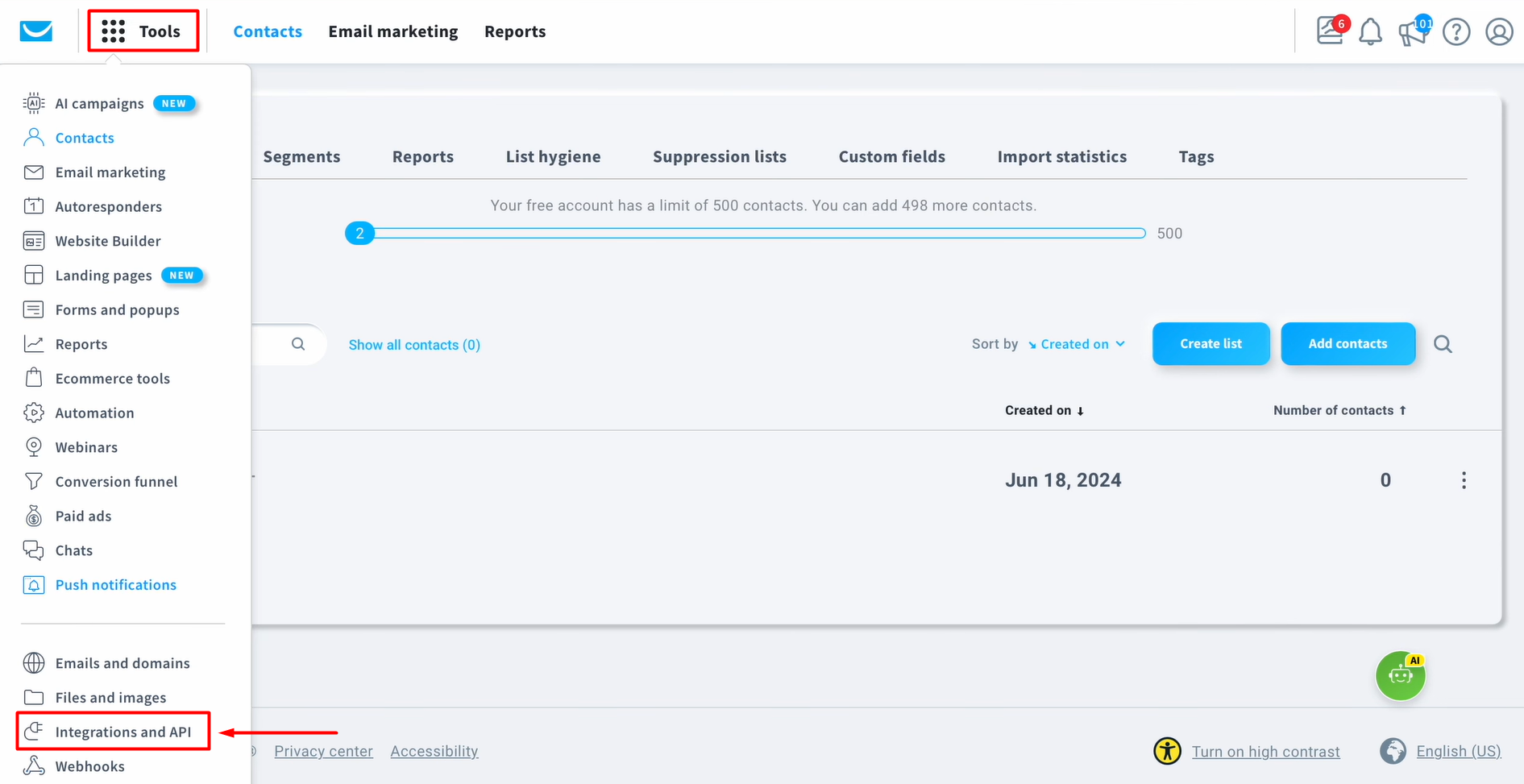
Next, you have to specify the API key. To get it, go to your GetResponse account. Then navigate to the Integrations and API section.
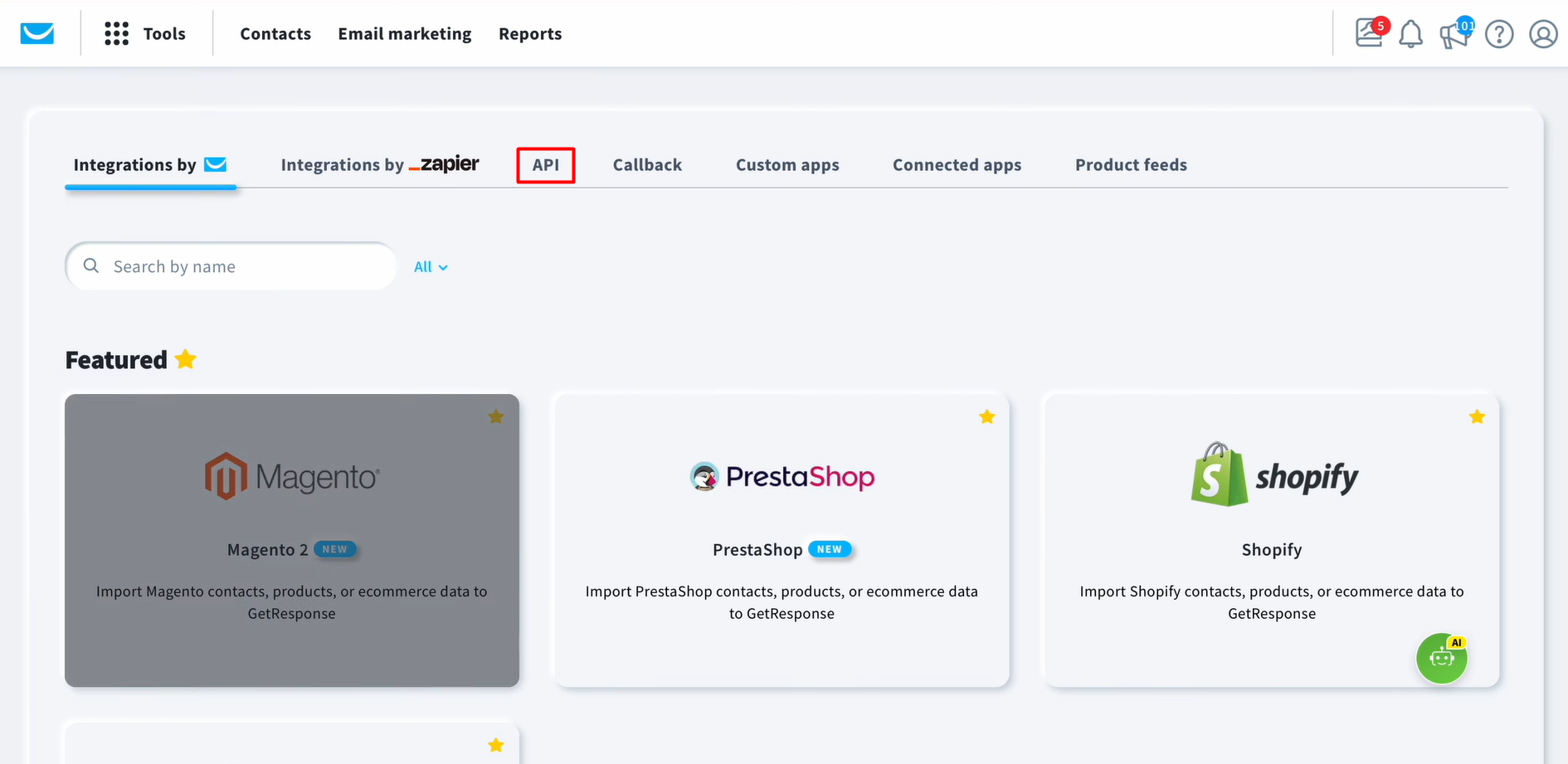
After that, go to the API tab.
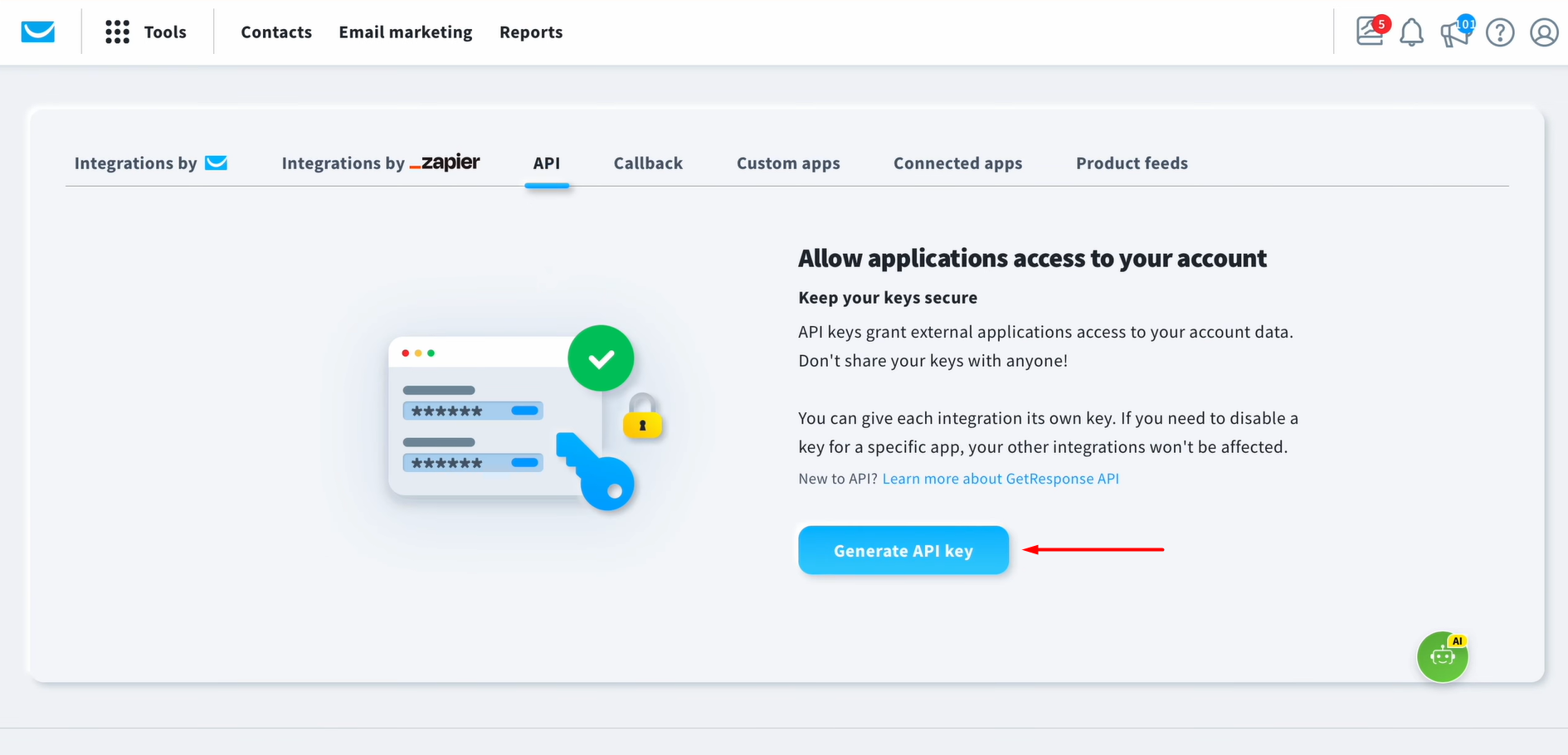
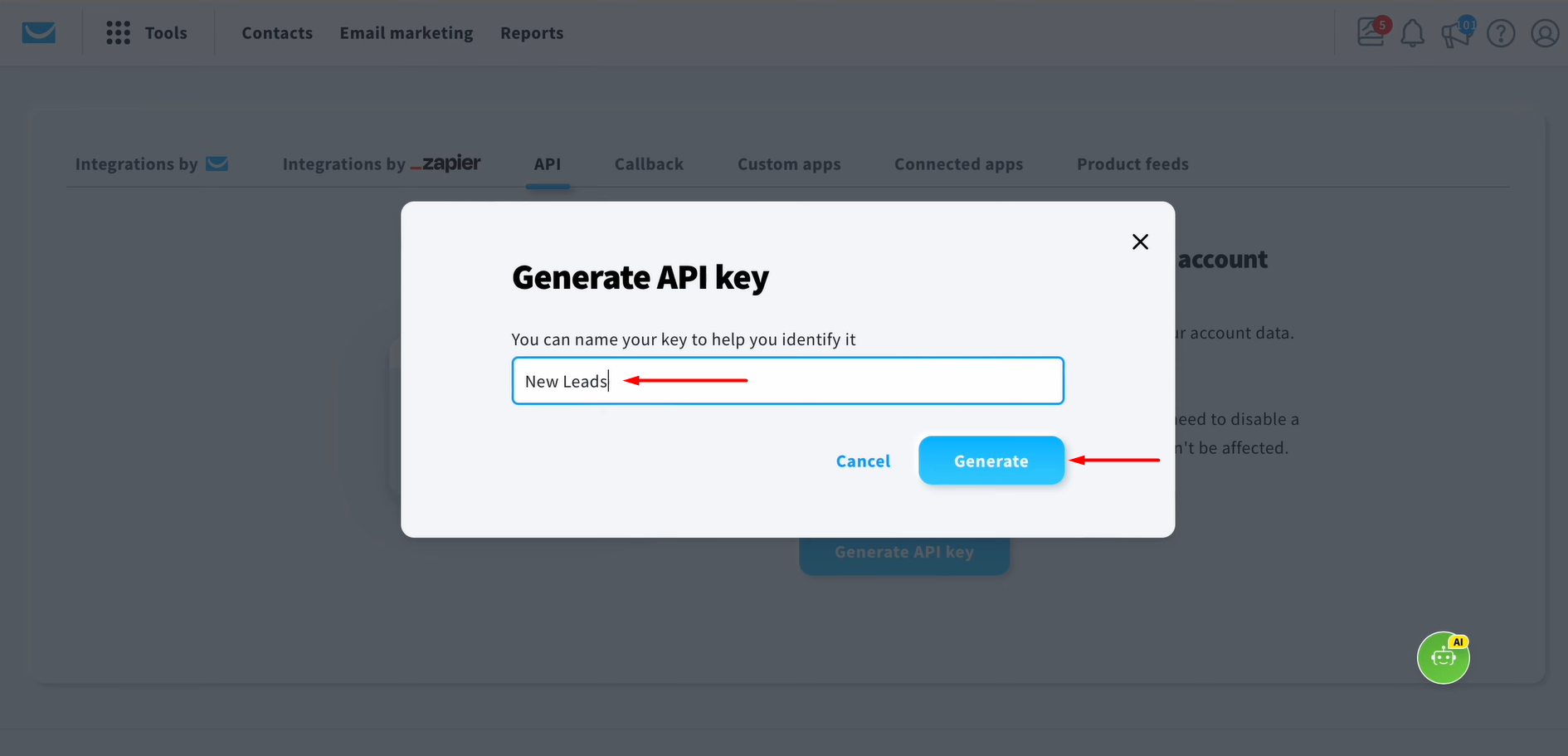
Click Generate API key.
Enter a name for the new key and click Generate.
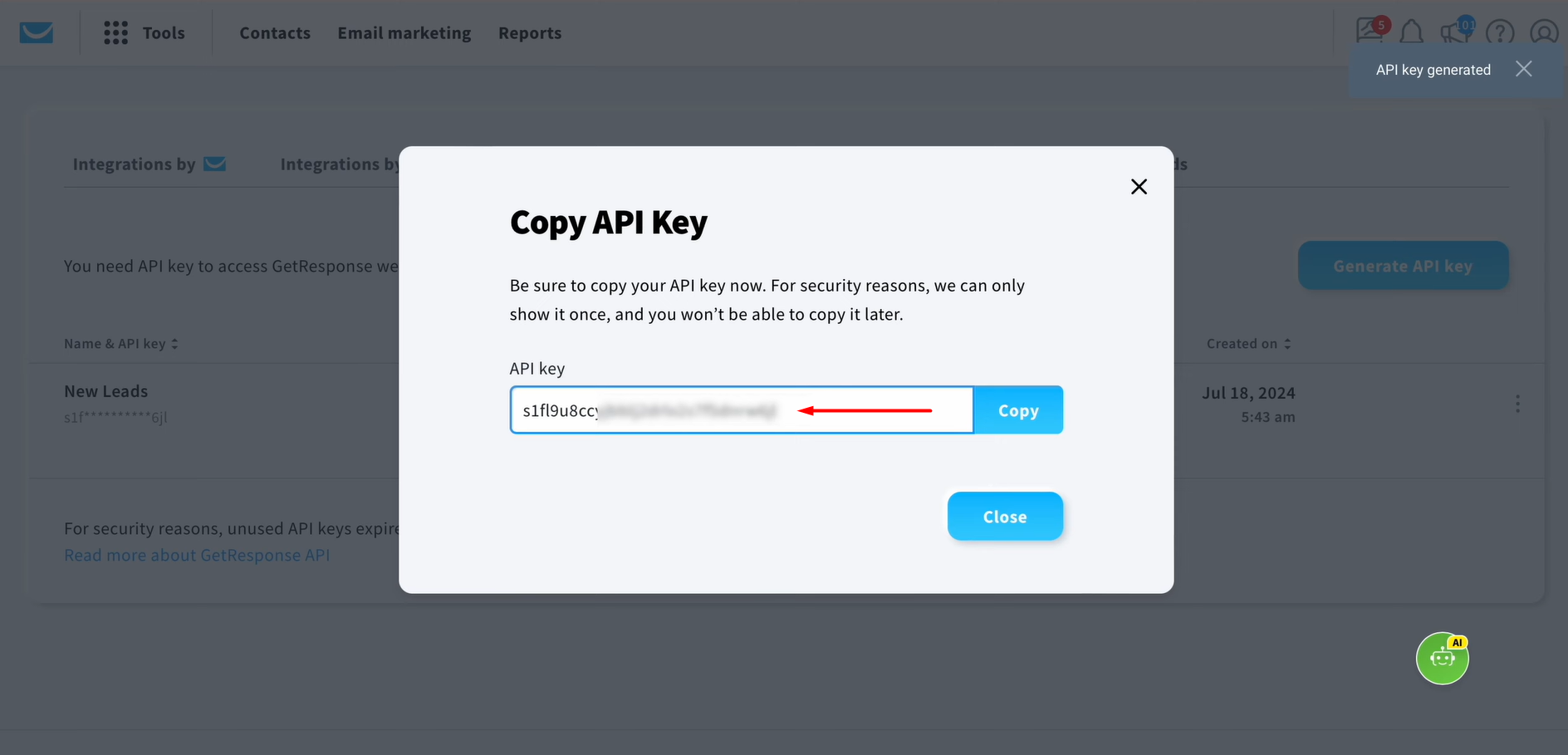
Copy the API key.
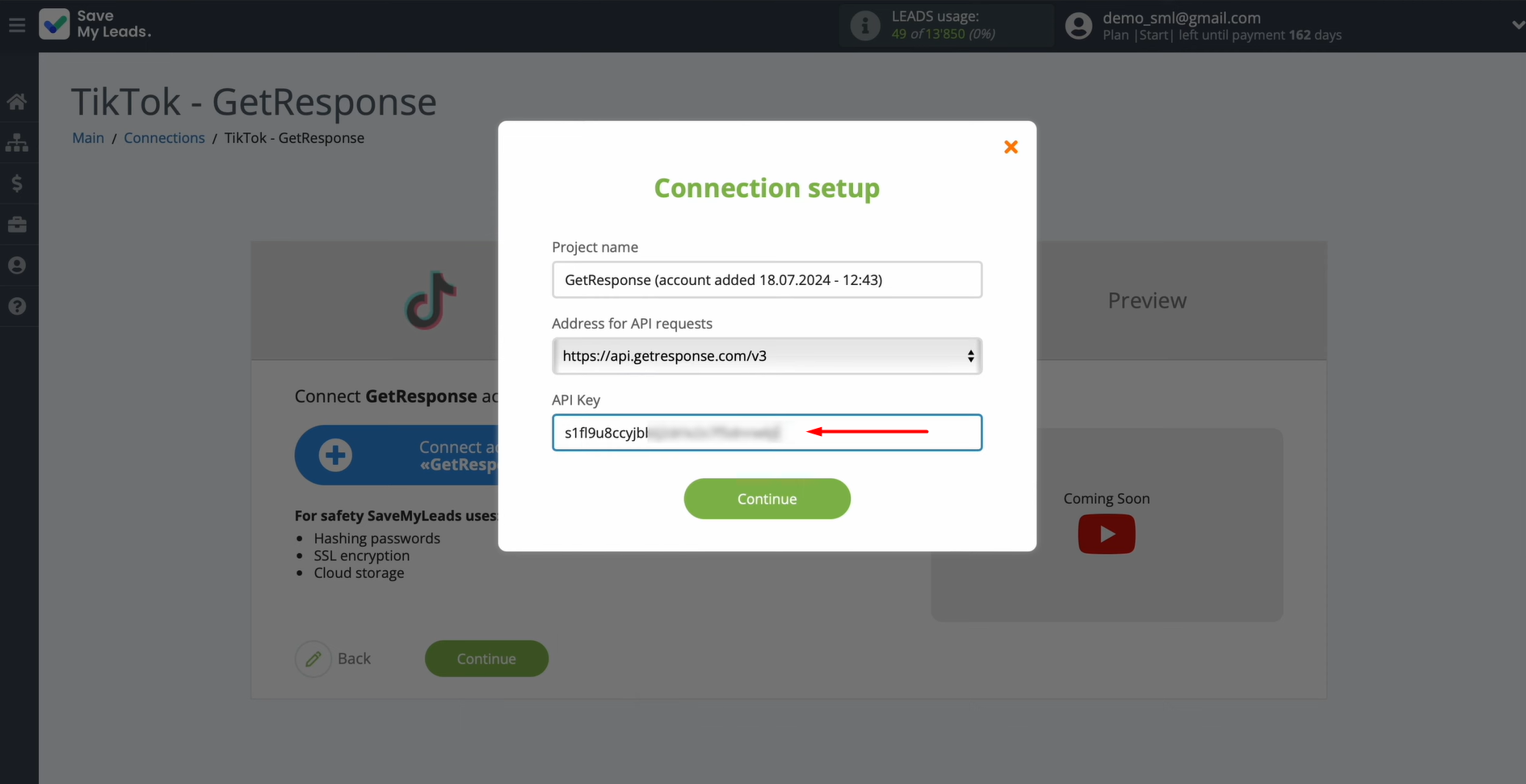
Paste the API key into the appropriate field in SaveMyLeads. Once all required fields are filled in, click Continue.
When your account appears in the list, select it.
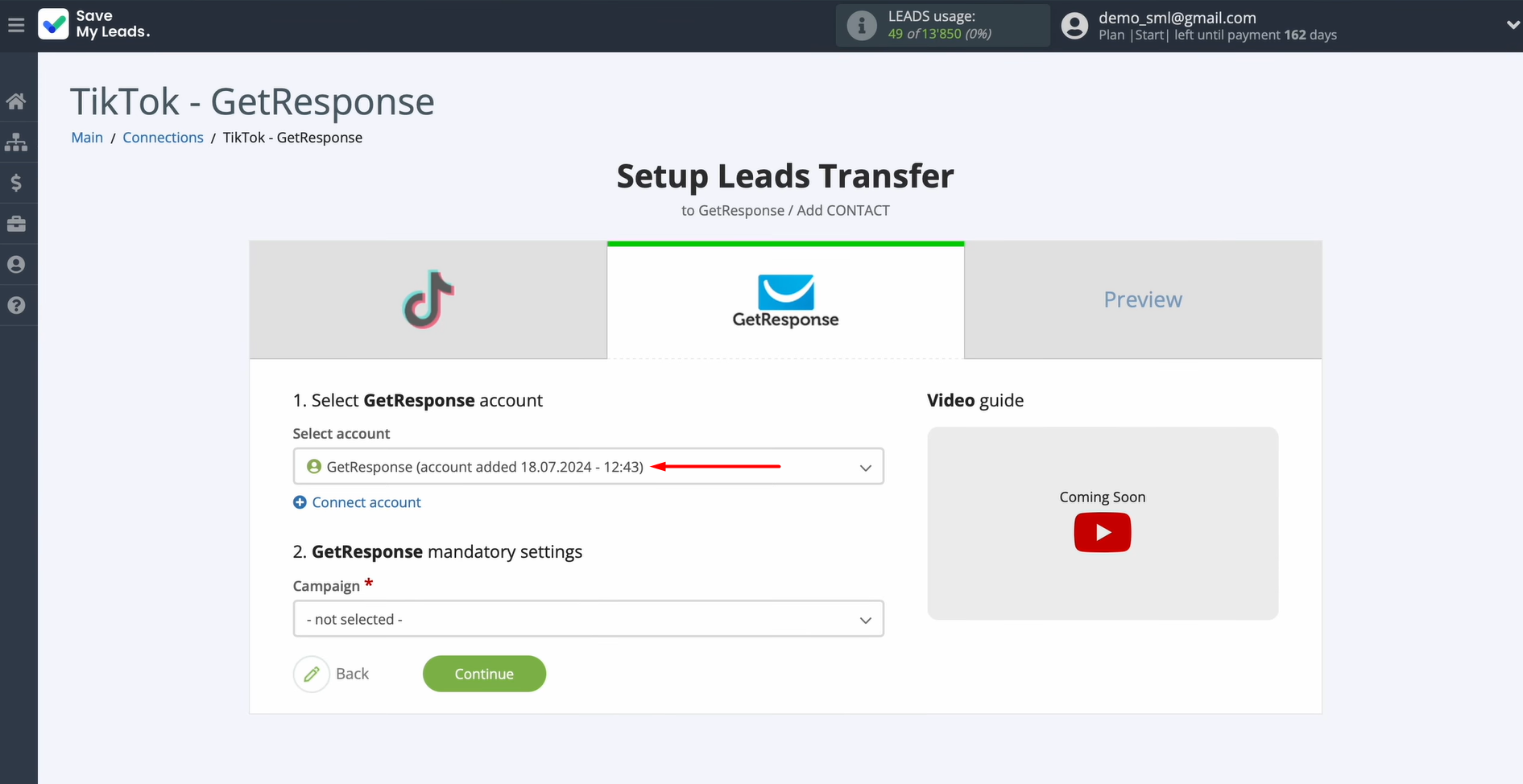
Choose the campaign.
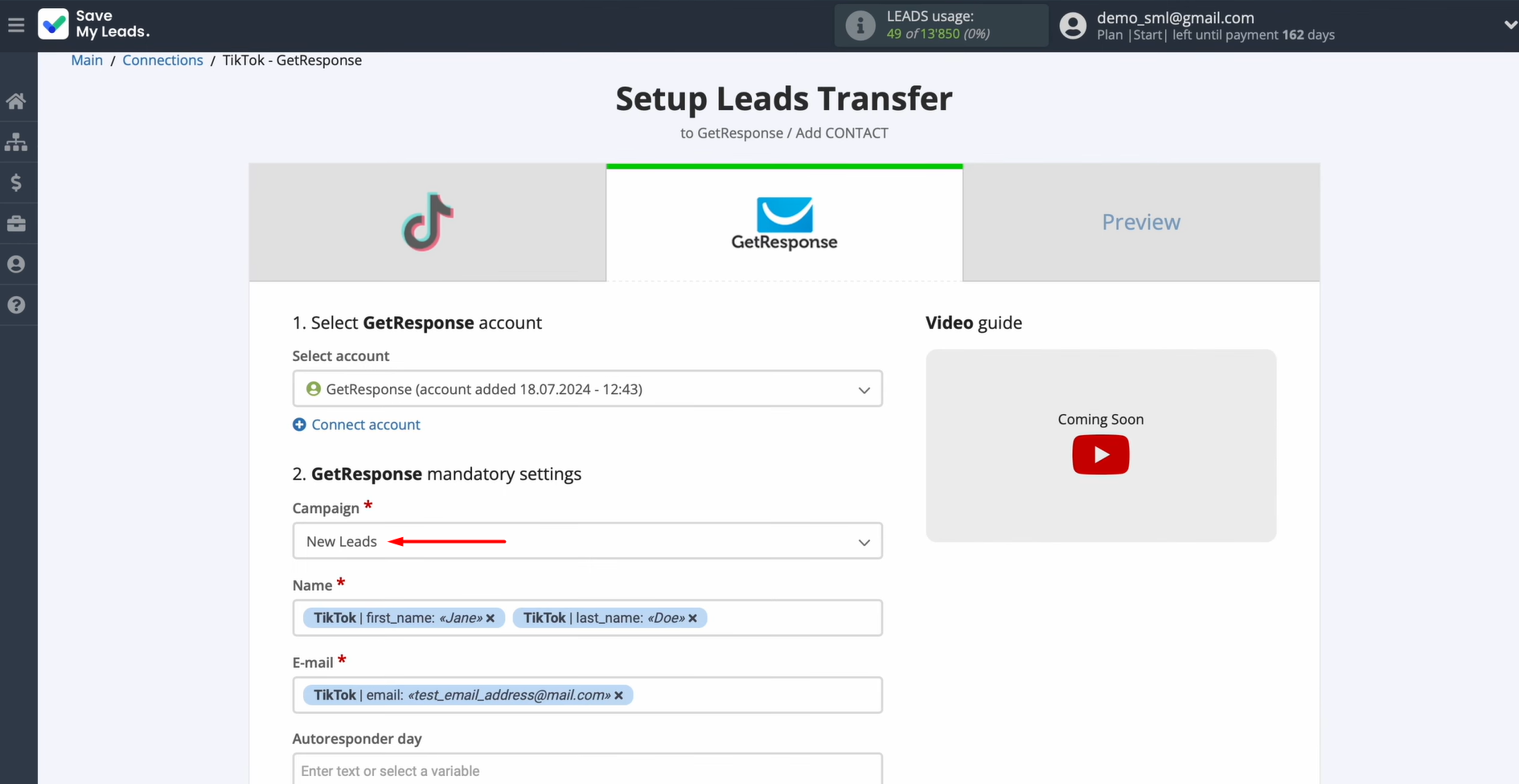
At this stage, you'll see the GetResponse fields available for creating new contacts. You can map variables from TikTok to these fields by clicking inside each field and choosing the appropriate variable from the dropdown menu.
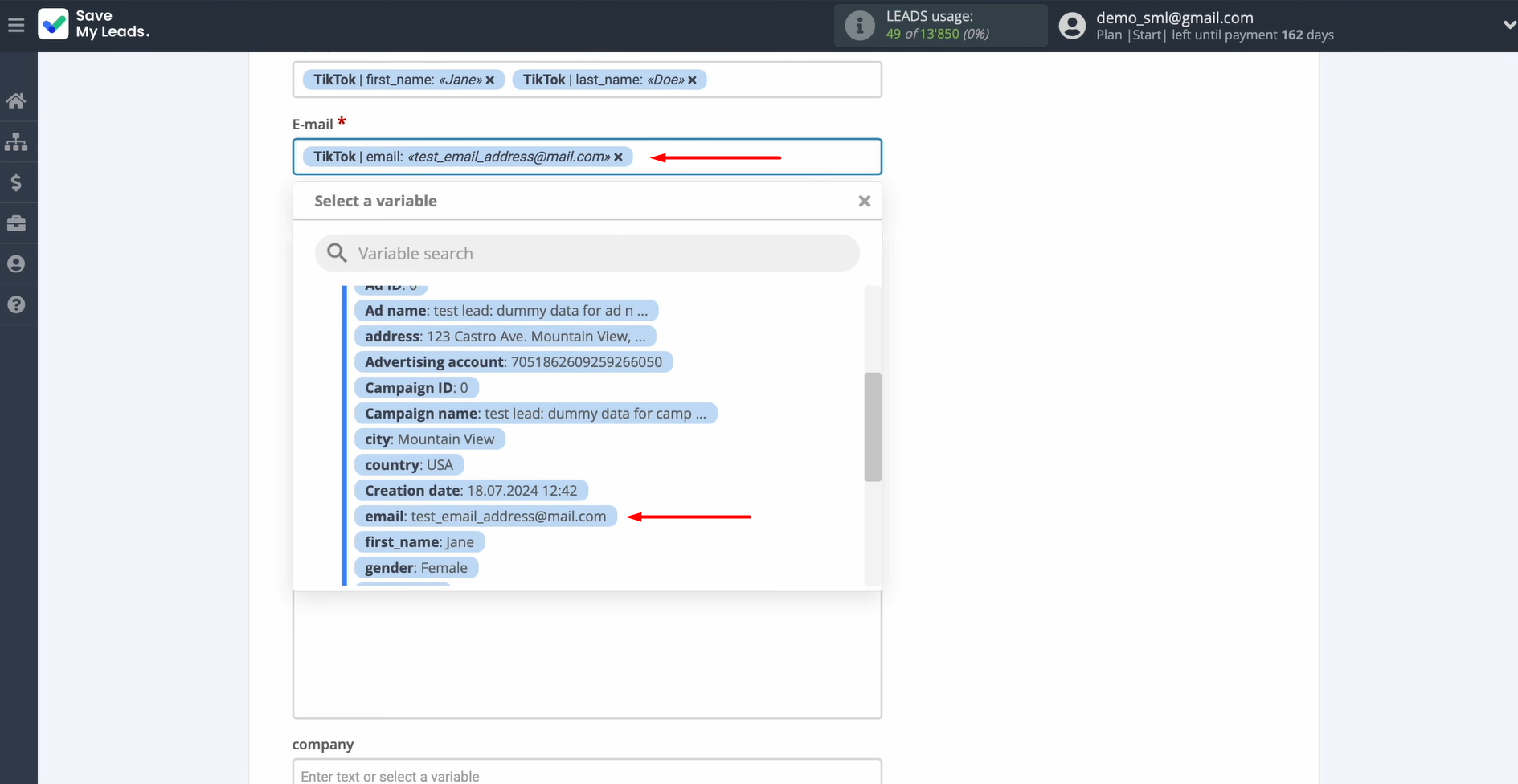
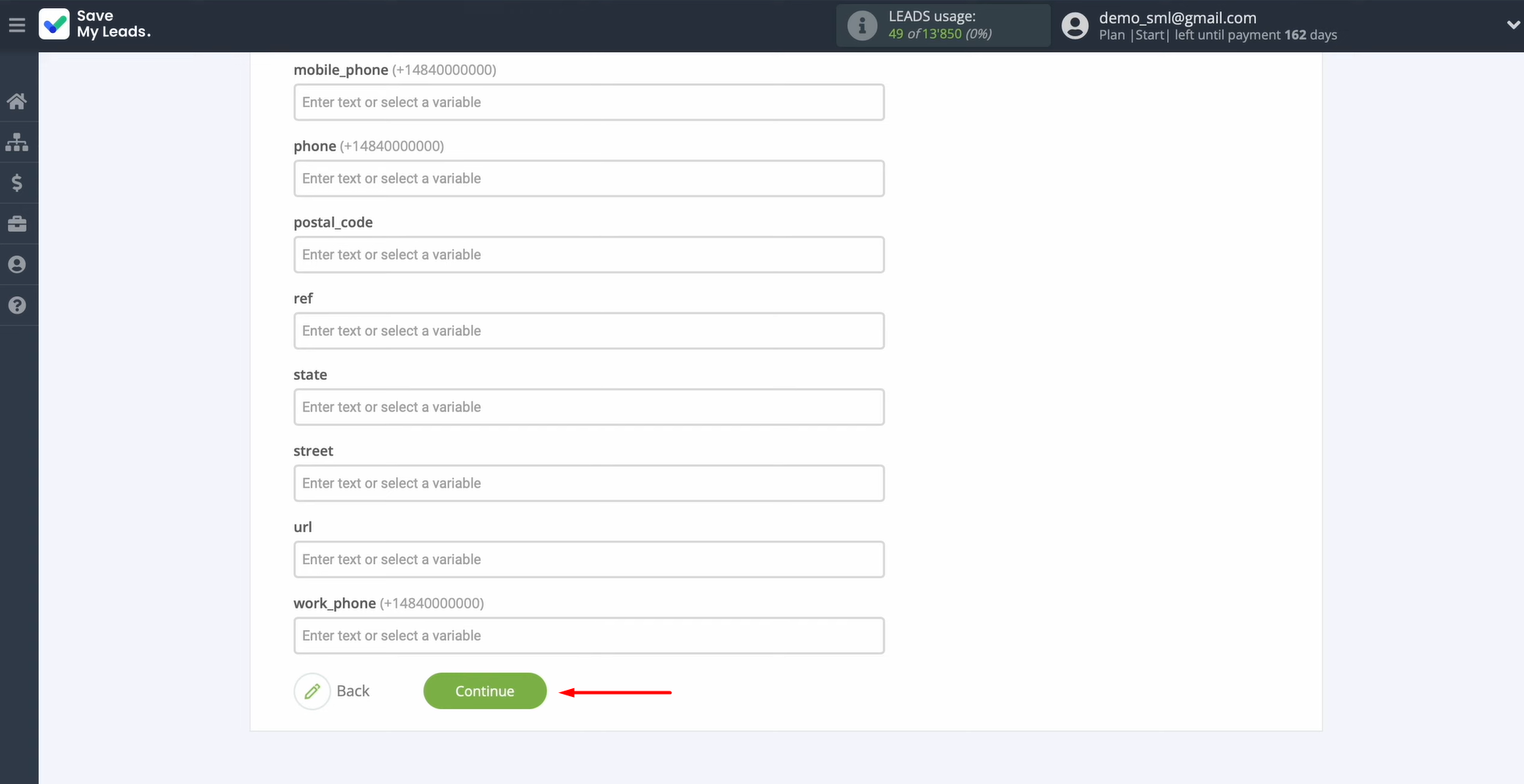
If you are satisfied with the pre-filled fields, you can leave them unchanged. Once you've assigned all the necessary variables, click the Continue button.
At this point, you'll see a preview of the data that will be transferred to GetResponse as new contacts whenever a new lead is submitted via TikTok.
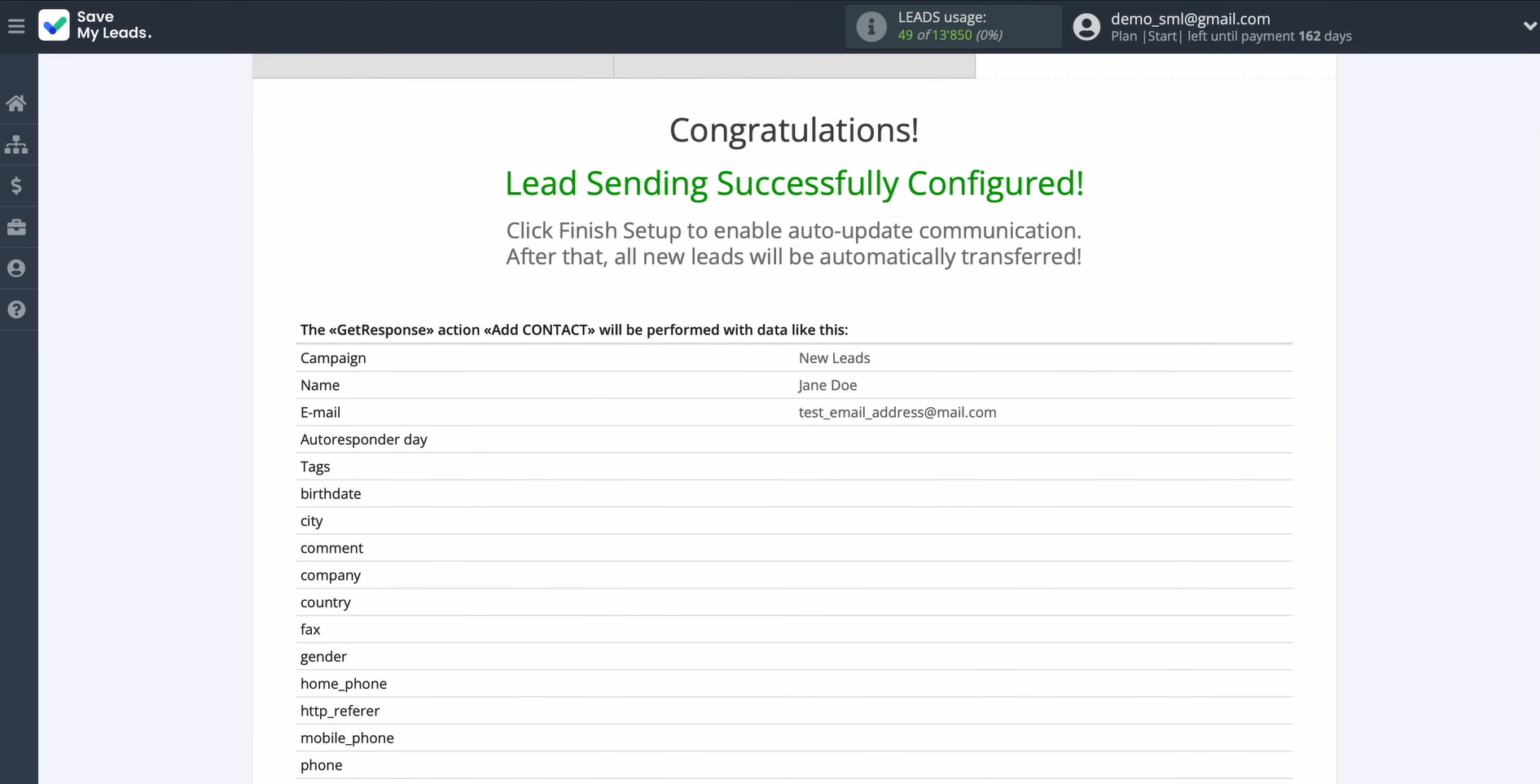
If you notice anything that needs adjustment, use the Back button to return to the previous step. To verify that everything is configured correctly, send test data to GetResponse.
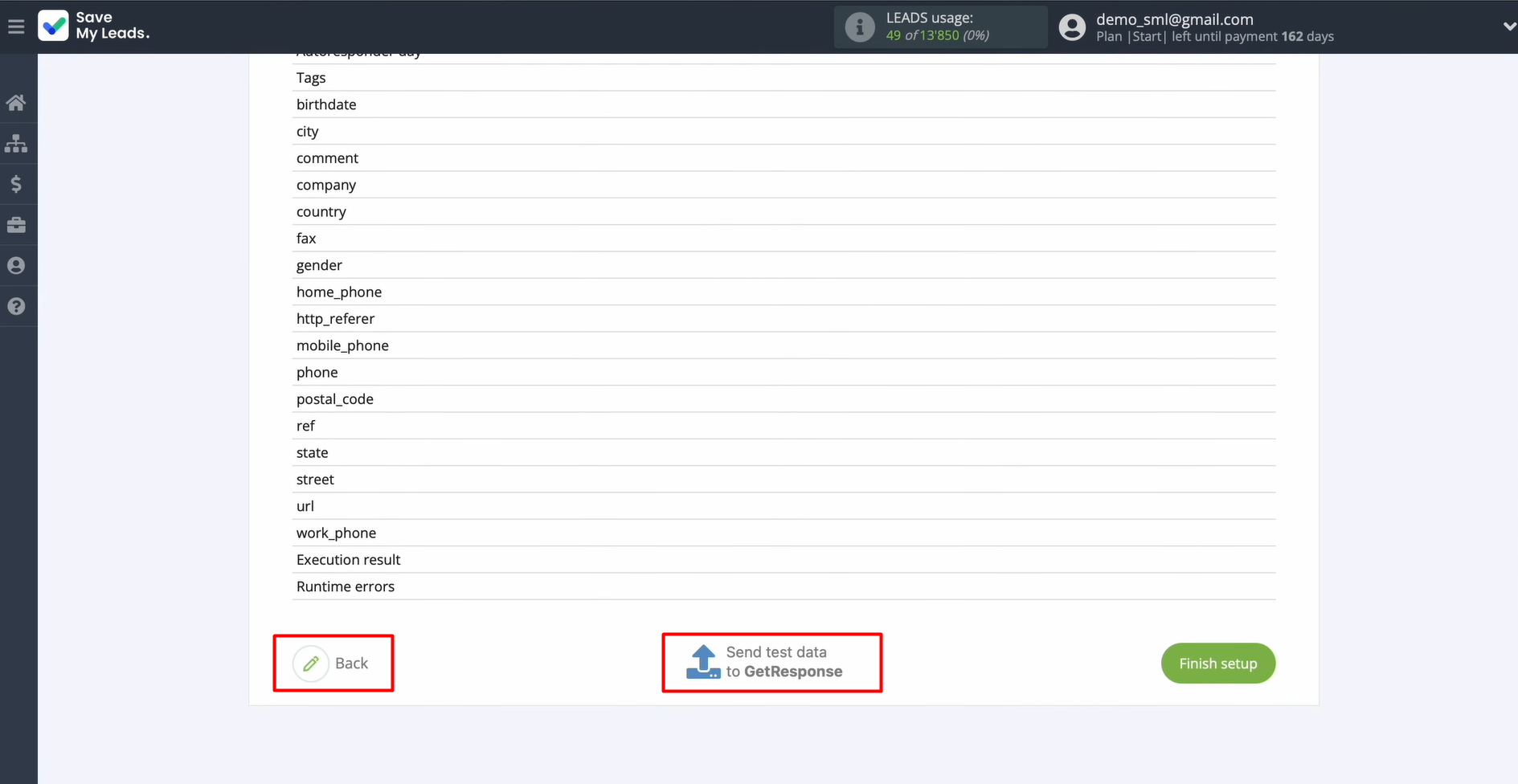
Once the test data has been sent successfully, open your GetResponse account and verify the results.
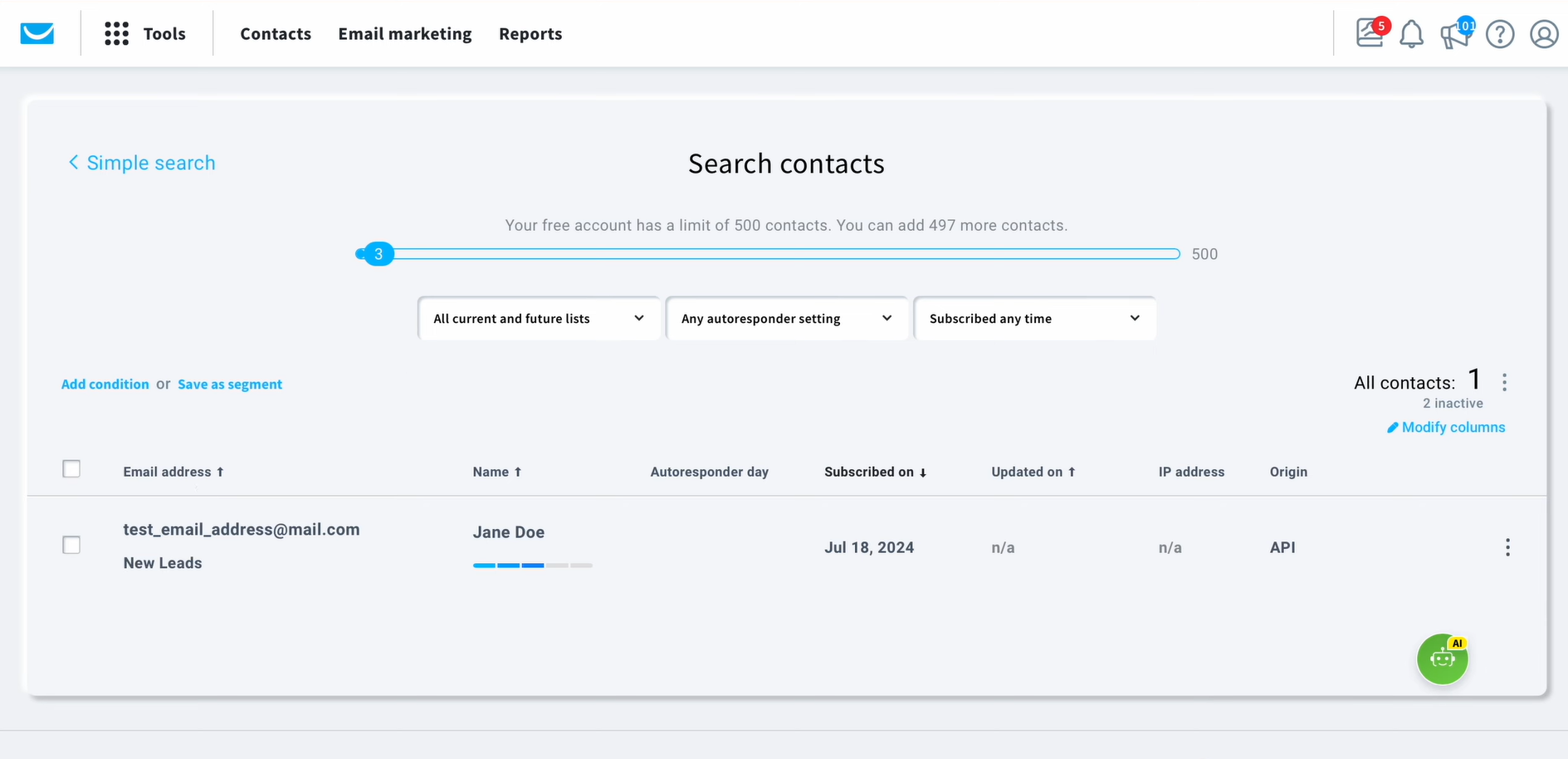
After verifying the results, go back to SaveMyLeads to continue with the setup process.
Auto-Update Mode
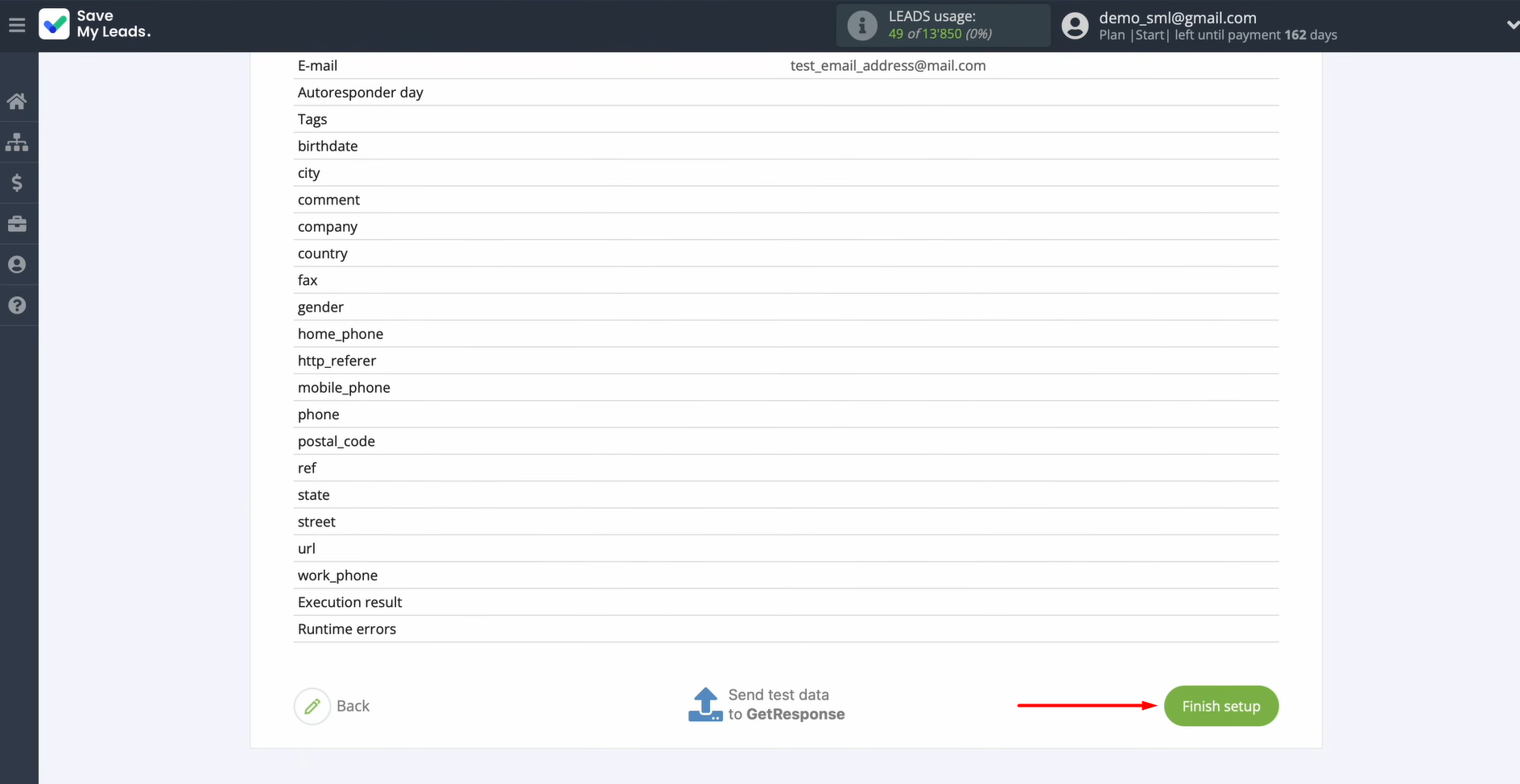
Click Finish setup to enable automatic updates for this connection. Once enabled, every new lead from TikTok will be automatically added to GetResponse as a new contact.
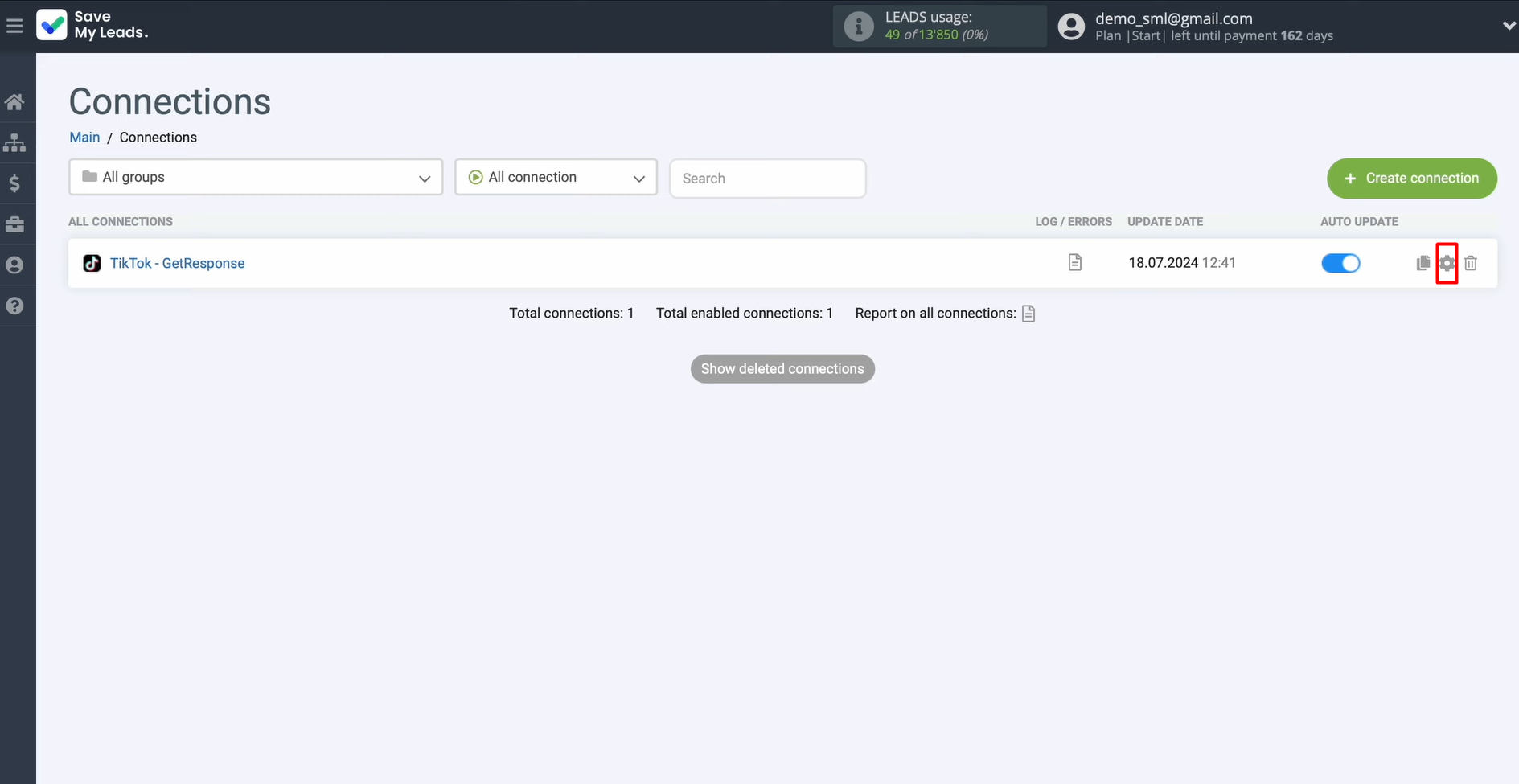
To rename the connection, click the gear icon to open settings.
In this menu, you can update the connection name and assign it to a group. When you’re done, click Continue.
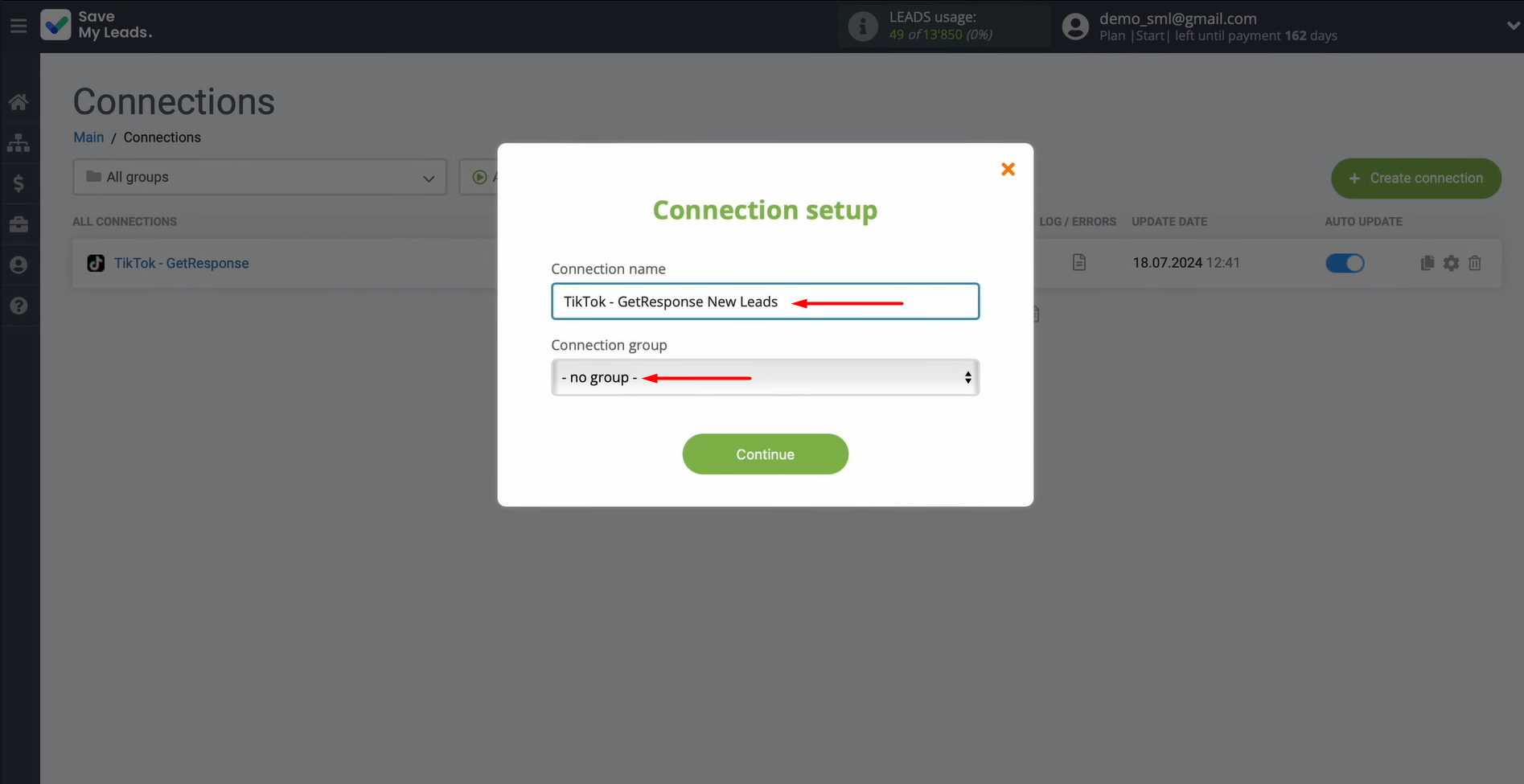
That’s it — the GetResponse integration with TikTok is now active.
Results
TikTok integration with GetResponse is not just an additional convenience but a modern business requirement. It is an effective solution for businesses that seek to automate manual processes and increase conversion rates and sales. It provides a quick transfer of lead data from TikTok advertising forms to the GetResponse email marketing service, where they can be immediately used in communication processes. As a result, the business receives a stable and reliable system of lead generation and ongoing customer communication.
Step-by-Step Guides for Setting Up Integrations:
- TikTok and Slack Integration: Automatically Sending Channel Notifications
- Google Lead Form and Asana Integration: Automatic Data Transfer
- TikTok and Trello Integration: Automatic Conversion of New Leads into Tasks
- Google Lead Form and Monday.com Integration: How-to Guide
- TikTok and Constant Contact Integration: Automatically Adding Contacts