
Companies that work with leads online know that the speed of contact with them directly affects the number of sales. Google Lead Form allows you to conveniently and quickly collect lead data, and Monday.com helps effectively manage internal business processes. However, if you are still manually transferring data from forms to a project management service, this significantly slows you down. The Google Lead Form Ads and Monday.com integrations solve this problem by fully automating this process, saving you time and other important resources. In this article, we will tell you how to easily set it up, even without relevant experience.
Benefits of Google Lead Form Ads and Monday.com Automation
Manually transferring lead data from Google Lead Form to Monday.com takes up valuable time and hinders the team. This applies to both basic copying and exporting and importing CSV files. A company that follows this practice wastes internal resources and also risks losing some of its leads due to delays and errors. The integration of Google Lead Form and Monday.com automates this process, eliminating the human factor and reducing operating costs.
First of all, it saves time. If you copy lead data from a form manually, it takes an average of 2–5 minutes per lead. For 50 leads per day, it takes approximately 2 hours, or even more. In a month, the cost of repetitive routine work is up to 40 hours.
If you connect Google Lead Form Ads with Monday.com, it completely eliminates the need for manual data transfer. After submitting the form, the potential client is automatically added to Monday.com as a new item. The time savings are from 2 to 4 hours per day. In addition, managers can contact the lead without delay. This automation typically results in an increase in conversion rates and sales.
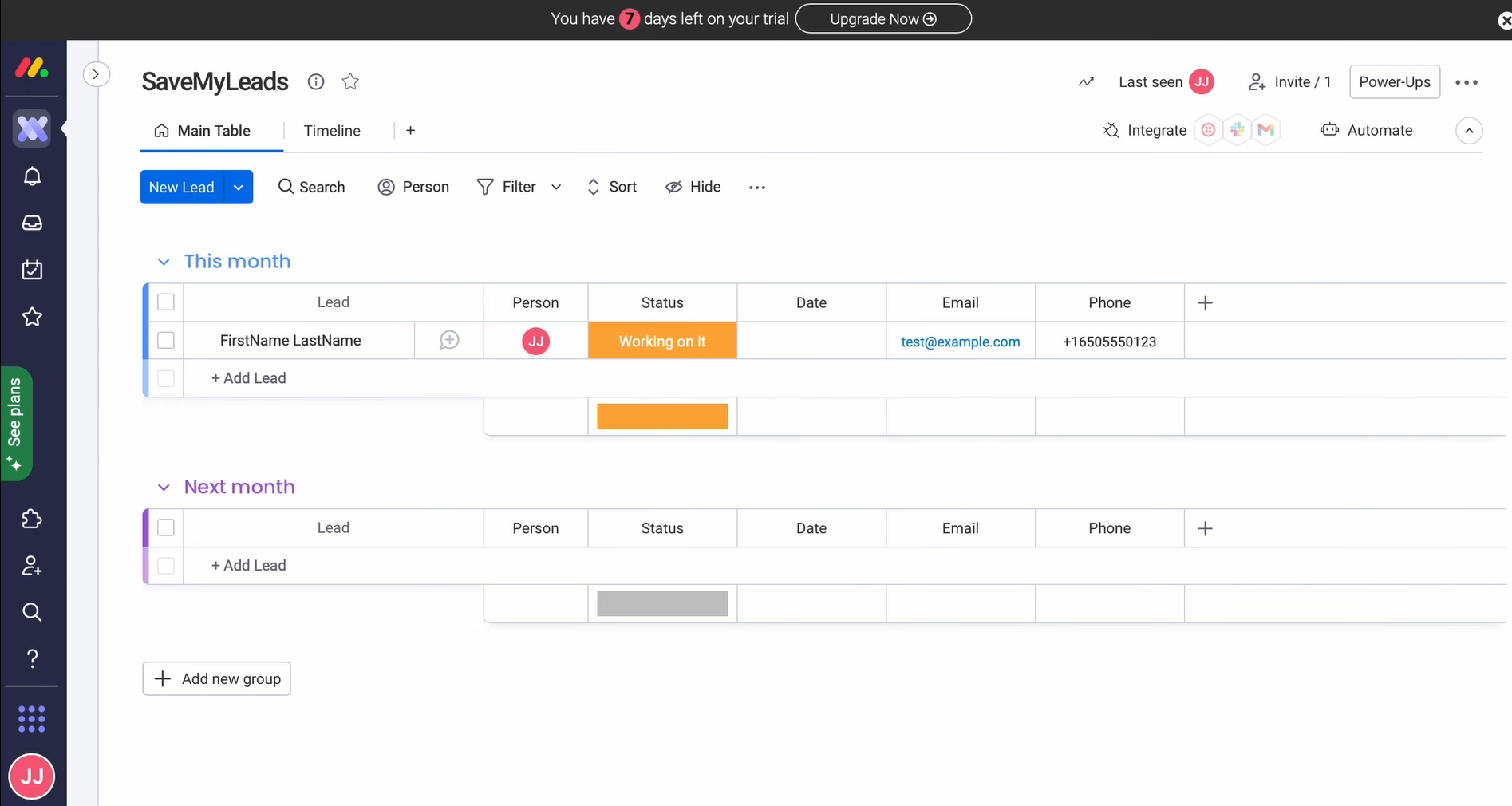
Another key benefit is cost savings of financial resources. Companies that integrate Google Lead Form Ads with Monday.com CRM can reduce company staffing expenses. They will not have to hire new employees when the number of leads increases.
Moreover, automating data transfer makes it possible to avoid errors caused by the human factor. Accordingly, the risk of losing customers due to missed leads or incorrectly entered contacts is minimized. In the long run, this has a positive impact on revenue.
Saving human resources means reducing the workload on the team and the volume of manual work. By setting up Google Lead Form Ads and Monday.com workflow automation, managers can stop constantly switching between services, searching for misplaced orders, and accidental duplicates. All information is transmitted in a clearly organized format. This significantly reduces operational discrepancies and contributes to increased team productivity.
How to Connect Google Lead Form Ads to Monday.com
To set up the integration between Google Lead Form and Monday.com, we recommend using the integration platform SaveMyLeads. Its main advantage is ease of access for users without technical experience. It allows you to connect the two platforms to send Google Ads leads directly to Monday.com, without programming skills or API knowledge. The service interface is intuitive. It is not difficult to guess what needs to be done at each step.
The setup process consists of several main steps:
- Creating a new integration.
- Selecting the data source and receiver.
- Connecting the Google Lead Form account.
- Connecting the Monday.com account.
- Configuring fields with lead data.
- Activating auto-update mode.
After completing all the settings and starting auto-update, the system starts to transfer Google Ads leads to Monday.com automatically. They arrive in the background 24/7.
To get the valuable benefits of integrating Google Lead Form with Monday.com today, set it up right now. Our step-by-step guide, illustrated with screenshots, will help you complete the setup quickly and avoid mistakes.
Data Source Settings: Google Lead Form
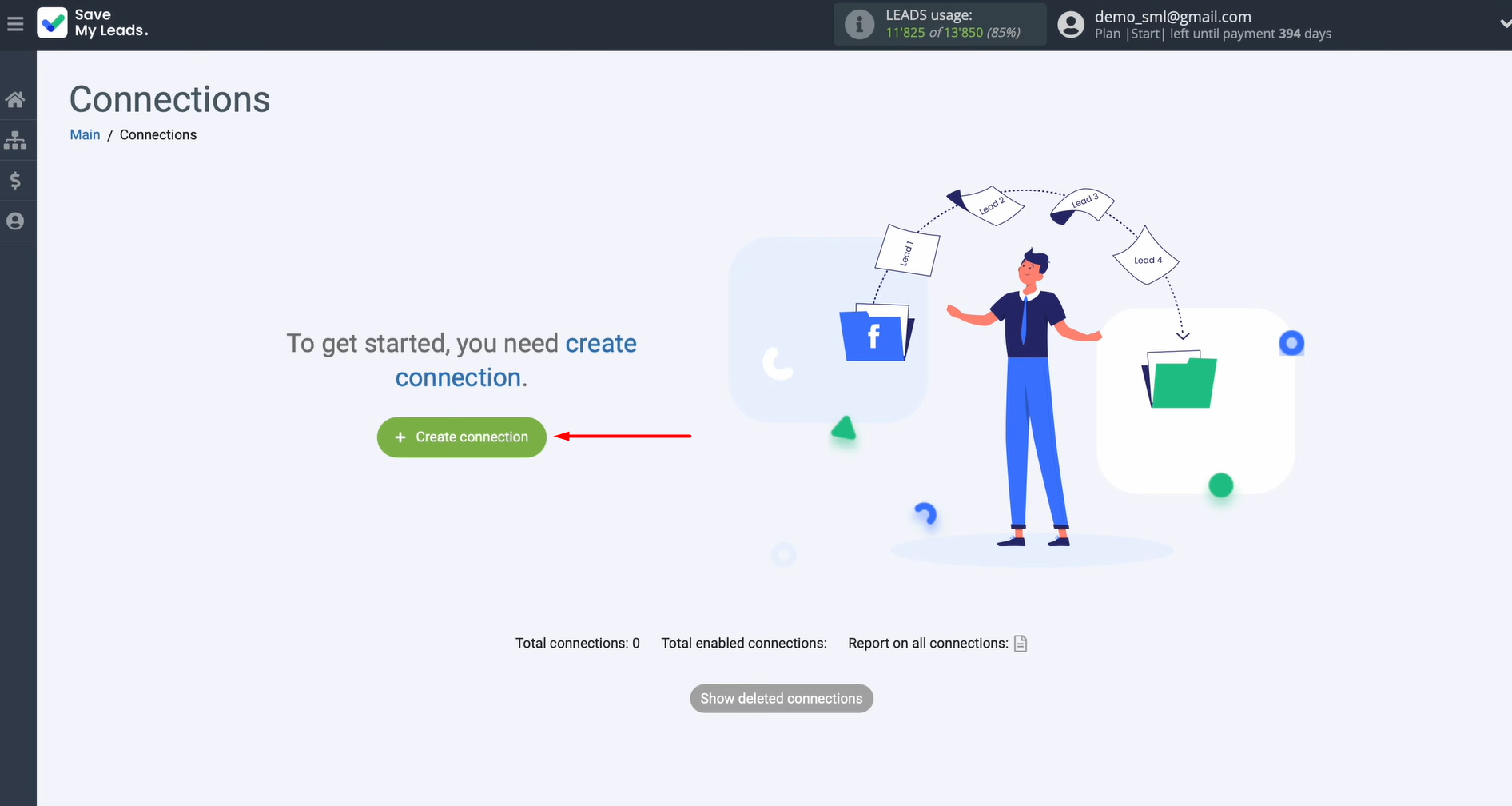
Start by creating a new connection.
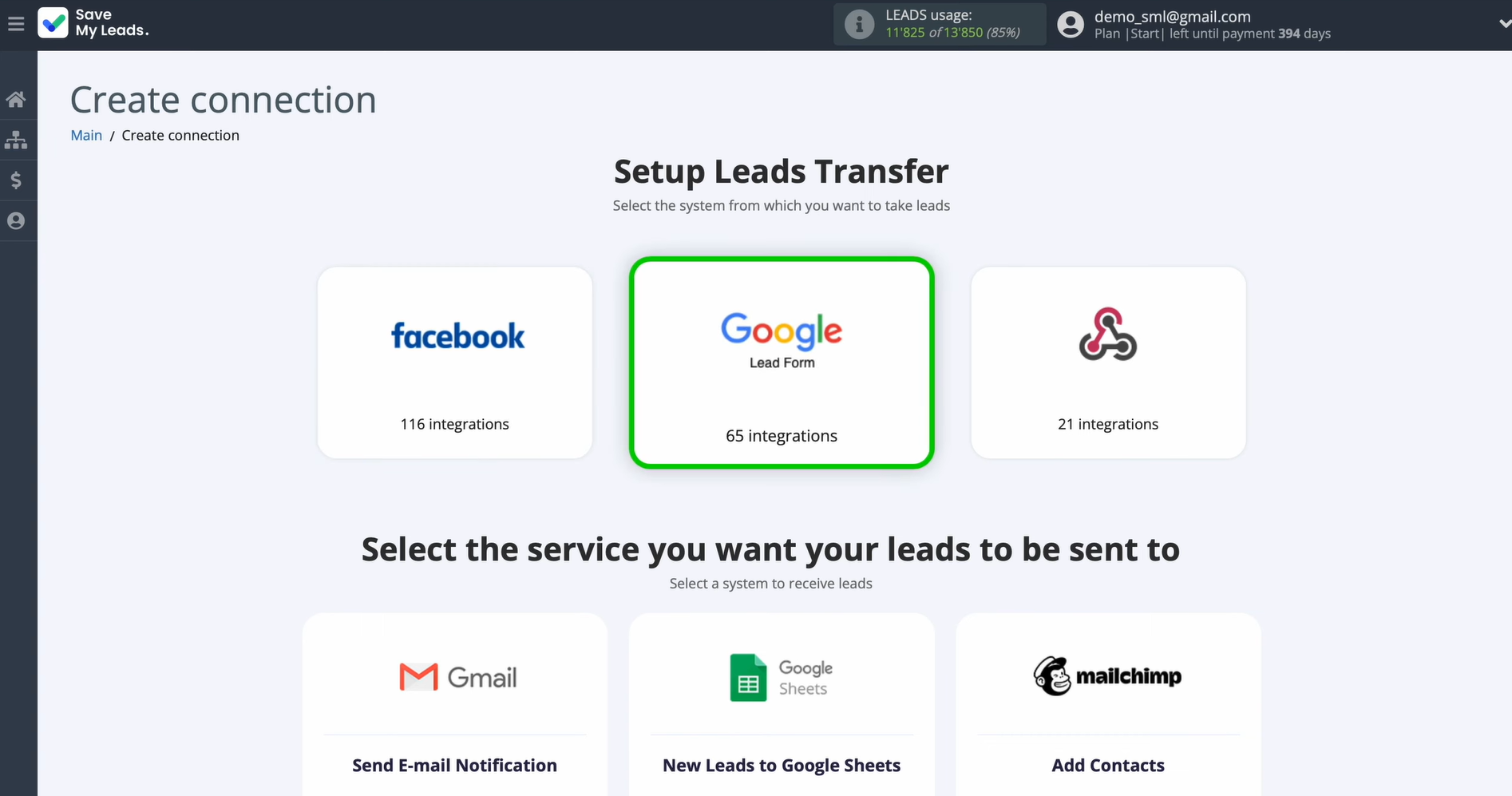
Select the system from which leads will be transferred. Here, the source is Google Lead Form.
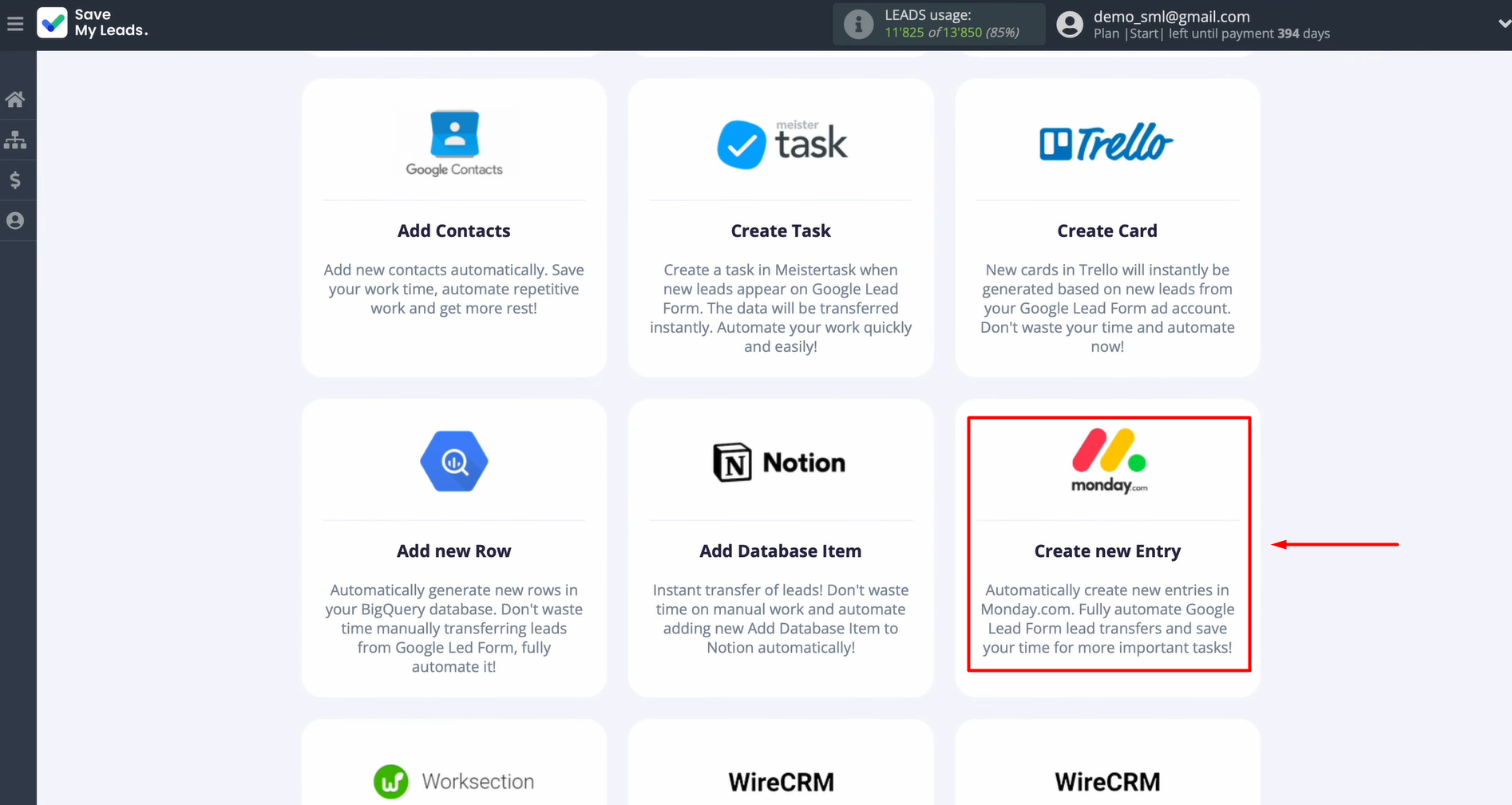
Then choose one of the available templates for transferring leads from Google Lead Form. Select Monday.com.
Connect your Google Lead Form account to SaveMyLeads.
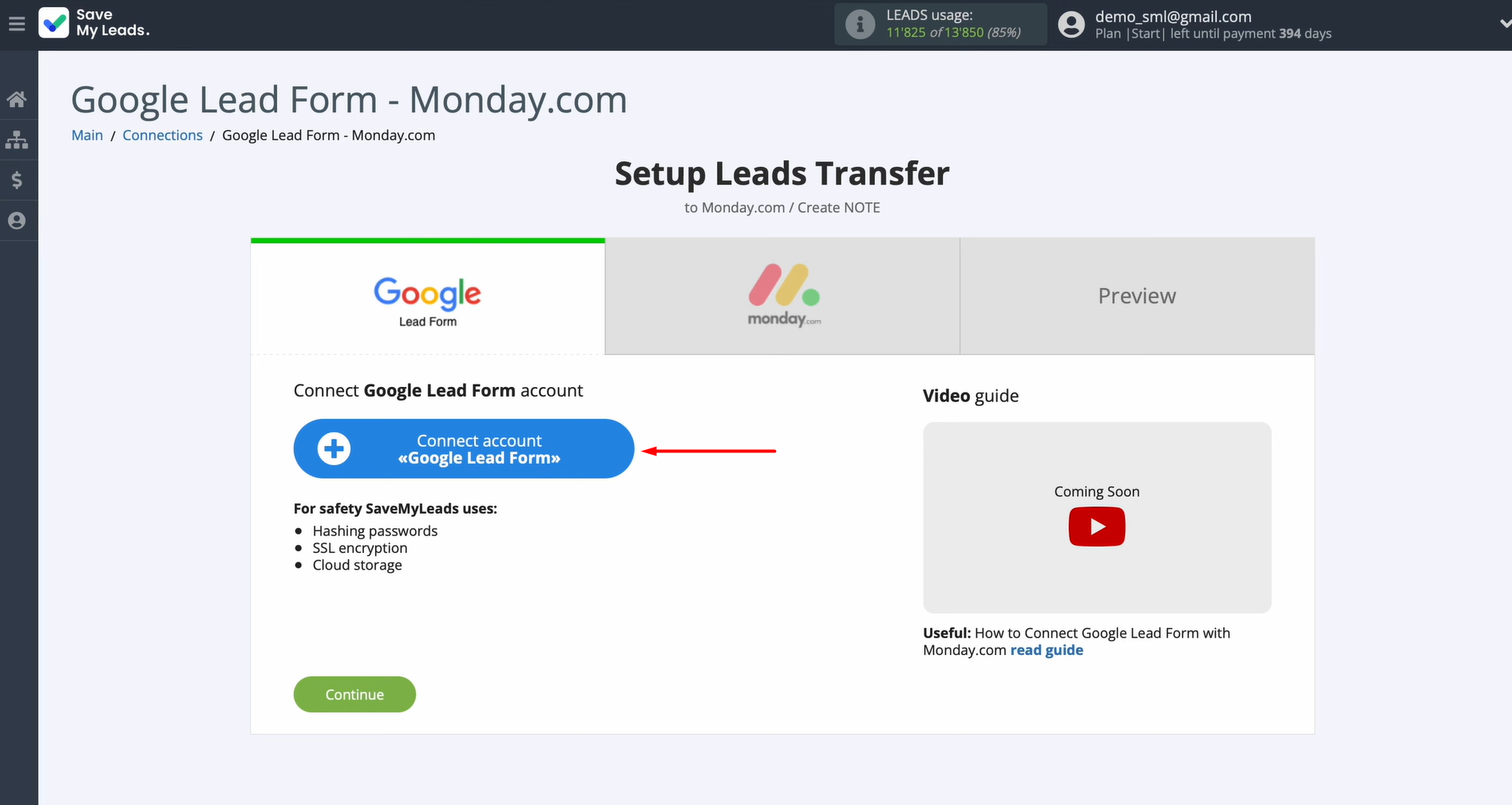
At this stage, you may assign a name to the connection or simply proceed by clicking Continue.
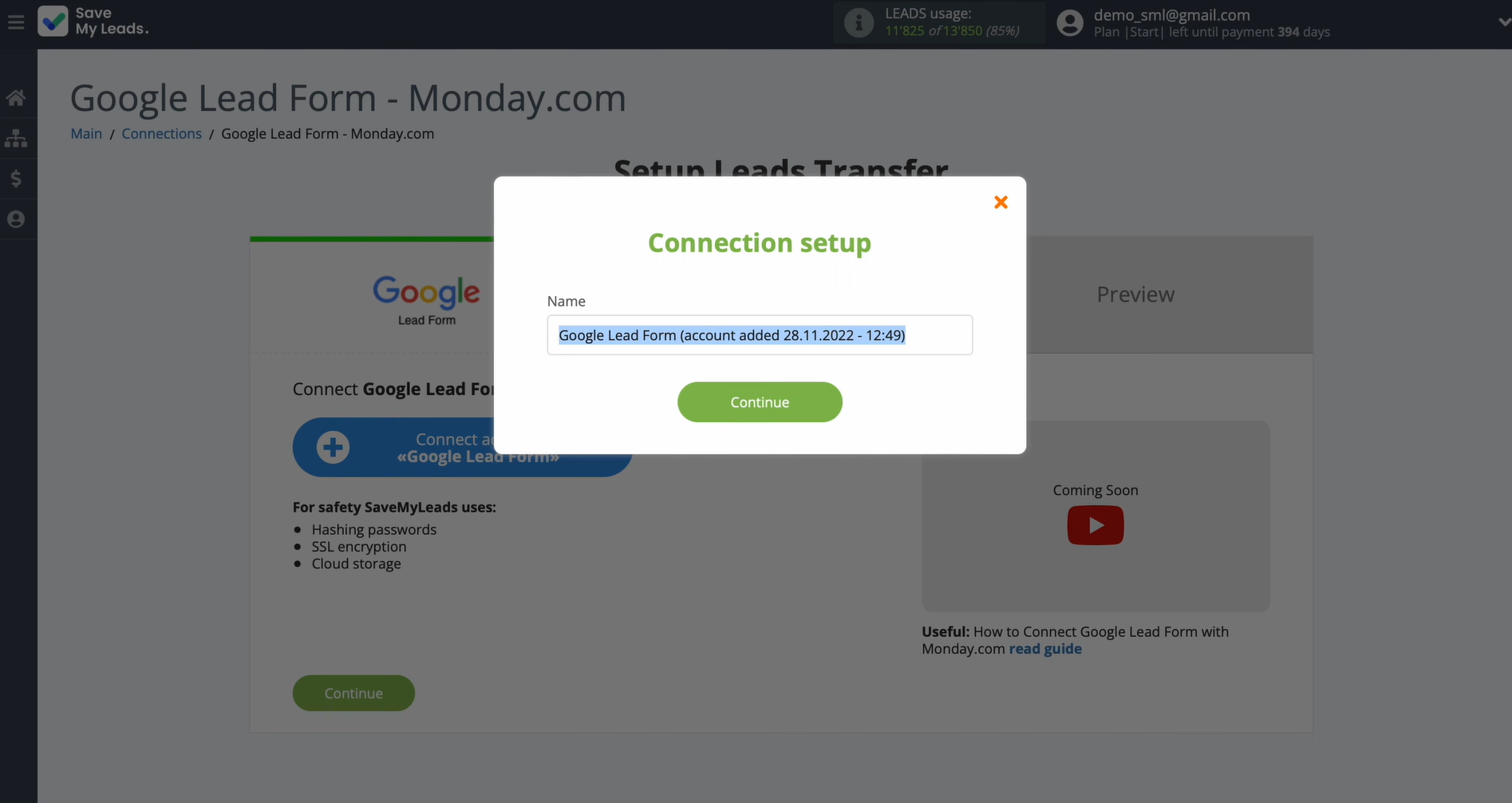
When the account shows up in the list, choose it.
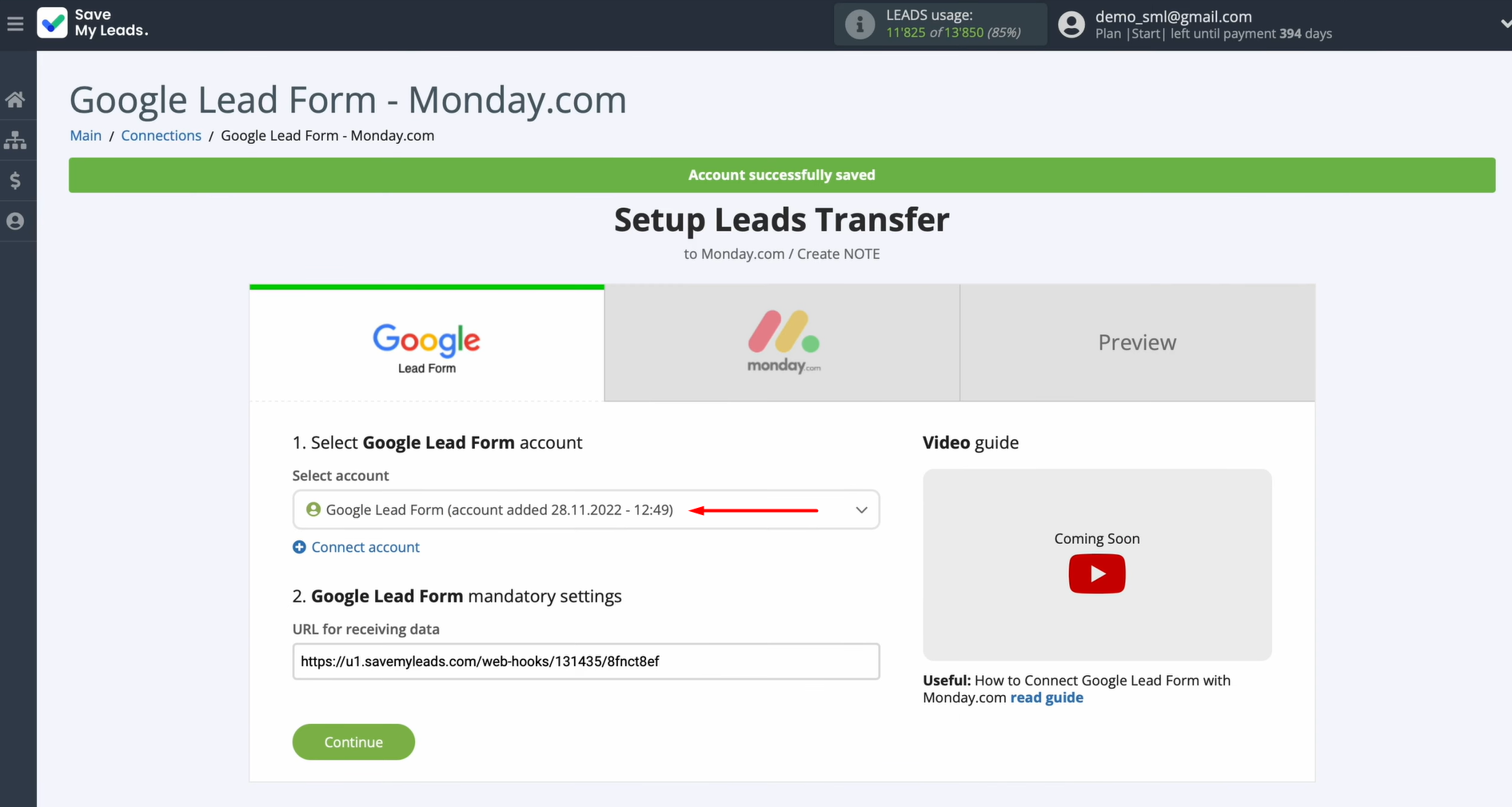
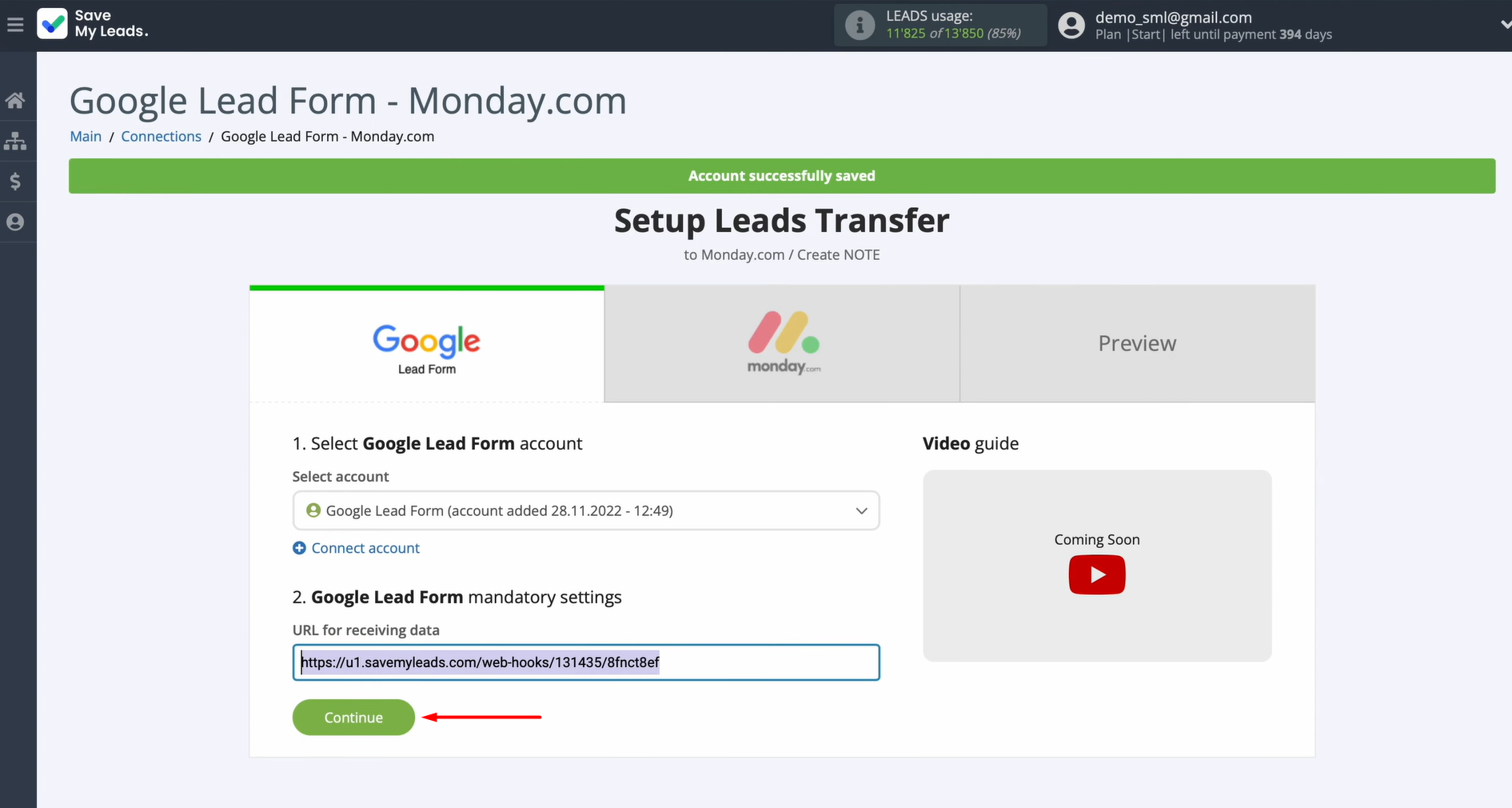
A webhook URL will appear — it’s needed to receive data from Google Lead Form. Copy the link and open your Google Lead Form account.
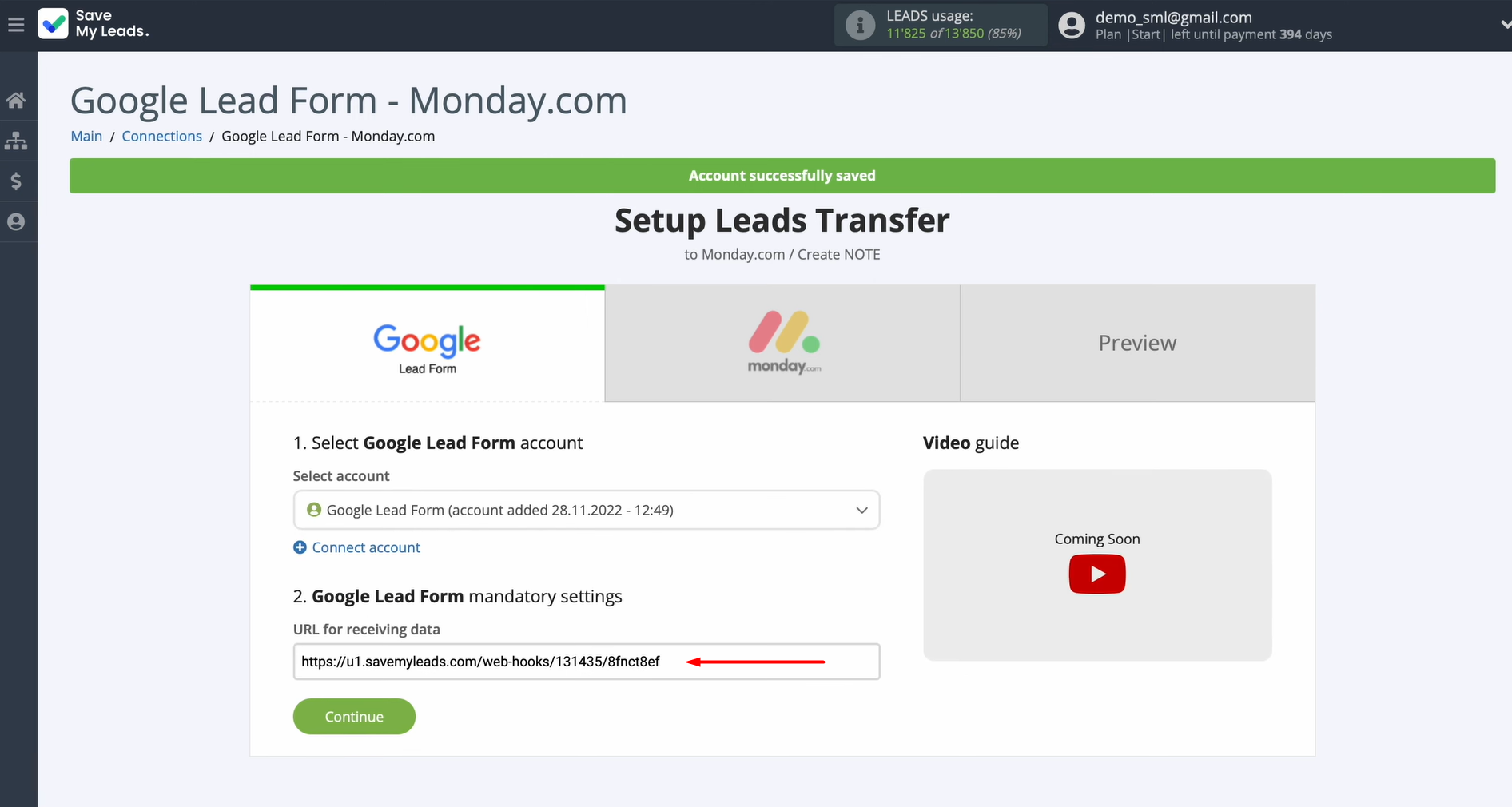
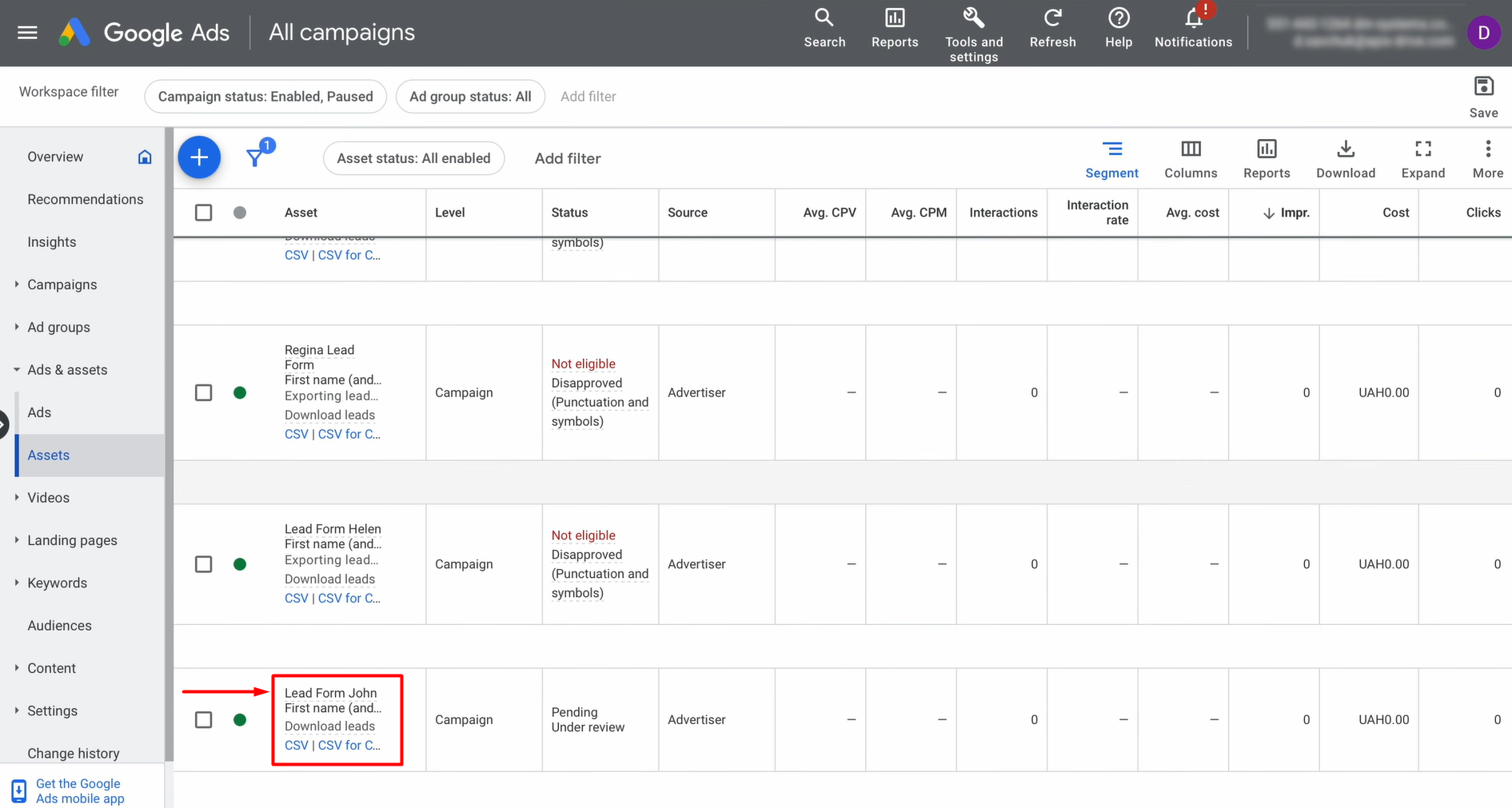
Open the Ads and Assets section and navigate to the Assets tab.

Find and open the form you plan to configure.
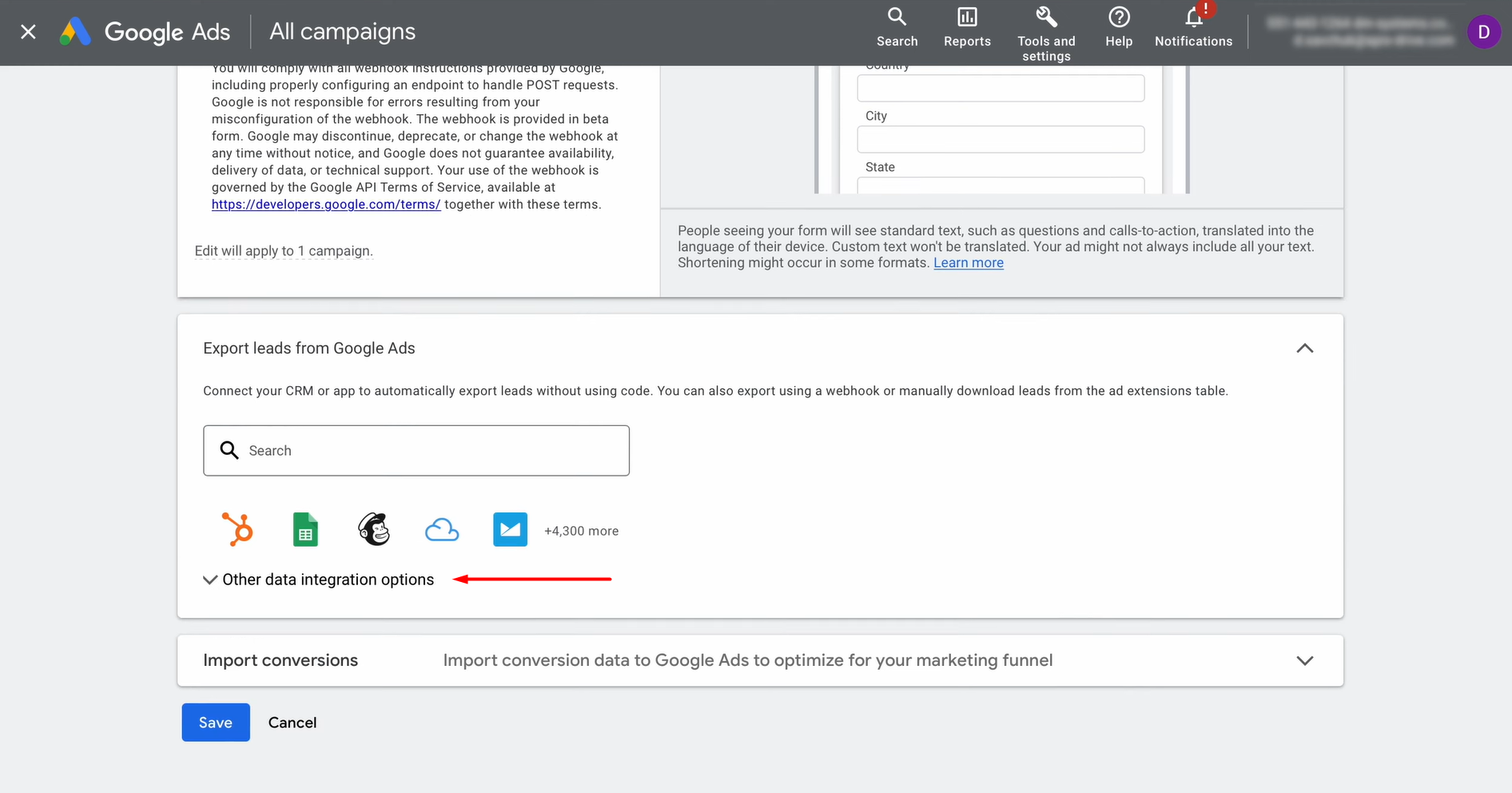
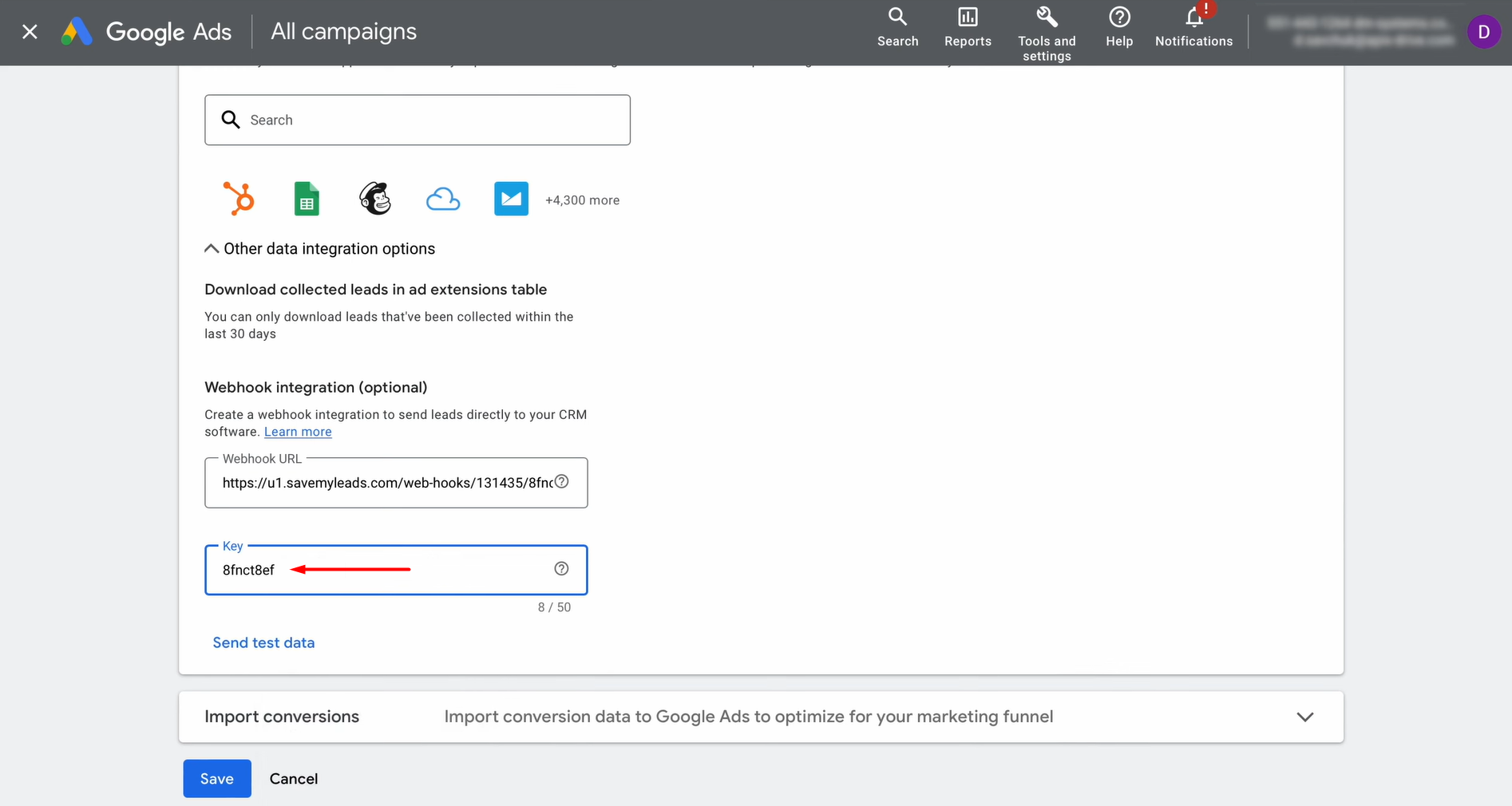
Next, open the Other data integration options section.
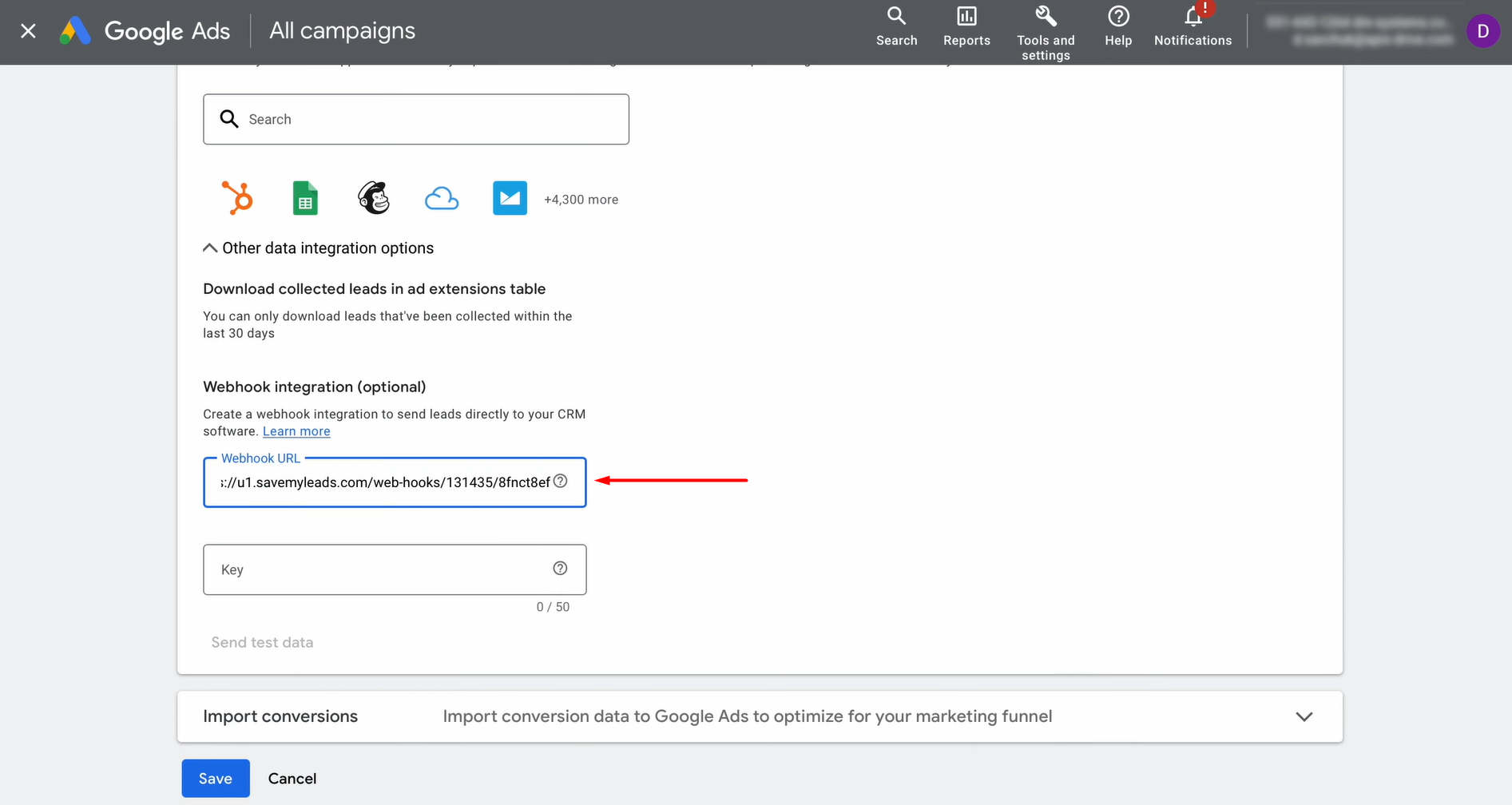
Insert the copied URL into the required field.
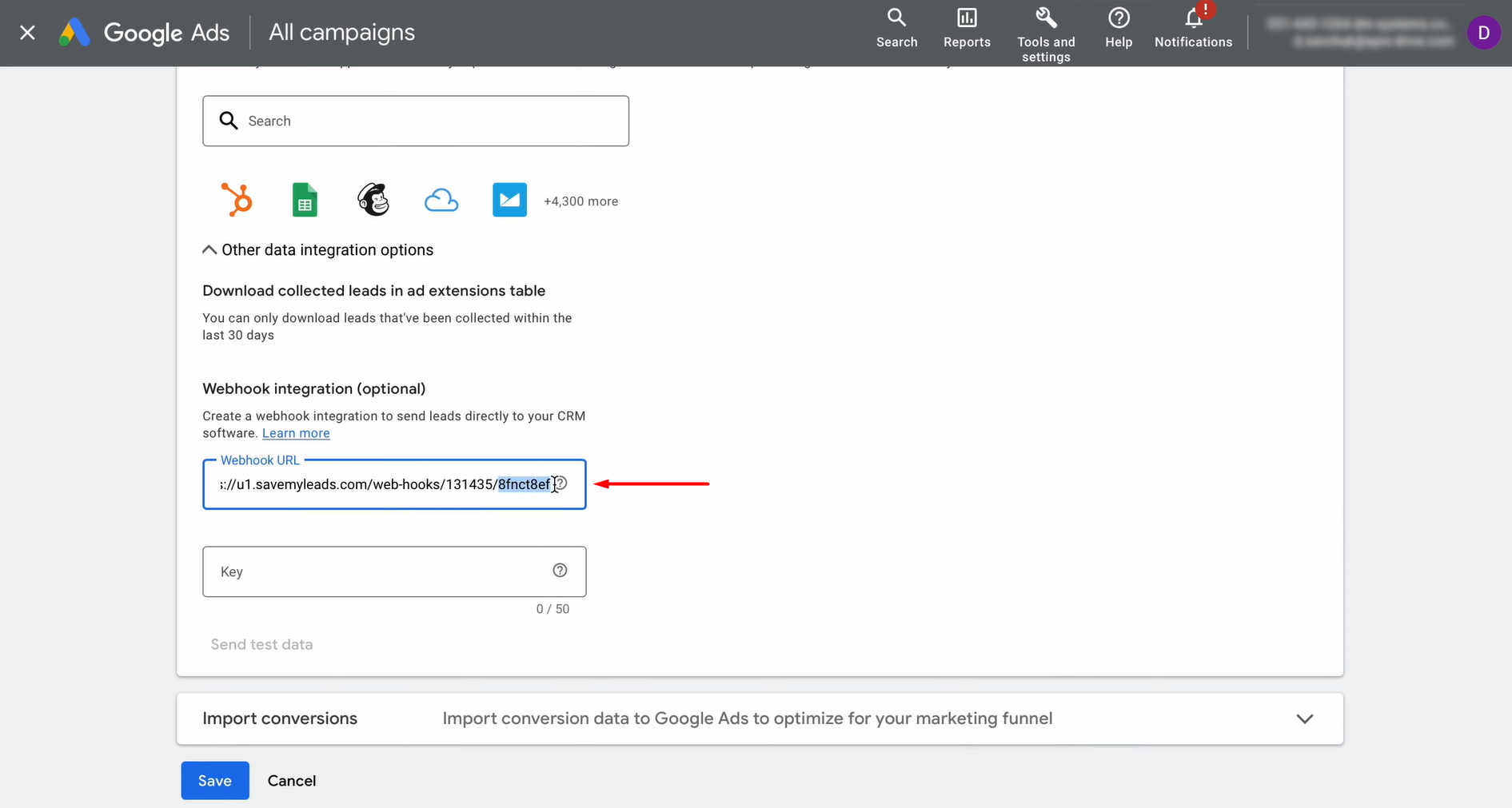
Enter the final segment of the URL in the key field.
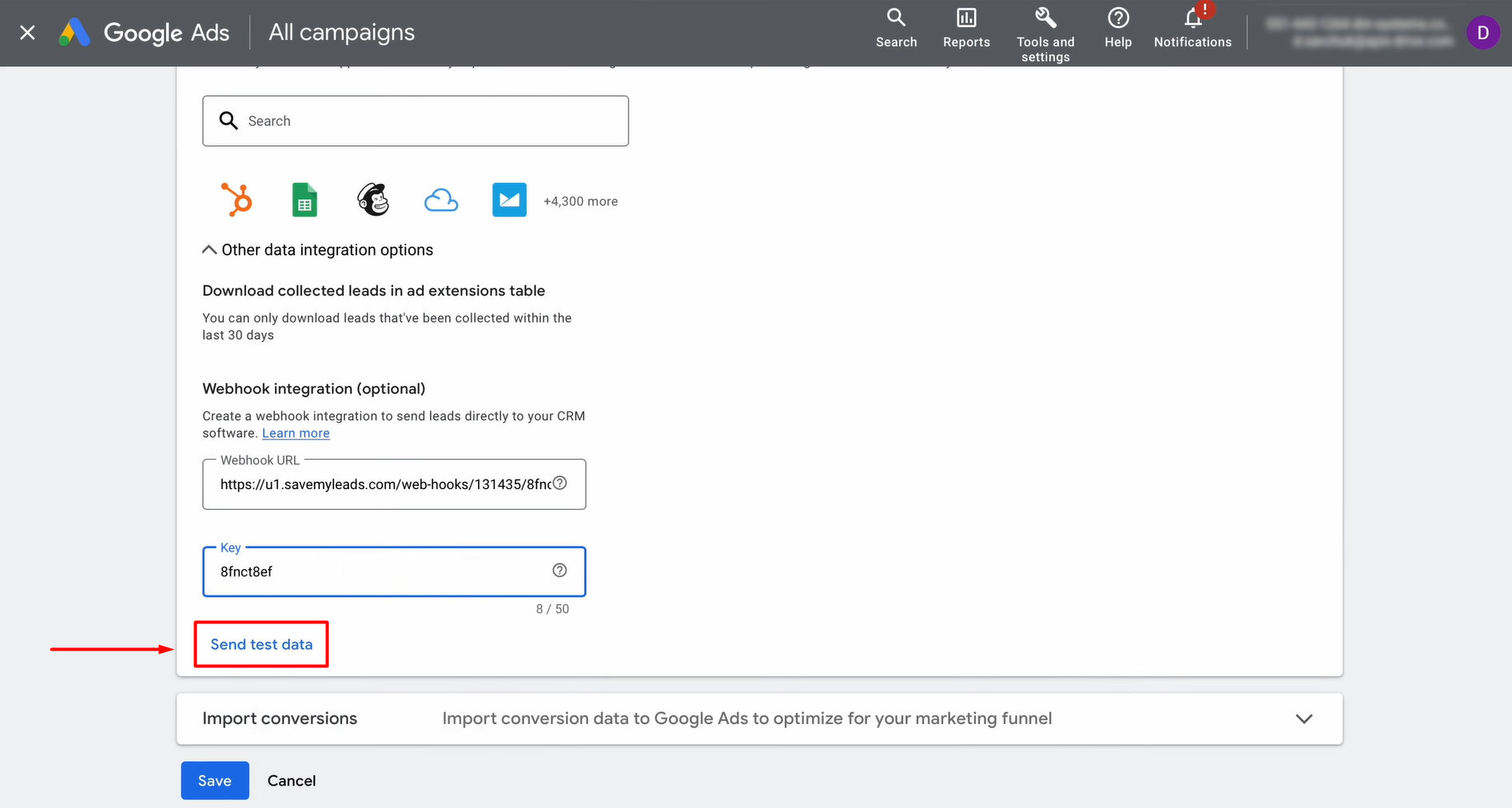
To continue the setup, you need to generate test data. Click Send test data.
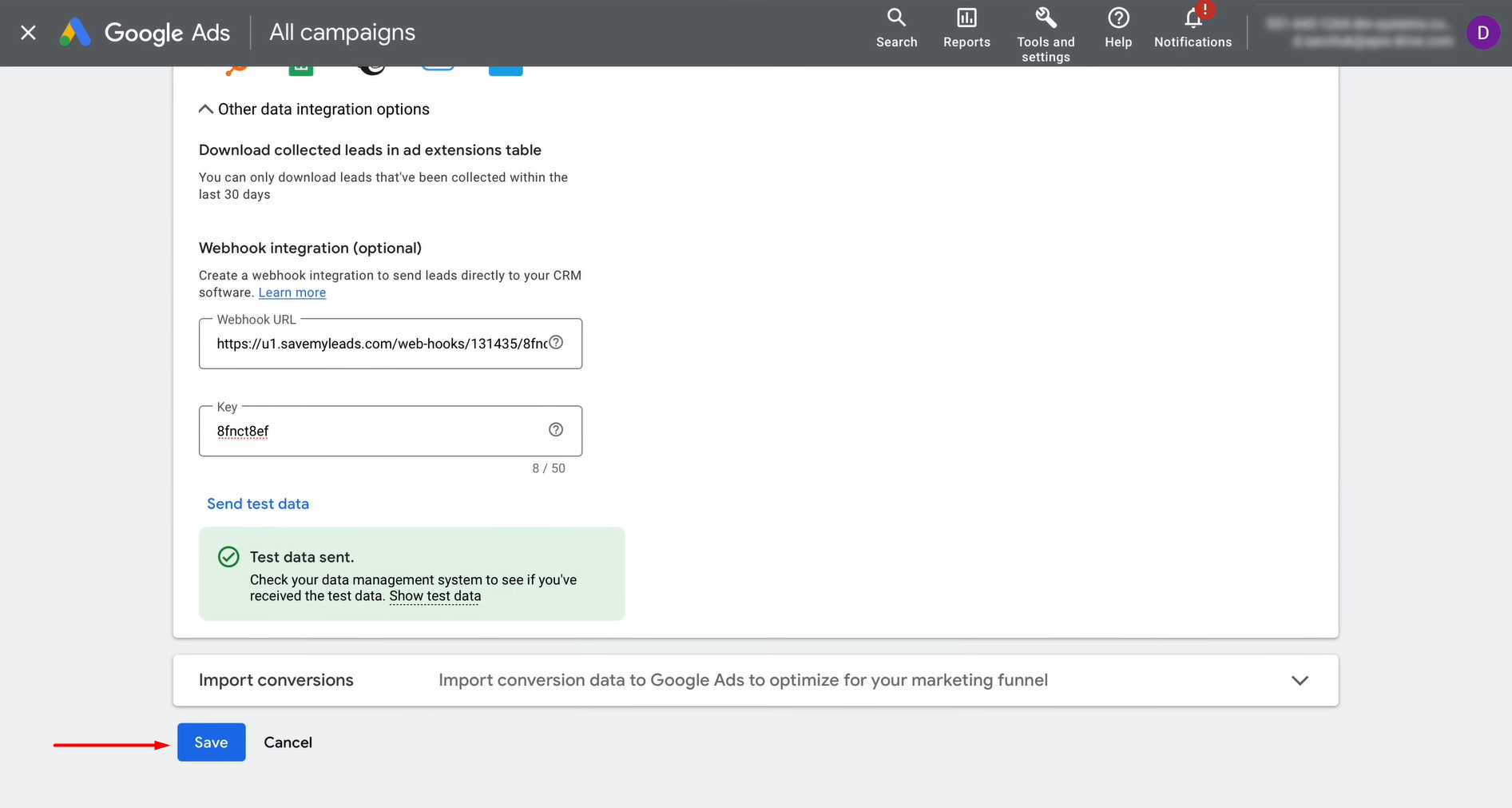
Save the changes.
Return to SaveMyLeads to proceed.
Data Destination Settings: Monday.com
Now you need to connect Monday.com to SaveMyLeads.
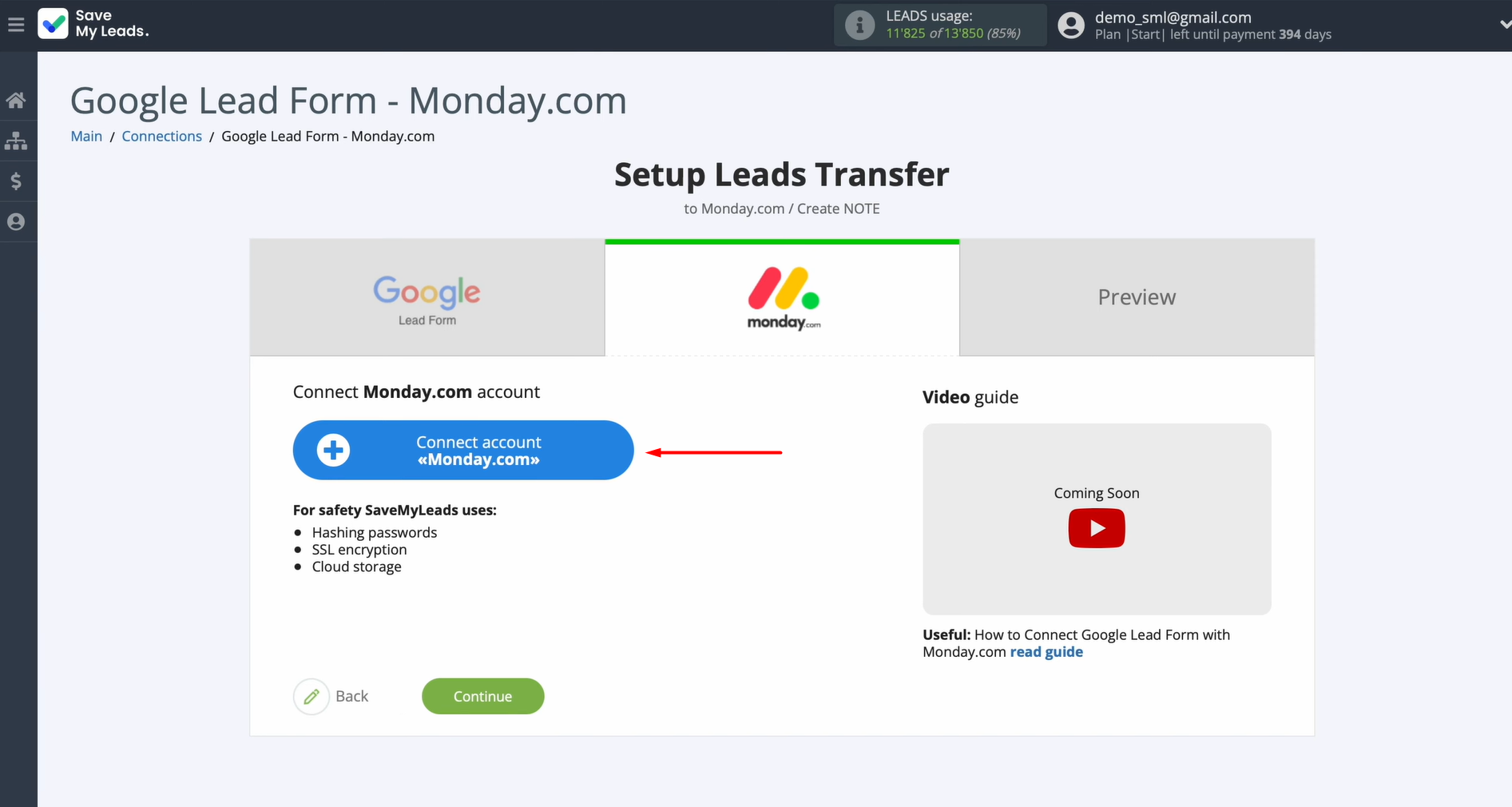
In this window, you must specify the API key.
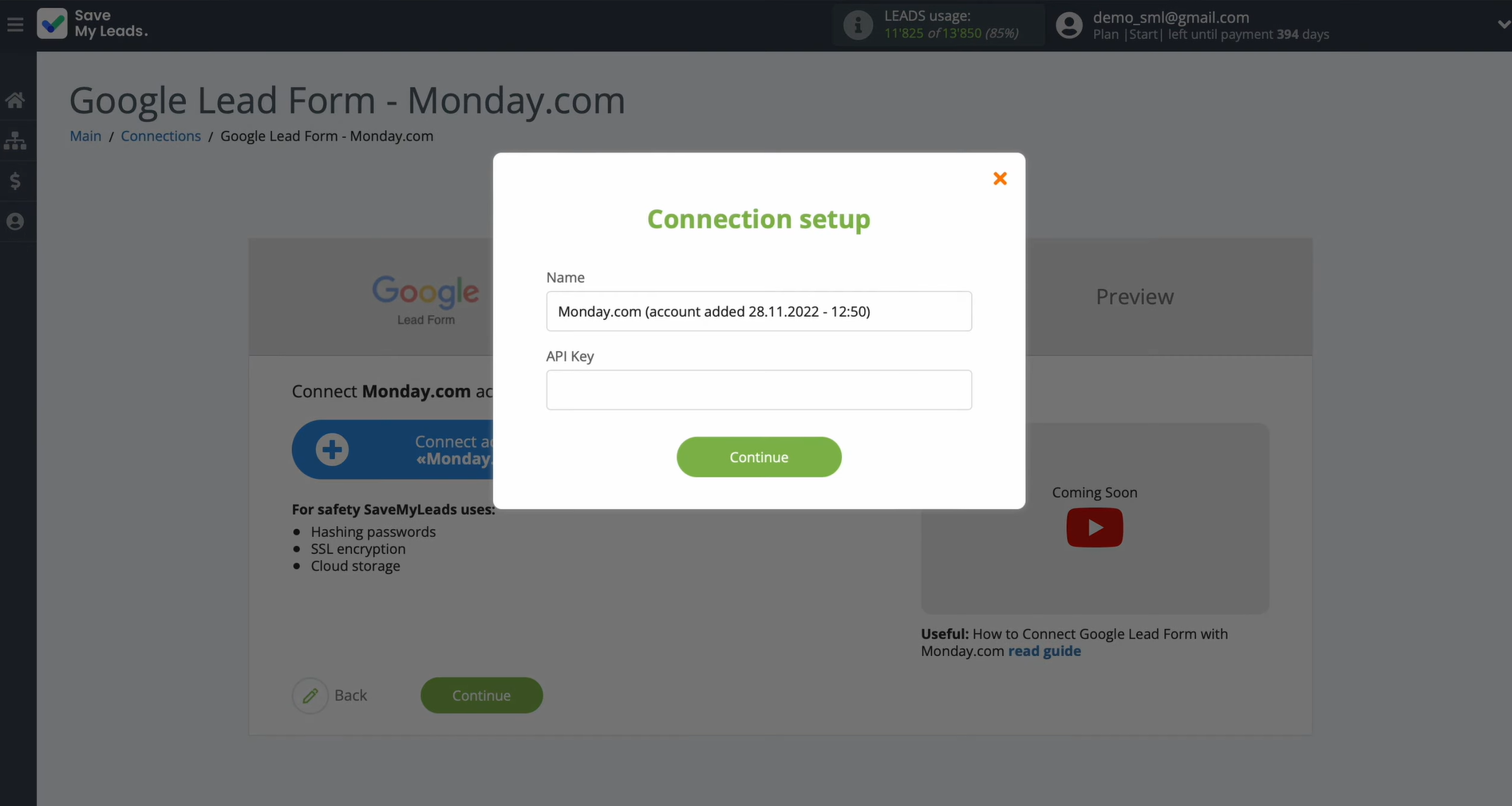
To get it, go to profile settings on your Monday.com account.
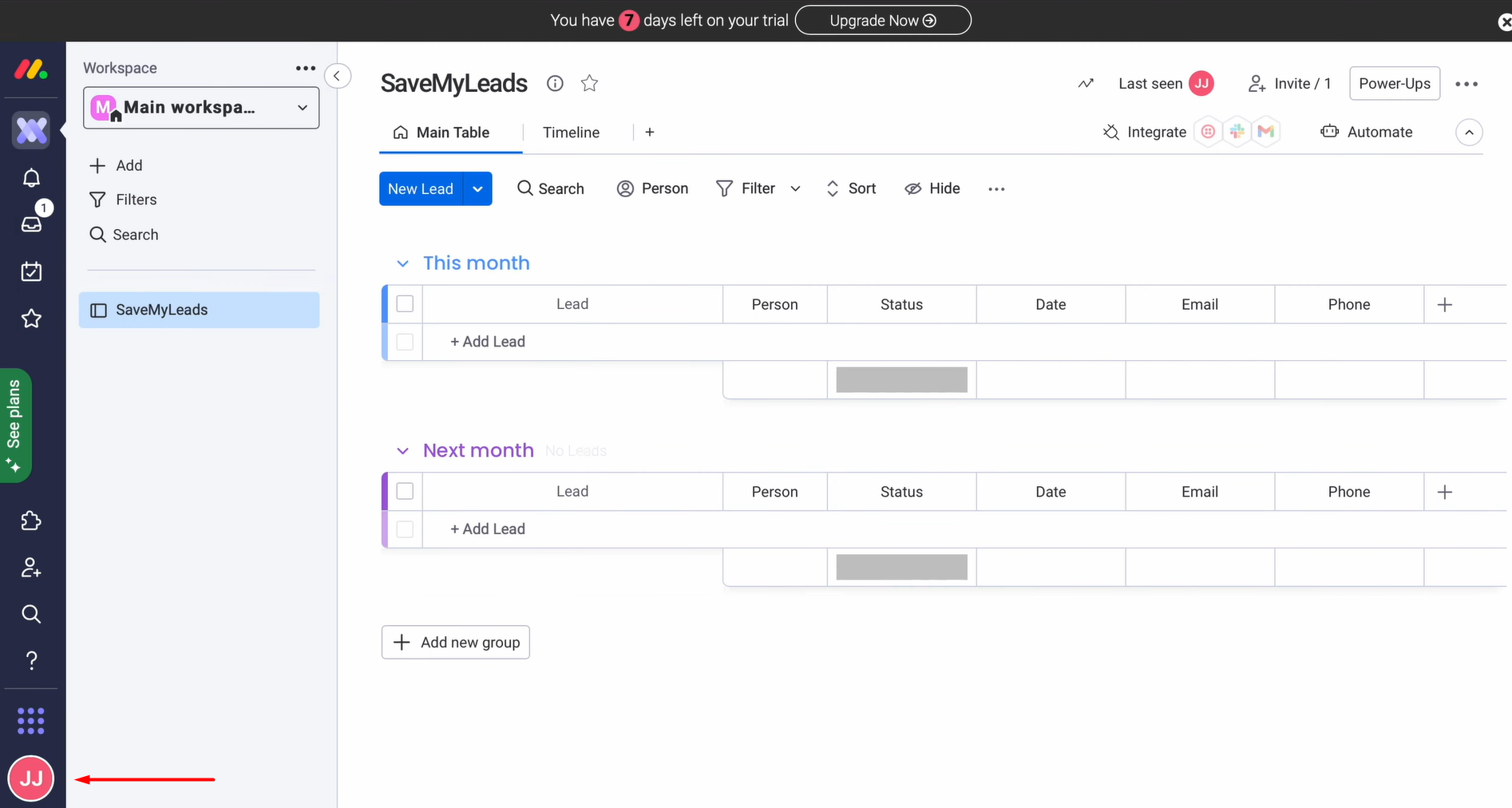
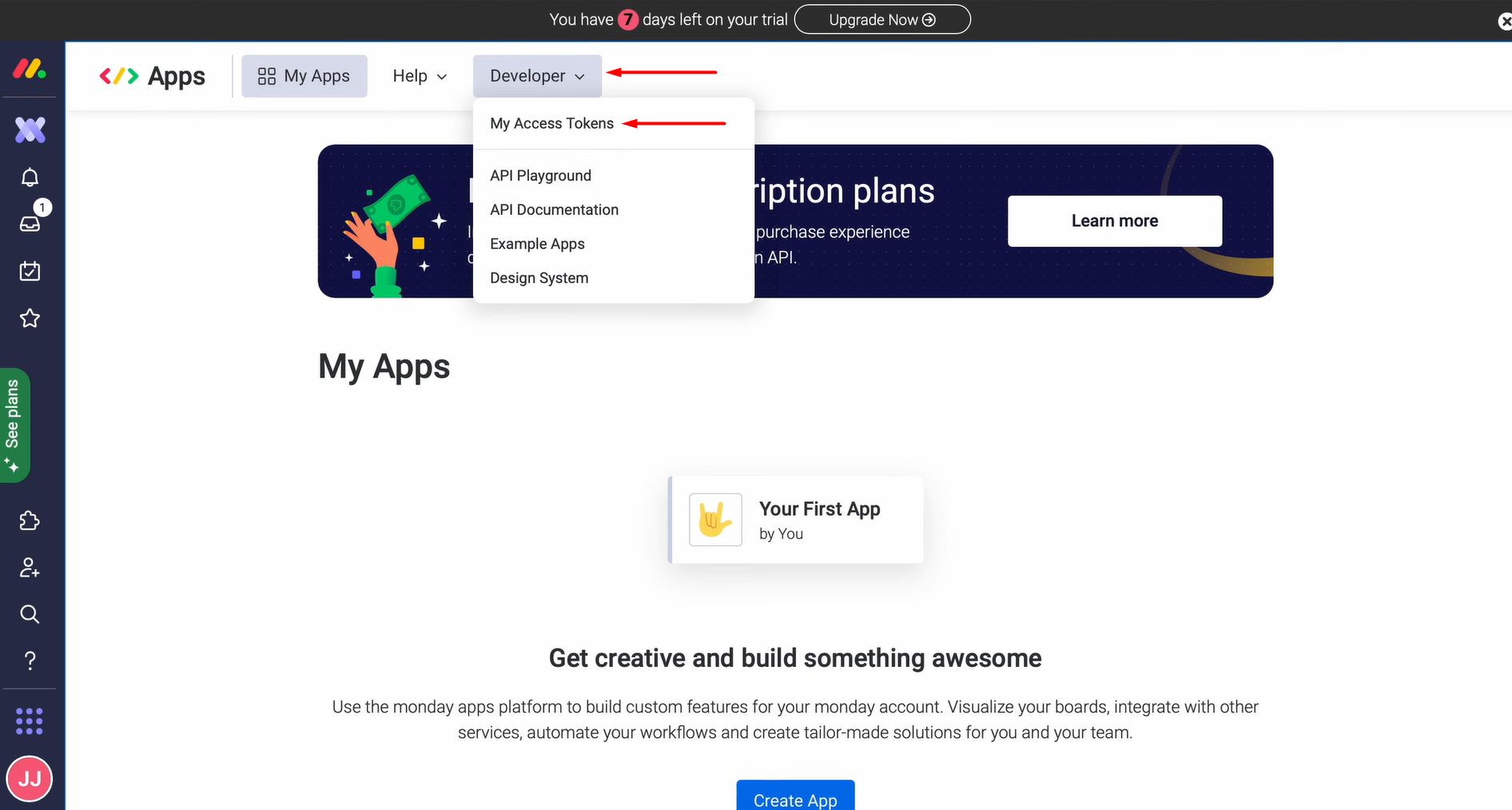
Next, go to the Developers section.
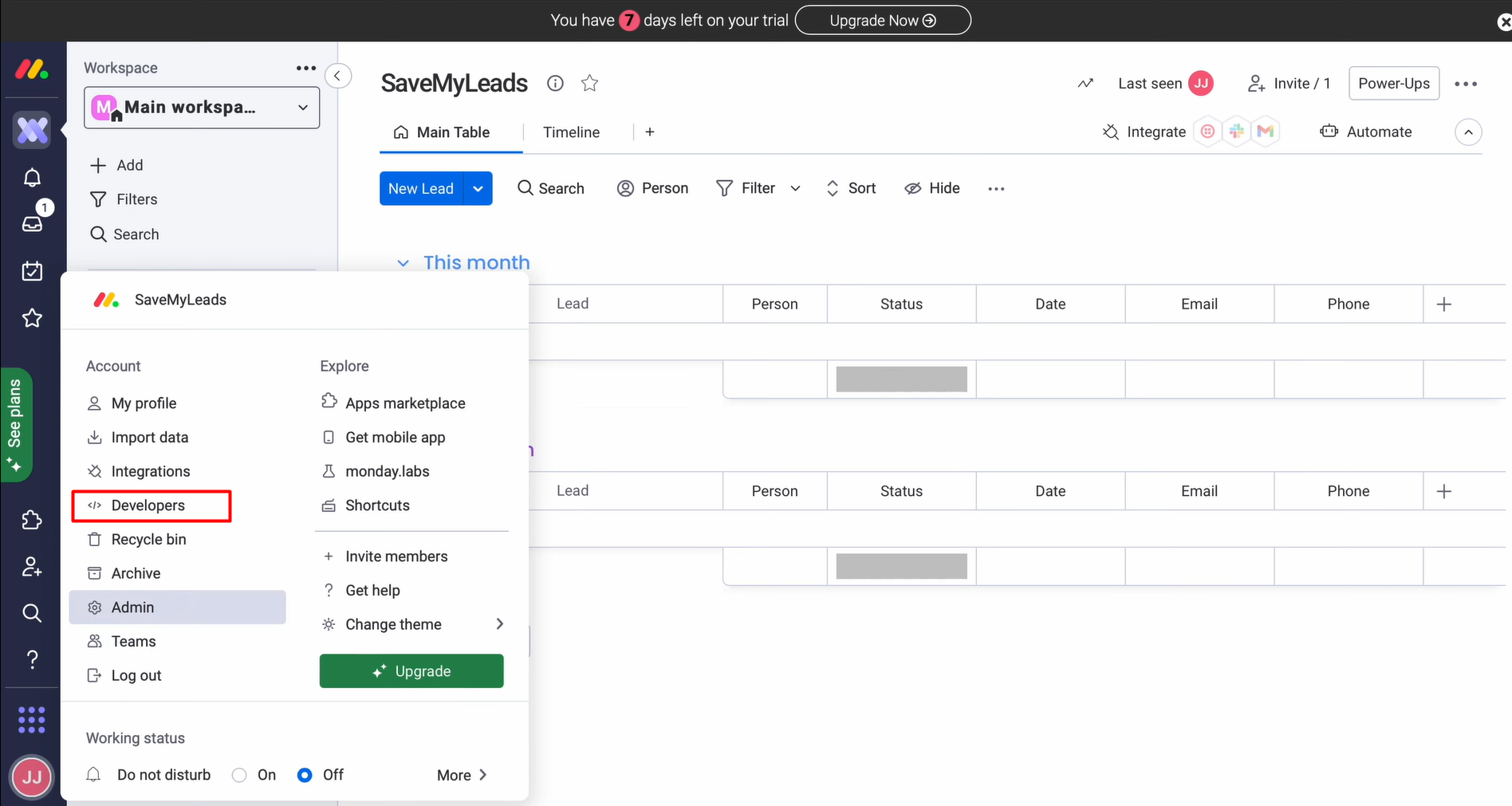
Select the tab Developer and choose My Access Tokens.
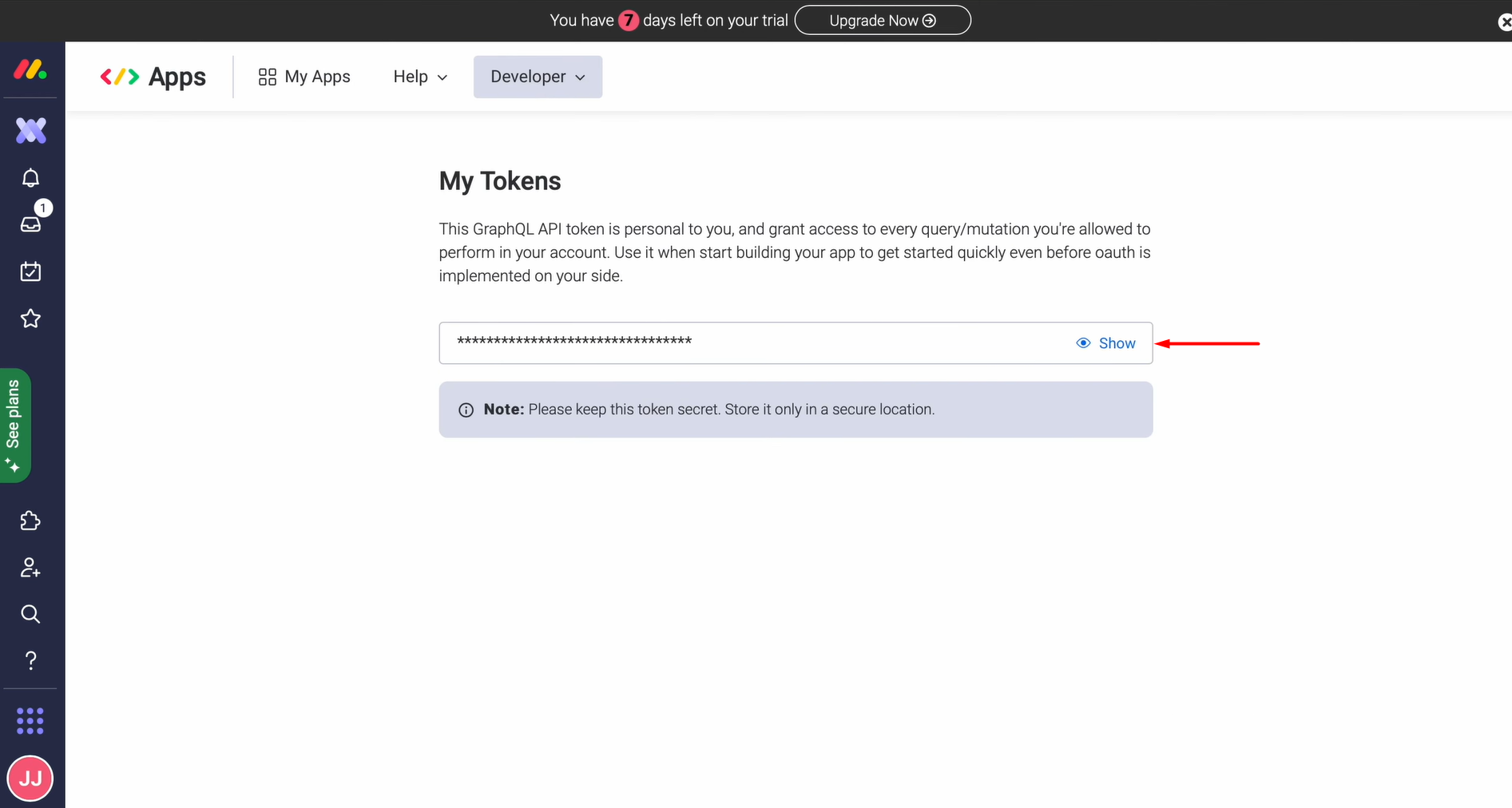
Click Show to see the token.
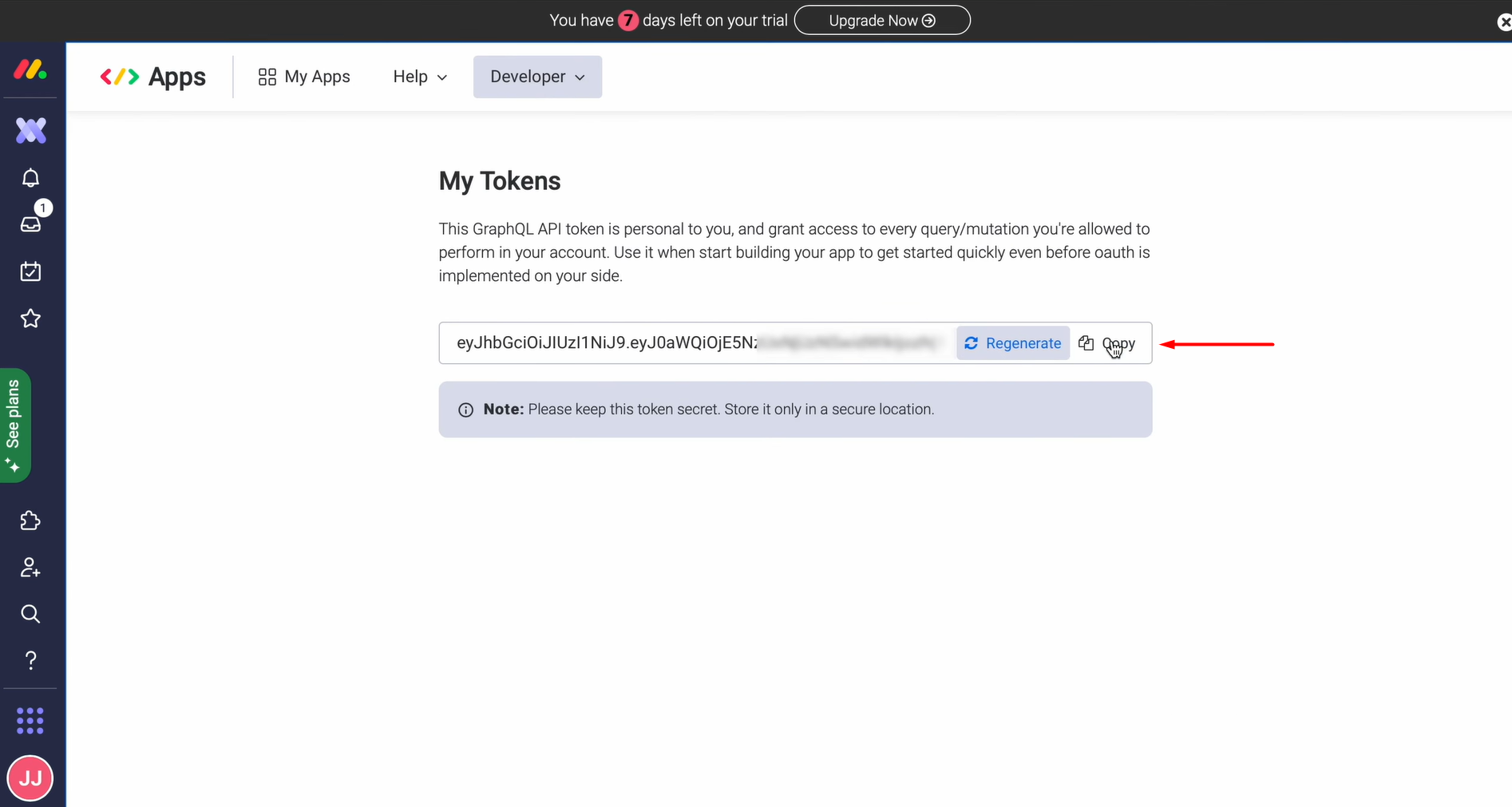
Copy the token.
Paste the token into the appropriate field in SaveMyLeads.
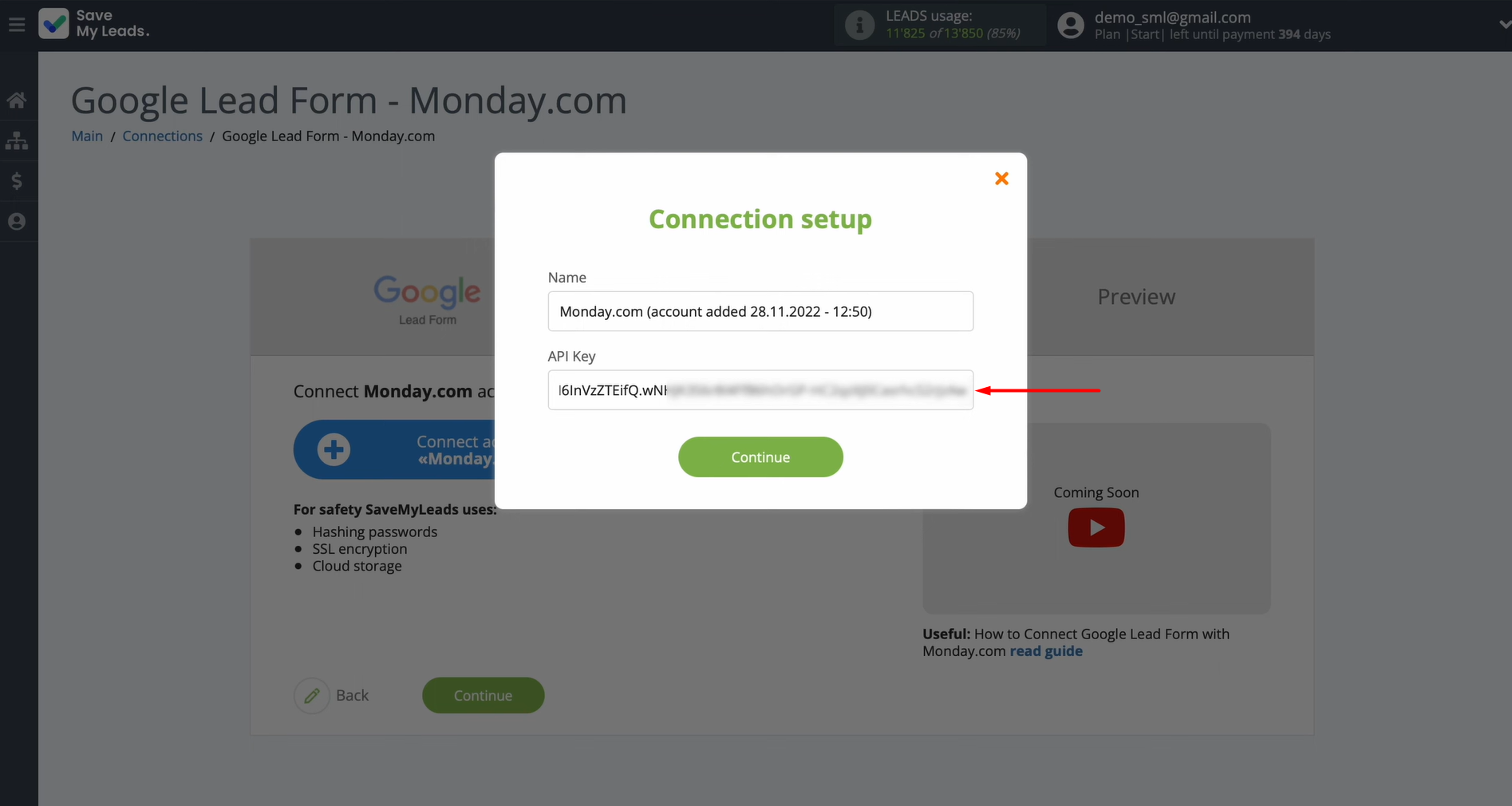
After the field is filled, click Continue. Once your connected account shows up in the list, go ahead and select it.
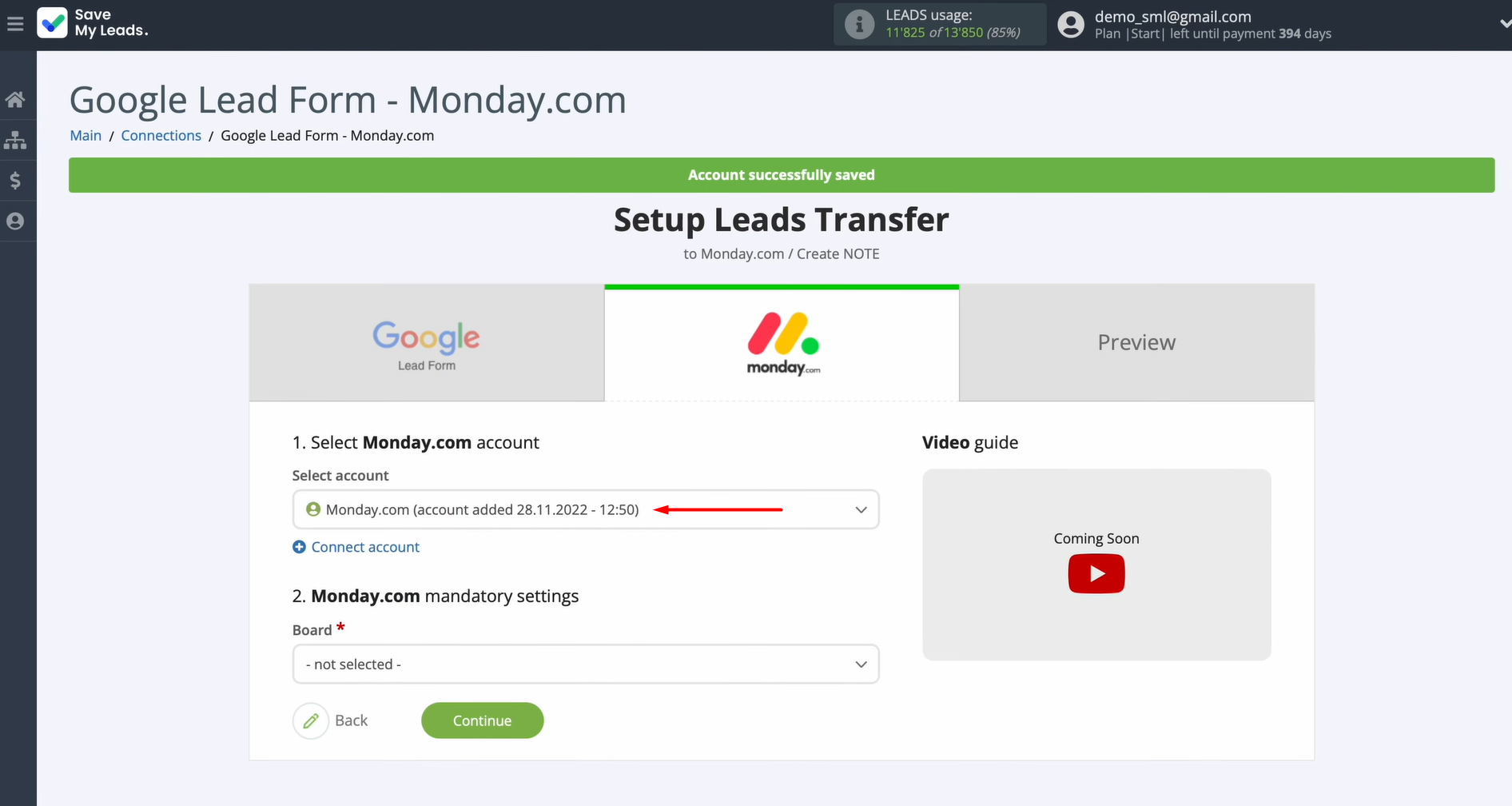
Next, you need to select the board where new items will be created. Then, select a group.
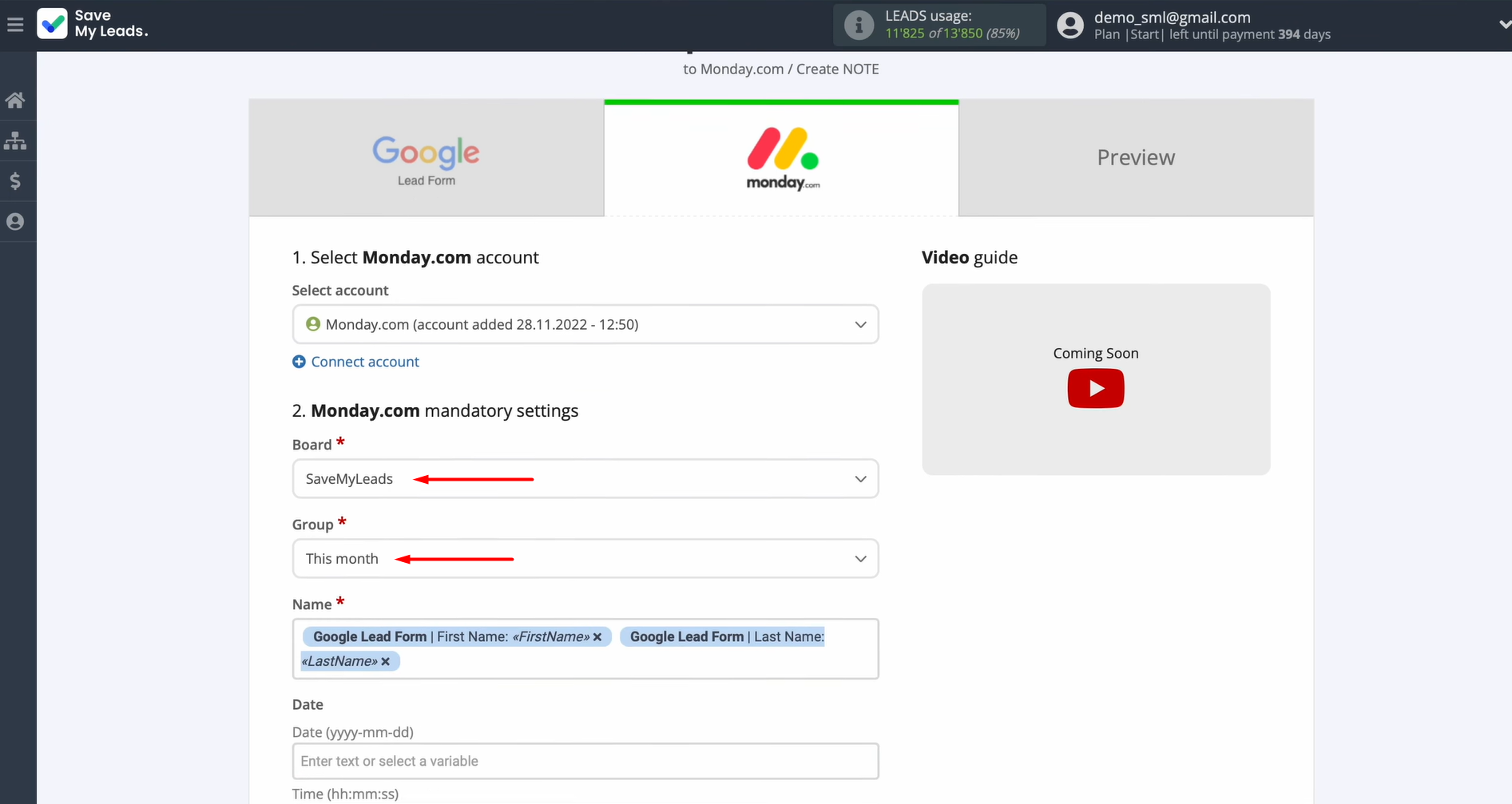
At this stage, you'll see the Monday.com fields used for creating new items. You can map variables from Google Lead Form to these fields by clicking inside each field and choosing the appropriate variable from the dropdown menu. If you are satisfied with the preset fields, you can leave them unchanged.
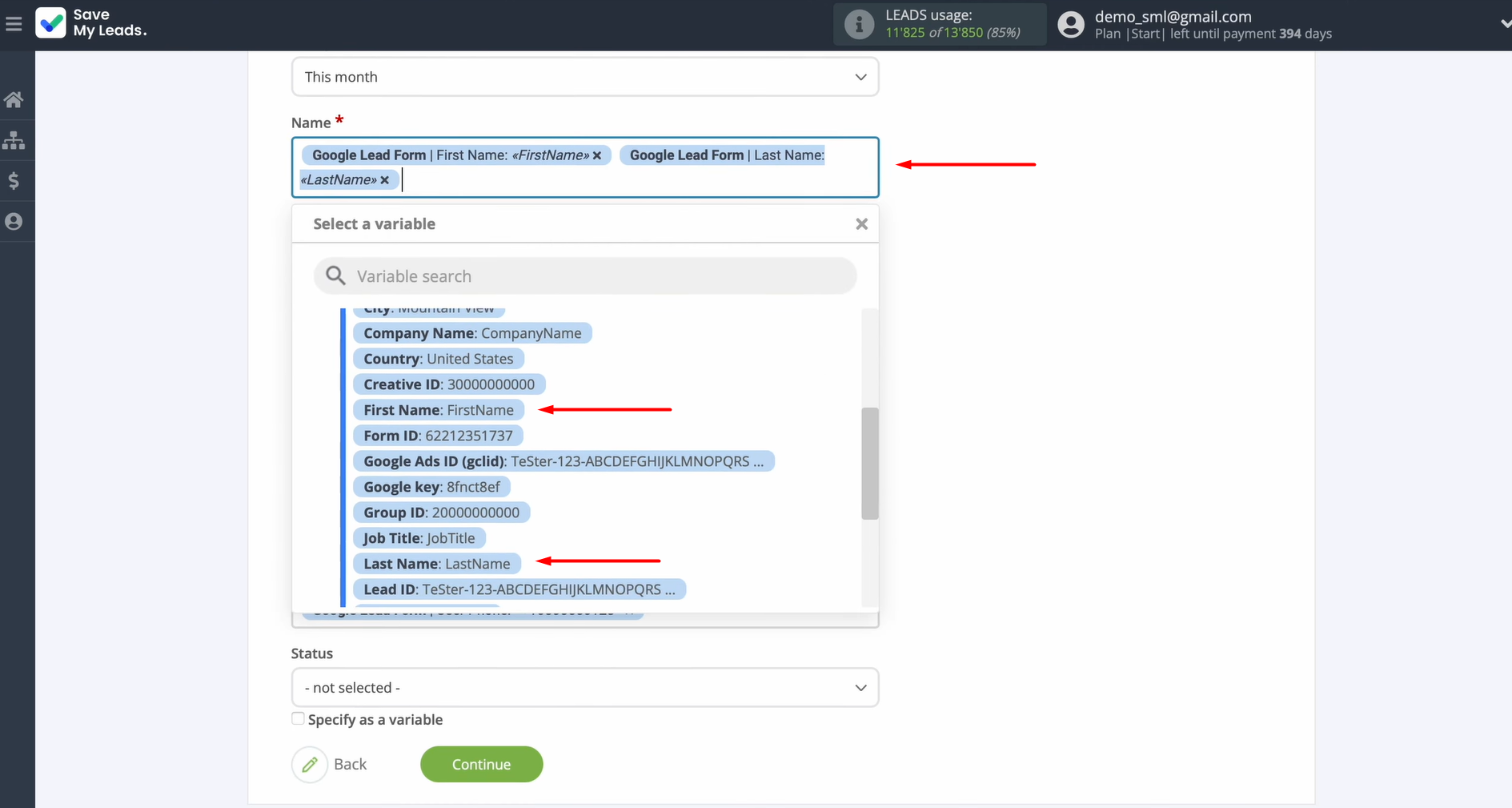
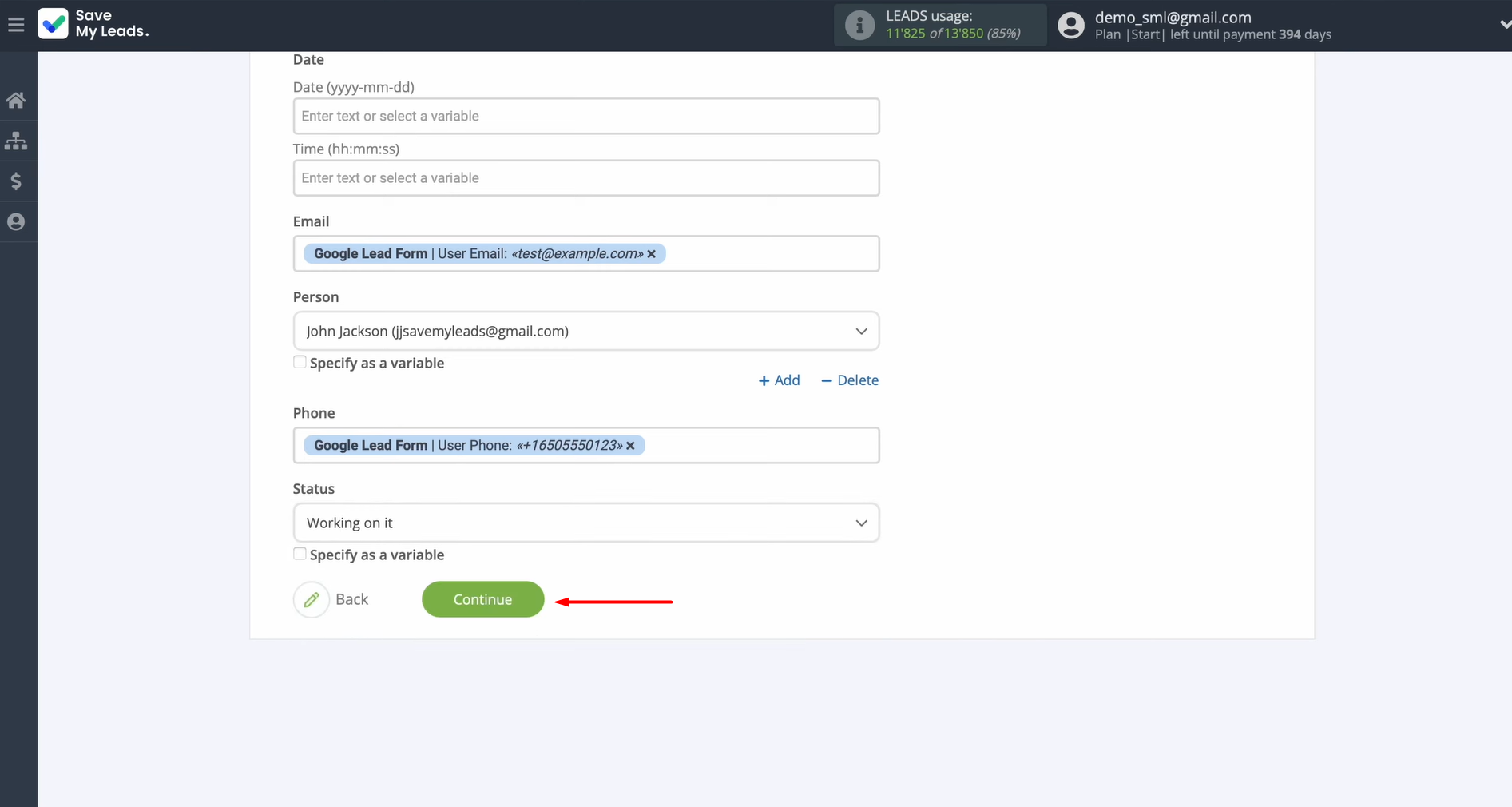
Once you've finished assigning all the necessary variables, click the Continue button.
At this point, you'll see a preview of the data that will be transferred to Monday.com as new items whenever a lead comes in from Google Lead Form. If you notice anything that needs adjustment, use the Back button to return to the previous step. To verify that everything is configured properly, go ahead and send test data to Monday.com.
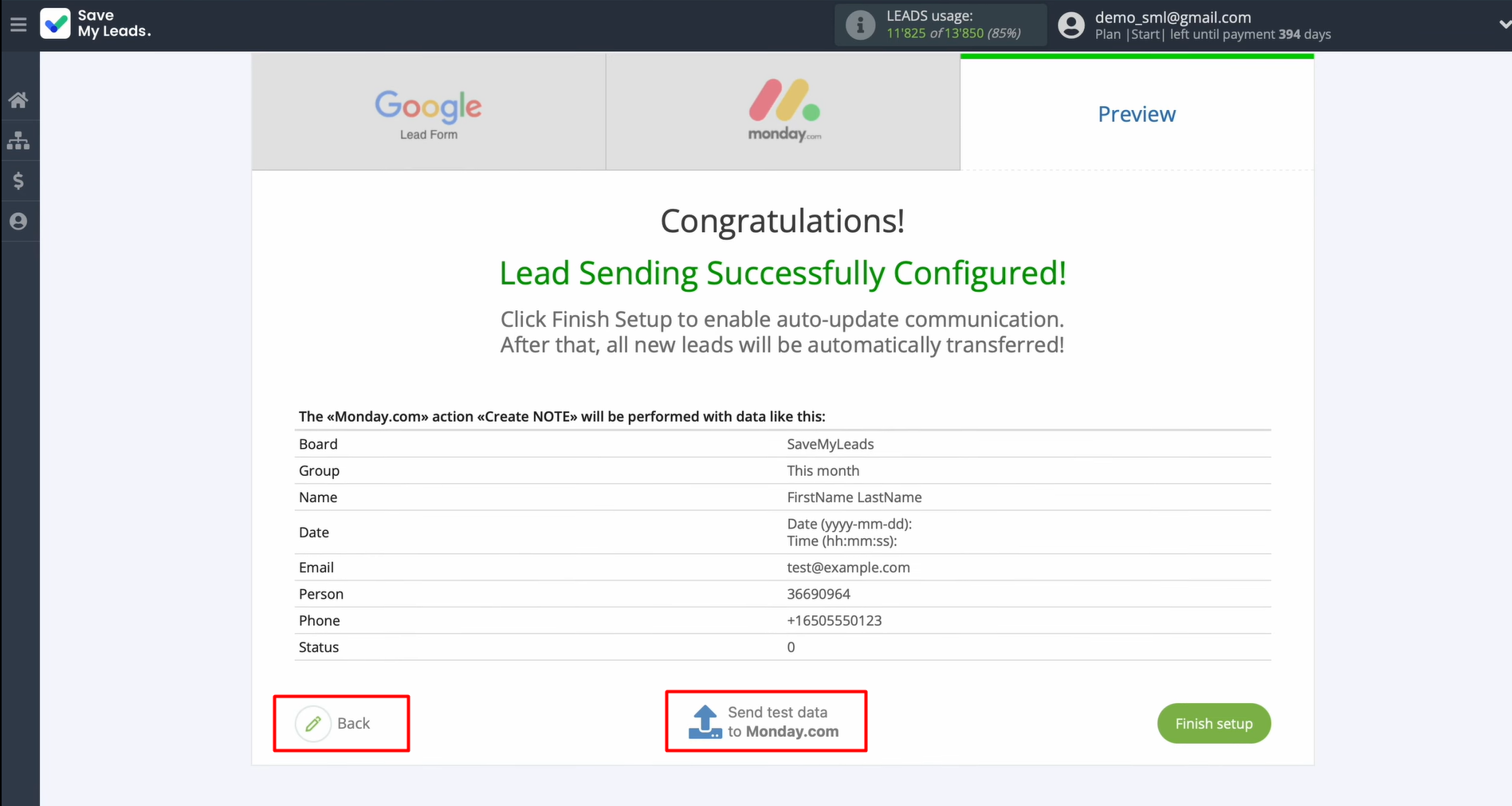
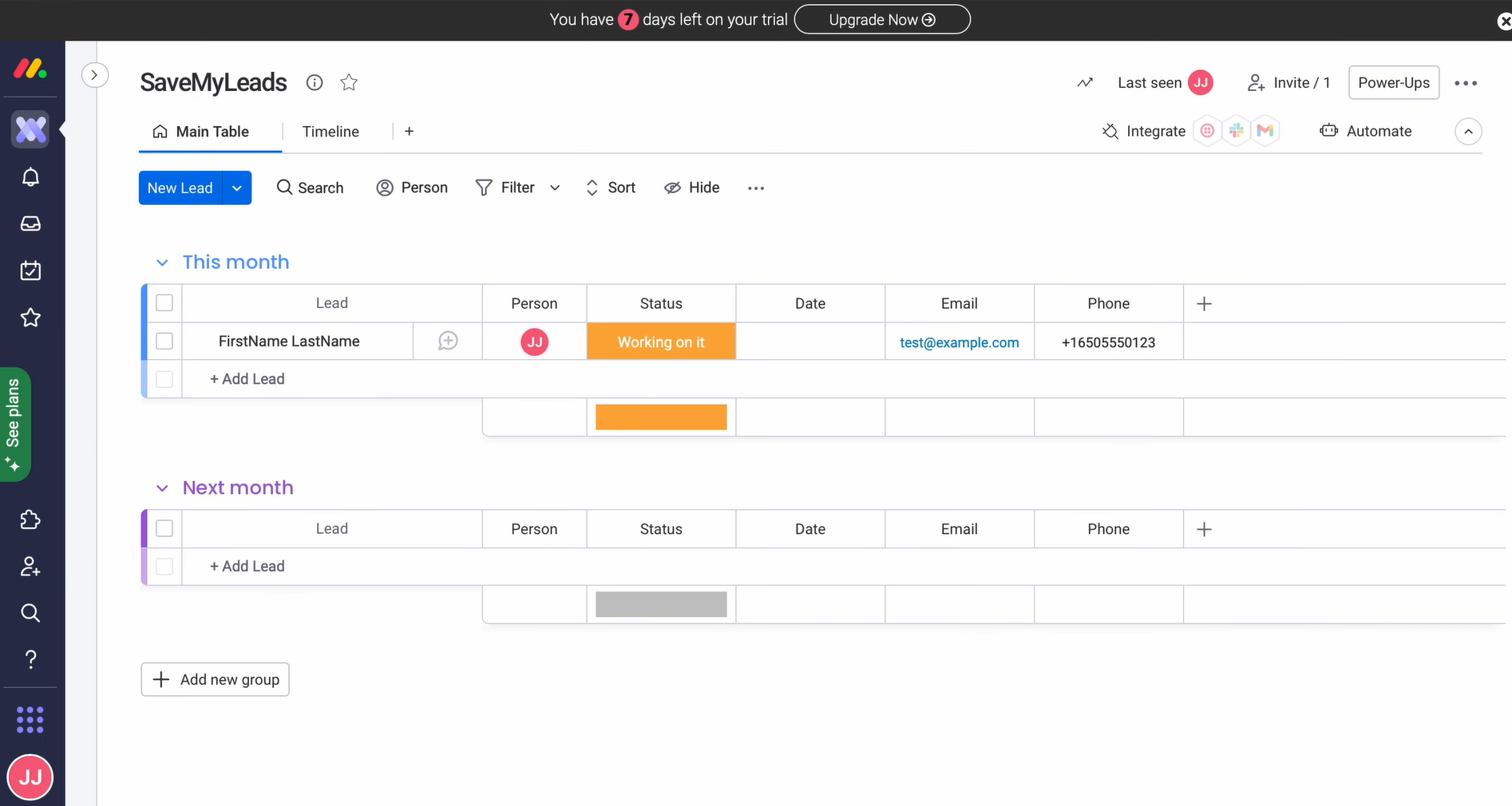
Once the test data has been sent successfully, open your Monday.com account and verify the results.
After verifying the results, go back to SaveMyLeads to continue with the setup process.
Auto-Update Mode
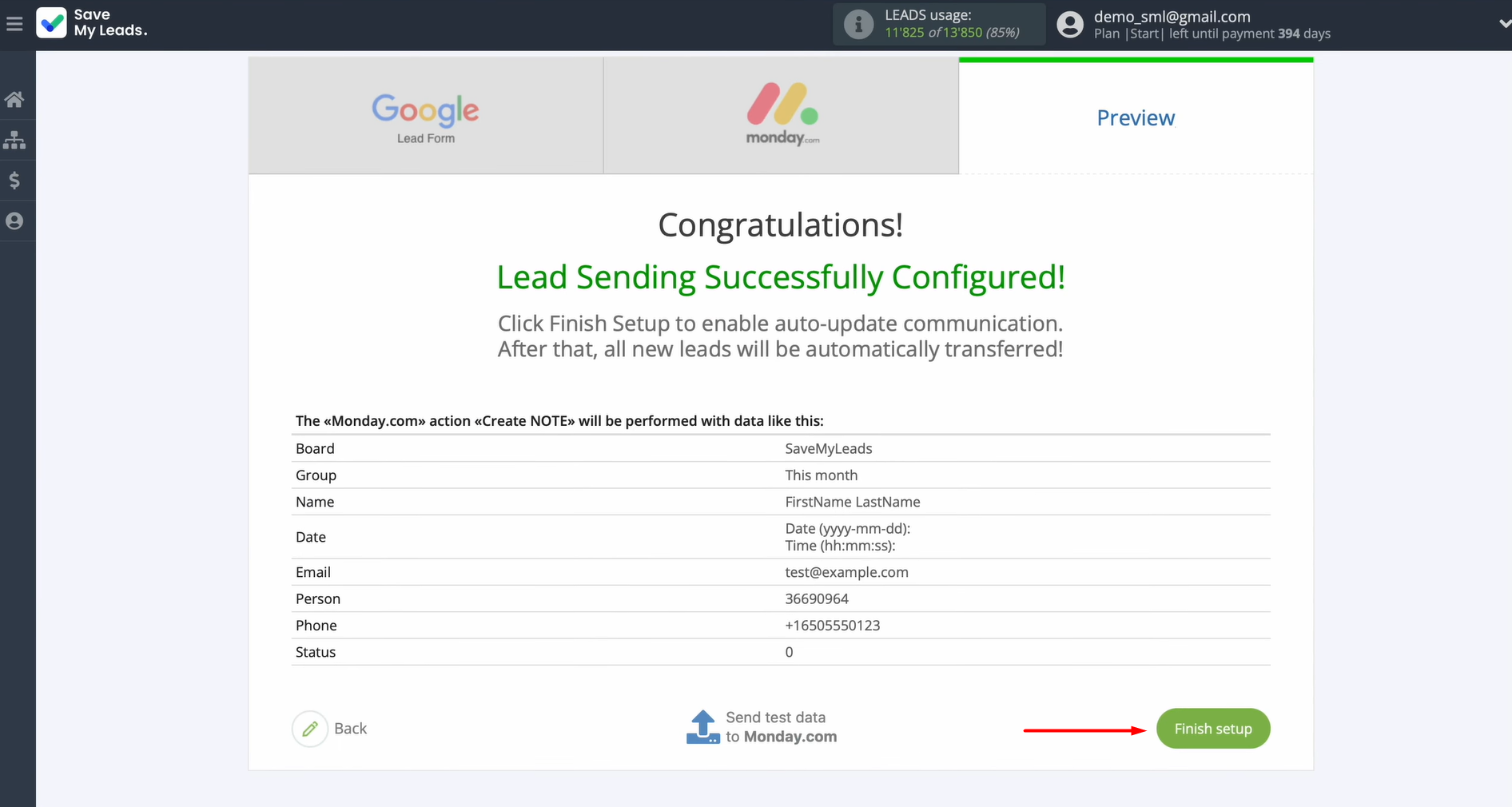
Click Finish setup to activate automatic lead transfer from Google Lead Form Ads to Monday.com.
If you need to rename the connection, open the settings by clicking the gear icon.
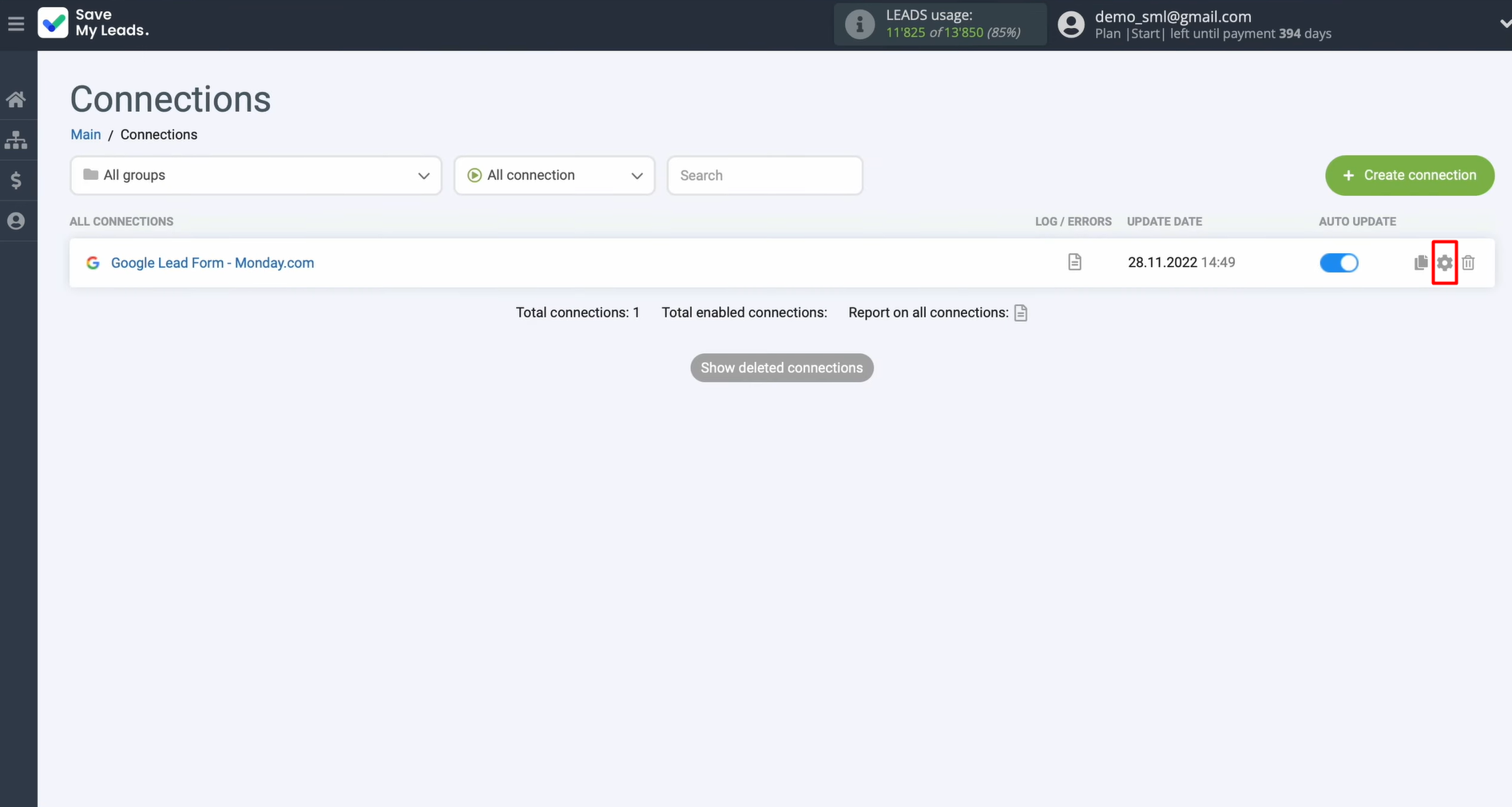
In this menu, you can update the connection name and assign it to a group. When you’re done, click Continue.
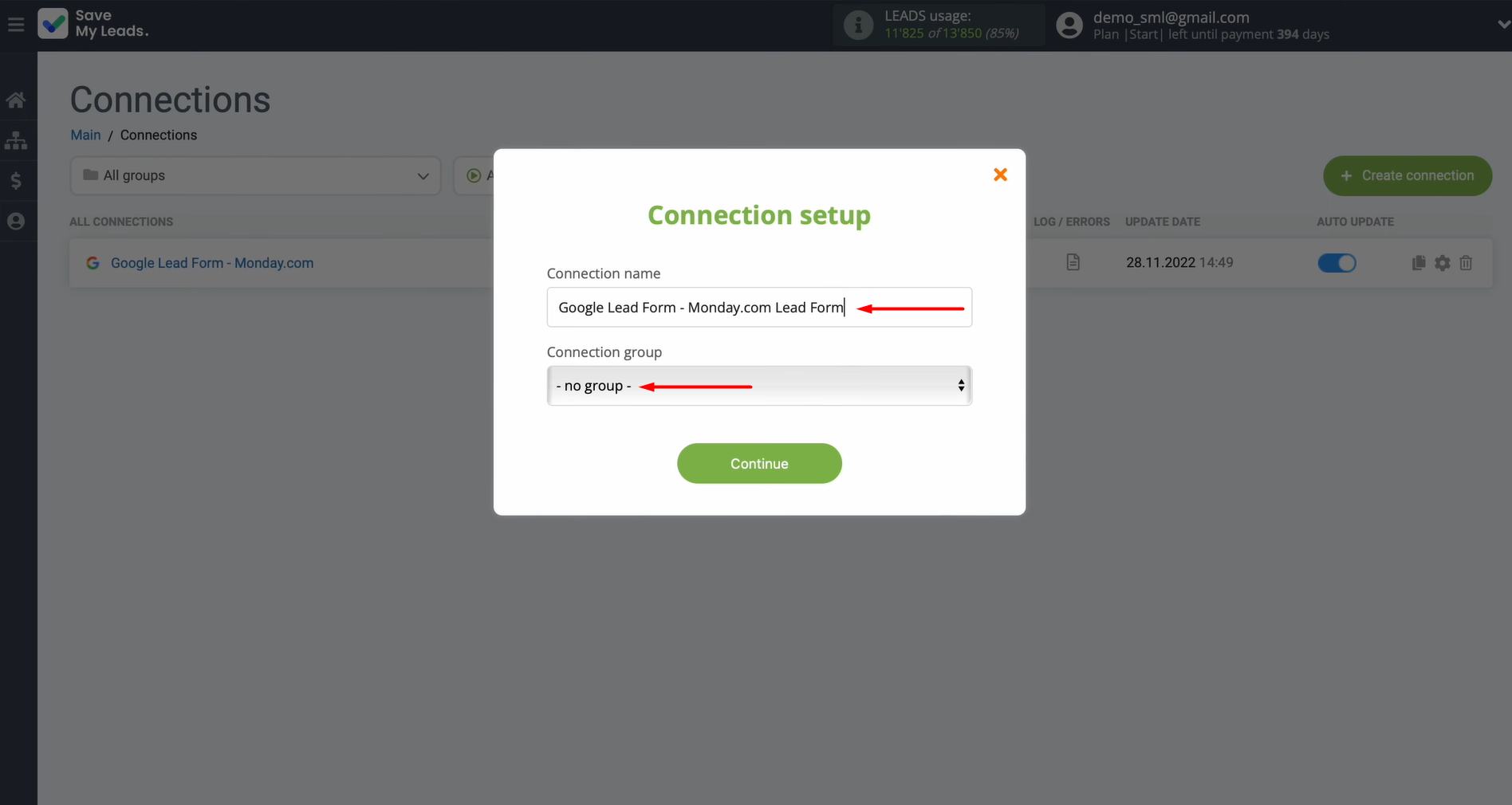
That’s it — the Google Lead Form integration with Monday.com is now active.
Conclusion
The integration of Google Lead Form and Monday.com is an effective tool that allows businesses to save resources. It allows you to save time, process more leads, reduce financial costs, and reduce the burden on employees without losing quality. Automating the transfer of potential customer data eliminates routine, minimizes errors that usually occur due to the human factor, and prevents the loss of leads. As a result, the company receives benefits in both the short-term (time, money) and long-term (lead-to-customer conversion) perspectives.
Step-by-Step Guides for Setting Up Integrations:
- TikTok and Slack Integration: Automatically Sending Channel Notifications
- Google Lead Form and Asana Integration: Automatic Data Transfer
- TikTok and Trello Integration: Automatic Conversion of New Leads into Tasks
- Seamless Integration of Google Lead Form Ads and Freshworks
- TikTok and Constant Contact Integration: Automatically Adding Contacts