Google Lead Form Ads integration with CRM systems is essential for businesses focused on retaining warm leads and speeding up order processing. It enables you to fully automate the transfer of data, for example, from an advertising form to Freshworks. This allows the responsible employee to contact leads quickly when their interest in the offer is at its peak. The chances of successfully selling a product or service under such conditions increase significantly. From this article, you will learn how to configure and launch Google Lead Form Ads and Freshworks integration on your own.
Automating Lead Transfer: Eliminating Manual Work
The speed of response to a client's request is one of the key factors for success in sales. Manually transferring leads from a Google advertising form to CRM significantly slows down the process. Downloading CSV files or basic copy-pasting of data not only takes up valuable time and causes delays in communication. These methods are usually associated with a high risk of errors and may even cause the loss of some orders.
If you connect Google Lead Form Ads with Freshworks, you can eliminate the routine manual data transfer by automating it. Each lead who submits a Google Ads form is automatically added to Freshworks, where a new deal is automatically created. This way, managers can quickly process orders without wasting time manually copying or importing data.
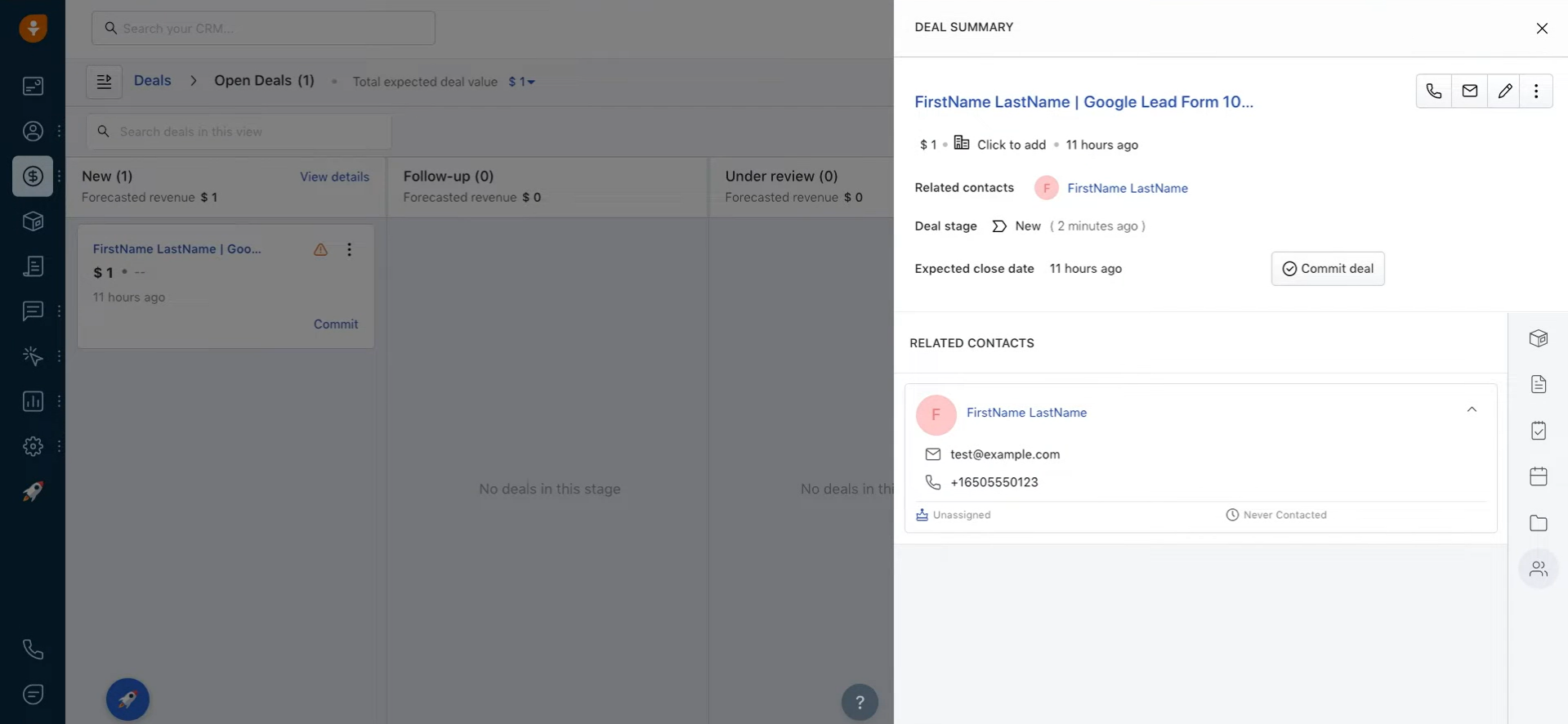
Example: James Smith requested a legal consultation. His contact details were automatically entered into the CRM. The lawyer contacted the potential client as soon as possible, discussed the details of his case, and agreed on a date and time for a meeting at the office.
When working with Google Lead Form Ads and Freshworks, lead transfer automation is especially important for companies and entrepreneurs operating in highly competitive industries such as education, healthcare, legal consulting, real estate, and B2B. In these areas, the speed of contact often determines who wins the client.
Automatic lead transfer from Google Lead Form Ads to Freshworks allows you to process more inquiries and orders without increasing the workload on managers. In addition, it helps to avoid lead losses caused by errors during manual data transfer. The result is an increase in conversion rates while saving human and time resources.
How to Connect Google Lead Form Ads to Freshworks
Today, online connectors are commonly used to join services to exchange data. Let's look at how to integrate Google Lead Form Ads with Freshworks CRM using the SaveMyLeads platform.

- Automate the work with leads from the Facebook advertising account
- Empower with integrations and instant transfer of leads
- Don't spend money on developers or integrators
- Save time by automating routine tasks
The developers of SML made sure that the entire setup process takes only a few minutes and is accessible to a wide range of users. Even non-specialists with basic skills can easily handle it.
The setup process:
- Create a new connection.
- Select a template for integration.
- Connect and configure Google Lead Form.
- Connect and configure Freshworks.
- Turn on auto-update.
As you can see, there is nothing complicated. Therefore, we suggest you not waste time and not give your potential customers to your competitors. Let's start setting up the integration right now.
Data Source Settings: Google Lead Form
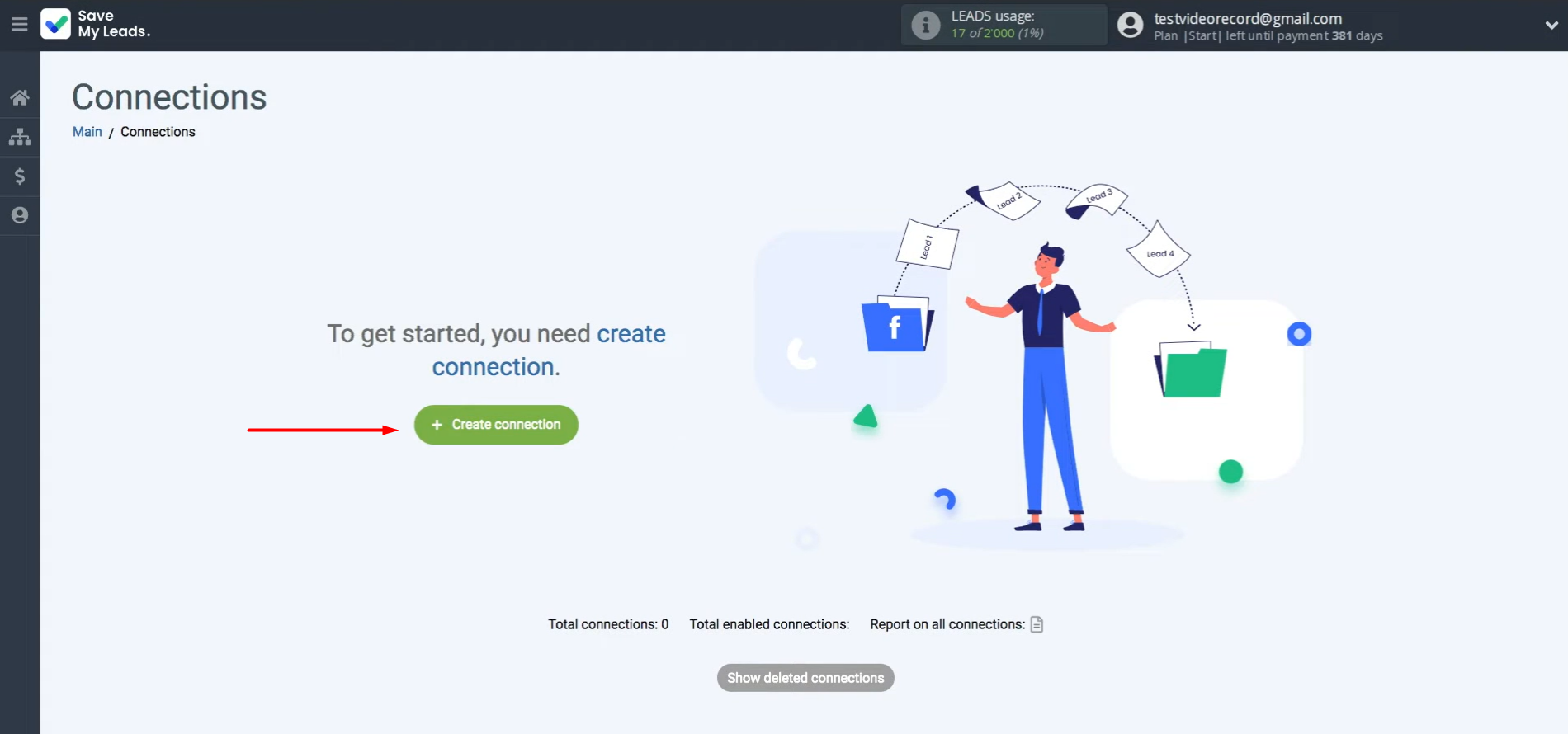
The first step is to create a new connection.
Choose the source system for your lead transfer. In this case, it is Google Lead Form.
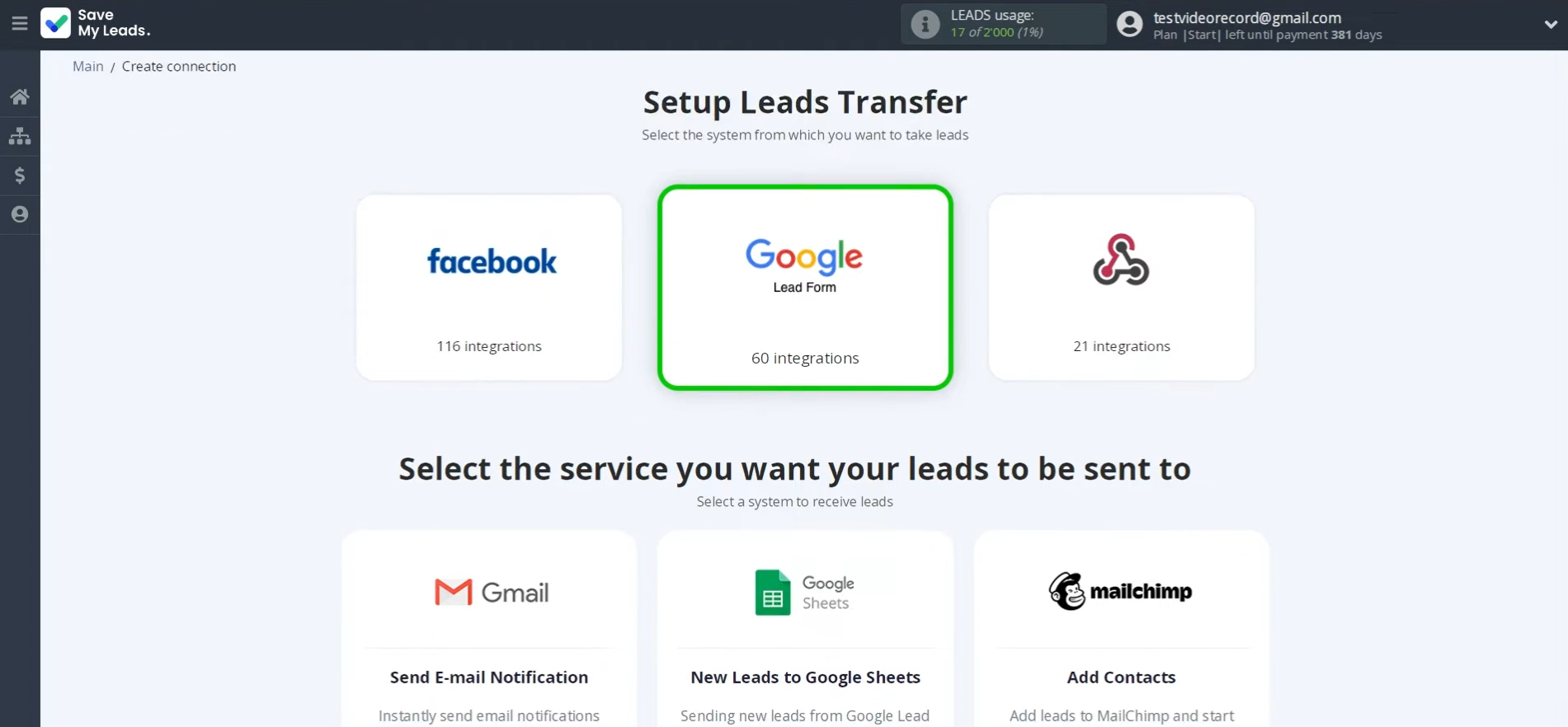
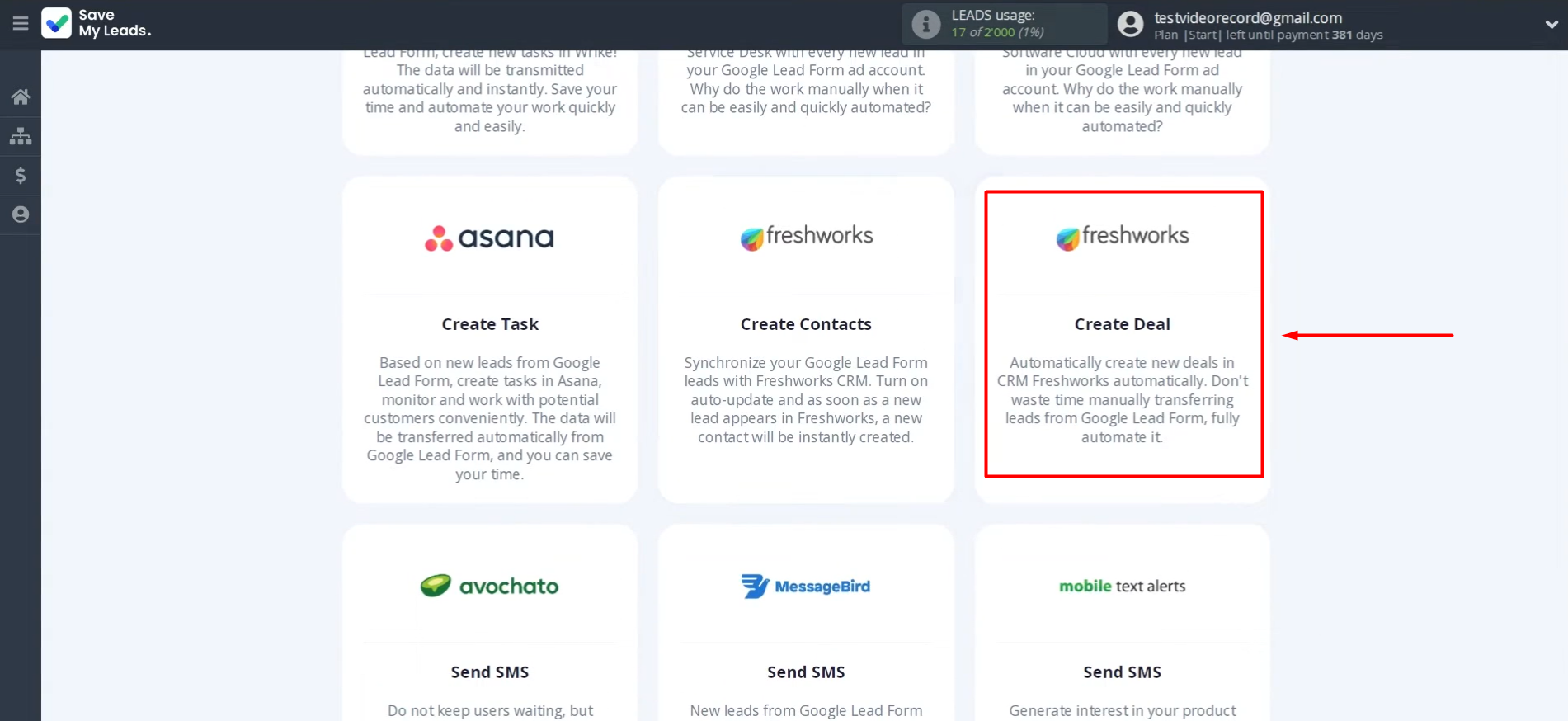
Next, select one of the ready-made templates to send leads from the Google Lead Form. You need Freshworks (Create Deal).
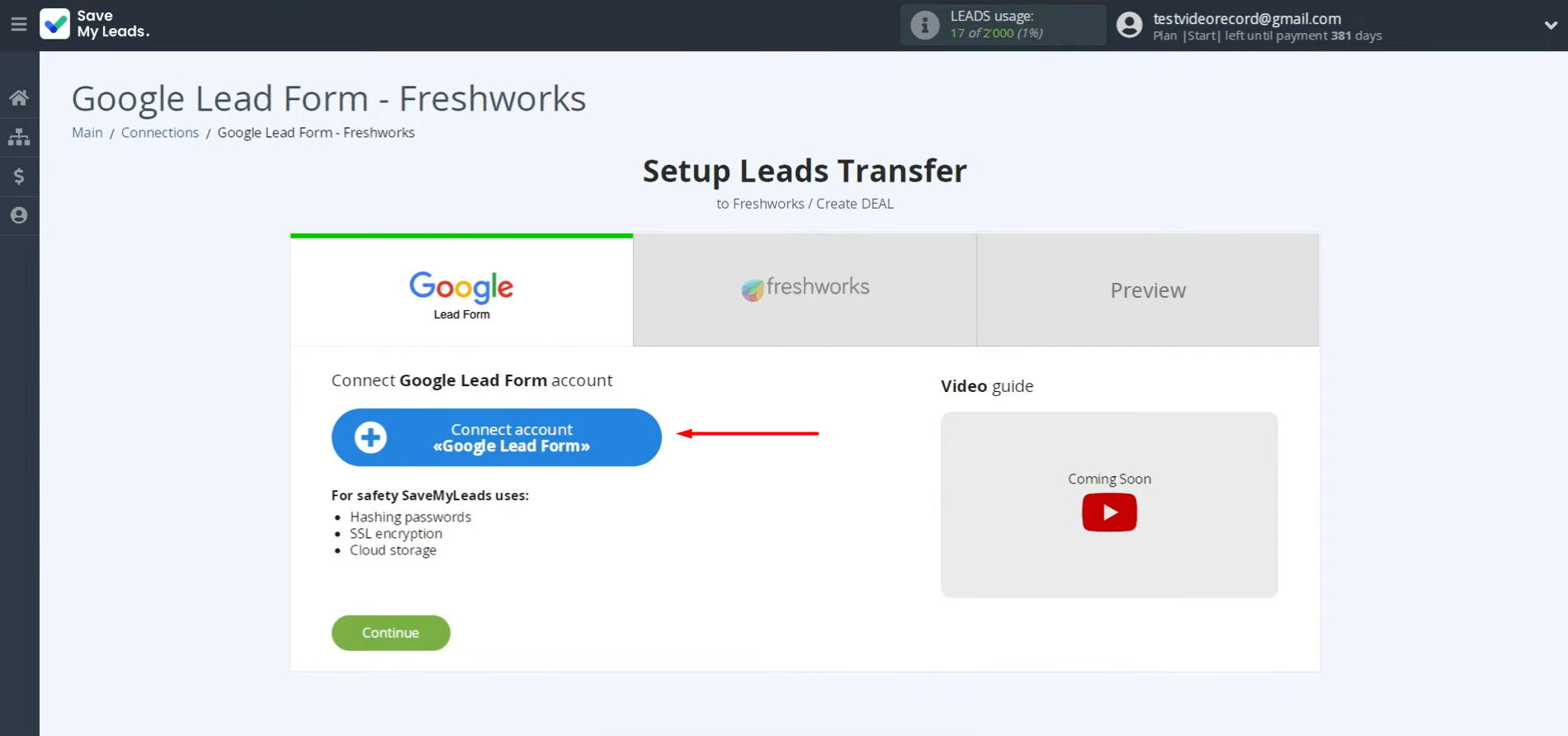
Link your Google Lead Form account to SML.
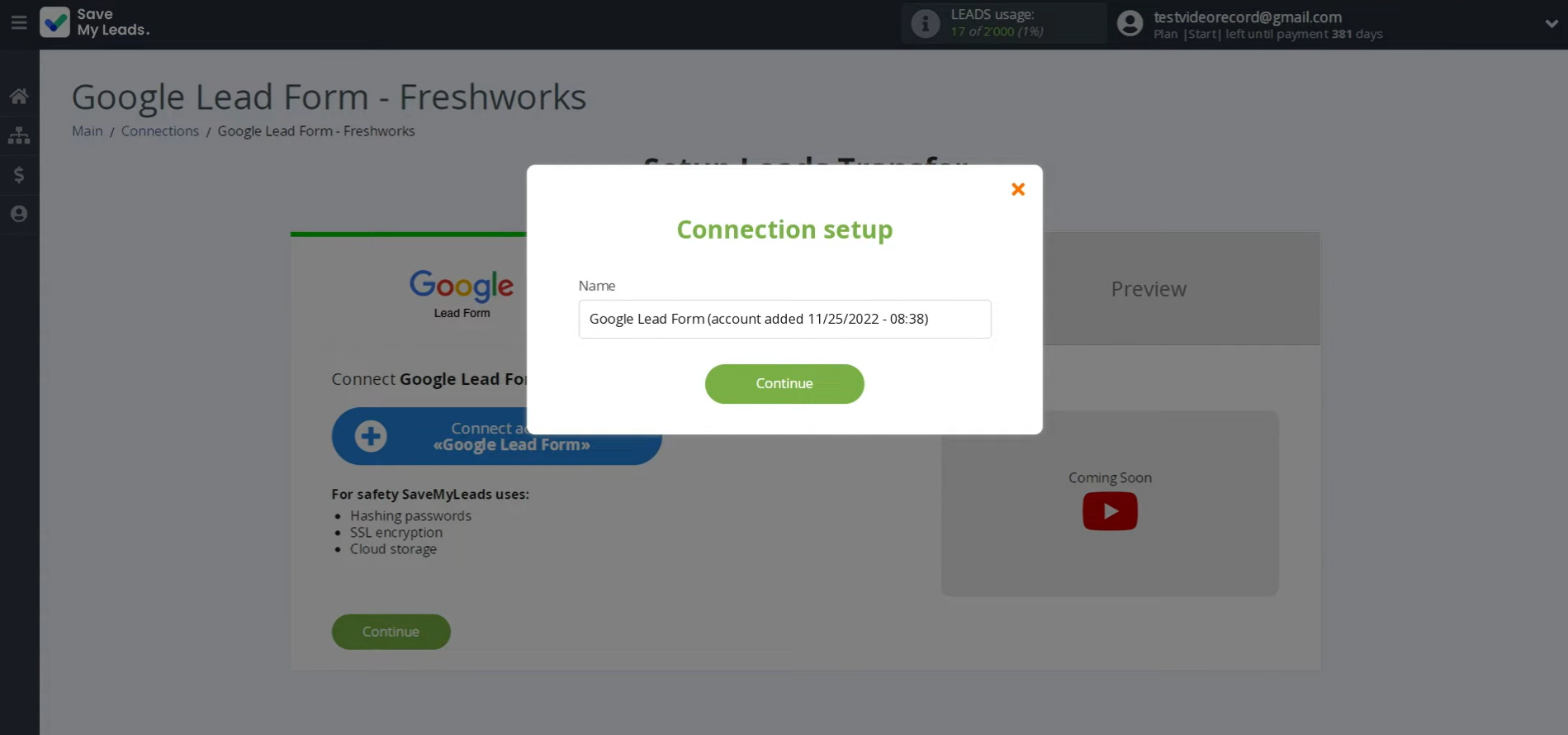
Here, you can give the connection a name or just click Continue.
Once the account appears in the list, select it.
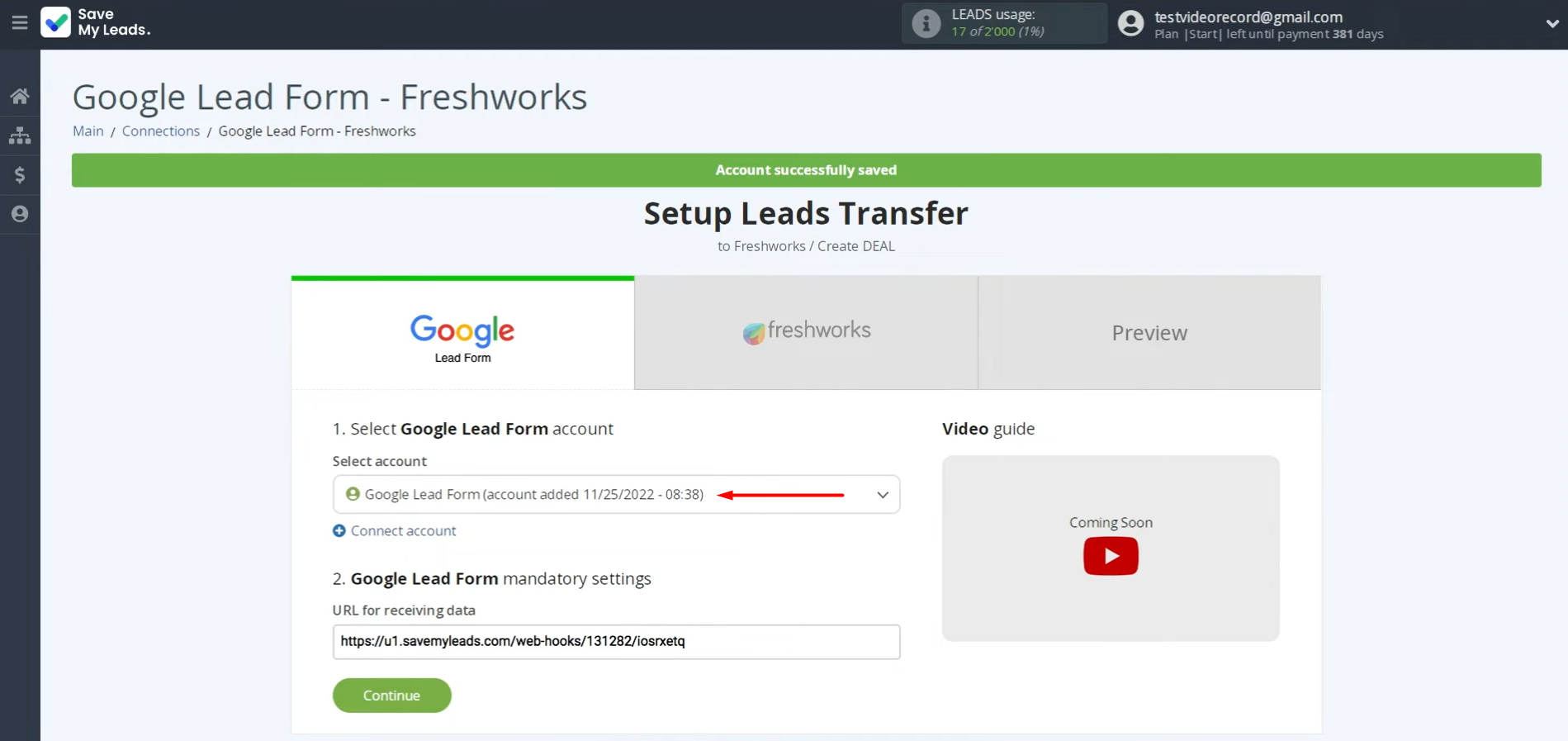
You will see a webhook URL; this link is required to receive incoming data from the Google Lead Form. Copy this URL and go to your Google Lead Form account.
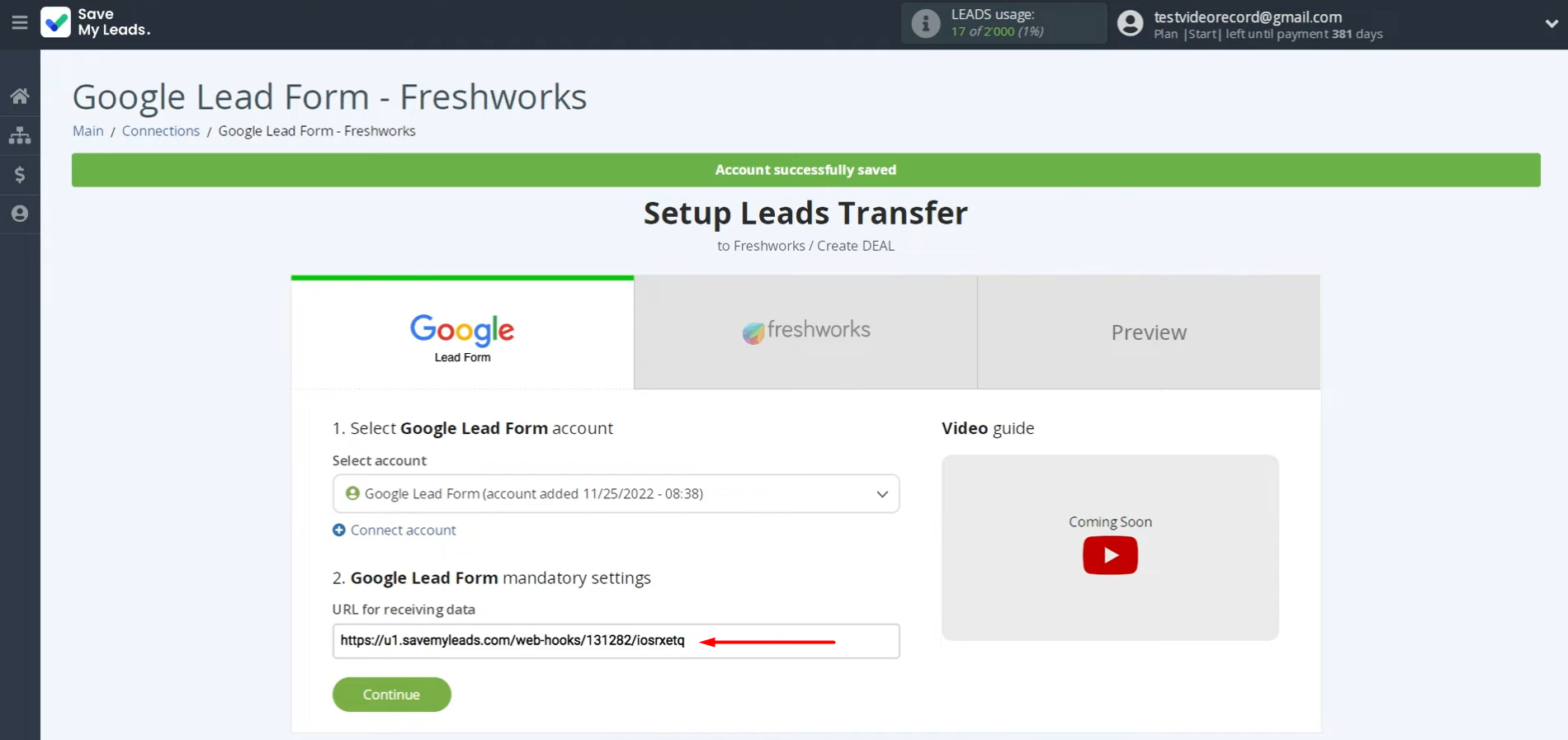
Go to the Ads and Assets section, then open the Assets tab.
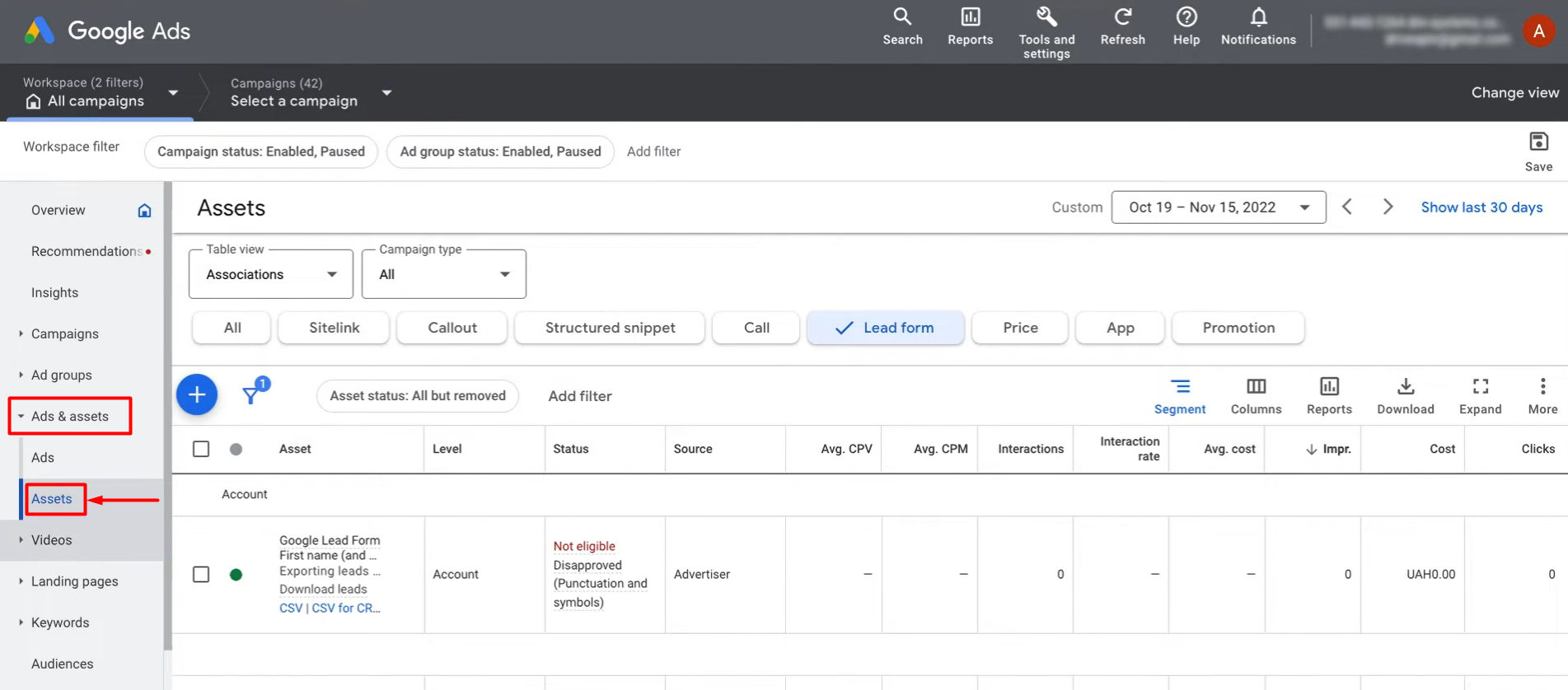
Navigate to the specific form you are setting up.
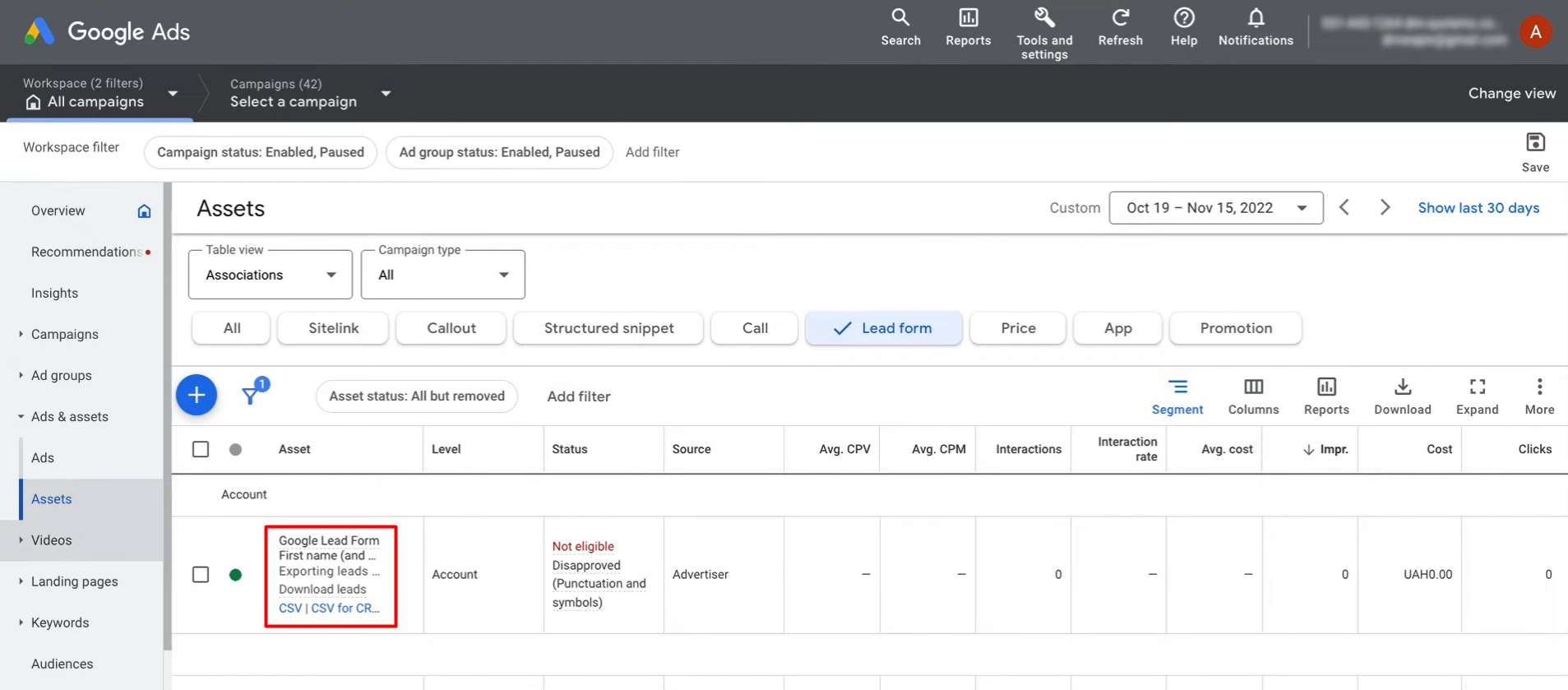
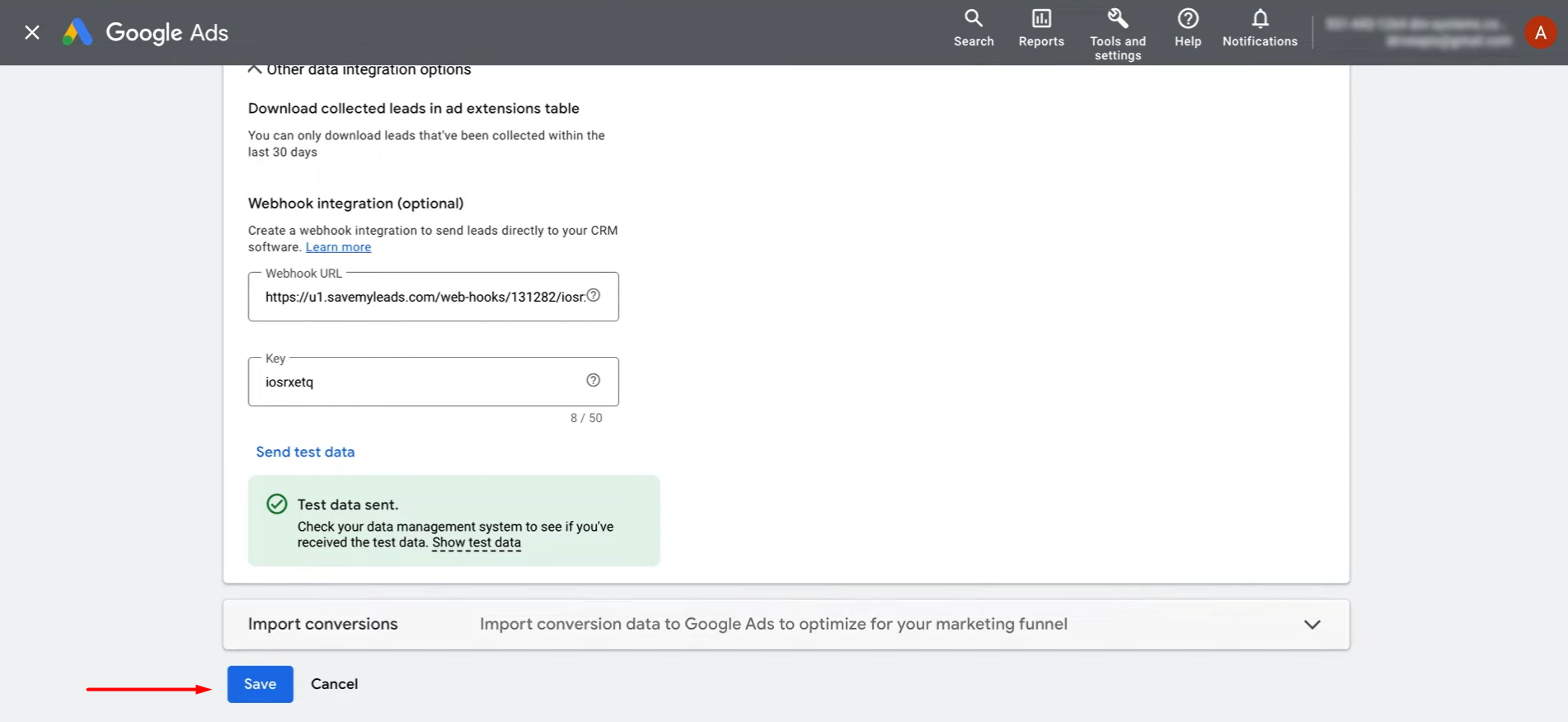
Then, go to the section Other data integration options.
Paste the copied URL into the corresponding field.
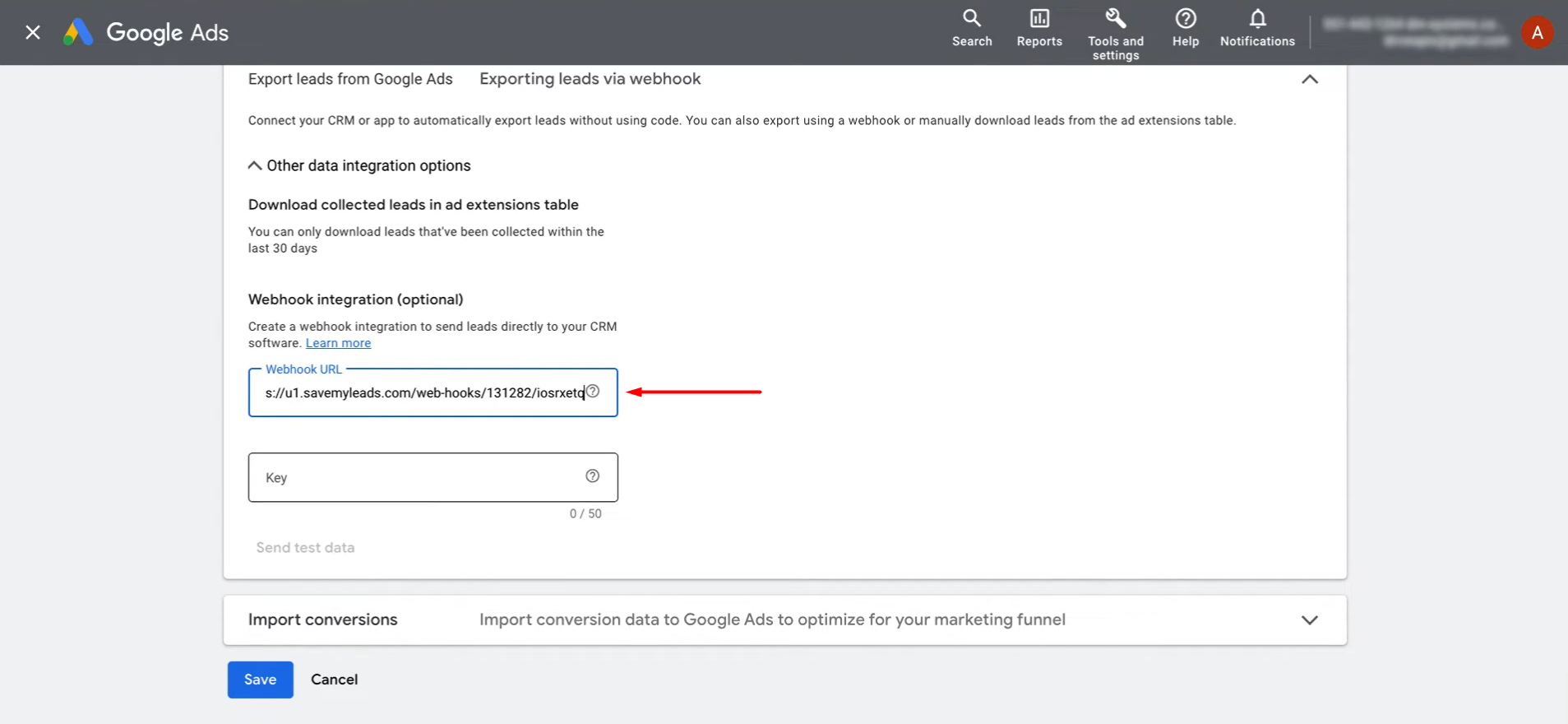
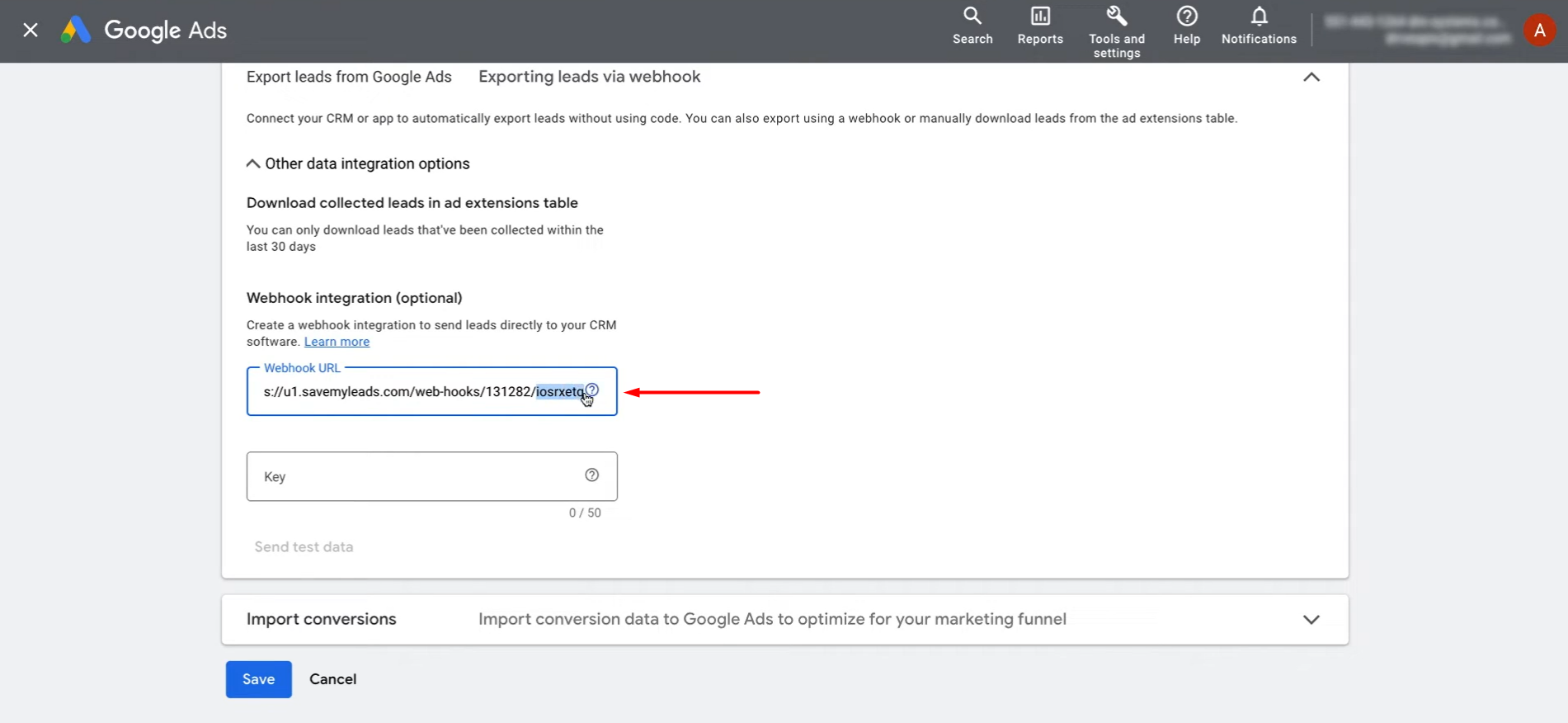
For the key, specify the last part of the URL.
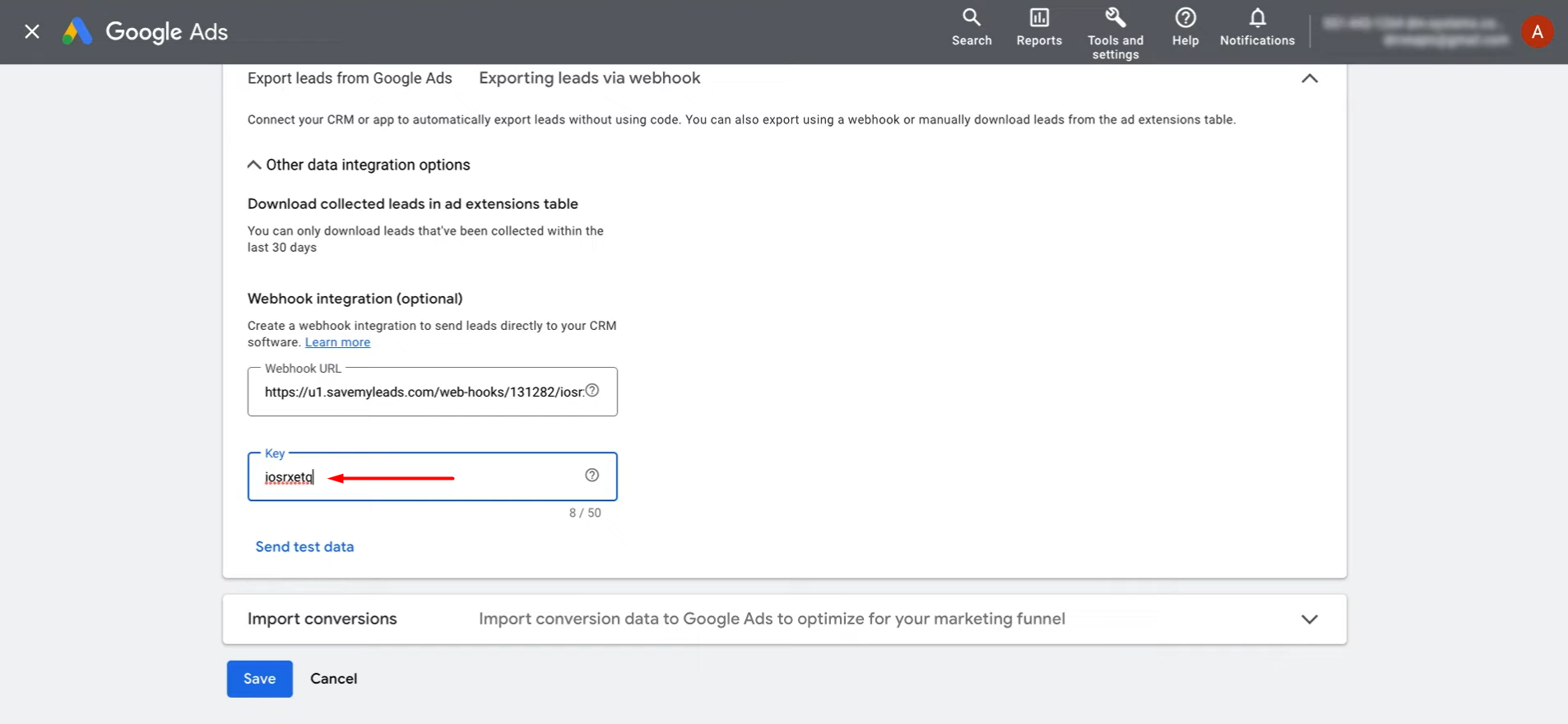
You must generate test data to proceed with the configuration. Click Send test data.
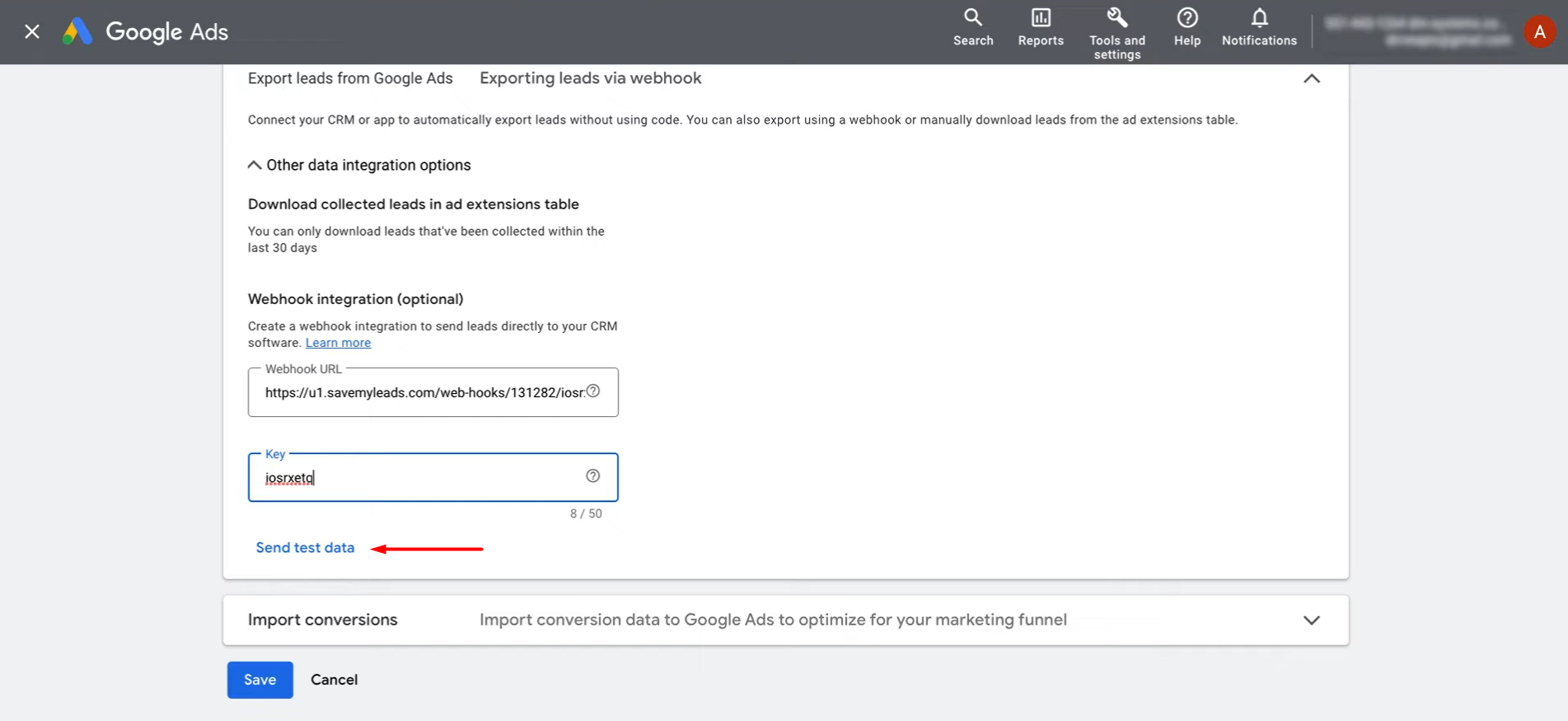
Save your changes, then switch back to SaveMyLeads to continue.
Data Destination Settings: Freshworks
Connect your Freshworks account.
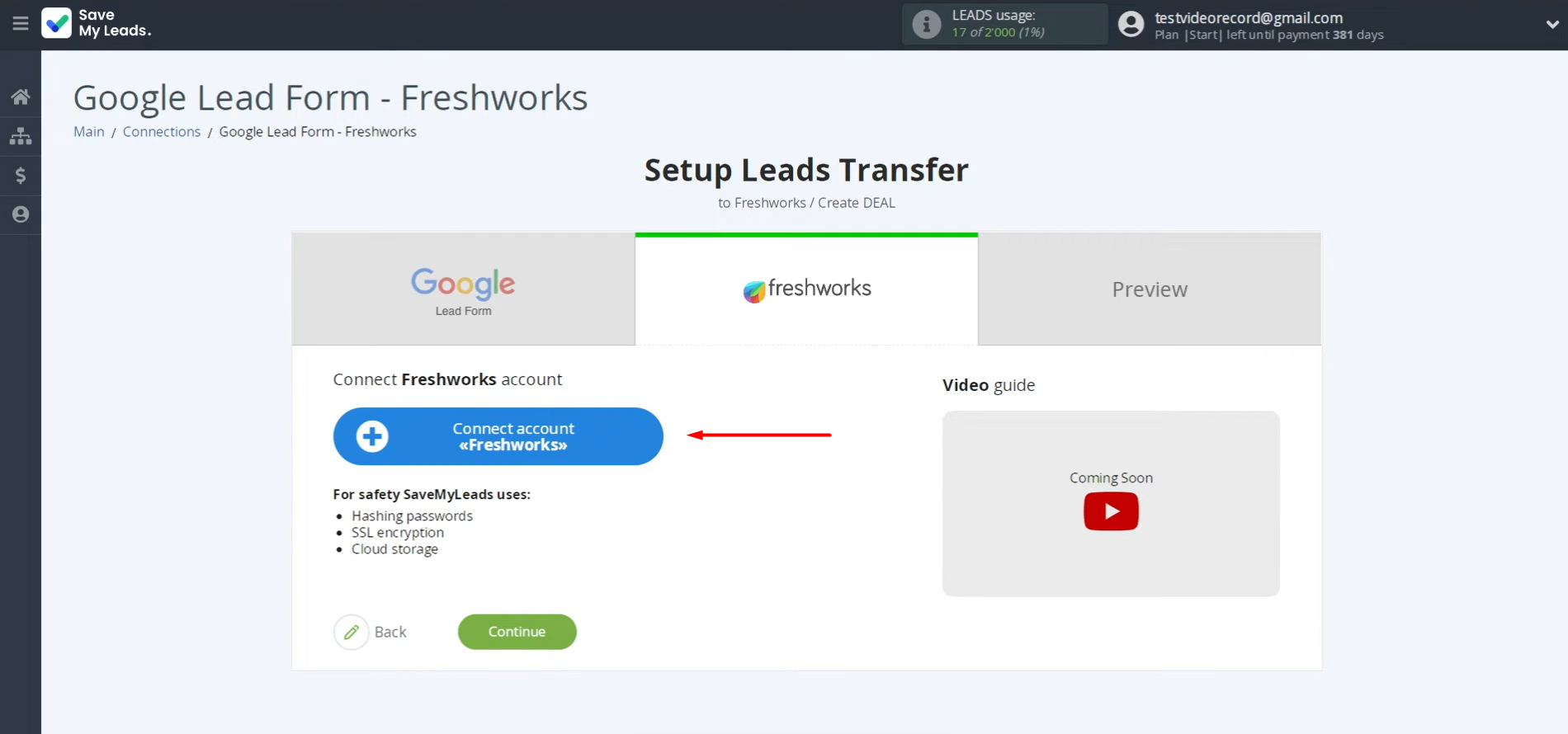
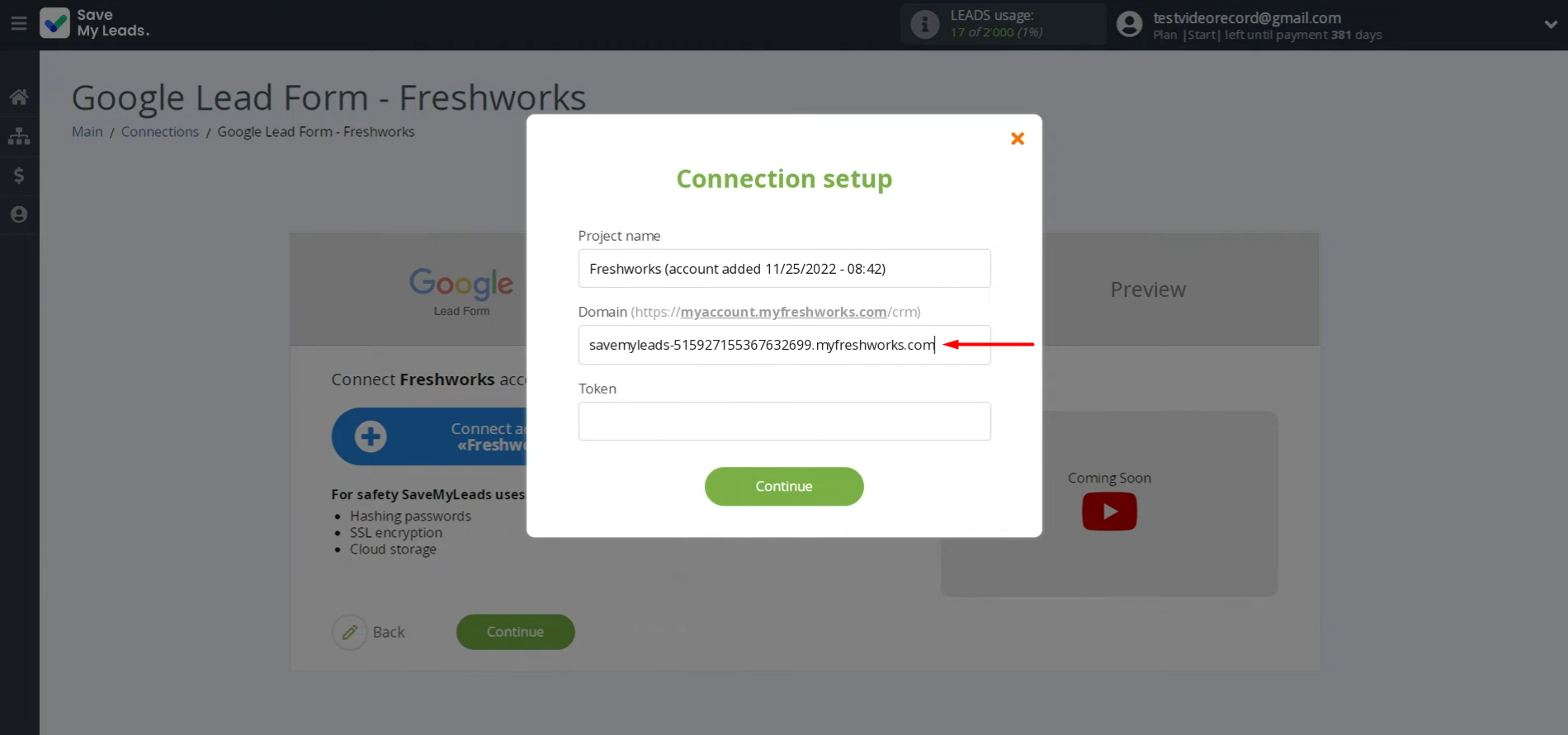
In this window, you must specify the domain and token from your Freshworks account.
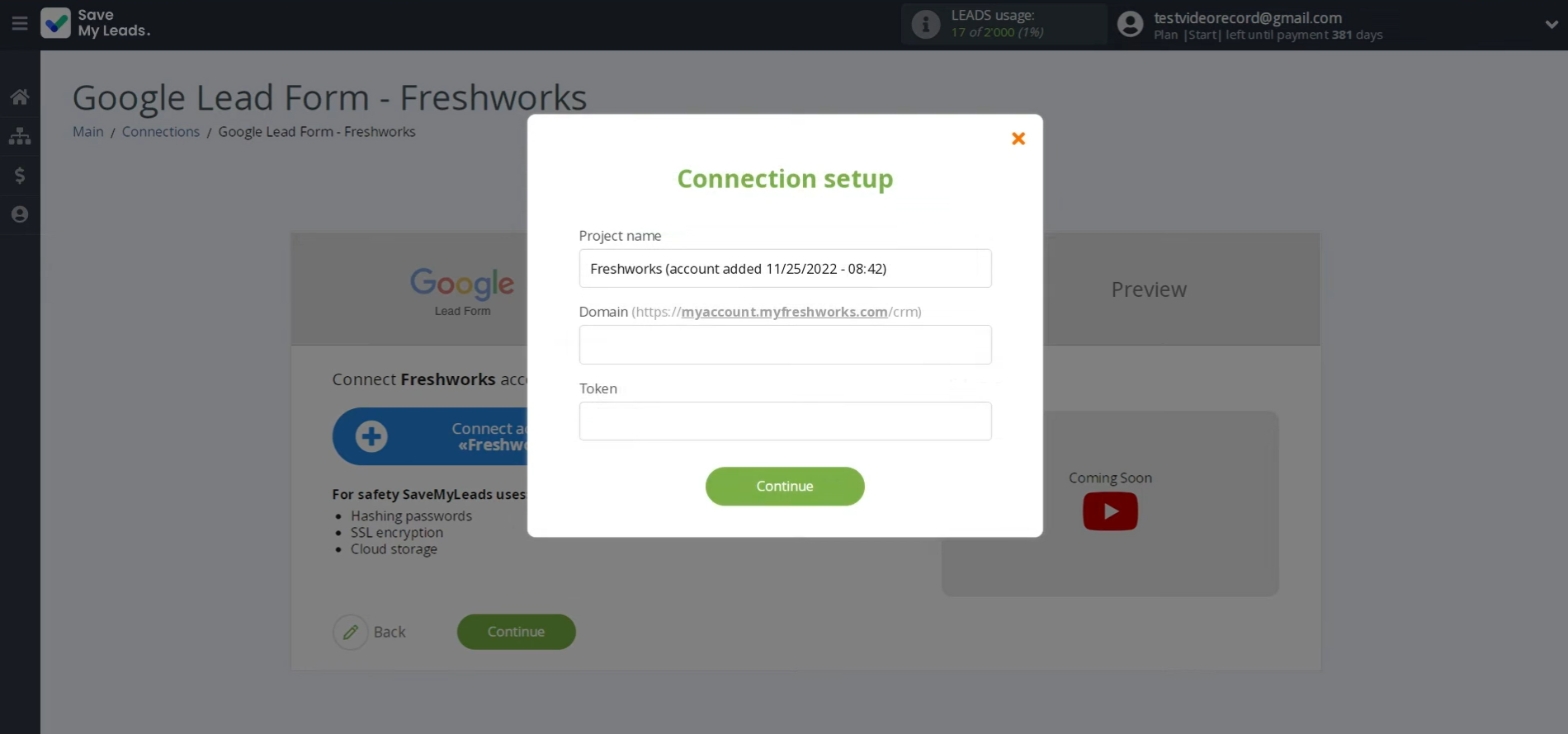
To get them, go to your Freshworks account and copy the domain from the address bar. Note that the domain must be copied without extra characters.
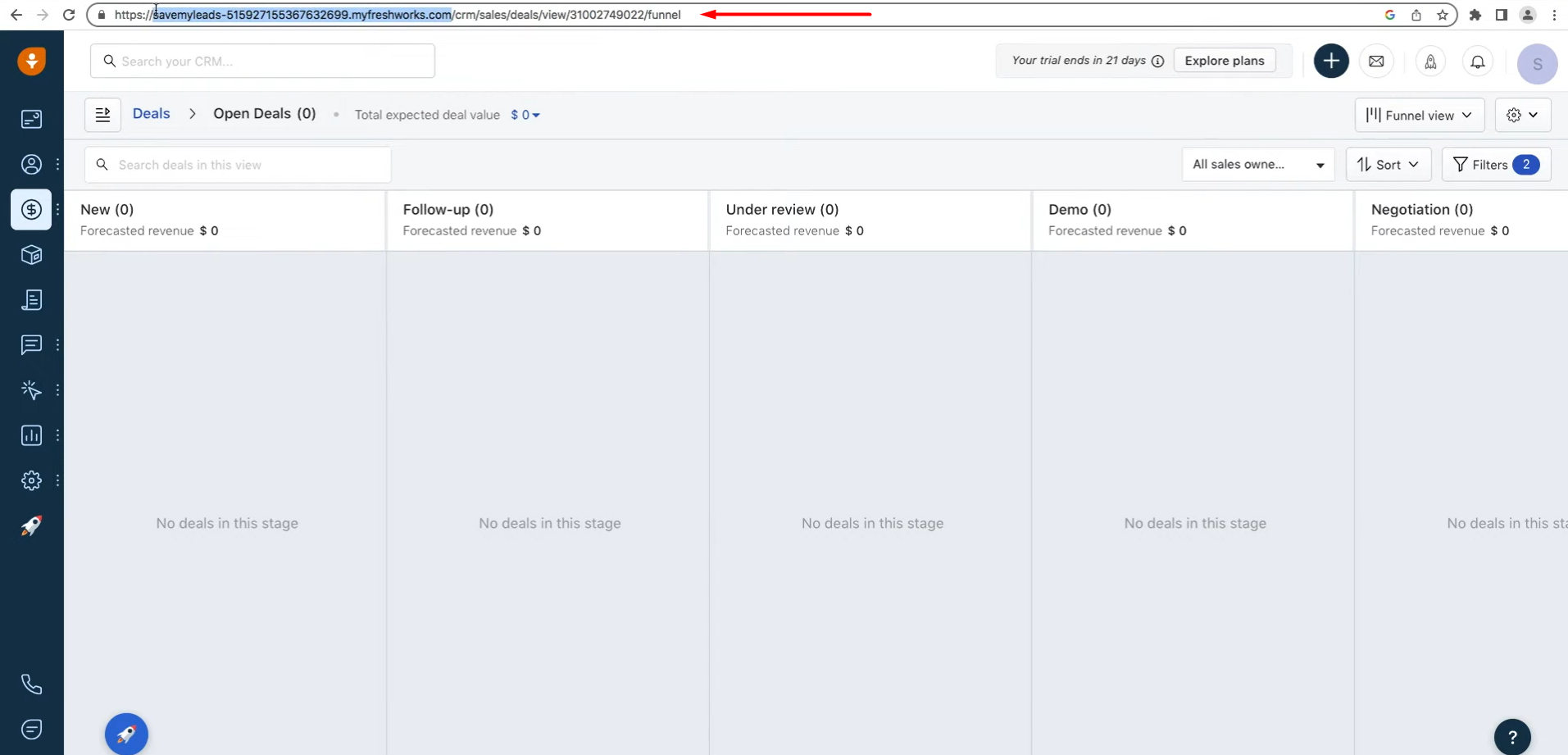
Paste the copied domain into the appropriate field in SML.
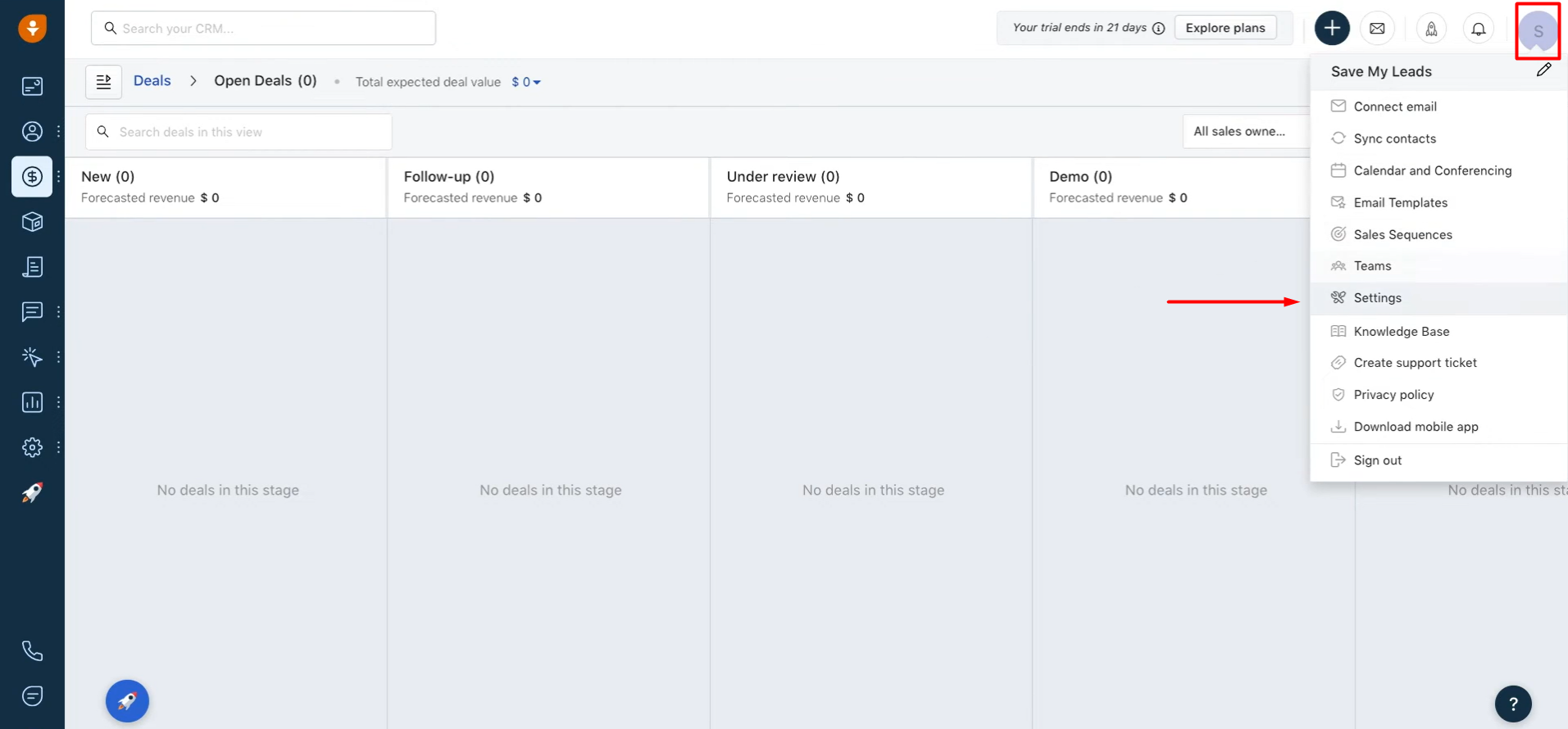
Now, you need to specify the token. Go back to Freshworks and open the Settings section on the API settings tab.
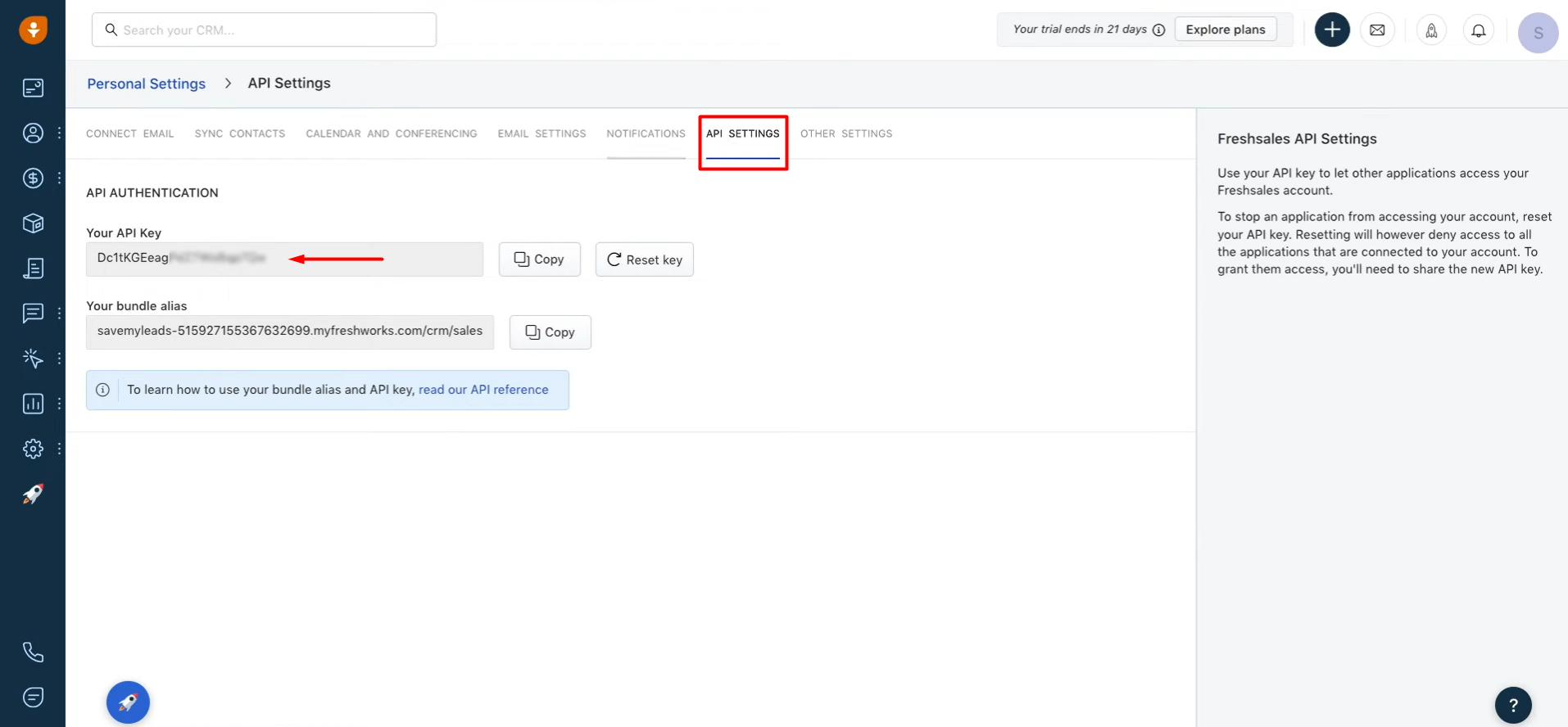
Copy the API key.
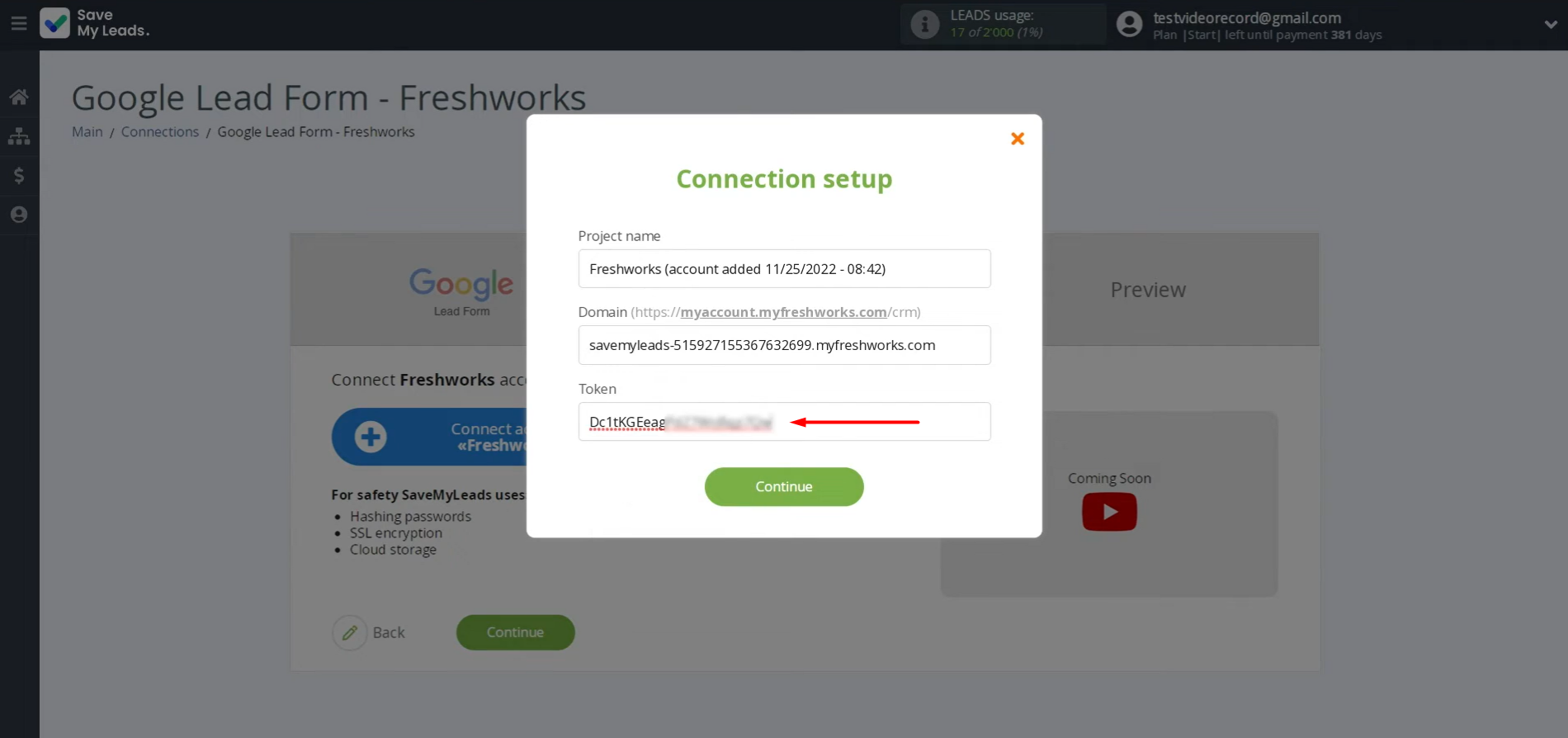
Paste the API key into the designated field. When the required fields are filled, click Continue.
Select the connected account once it appears in the list.
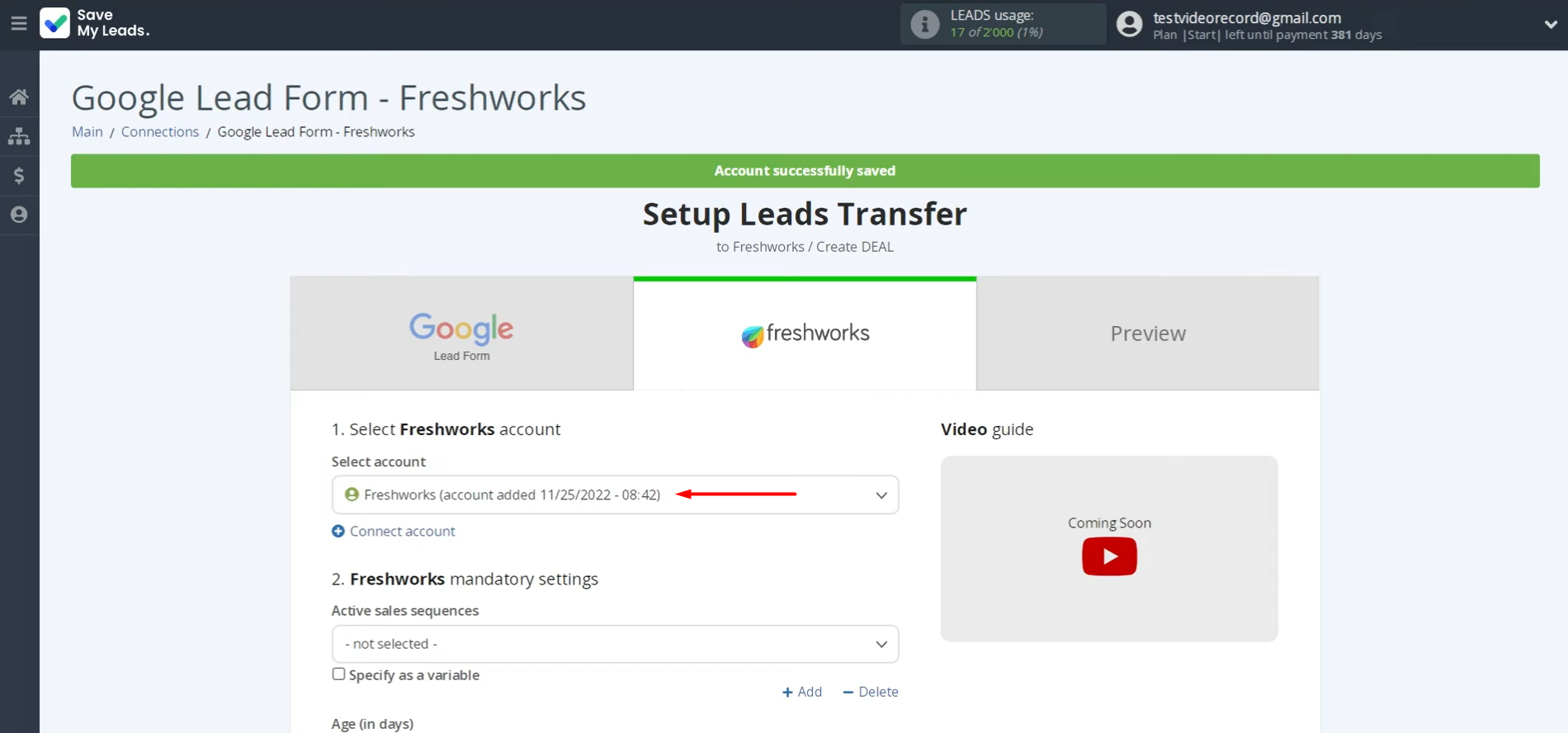
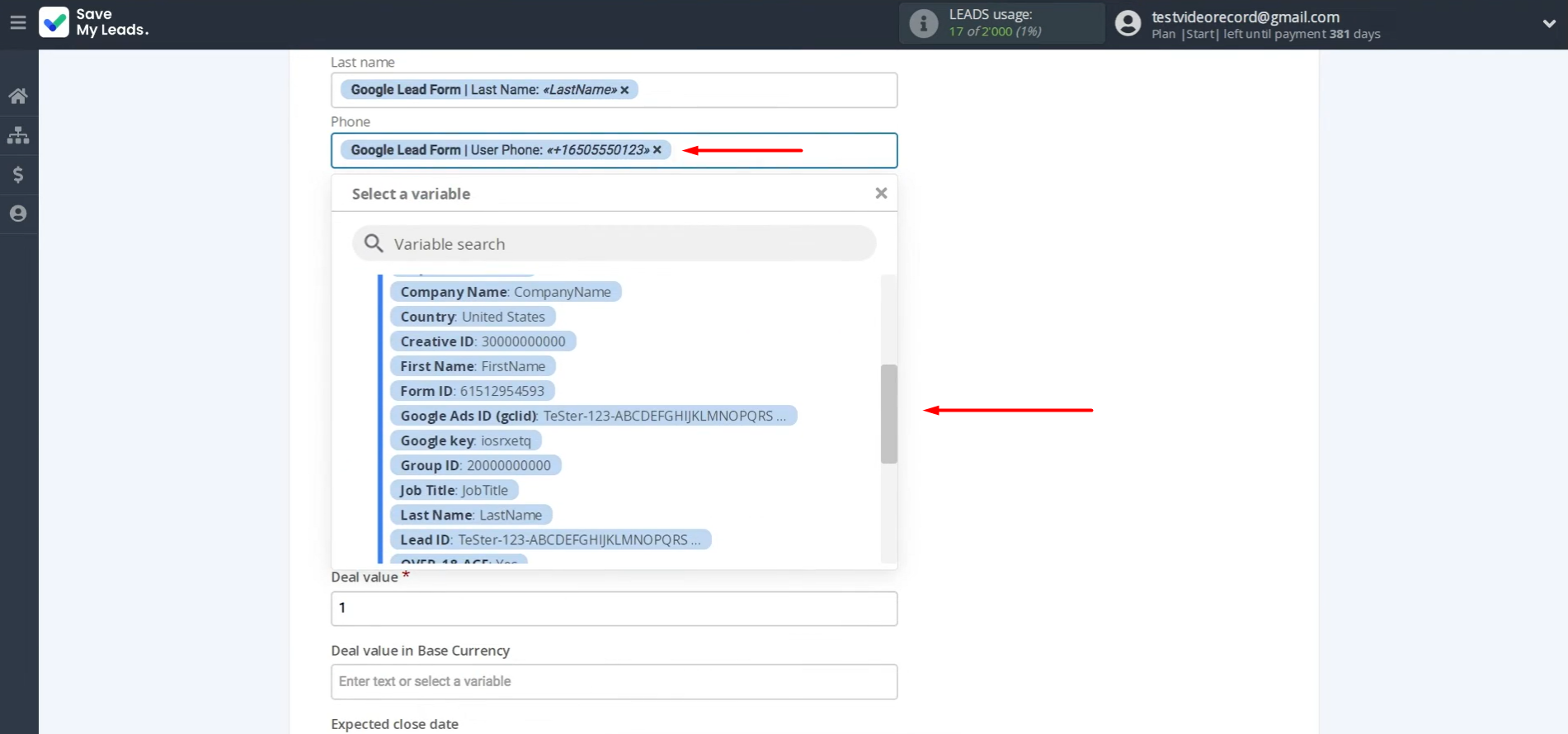
Next, you see the Freshworks fields where you can assign variables from the Google Lead Form. The fields are mapped automatically. However, if you need to make changes, you can select different variables from the dropdown list.
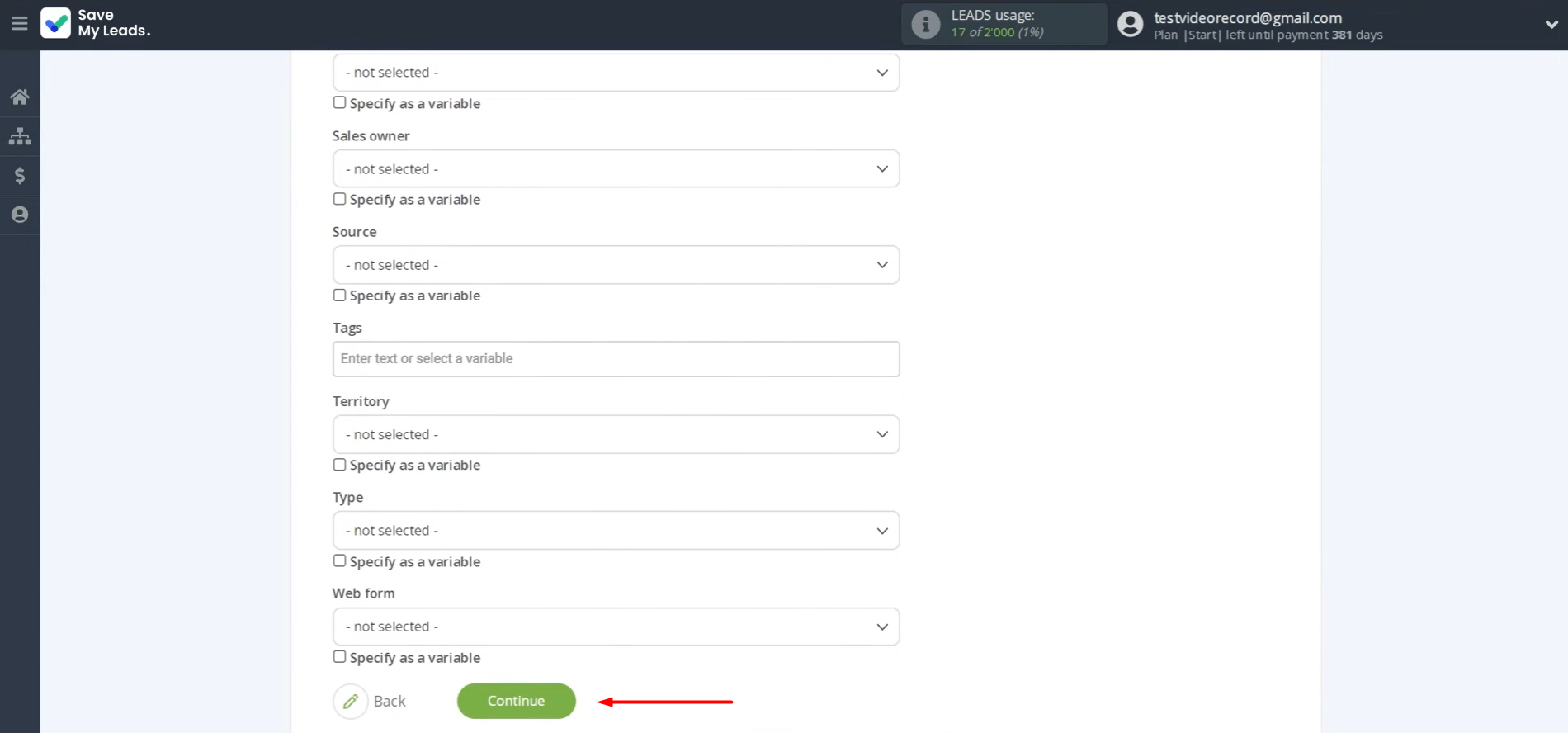
Click Continue once the data is assigned correctly.
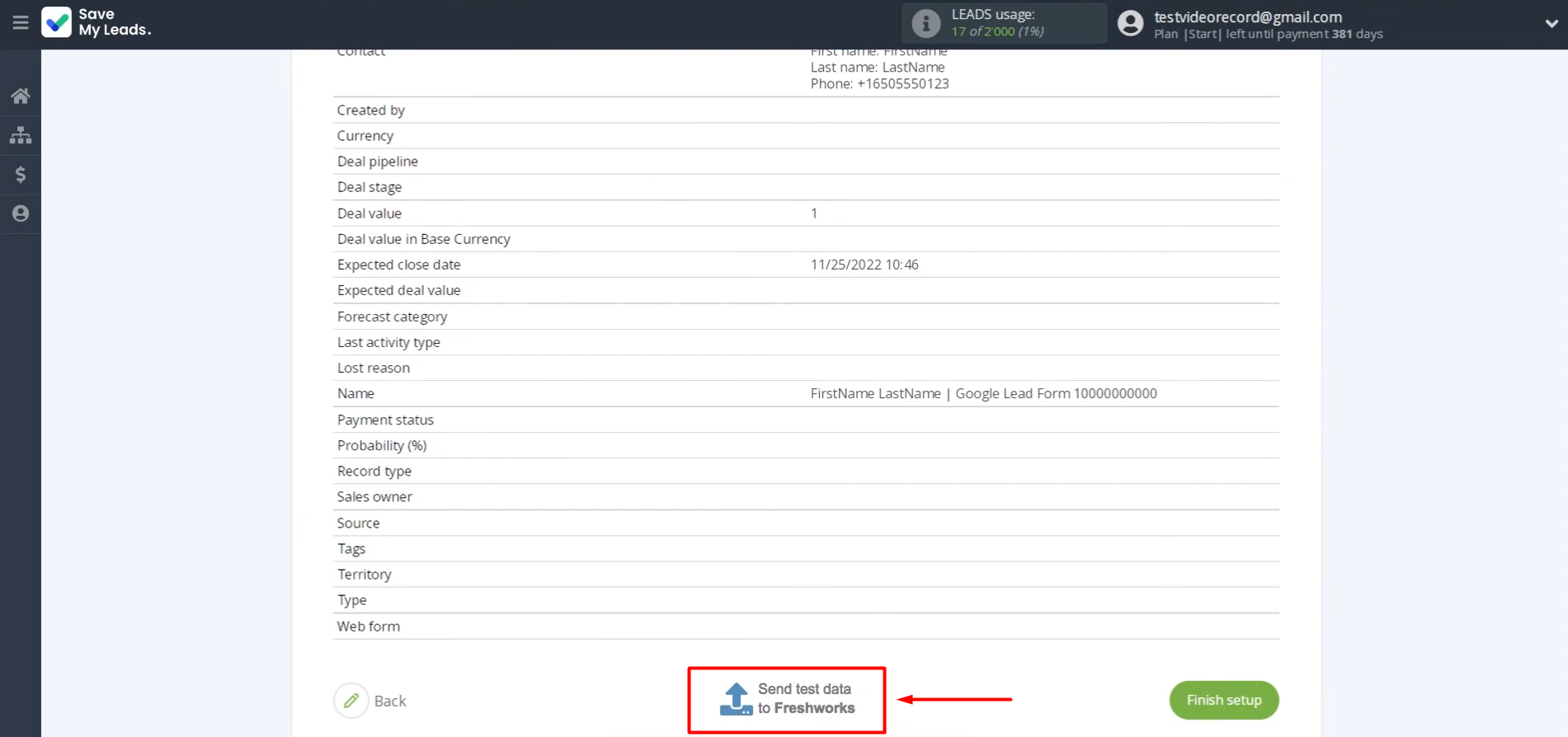
At this point, you see an example of the data that will be sent to your Freshworks account with each new lead from the Google Lead Form.
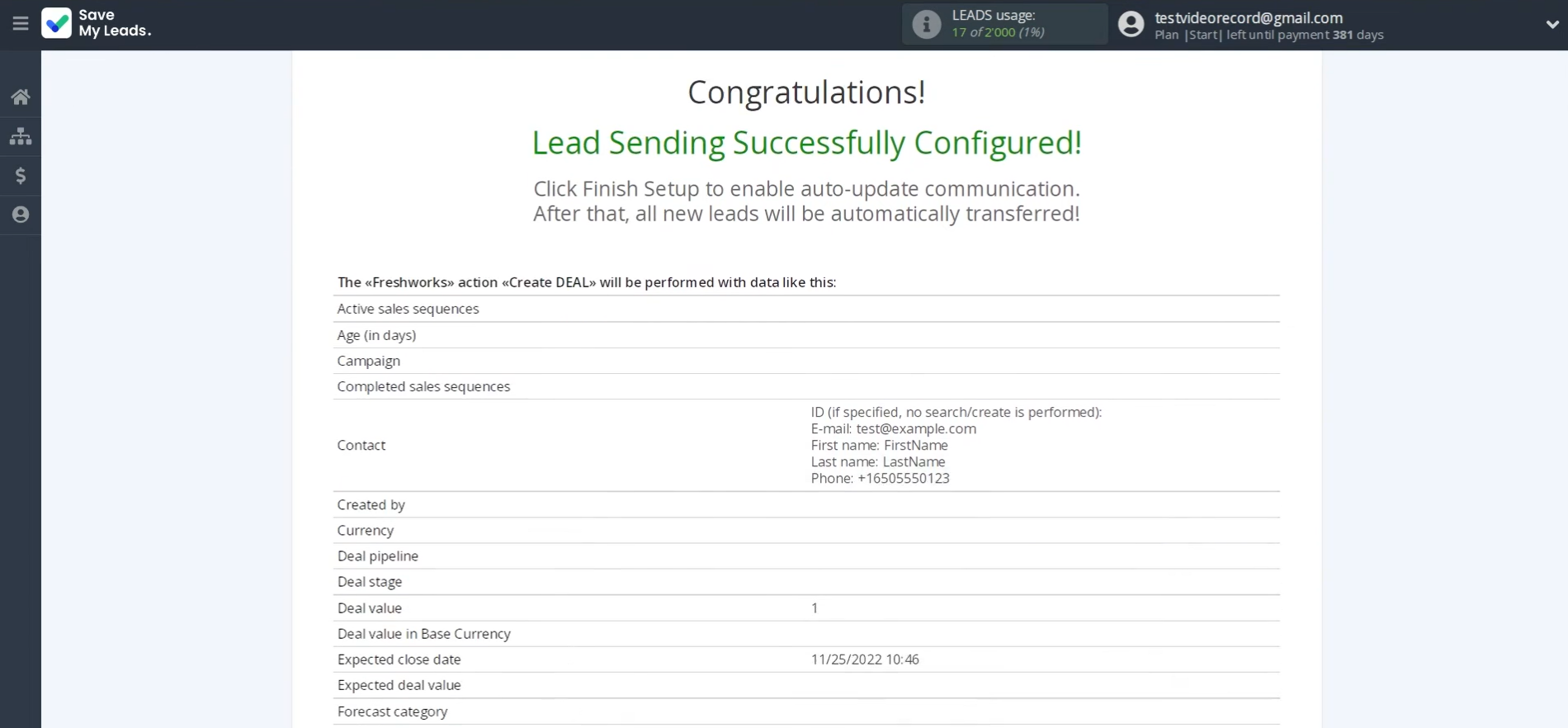
If everything suits you, click Send test data to Freshworks to check if the settings are correct.
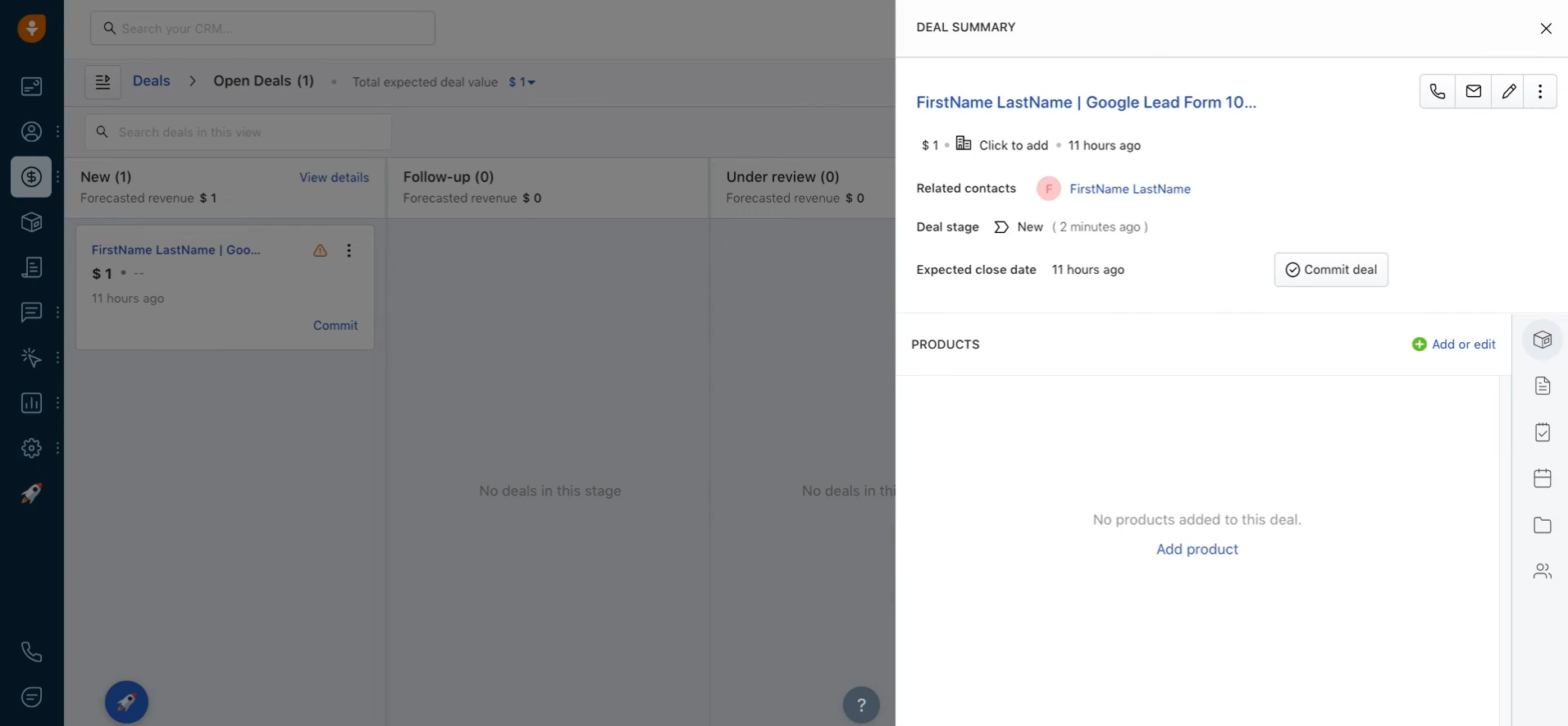
To verify the result, check your Freshworks account.
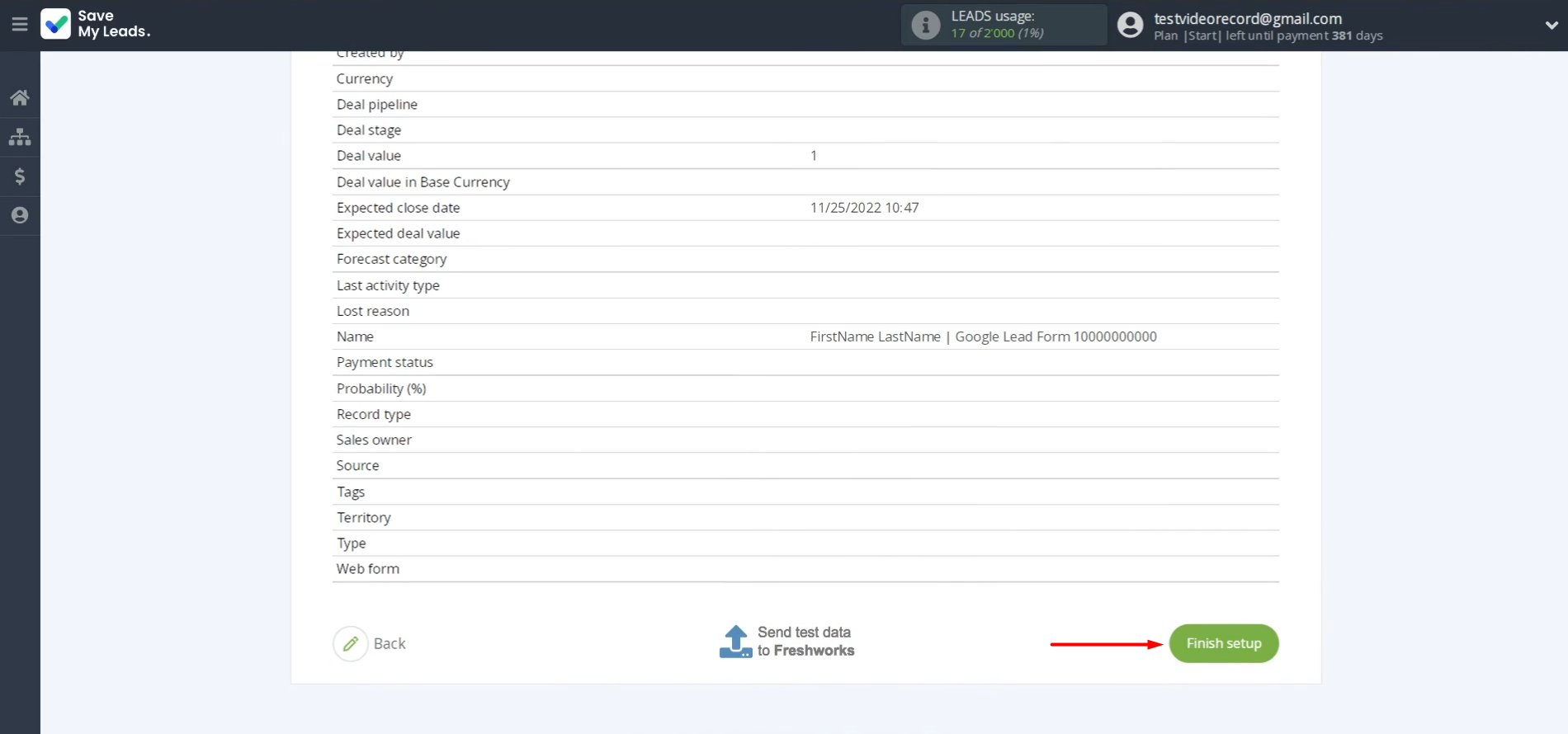
Return to SaveMyLeads to finalize the setup.
Starting Auto-Update
Click Finish setup to enable automatic updates for the connection. In this case, all new leads from the Google Lead Form will be transferred to Freshworks as new deals.
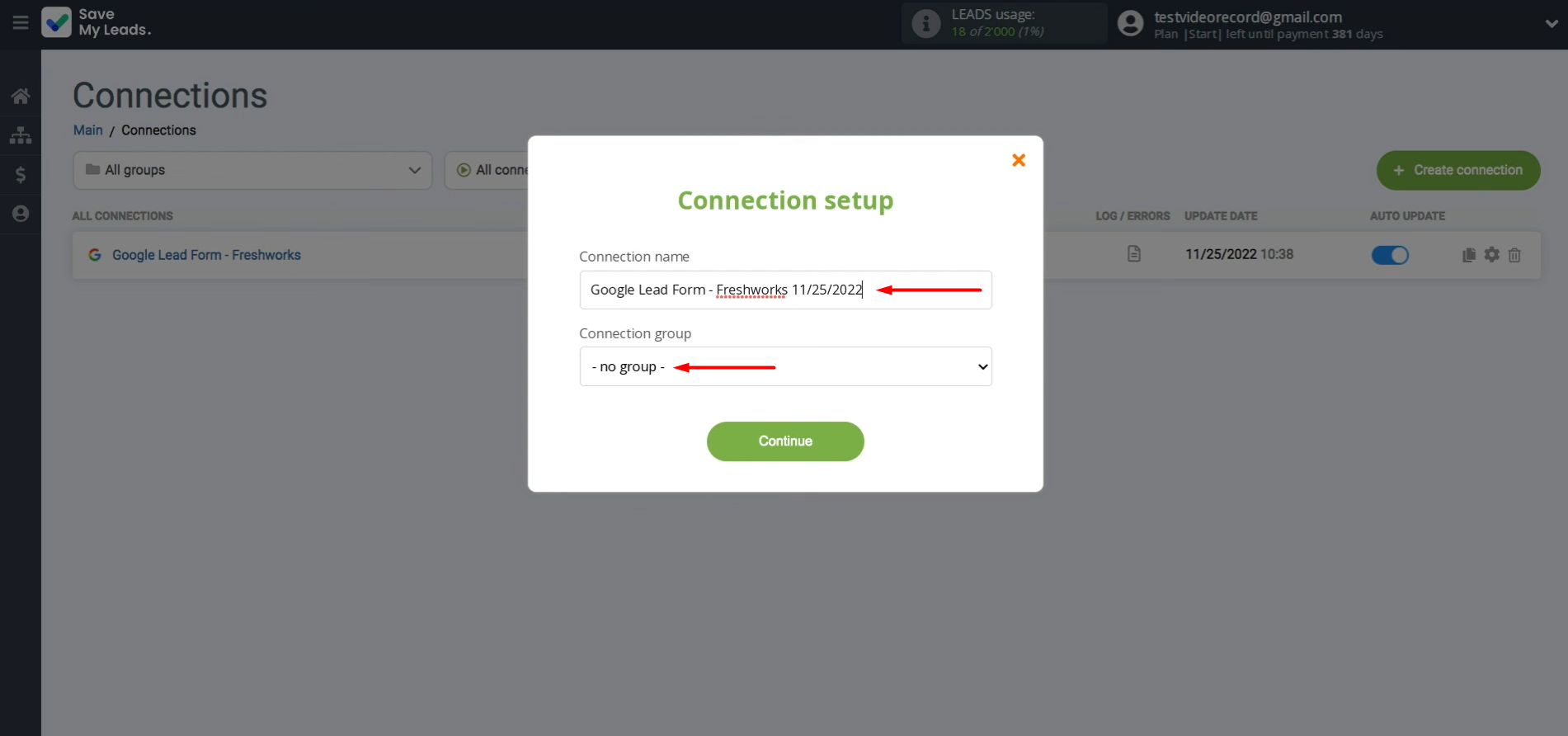
To rename the connection, click the gear icon to open the settings.
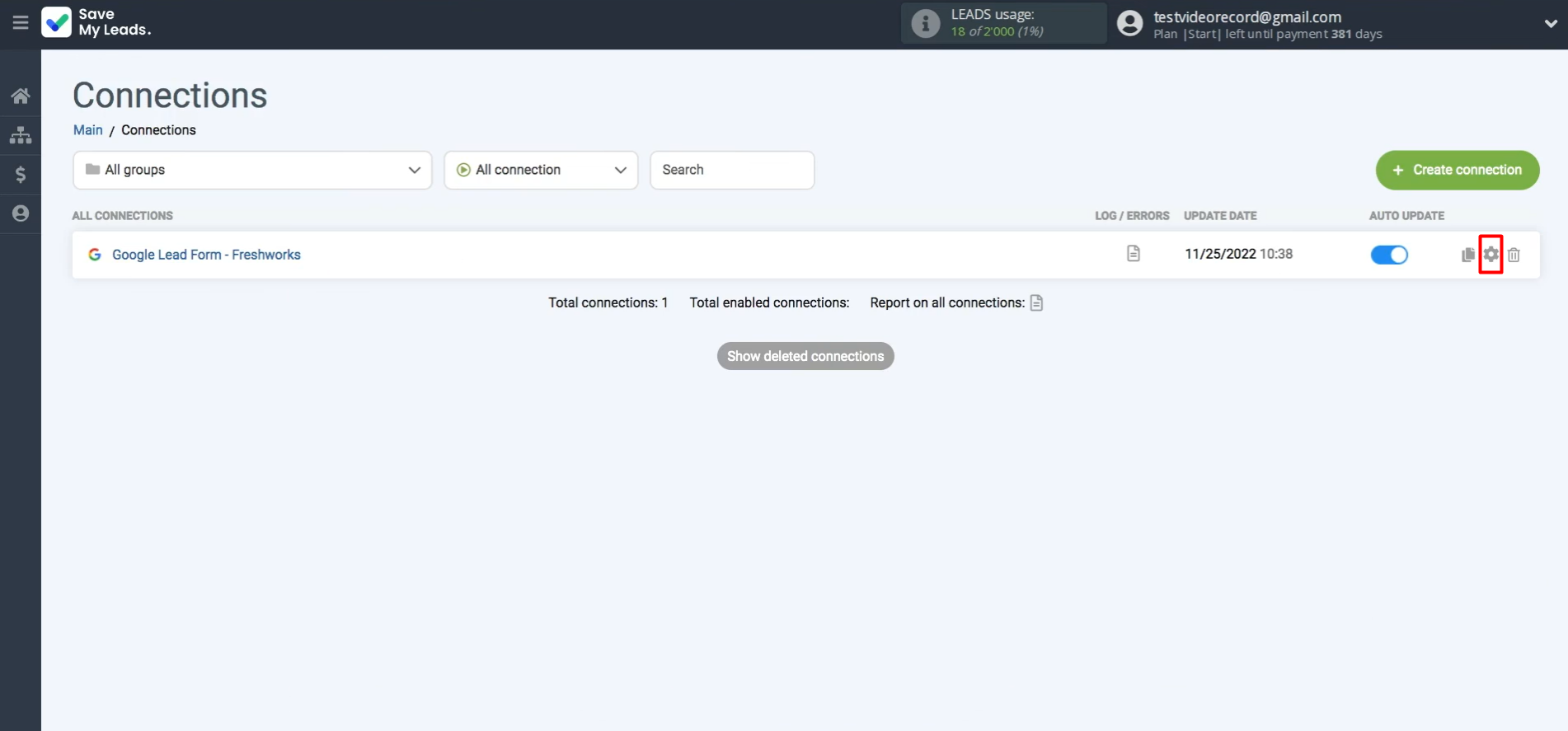
Here, you can update the name or assign the connection to a group.
Results
Integration of Google Lead Form Ads and Freshworks allows you to fully automate the transfer of leads to CRM and automatically create deals. Such automation makes it possible to send Google Ads leads directly to Freshworks, eliminate manual data transfer, and reduce the risks of losing leads or wasting time. In addition, it significantly speeds up the processing of potential customer requests. This is crucial for companies expecting growth in order volume and planning to scale.
Step-by-Step Guides for Setting Up Integrations:
- TikTok and Slack Integration: Automatically Sending Channel Notifications
- Google Lead Form and Asana Integration: Automatic Data Transfer
- TikTok and Trello Integration: Automatic Conversion of New Leads into Tasks
- Google Lead Form and Pipedrive Integration: Automatic Task Creation
- How to Connect TikTok to Twilio: Step-by-Step Instructions