Manually transferring lead data from TikTok to Google Contacts takes up your time, causes errors, and slows down communication with potential customers. By automating this workflow, you can reduce repetitive work, speed up the processing of new requests, and lower the risk of losing leads. In this article, we will explain how this can help during periods of business growth and how to set up TikTok and Google Contacts integration to automatically transfer leads from an advertising form to your contact database.
How Automation Helps Businesses Scale
A growing number of leads from TikTok can indicate that advertising campaigns are gaining traction. At the same time, this success quickly becomes a problem if you continue to process lead data manually. While a manager is transferring one customer's data to Google Contacts, several more leads may come in. Requests start to pile up, and the first contact with potential customers is delayed. During periods of rapid campaign scaling, such delays have an extremely negative impact on conversion.
Data transfer automation allows you to add TikTok leads to Google Contacts shortly after potential customers submit the form without any additional human intervention. Managers can contact new leads instead of spending time manually entering data into the database. This is very important when launching multiple campaigns or testing new formats, audiences, or strategies.
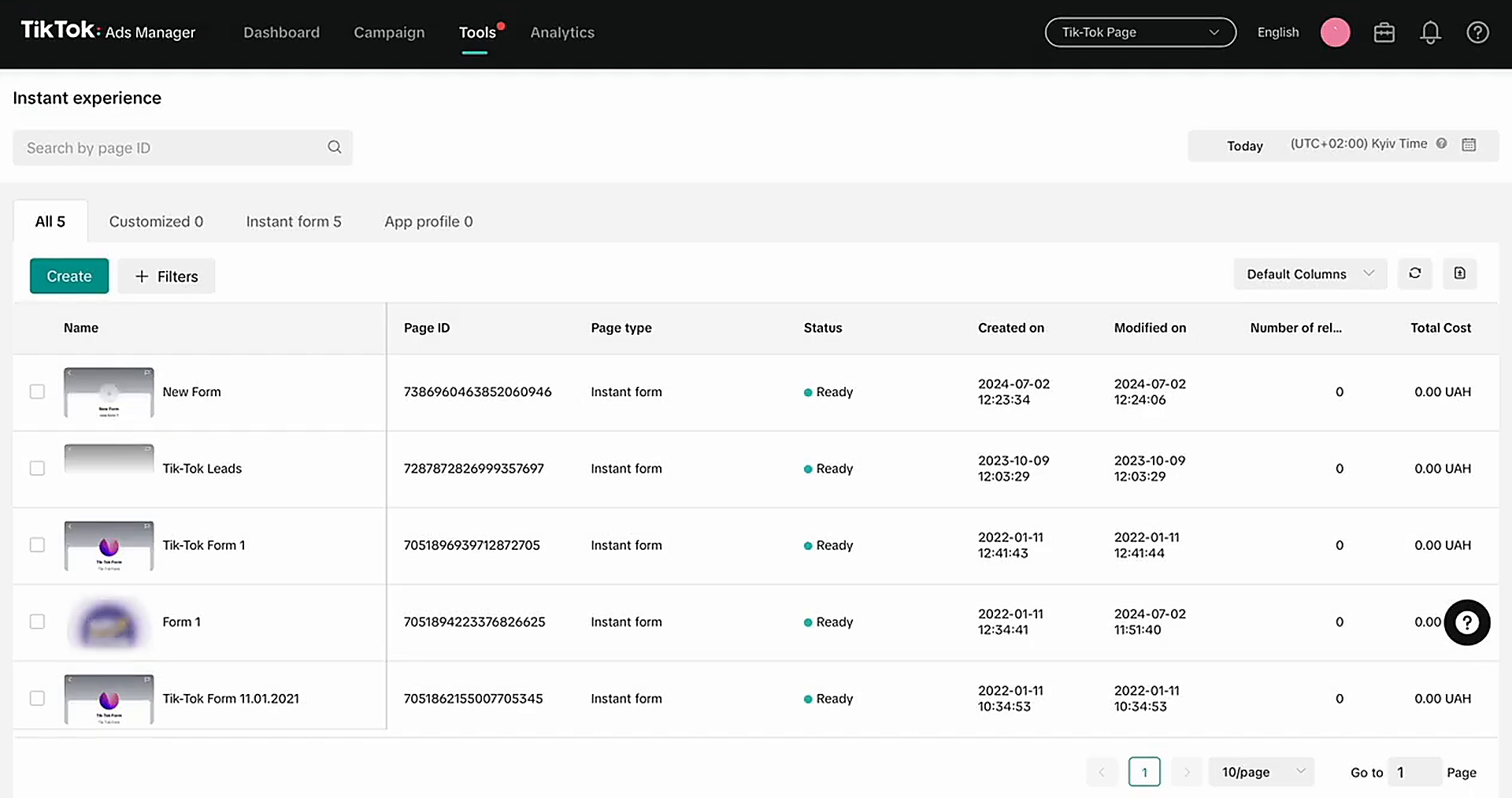
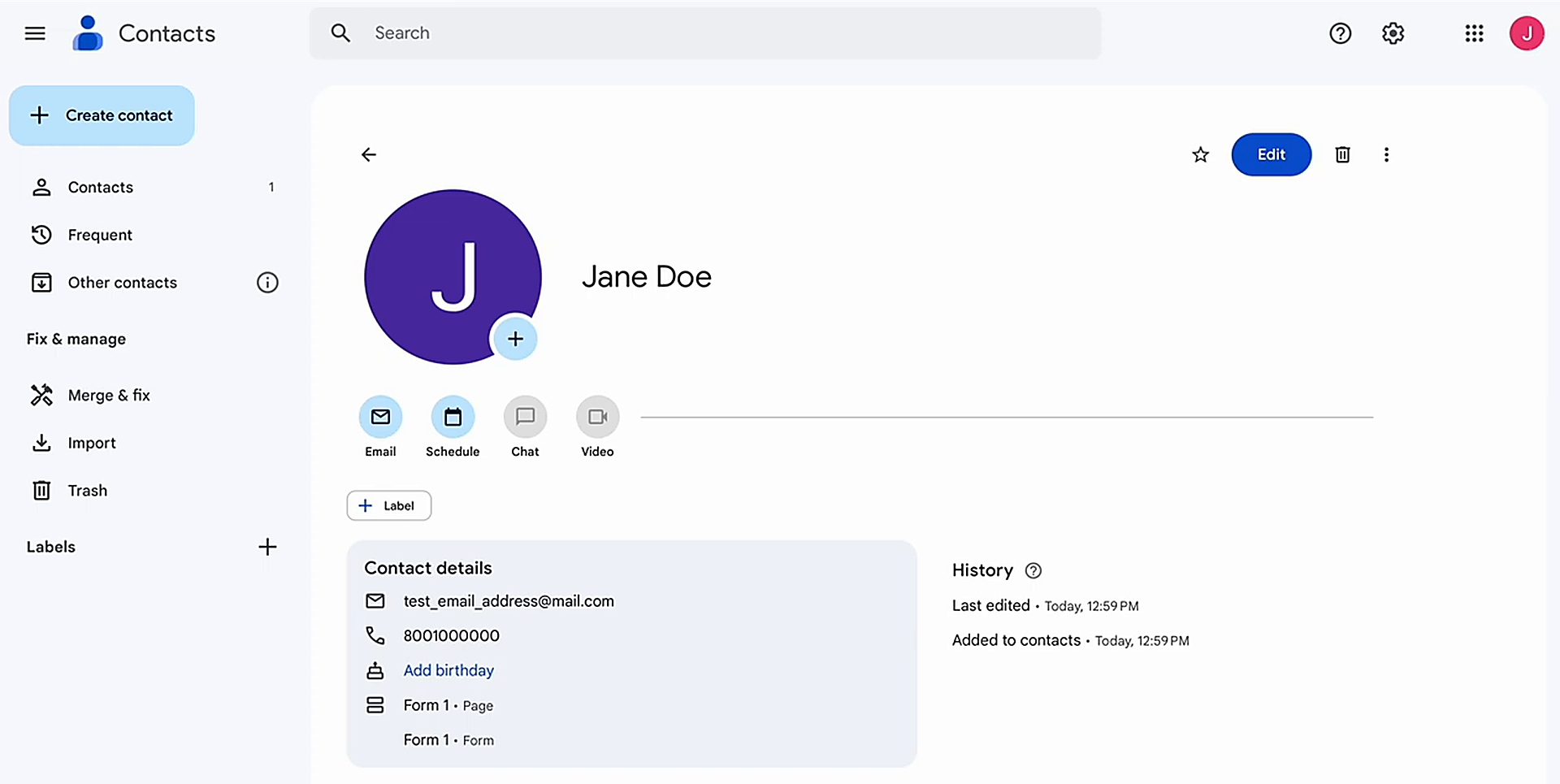
Use case: A company that offers educational trips for schoolchildren launched separate campaigns on TikTok for a summer camp, an exchange program, and a new Japanese language course. The contact information of parents who fill out the form is automatically added to Google Contacts. Managers receive this contact information promptly, even if they are outside the office. This allows them to contact potential customers quickly before the parents lose interest and start looking for alternative offers.
How to Connect TikTok to Google Contacts
To set up automatic lead data transfer, you can use the SaveMyLeads online connector. This service allows you to connect Google Contacts to TikTok without programming knowledge and has a straightforward interface without unnecessary complexity. Even if you have never had such an experience before, you can easily cope with it in a few minutes.

- Automate the work with leads from the Facebook advertising account
- Empower with integrations and instant transfer of leads
- Don't spend money on developers or integrators
- Save time by automating routine tasks
What you will need:
- A TikTok account with an active lead form.
- A Google account.
- A SaveMyLeads account.
- A clear idea of which data should be transferred from the TikTok form, such as first and last name, phone number, email, and other fields.
To make this process even easier for you, we have prepared a step-by-step guide to setting up Google Contacts and TikTok integration. Using it, you won't have to worry about whether you are doing everything correctly. So, let's get started.
Data Source Settings: TikTok
First, add a new connection in your SaveMyLeads account.
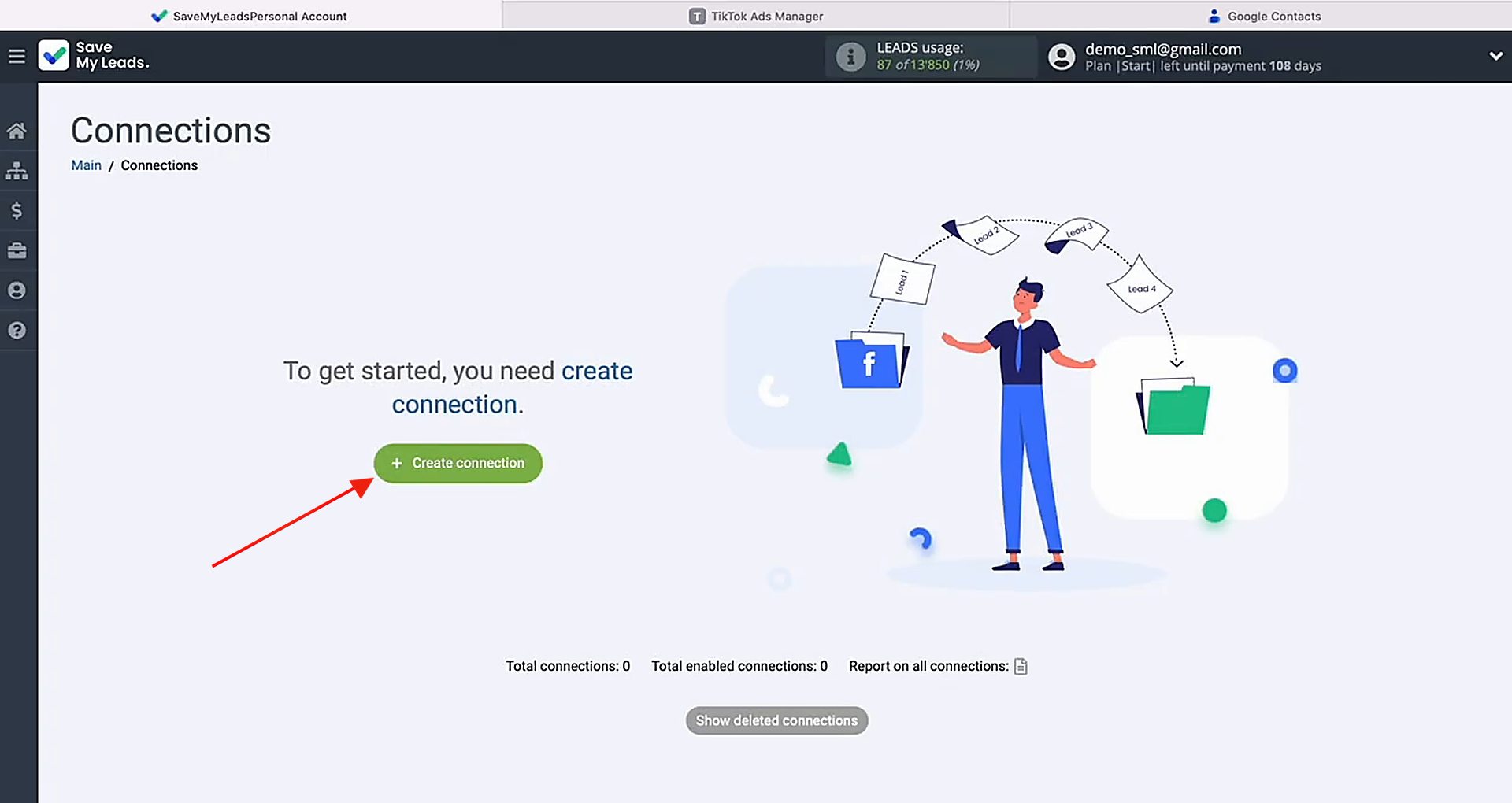
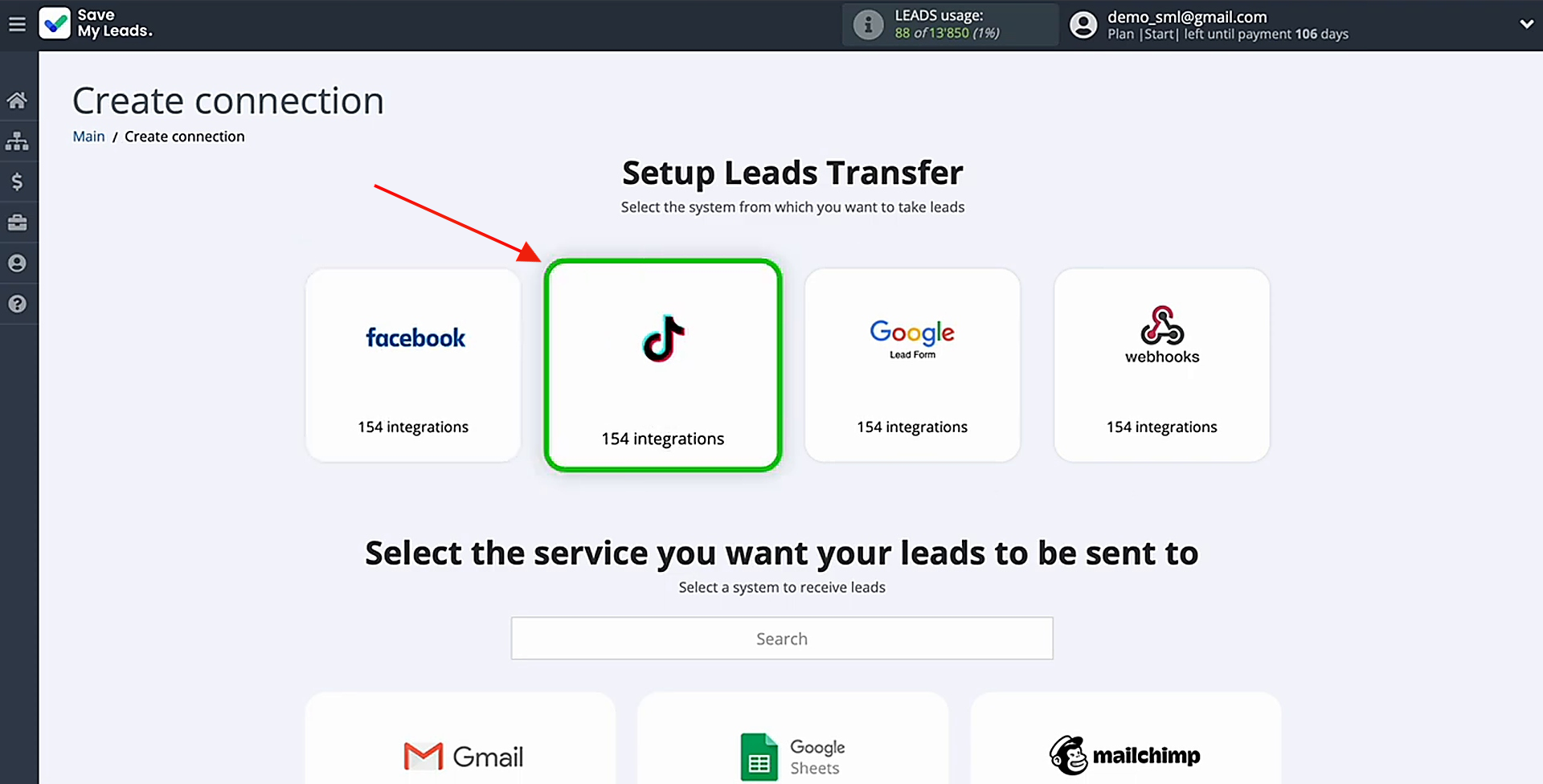
At the next step, specify which service will provide the lead data. For this setup, select TikTok.
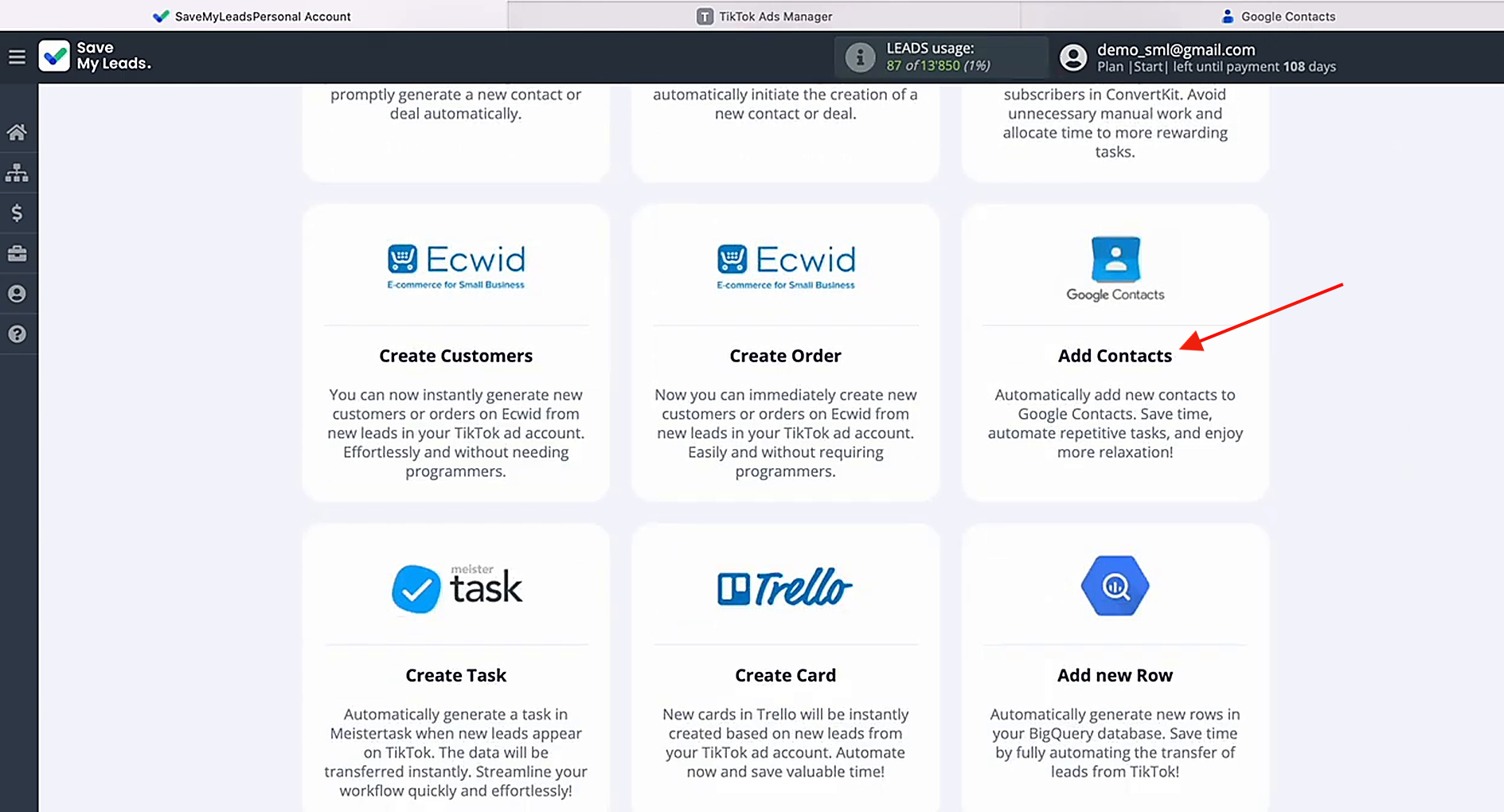
Then choose the destination service where new TikTok leads should be transferred. You need Google Contacts (Add Contacts).
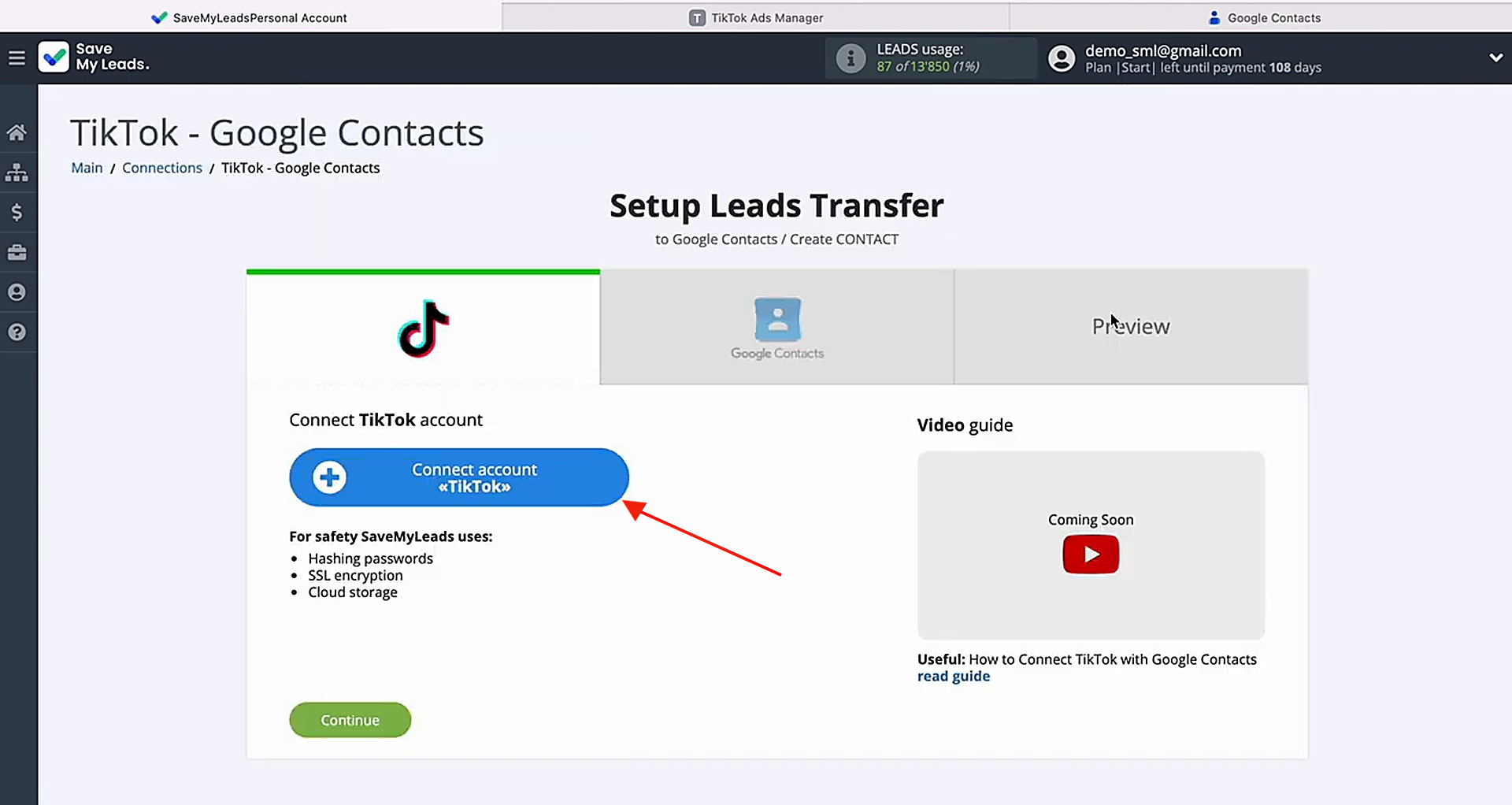
Now connect your TikTok account to SaveMyLeads.
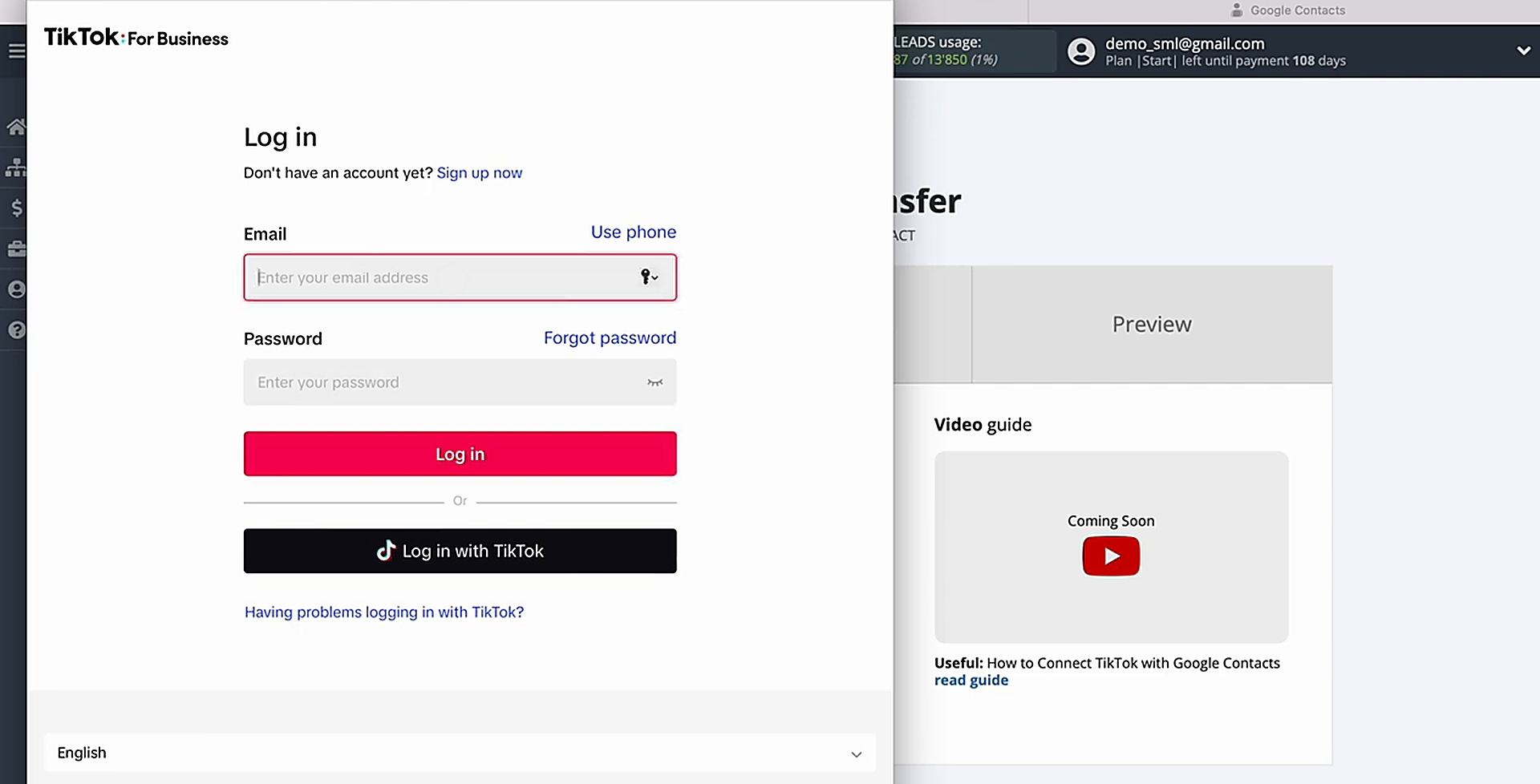
Enter the login and password for your TikTok account.
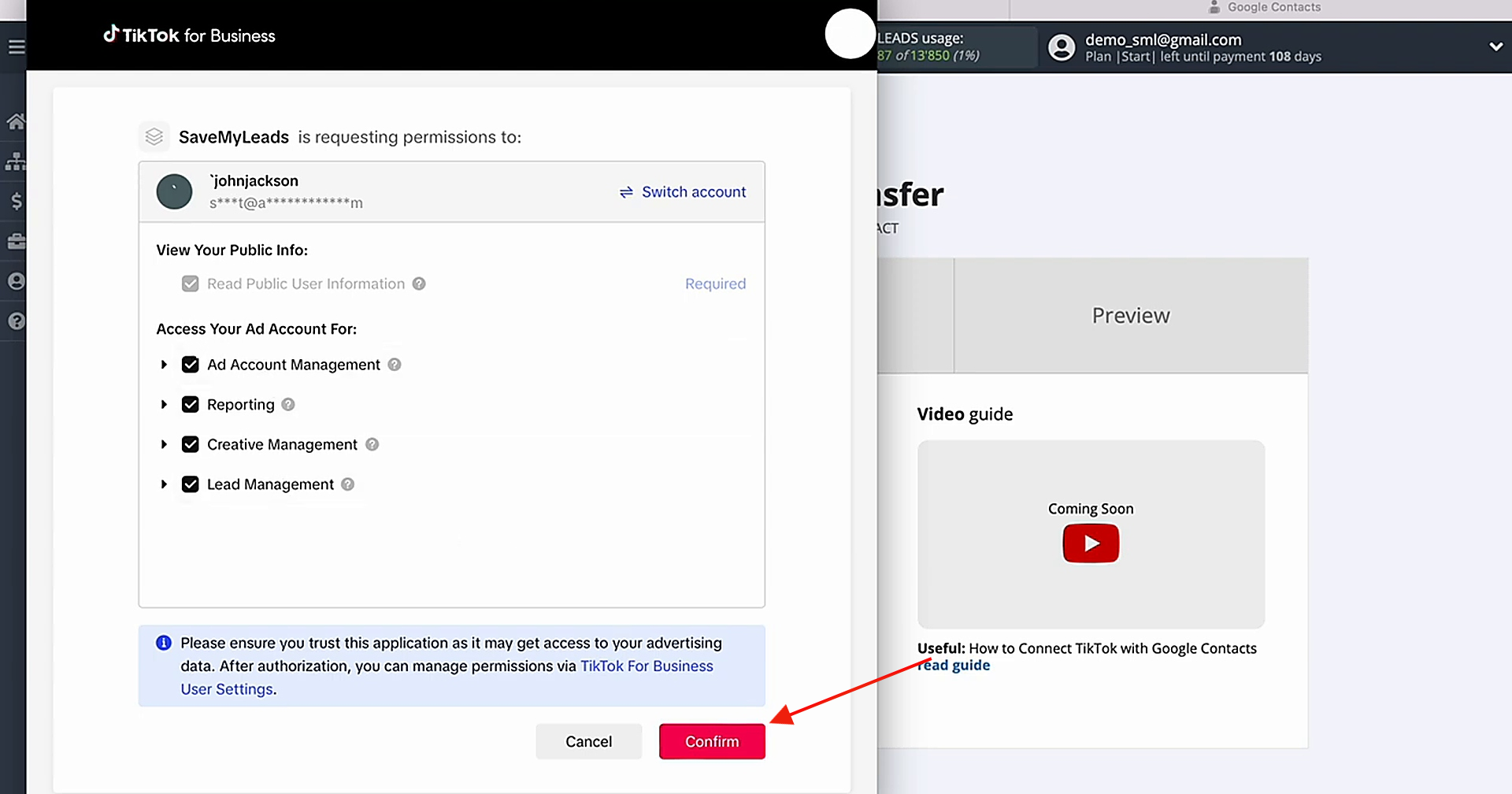
Grant SaveMyLeads permission to access your TikTok account. Make sure all access checkboxes are enabled.
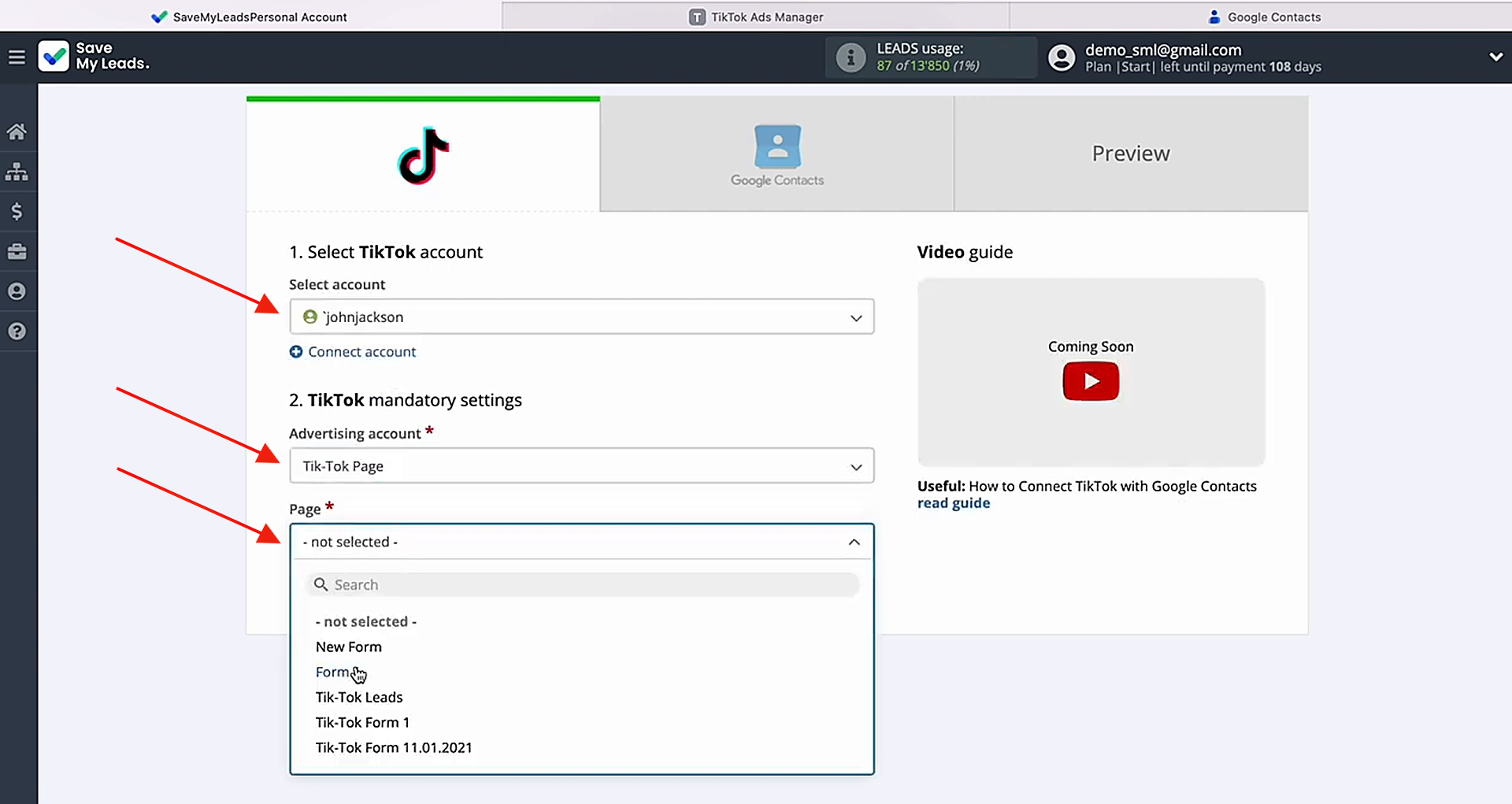
Once the connected account appears in the list, select it. Also choose the advertising page and form you want to use. Then, click Continue.
Data Destination Settings: Google Contacts
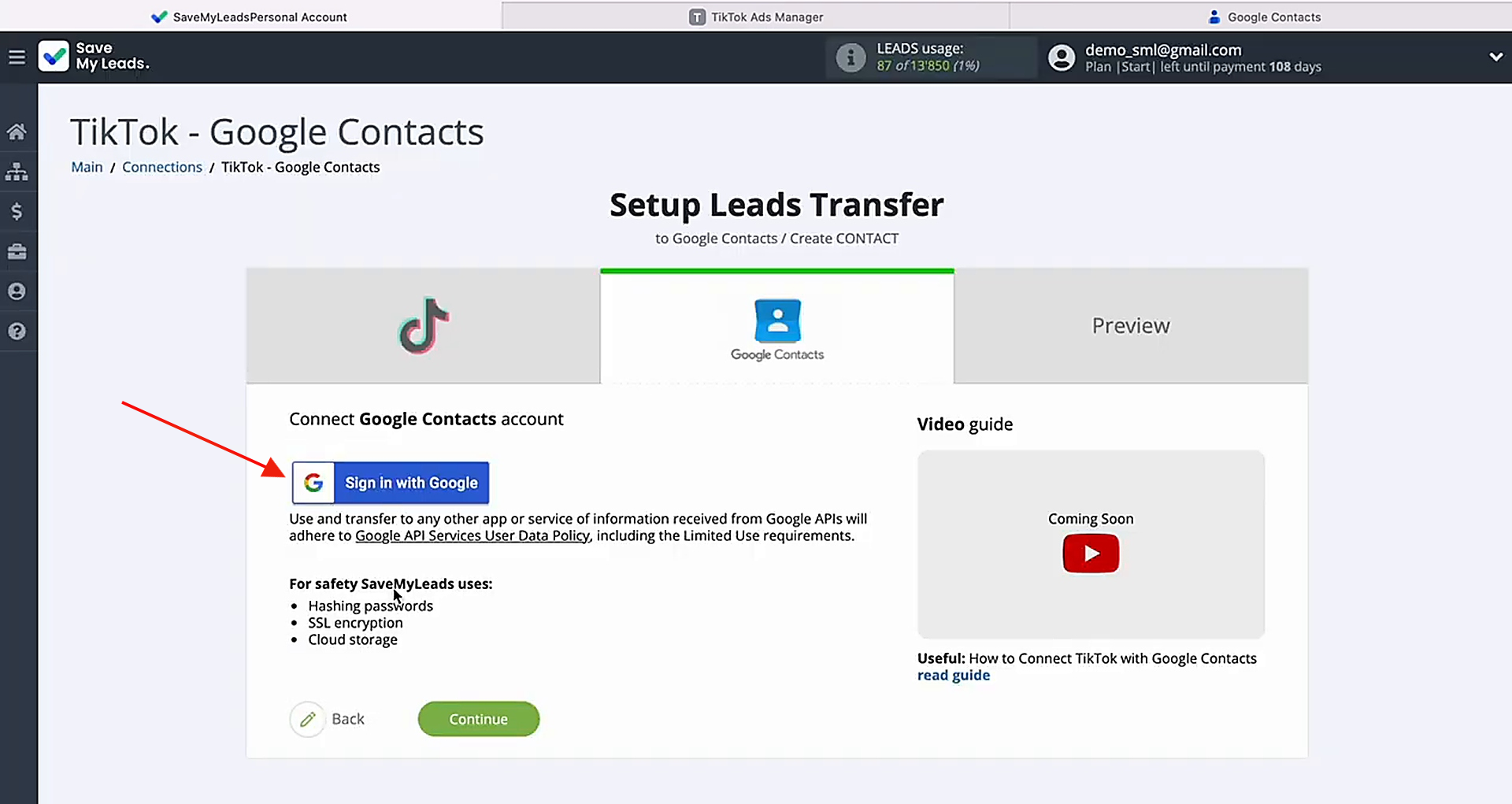
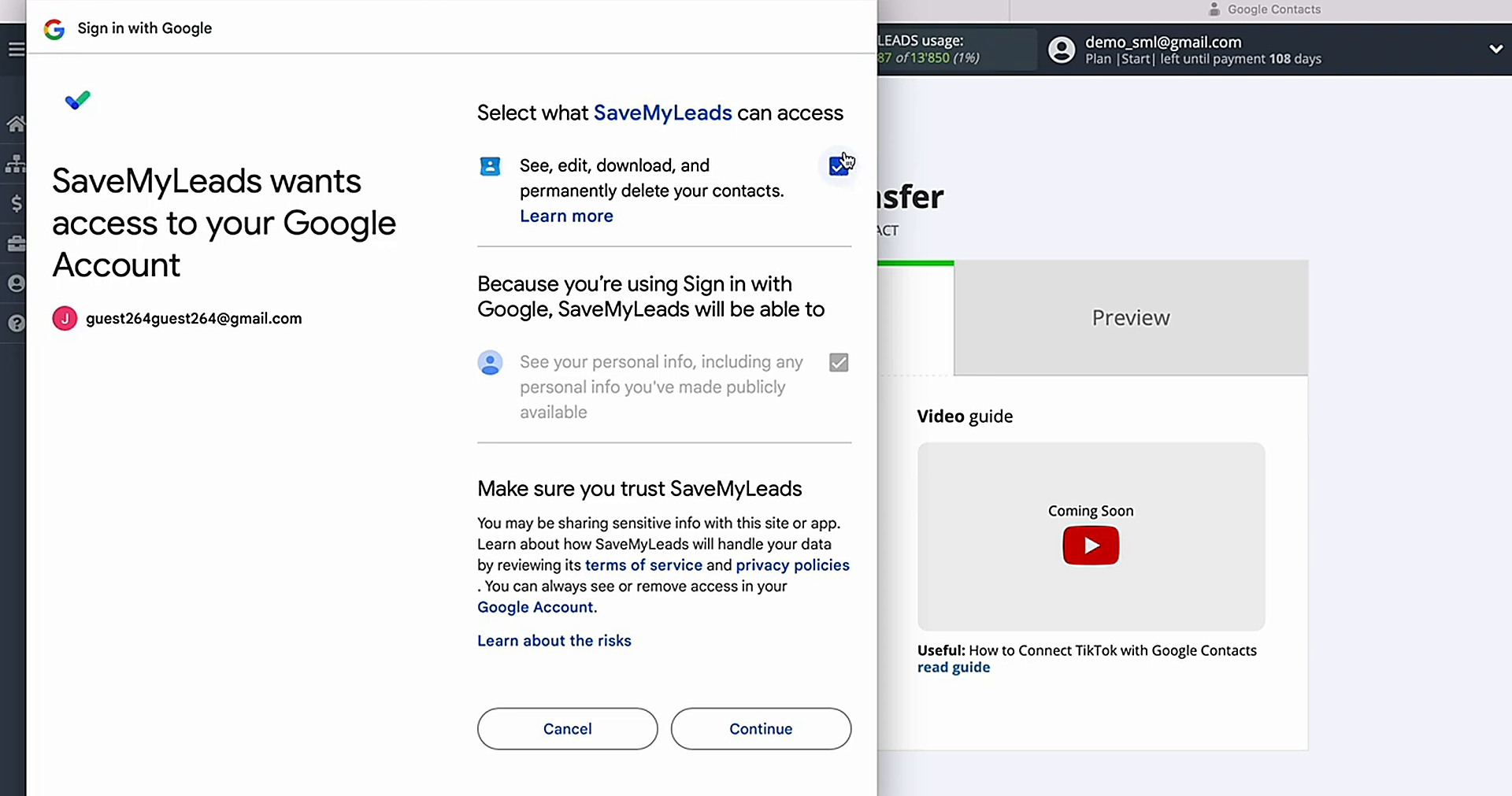
Now you need to connect your Google Contacts account to SaveMyLeads.
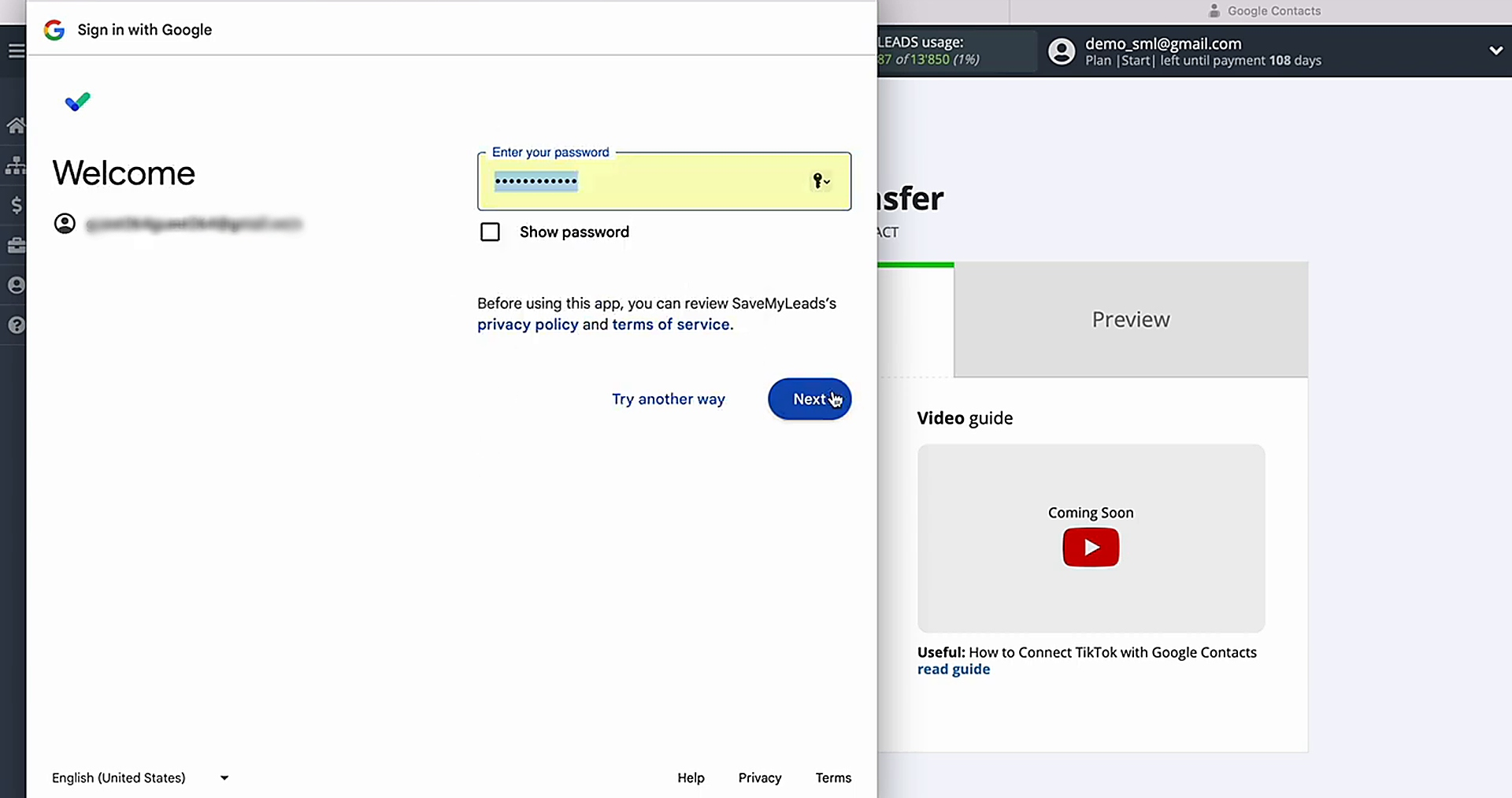
Enter the login and password for your Google account.
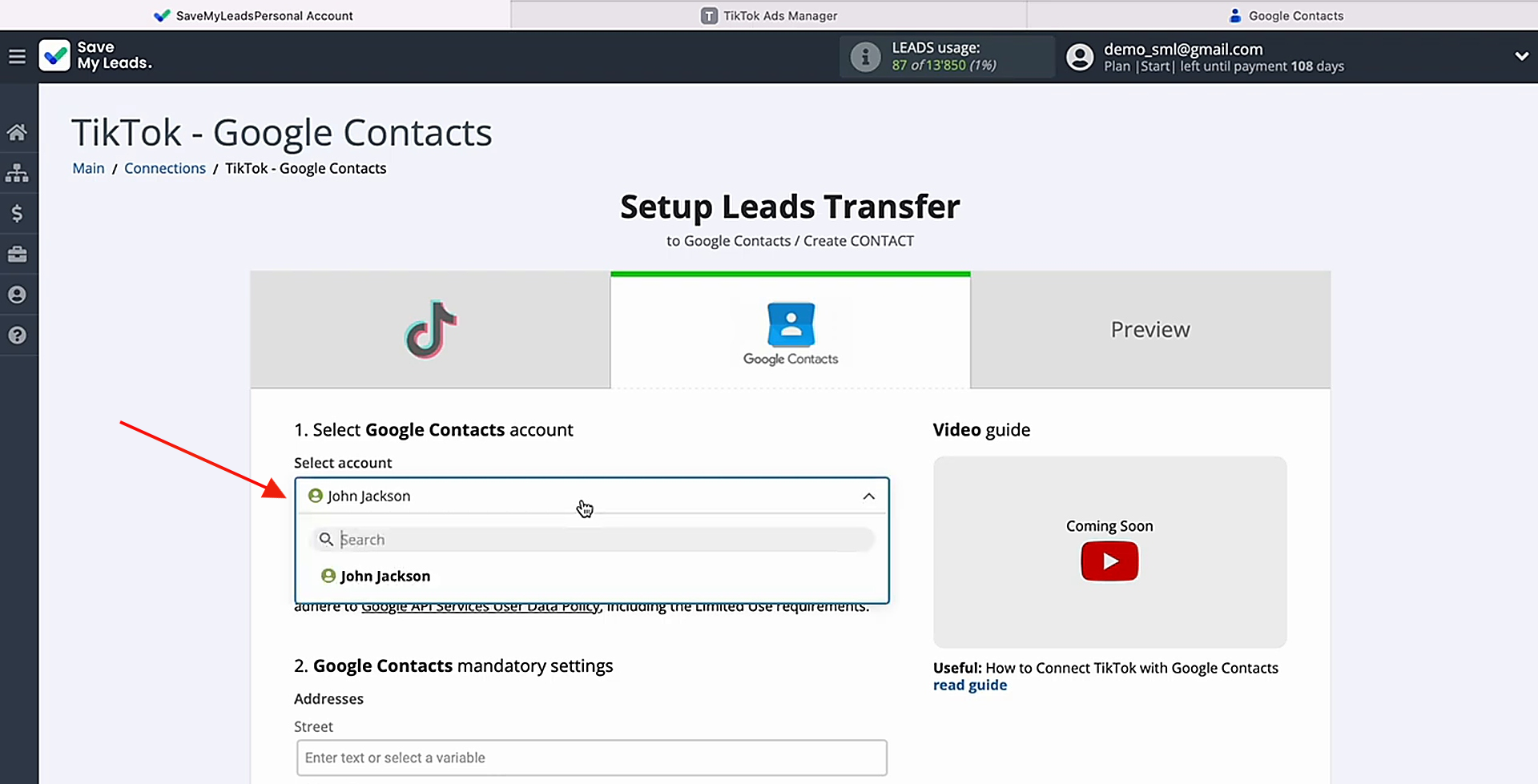
When your connected account appears in the list, select it.
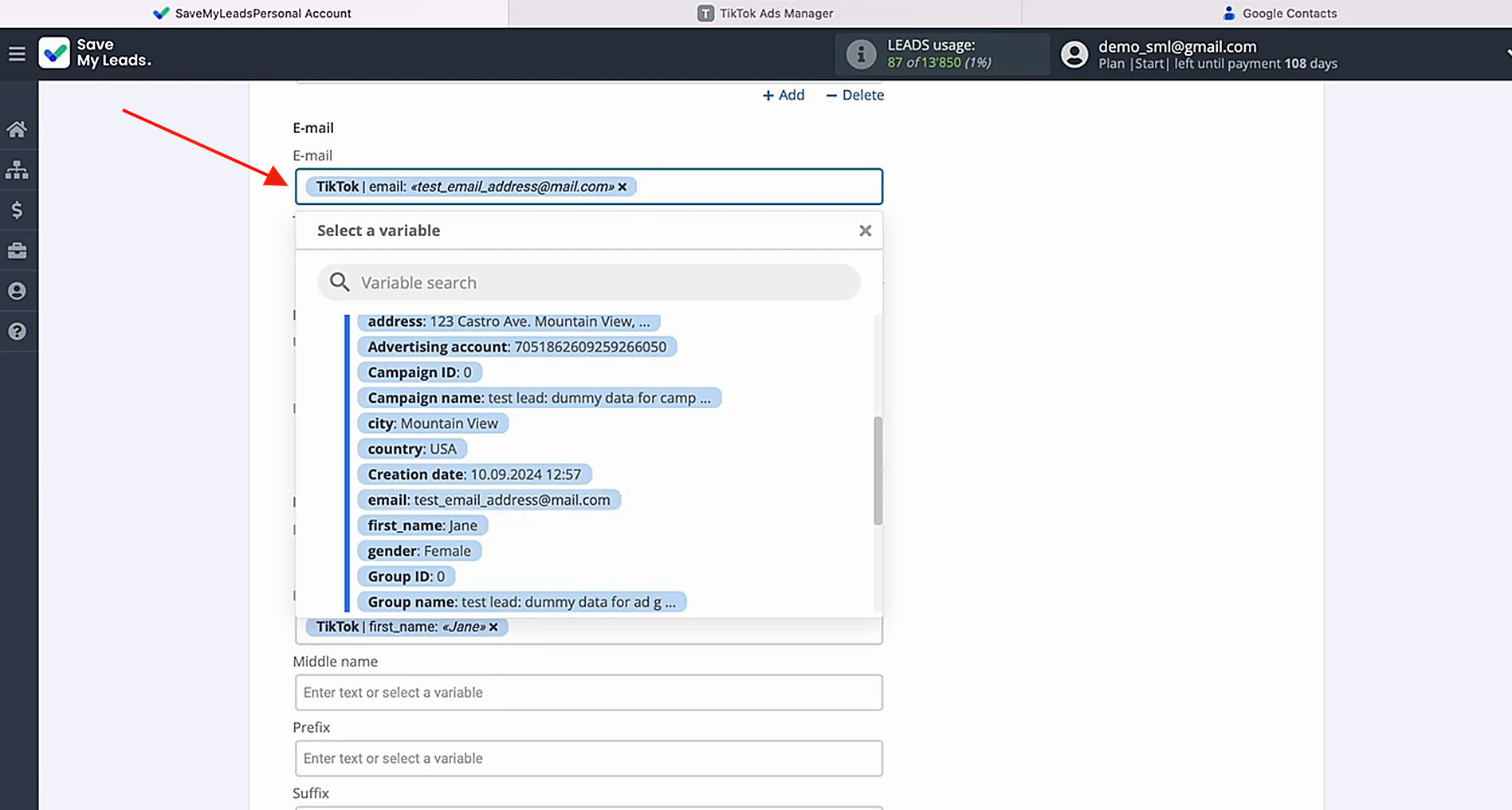
Assign the TikTok data to the Google Contacts fields by clicking the field and choosing the matching variable from the dropdown list.
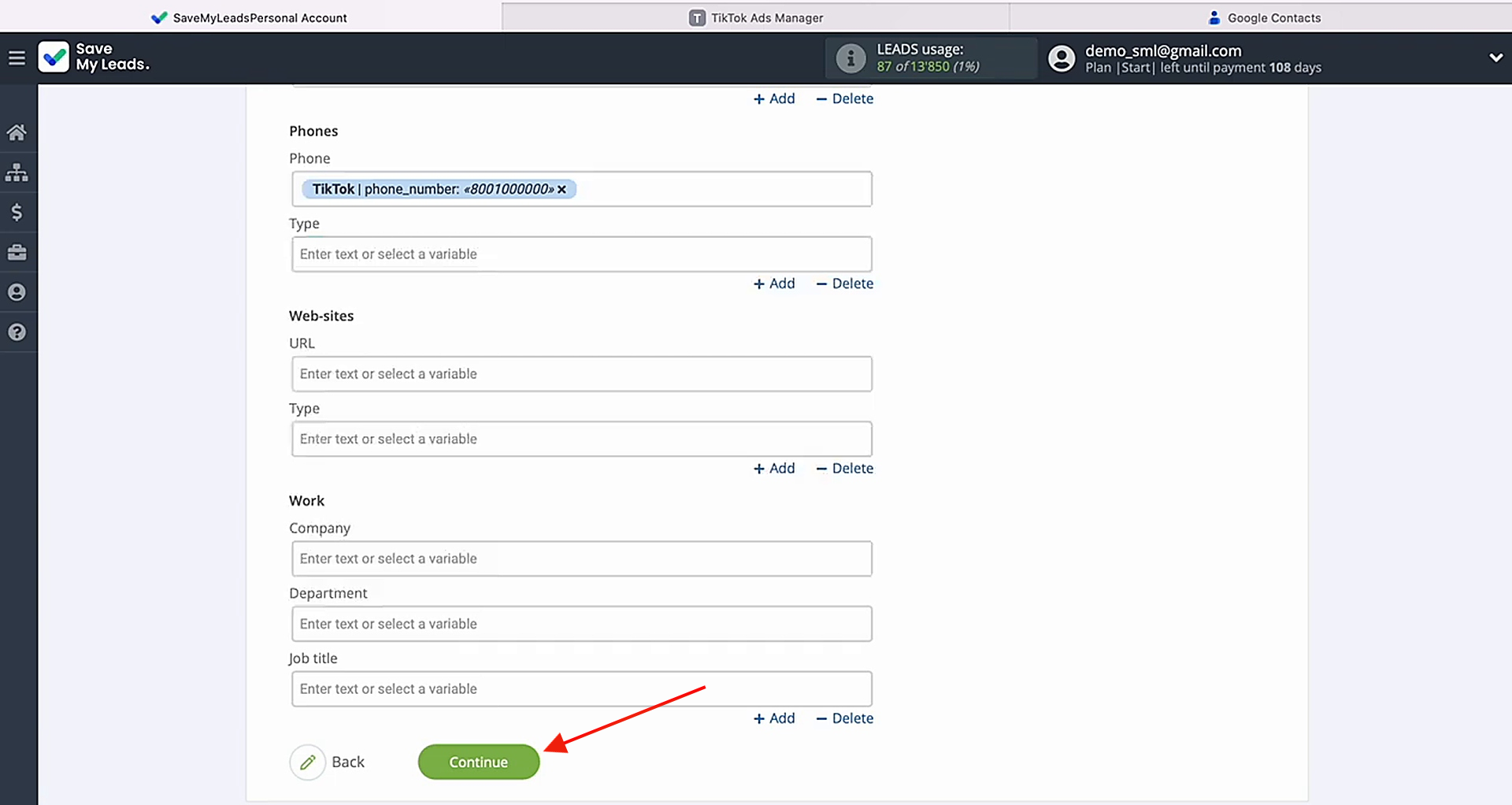
Once you've finished assigning all the necessary variables, click Continue.
At this point, you'll see a preview of the data that will be transferred to Google Contacts as new contacts whenever a lead comes in from TikTok. If some fields look incorrect, click Back and make the necessary changes in the previous step. To verify that everything is configured properly, send test data to Google Contacts.
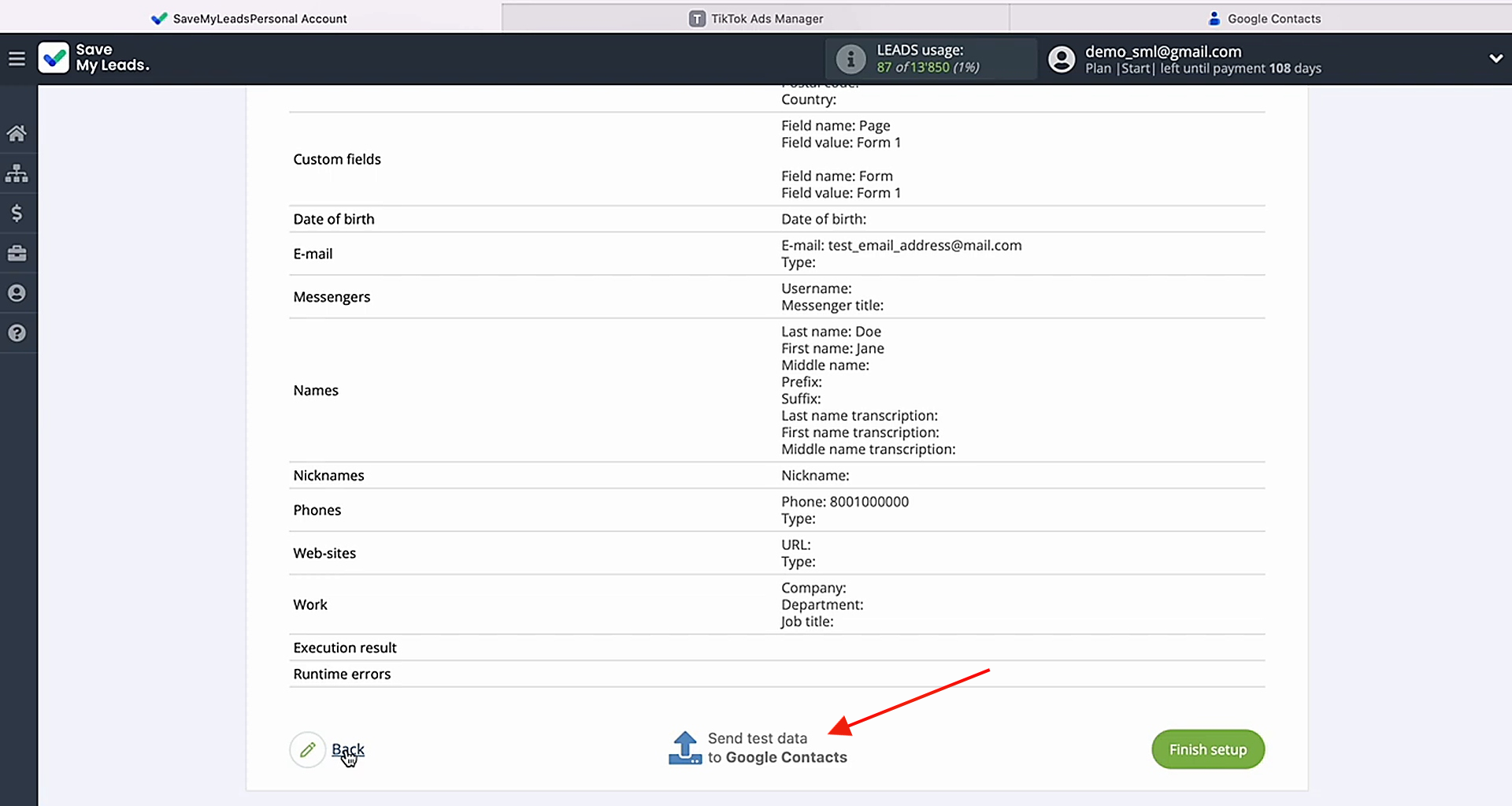
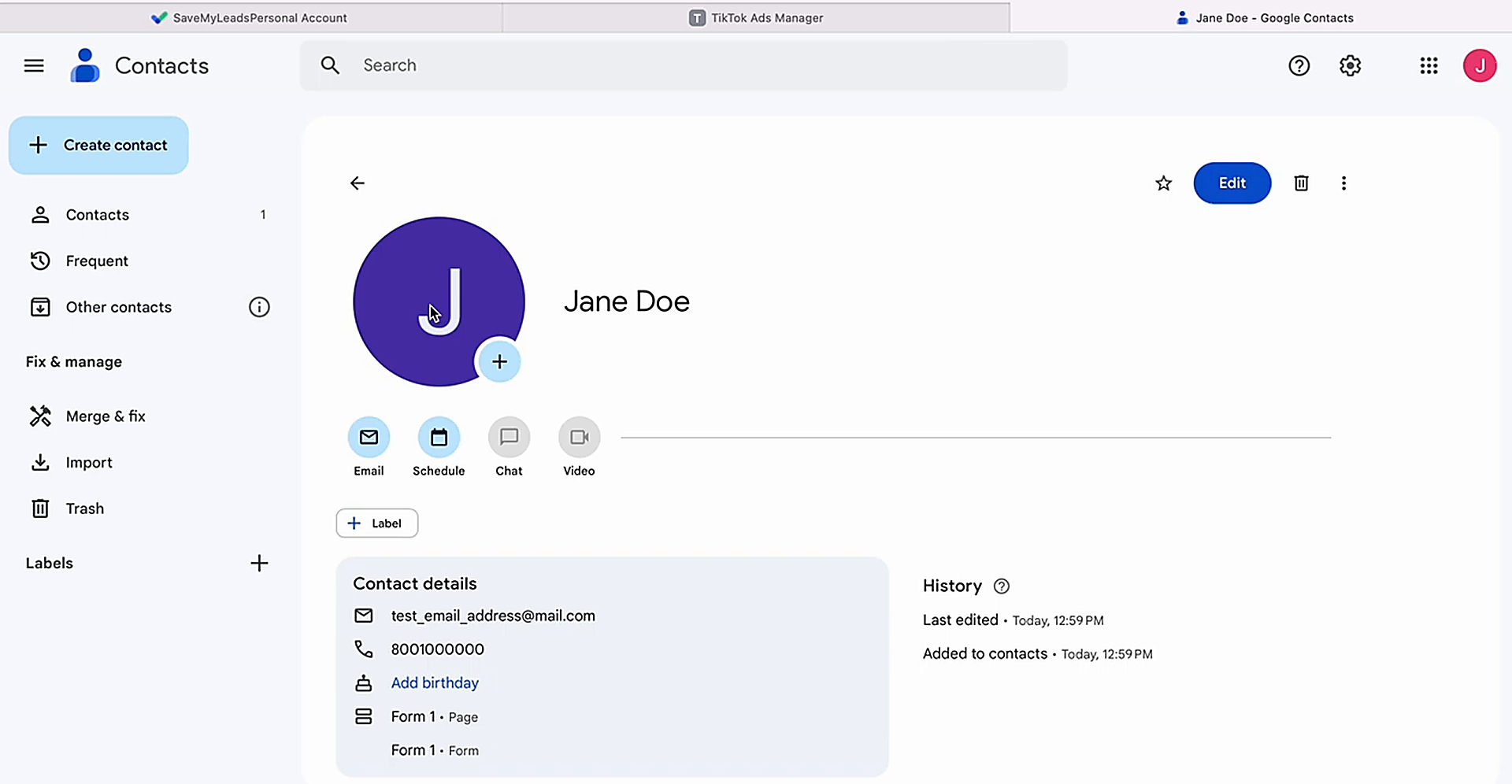
Once the test data has been sent successfully, open your Google Contacts account and verify that the contact was created correctly.
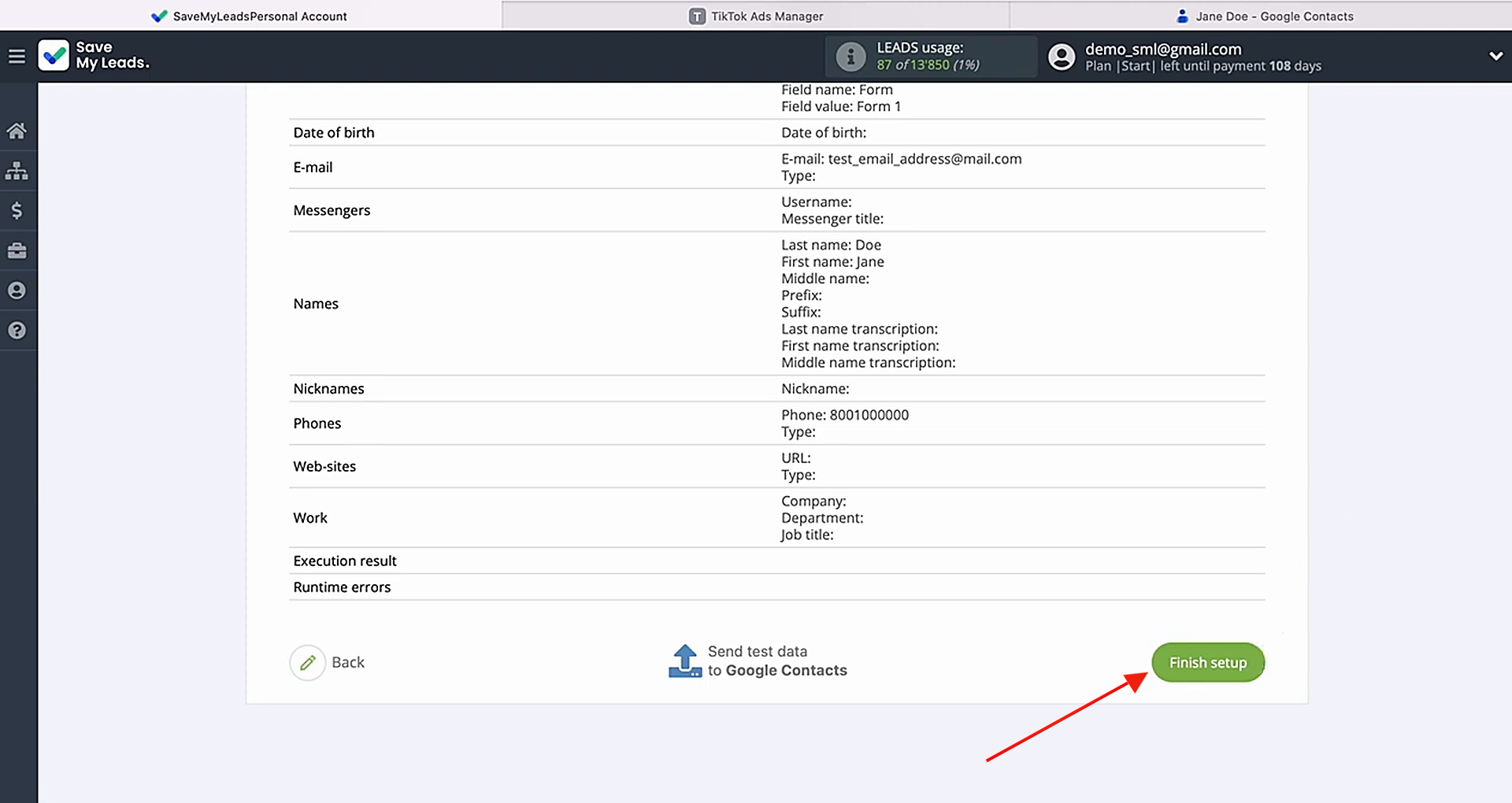
Return to SaveMyLeads and proceed with the remaining setup.
Auto-Update
Click Finish setup to activate automatic updates for the connection. After that, the system will start to send TikTok leads to Google Contacts.
If you need to rename the connection, open the settings by clicking the gear icon.
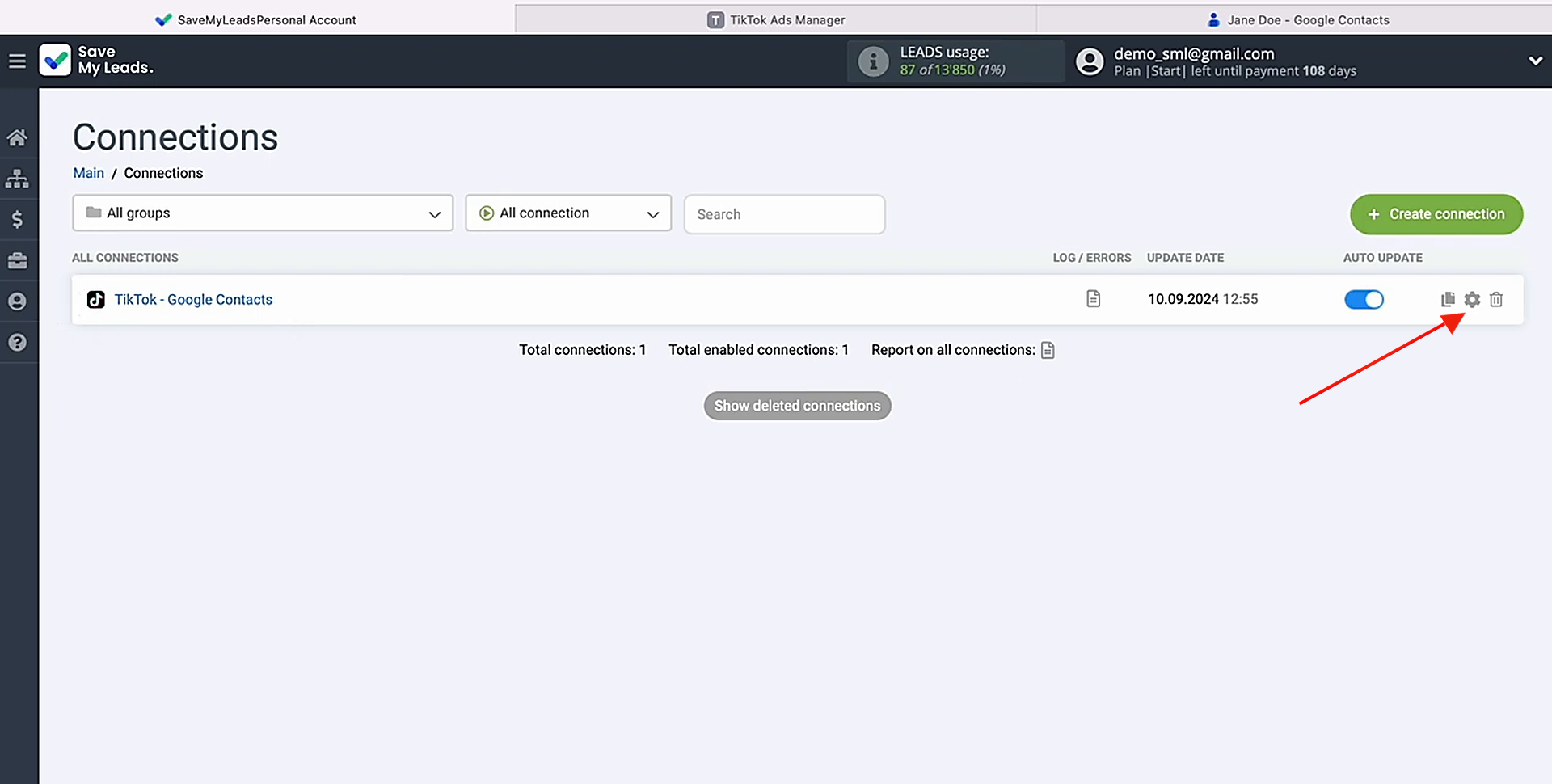
In this menu, you can update the connection name and assign it to a group.
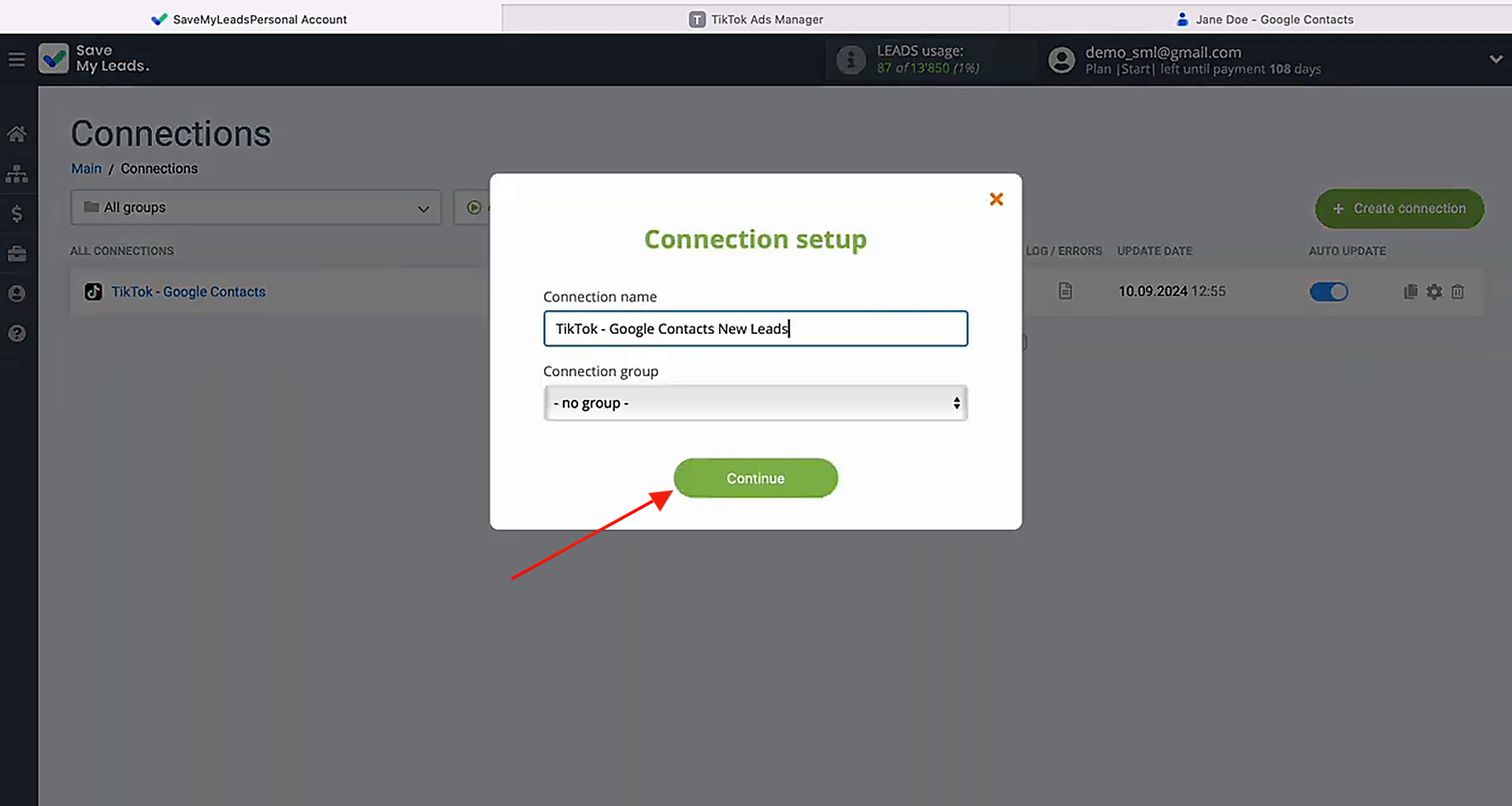
That’s it. Now SaveMyLeads will automatically save TikTok leads in Google Contacts for you.
Results
TikTok and Google Contacts integration helps businesses reduce manual work and respond to new leads faster. Instead of copying contact details by hand, teams can automatically add new leads from TikTok forms to Google Contacts and start communication without unnecessary delays.
This is especially useful when campaigns are growing, several forms are active at the same time, or managers need quick access to lead data from different devices. Automation helps reduce the risk of missed contacts, speeds up the first response, and allows teams to process more leads without adding extra manual workload.
Step-by-Step Guides for Setting Up Integrations:
- How to Connect Facebook Lead Ads to Instasent Without Coding
- Google Lead Form and Asana Integration: Automatic Data Transfer
- How to Connect TikTok to Brevo: A Seamless Integration Guide
- Google Lead Form Ads to MeisterTask: Step-by-Step Integration Guide
- How to Integrate TikTok with GetResponse: Step-by-Step Guide