Companies that manually enter lead data from Google Ads when creating assignments in MeisterTask may not realize how time-consuming and error-prone it is. The Google Lead Form Ads and MeisterTask integration automates this process, turning each new lead into a clear and standardized card. This allows managers to respond faster to requests, department heads to better control workflows, and businesses to avoid losing potential customers due to human error. In this article, we will show you how to set up a workflow automation in a few minutes.
Benefits of Integrating Google Lead Forms with MeisterTask
The integration of Google Lead Form Ads with MeisterTask automatically transfers data from each new lead into your project management system in the form of a clear task. This process runs seamlessly 24/7, entirely without human intervention. Such automation is especially useful for companies that sell goods or provide services and promote themselves through online advertising.
Let’s see how it looks using the example of a company that sells and installs solar power plants. After implementing the integration, each new lead from Google Lead Form automatically enters MeisterTask as a card, which is assigned to the responsible specialist. The marketing manager no longer needs to periodically check the advertising account and manually transfer lead data to tasks for colleagues.
Shortly after a lead submits a request for solar panels, the sales manager sees a new task in their list and can quickly contact the potential client. If the company runs advertising campaigns in different cities or even countries, cards can be distributed between specialists, thus reducing the time to first contact.

Automating data transfer from lead forms to a task management system helps to increase the transparency of internal operational processes. All requests are centrally placed in a common workspace, where it is much easier and more convenient for the manager to control their status, assign responsible team members, monitor deadlines, and analyze the workload of each manager. This is especially important for companies that constantly receive many requests.
A significant advantage of Google Ads to MeisterTask automation is the exclusion of the human factor from the process. When transferring data manually, it is easy to miss a request, make a mistake in the phone number or email, or even forget to create a card in the task management system. This can lead to lost customers and reduced revenue. Automatic creation of tasks, including all lead data, minimizes this risk regardless of the number of requests received.
How to Connect Google Lead Forms to MeisterTask
Today, it is not necessary to involve IT specialists to build custom integrations from scratch. You do not need to be able to work with APIs yourself. You do not even need to know what they are. However, understanding the basics can still be helpful.
The SaveMyLeads online connector has ready-made solutions that you just need to configure to suit your needs and launch. Using it, you can automate the transfer of lead data from Google Lead Form Ads to MeisterTask and the creation of assignments for employees in just a few minutes.
You will need:
- A registered SaveMyLeads account.
- Active Google Ads and MeisterTask accounts.
- A ready-to-use lead form.
- A clear understanding of which data should be transferred to the project management tool.
Once setup is complete, SaveMyLeads will automatically track submitted lead forms and create MeisterTask tasks from Google Ads.
Let's get started. In about 5–10 minutes, you will have fully automated this important process of transferring data from the lead form to the task manager. Below is a detailed step-by-step guide.
Data Source Settings: Google Lead Form
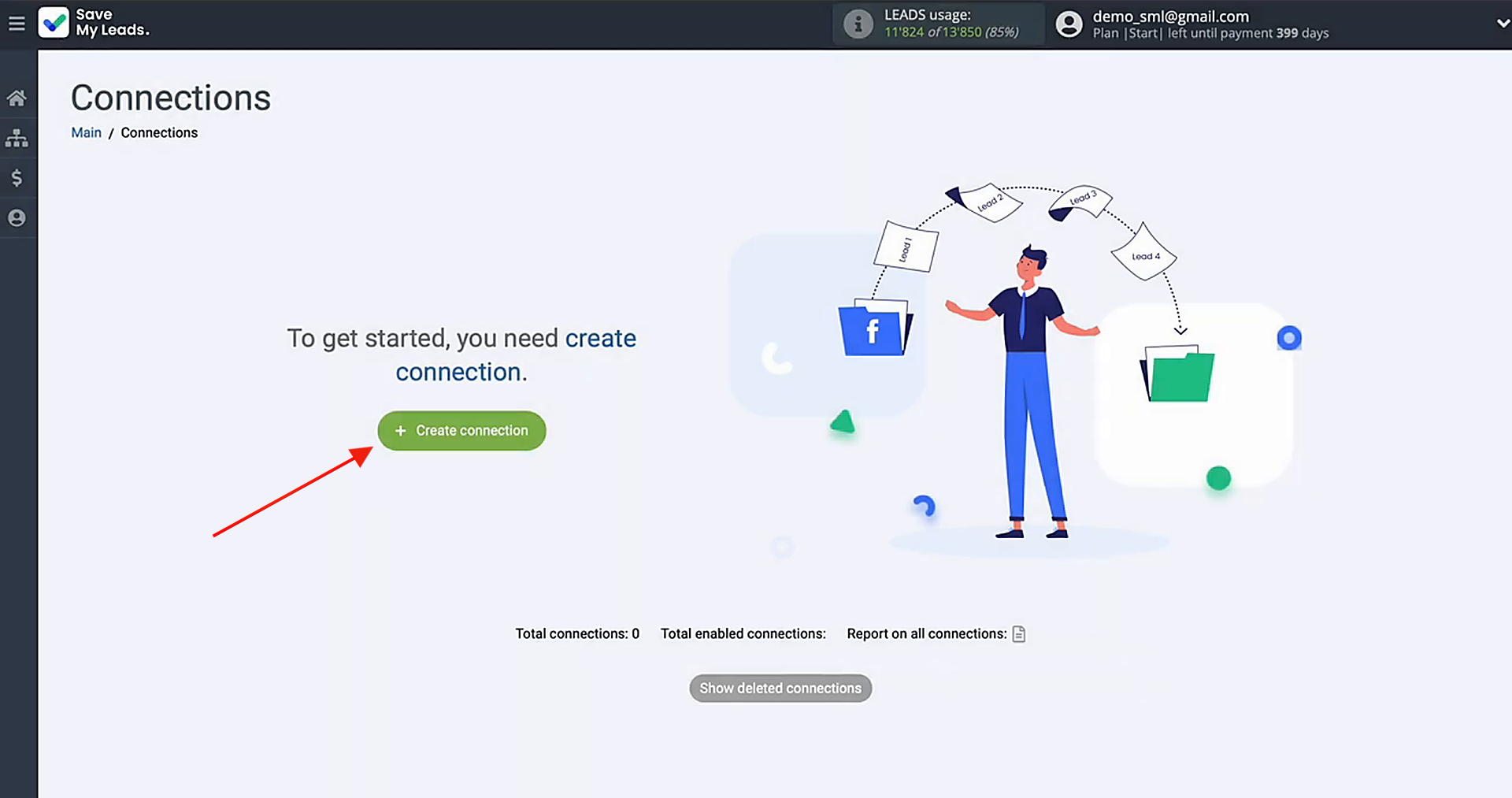
Begin the process by creating a new connection.
Select Google Lead Form as the platform that will supply your leads.
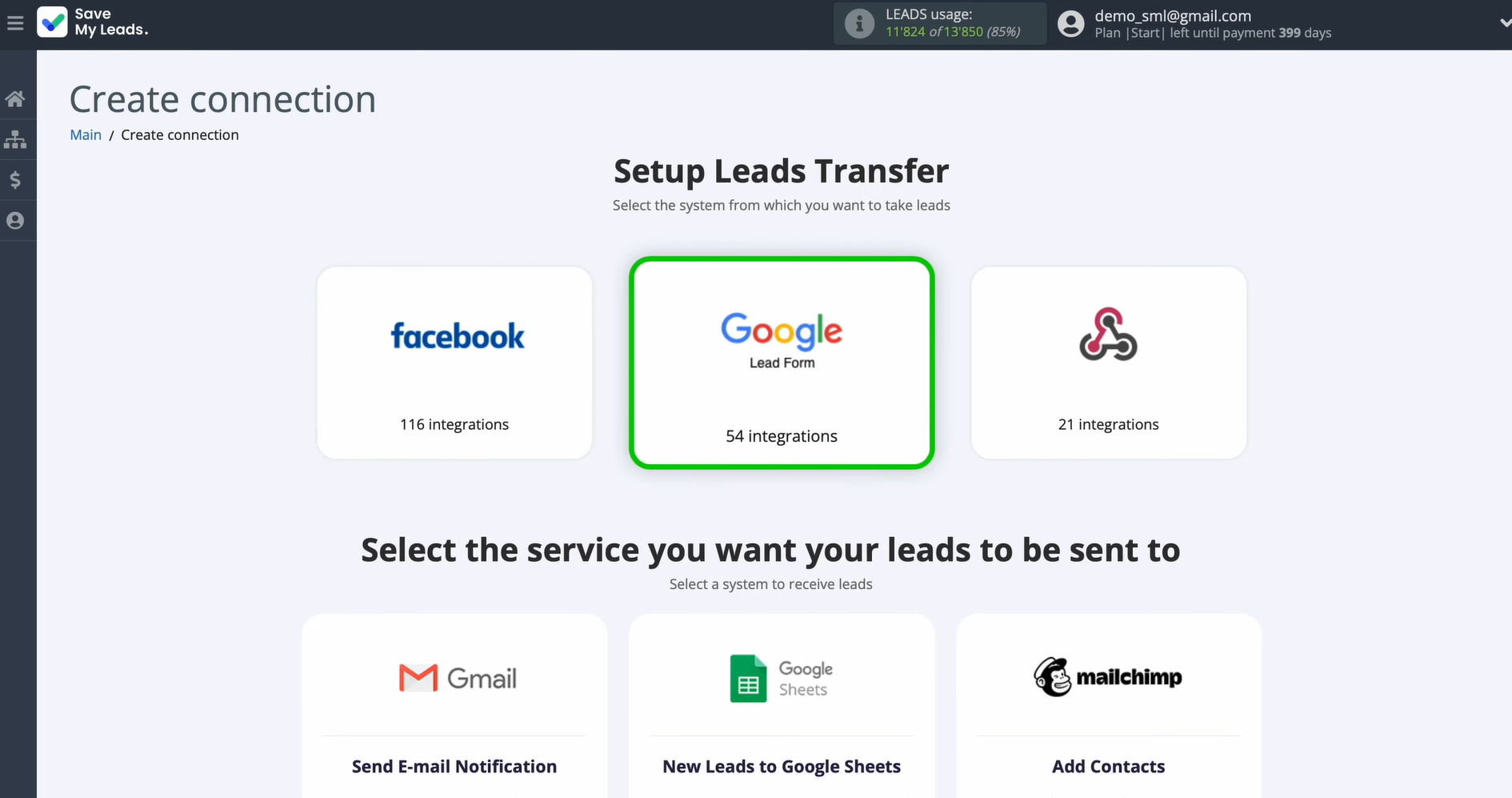
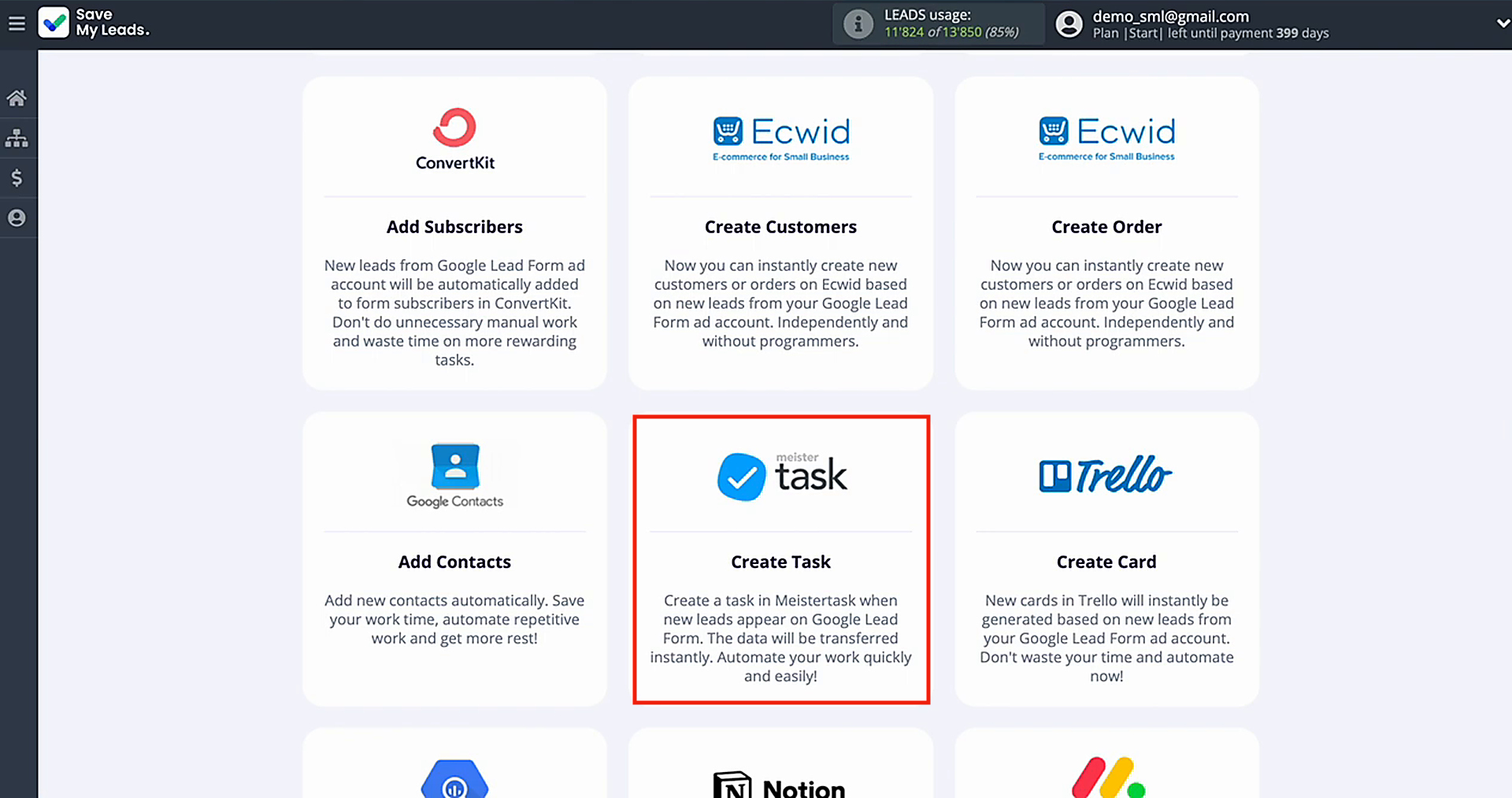
After that, pick a prebuilt template for sending data from Google Lead Form. The required option is MeisterTask (Create Task).
Attach your Google Lead Form account to SaveMyLeads.
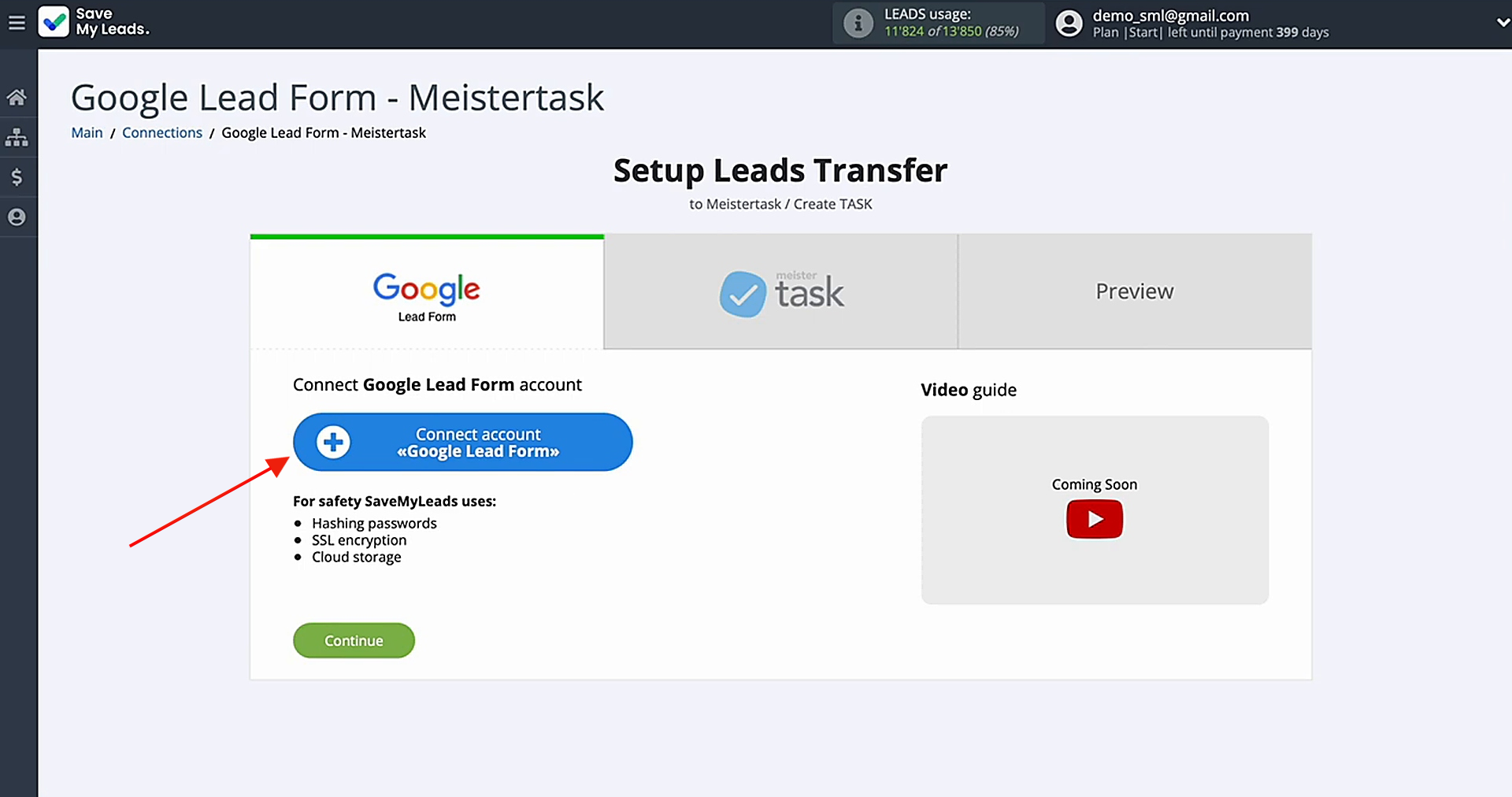
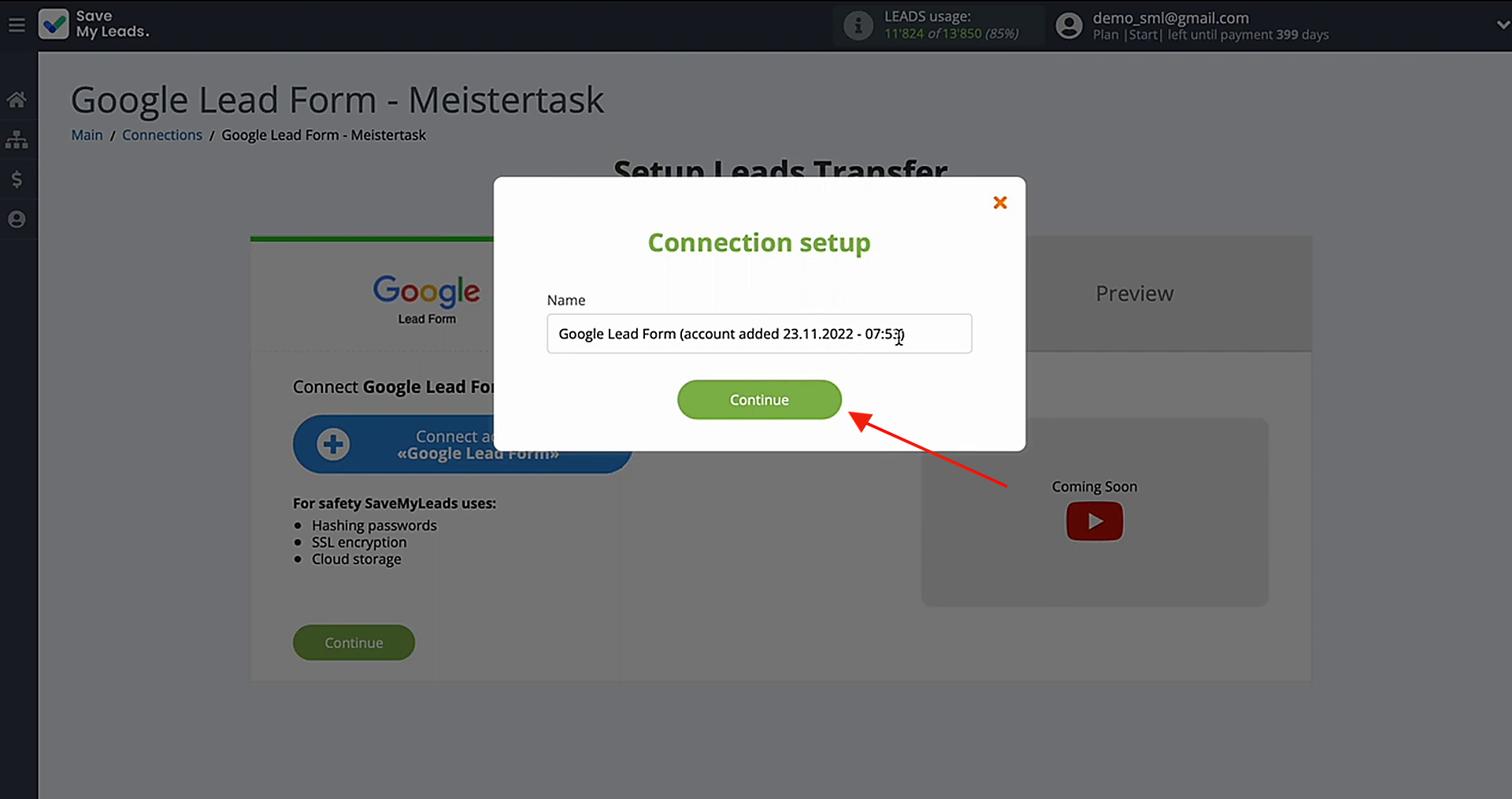
You can name the connection here or move forward by selecting Continue.
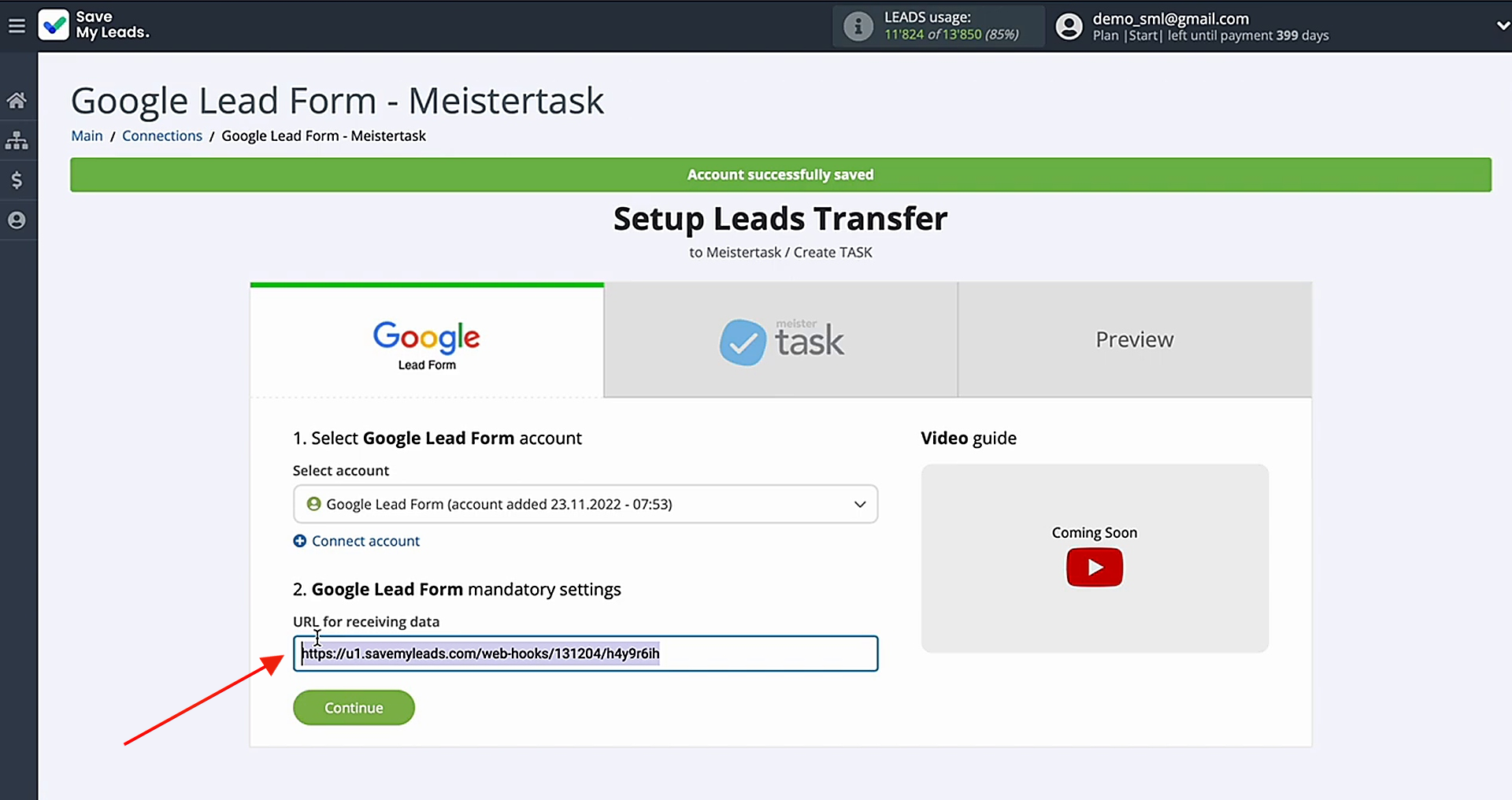
After the account is displayed in the list, click to select it. You’ll be shown a webhook URL used for capturing incoming data from Google Lead Form. Copy it and switch to your Google Lead Form account.
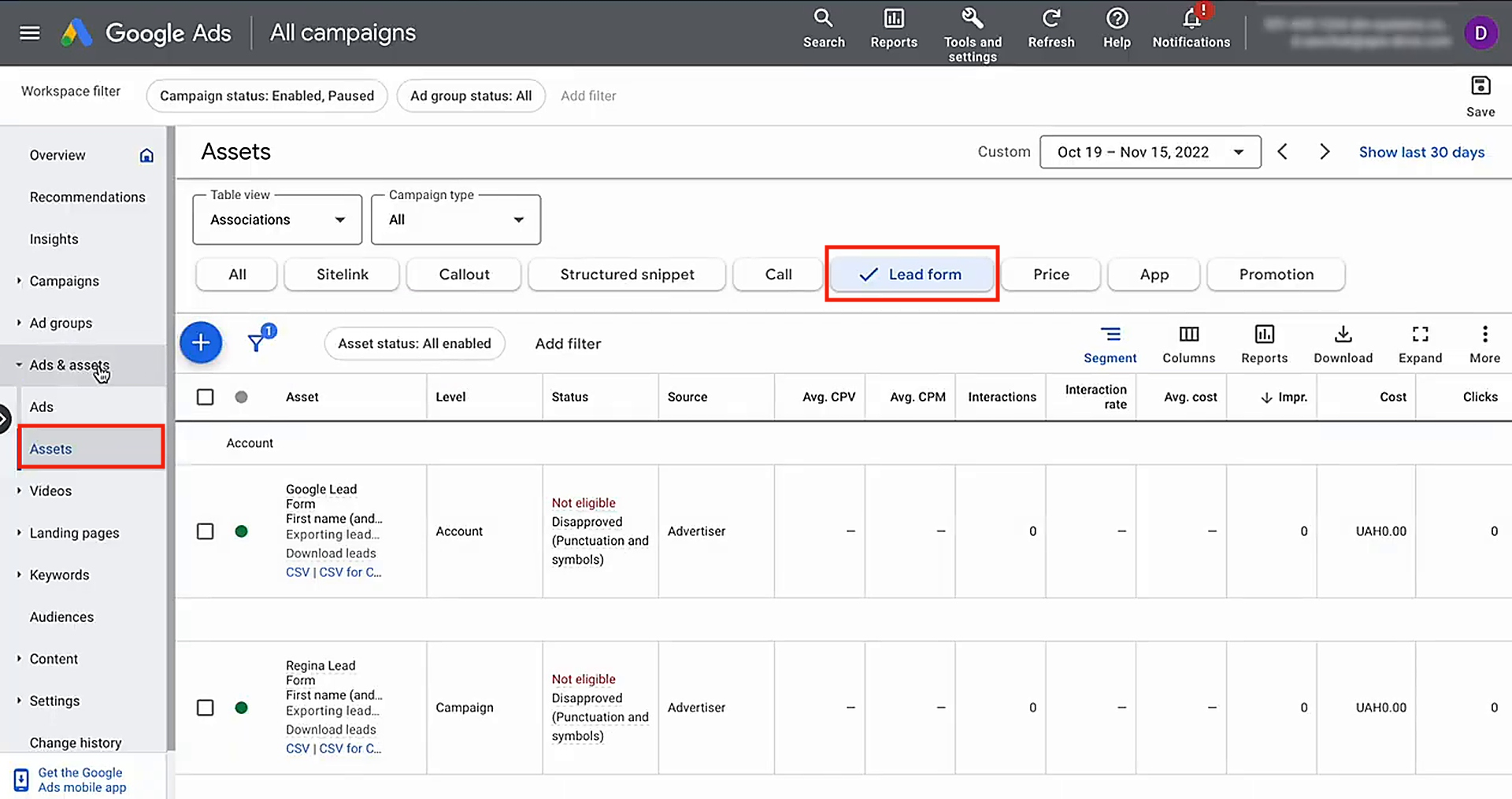
Head to Ads and Assets, then choose the Assets tab.
Locate the form you’re working with and go to its settings. After that, navigate to Other data integration options.
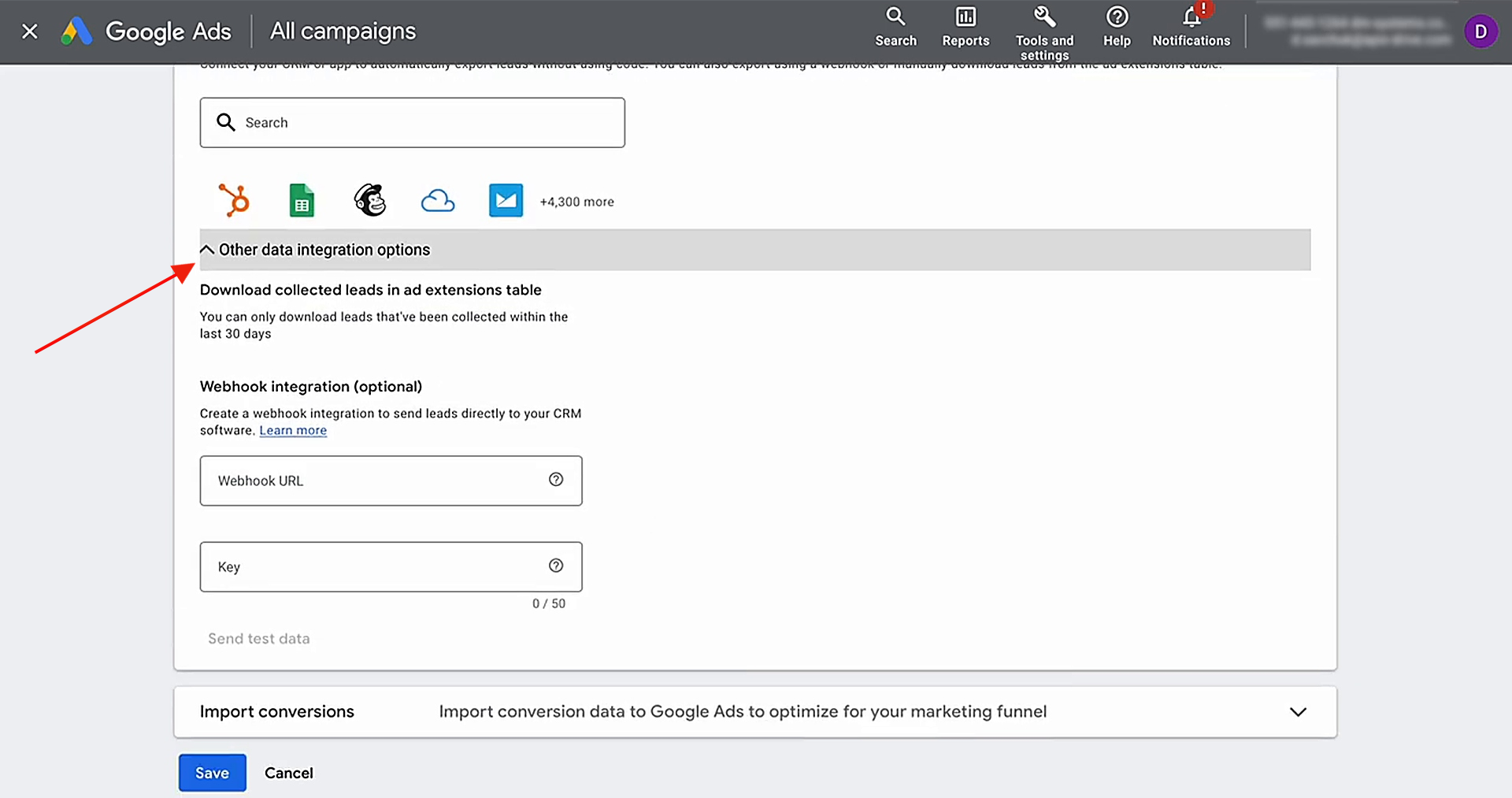
Add the copied webhook URL to the appropriate input field. Use the last part of the URL as the key.
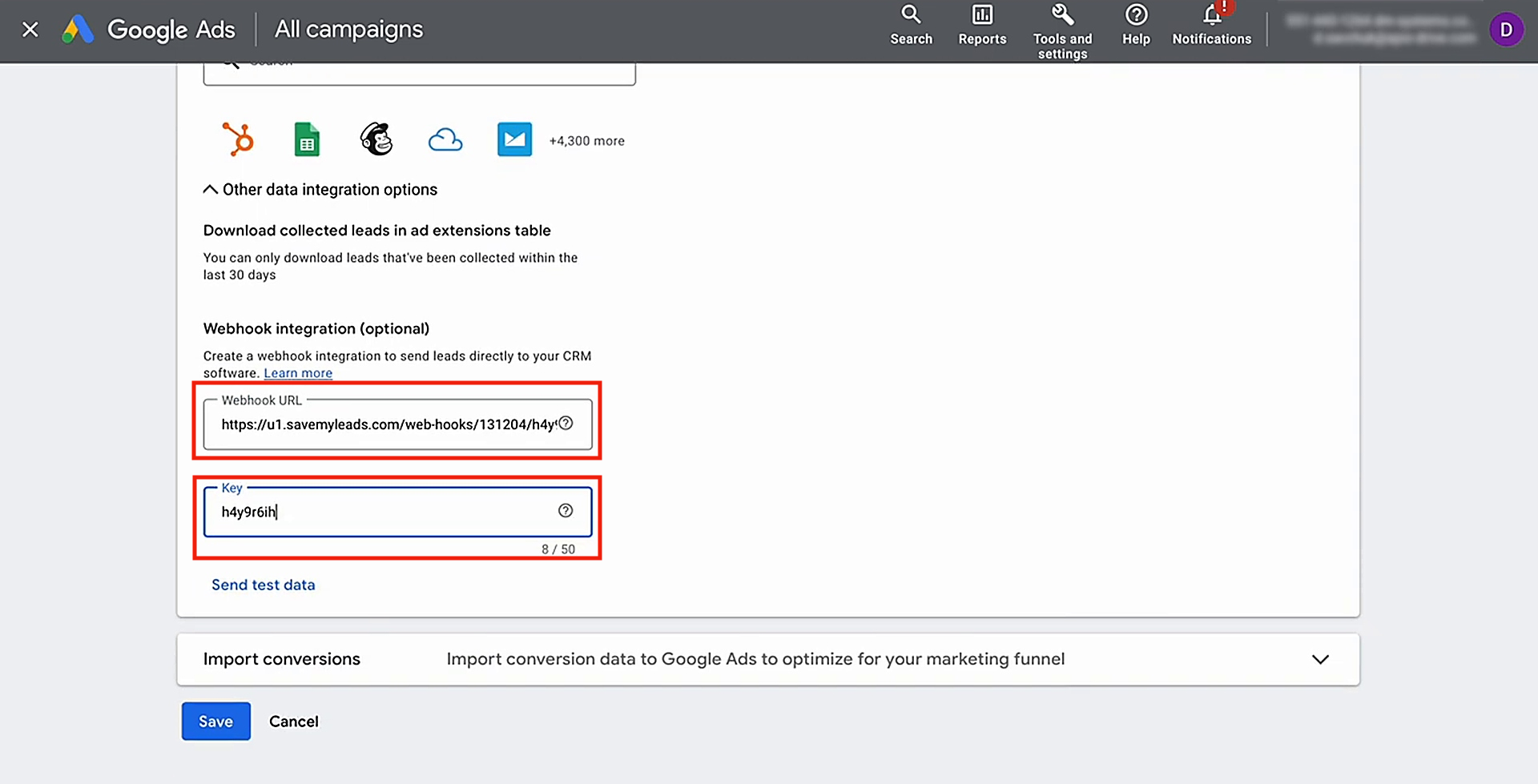
Generating test data is required to move forward. Click Send test data.
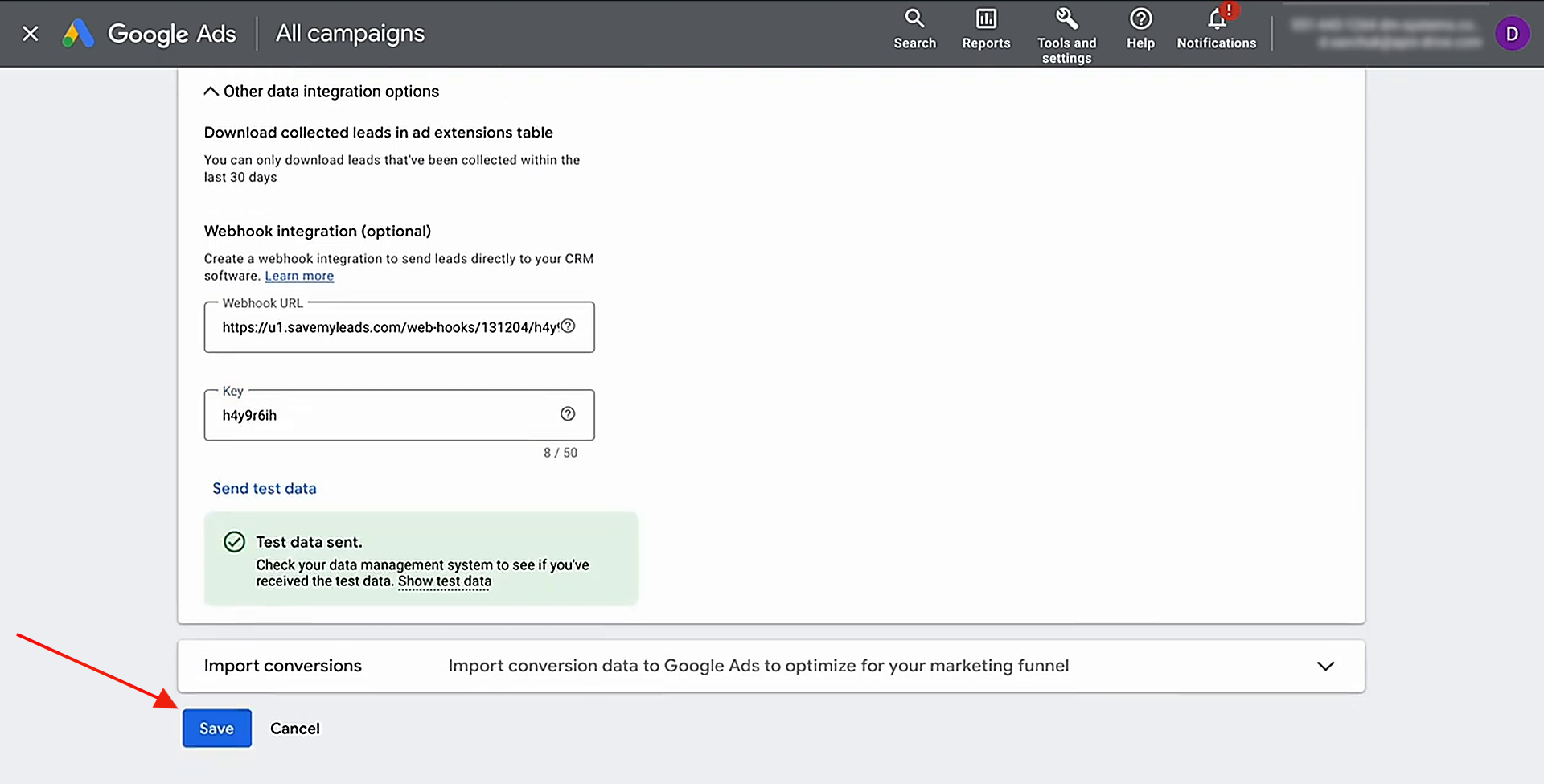
After saving your updates, go back to SaveMyLeads to continue the setup.
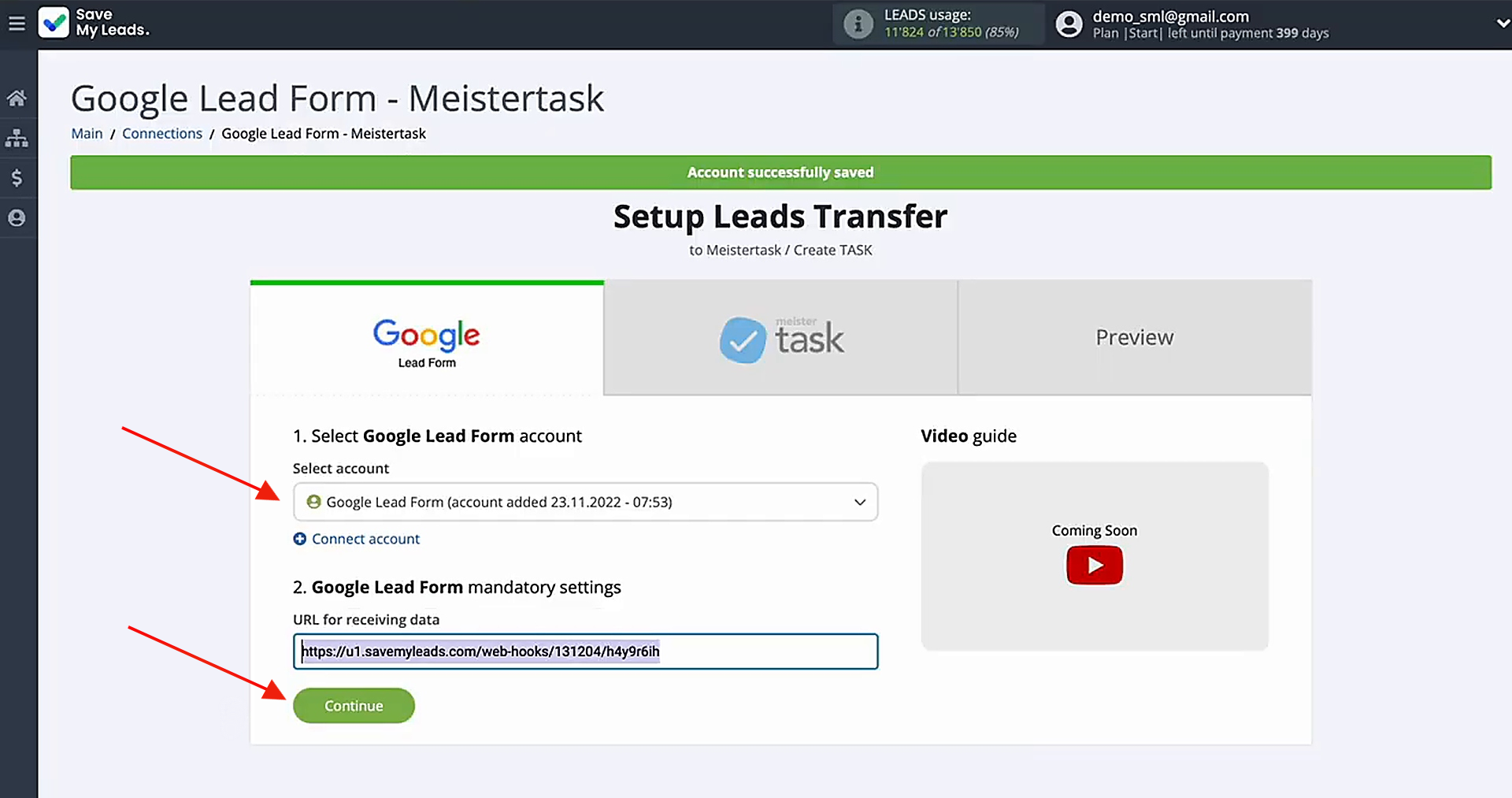
Data Destination Settings: MeisterTask
Connect your MeisterTask account to SaveMyLeads.
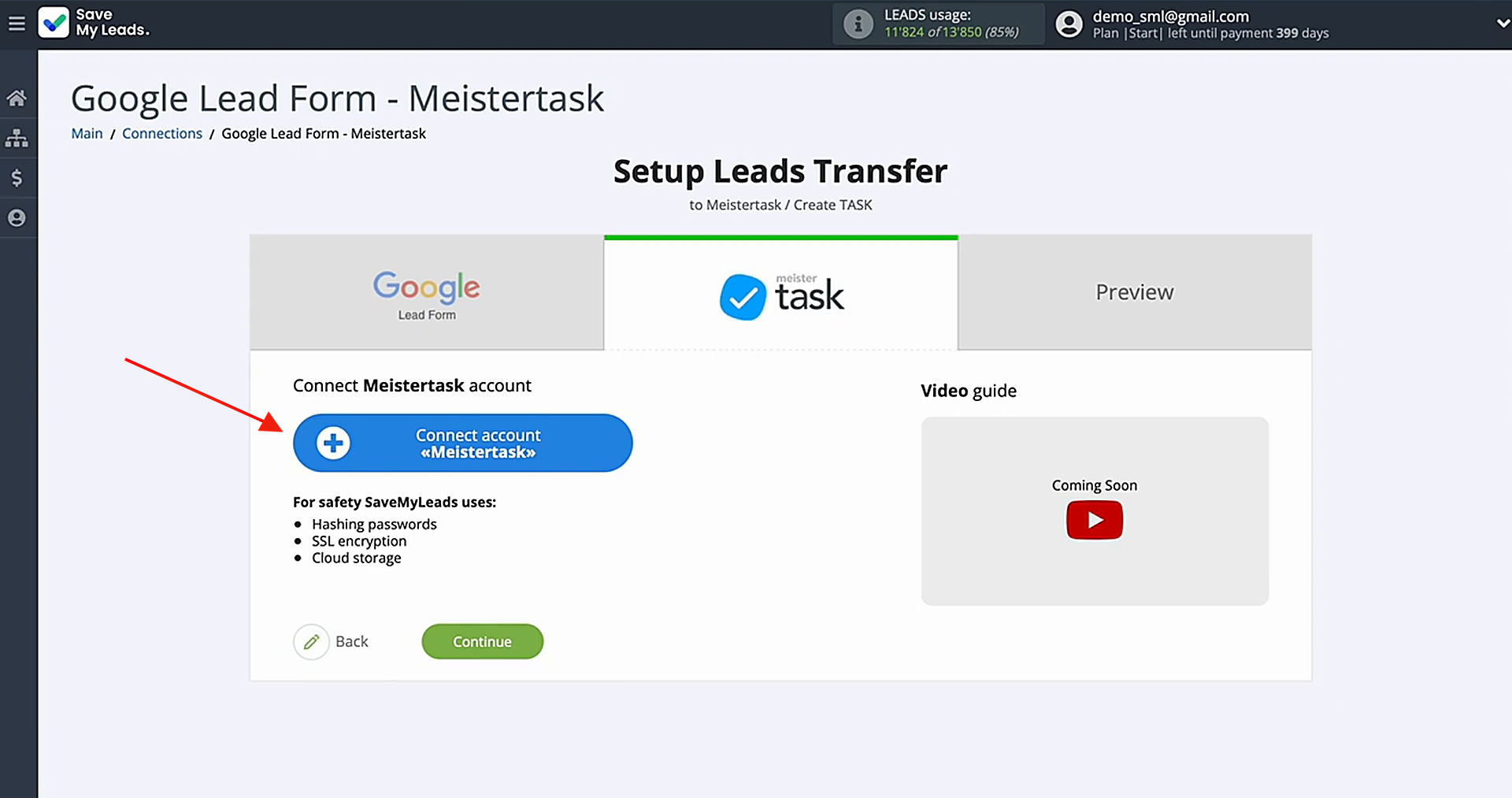
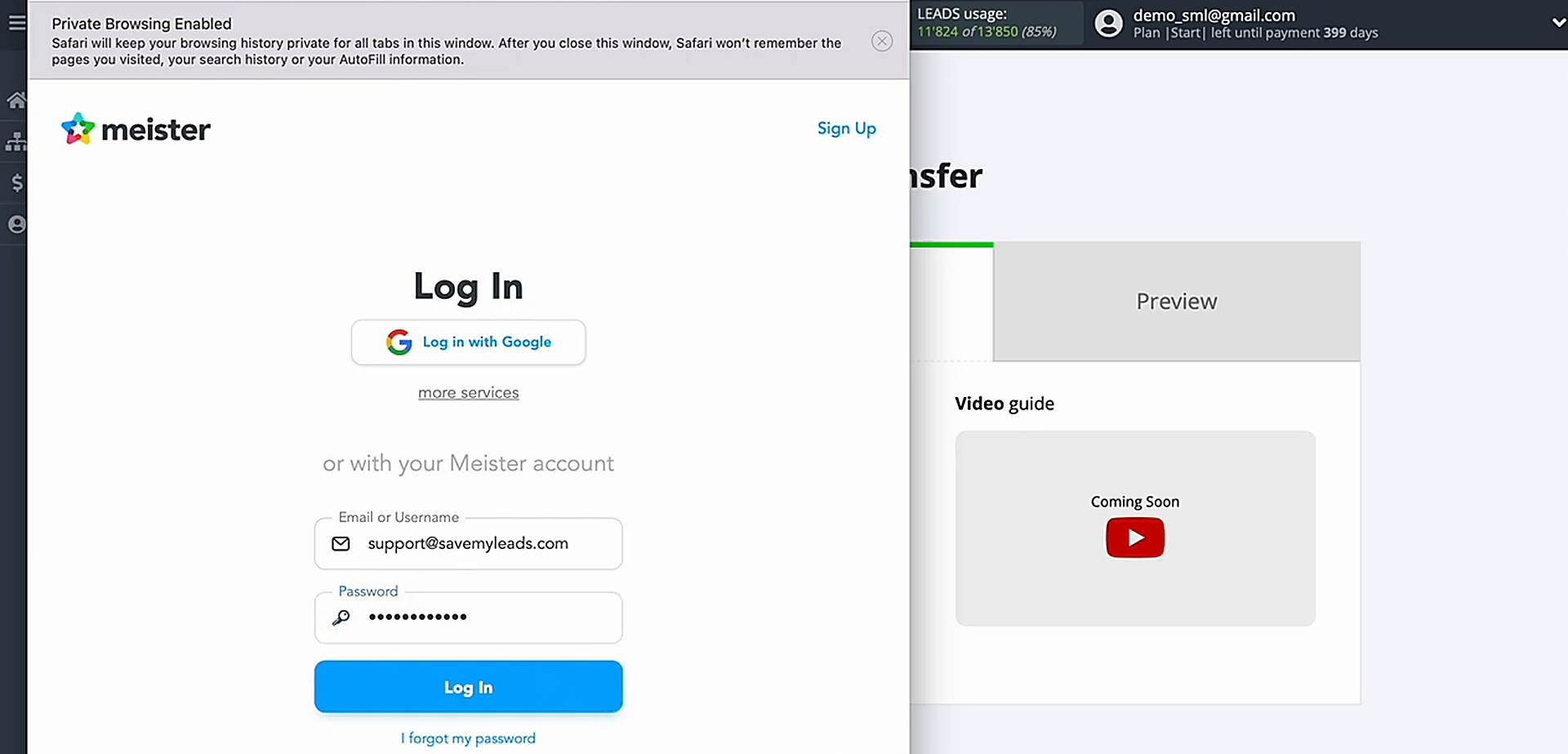
Log in to your MeisterTask account via the authorization window to grant SaveMyLeads access.
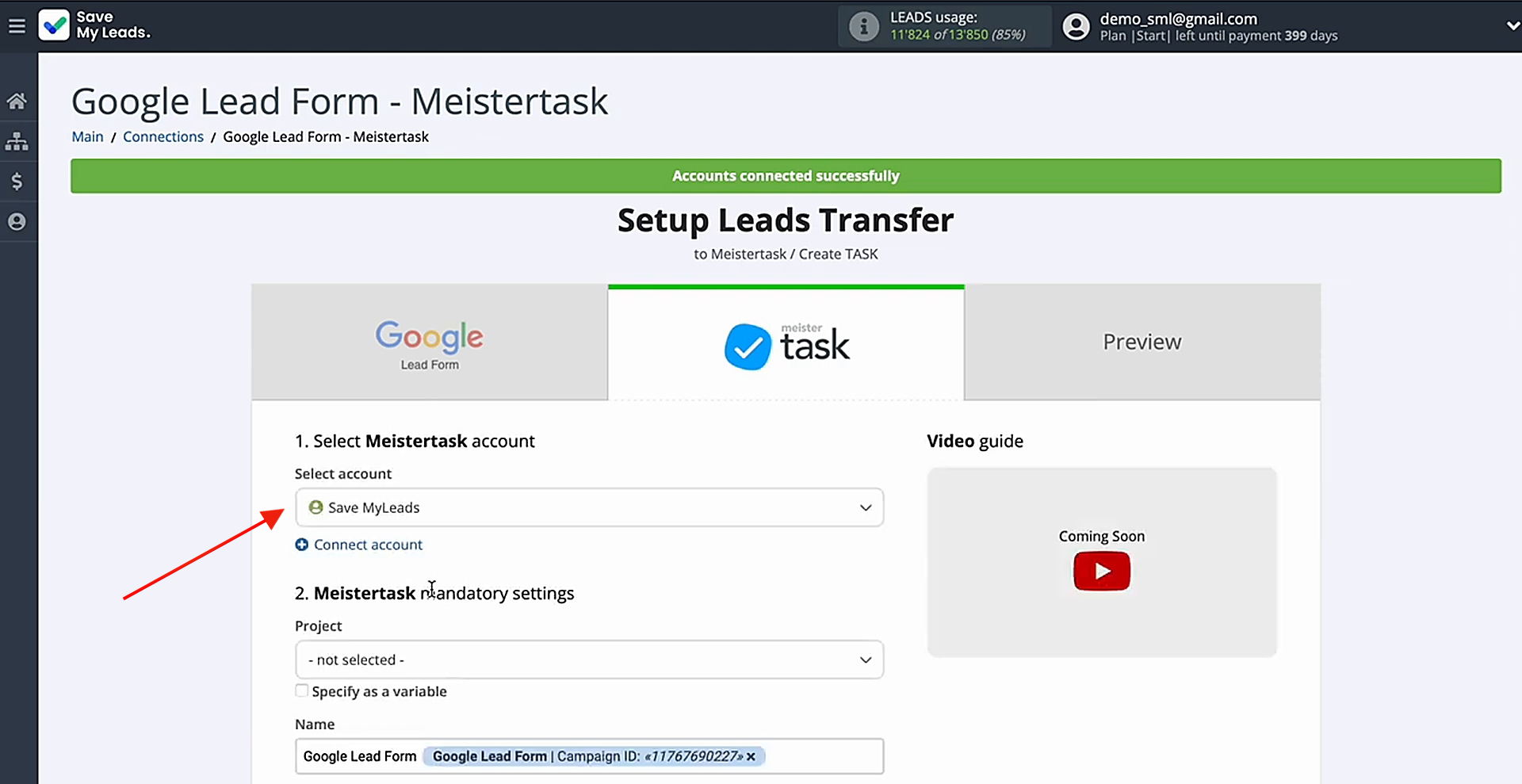
Choose the connected account once it appears in the list.
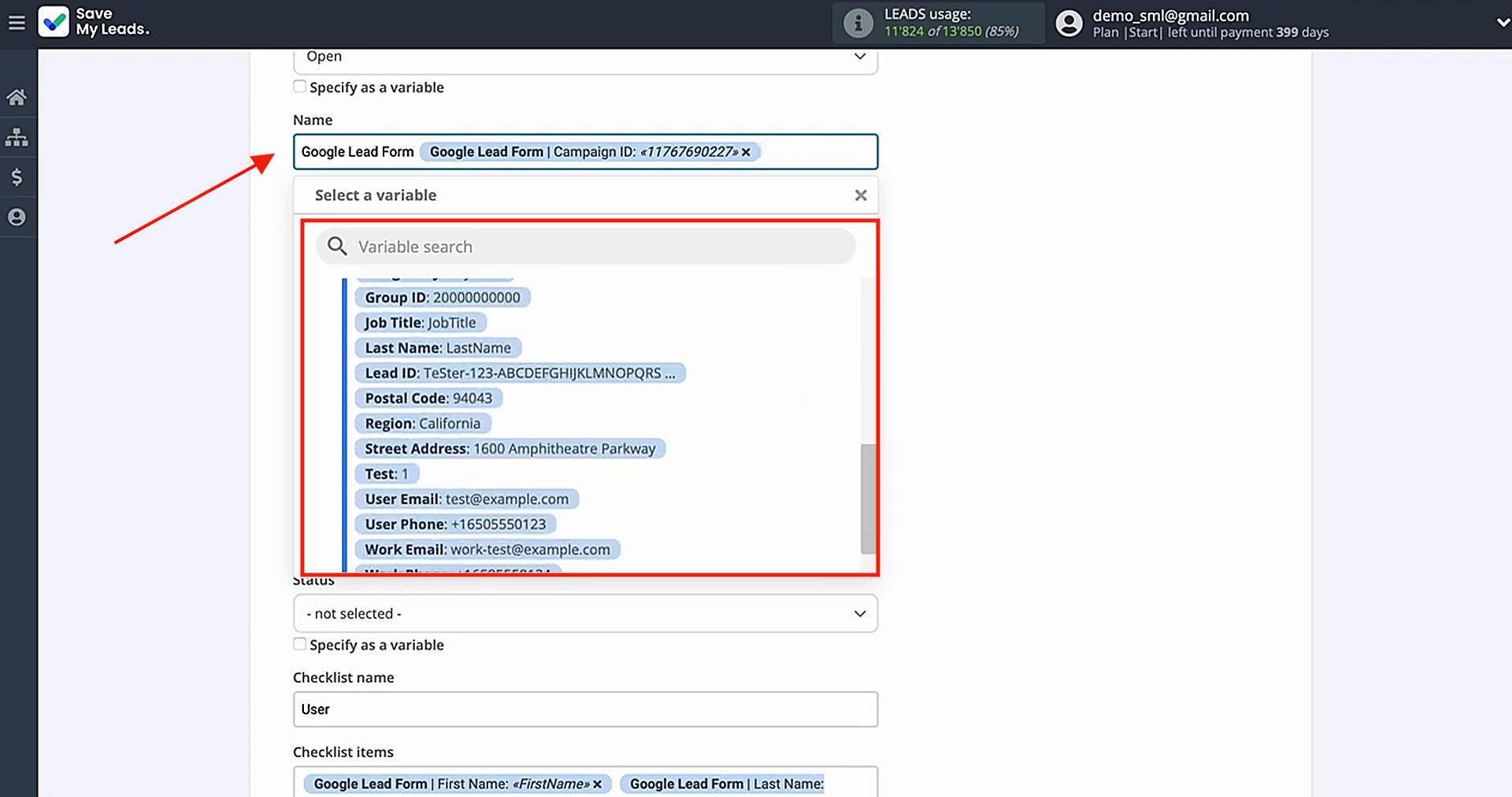
You will then see the MeisterTask fields where variables from the Google Lead Form can be assigned. The system automatically maps the fields. If necessary, you can change the selected variables using the dropdown list.
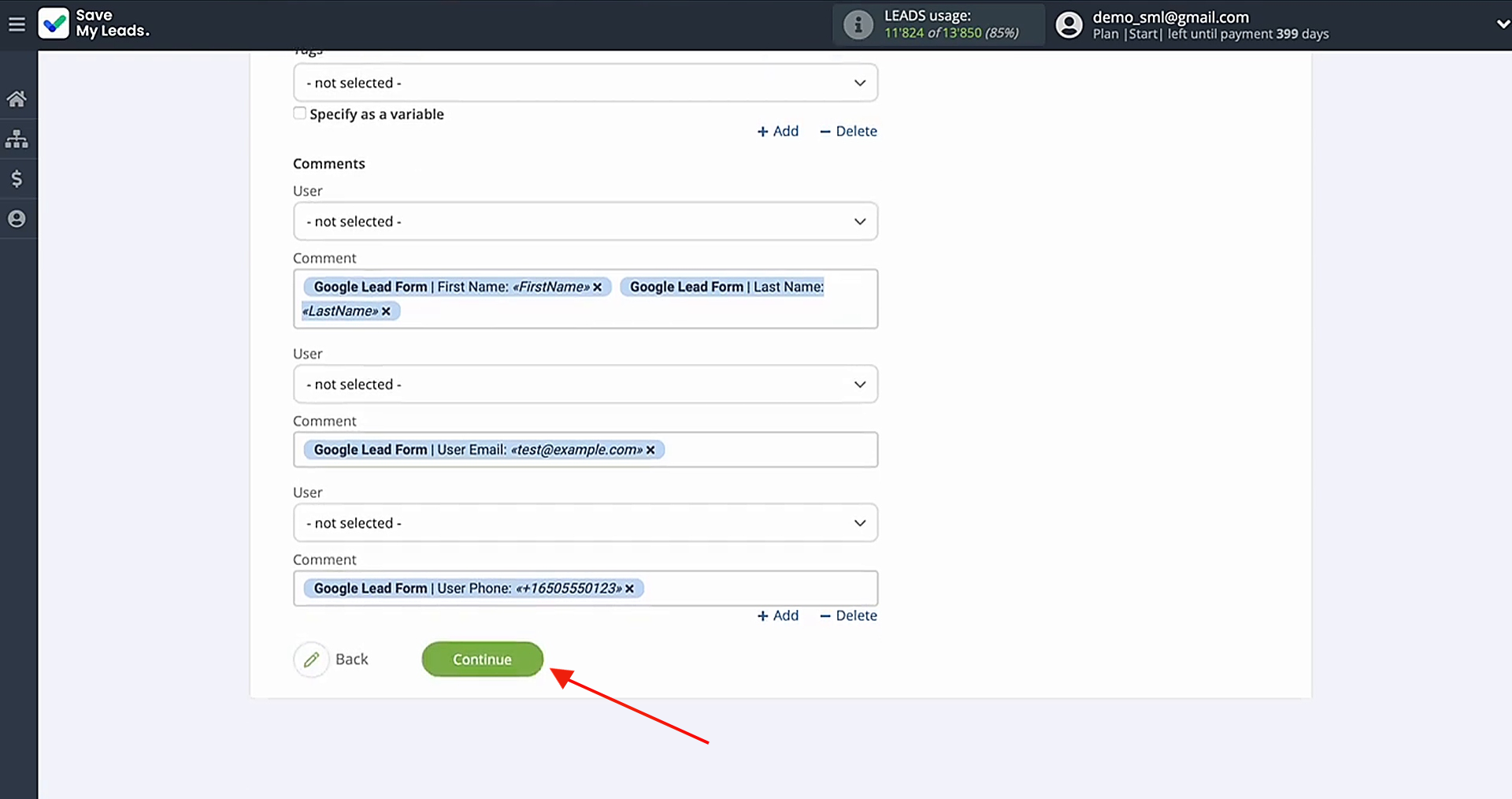
Once the data is assigned correctly, click Continue.
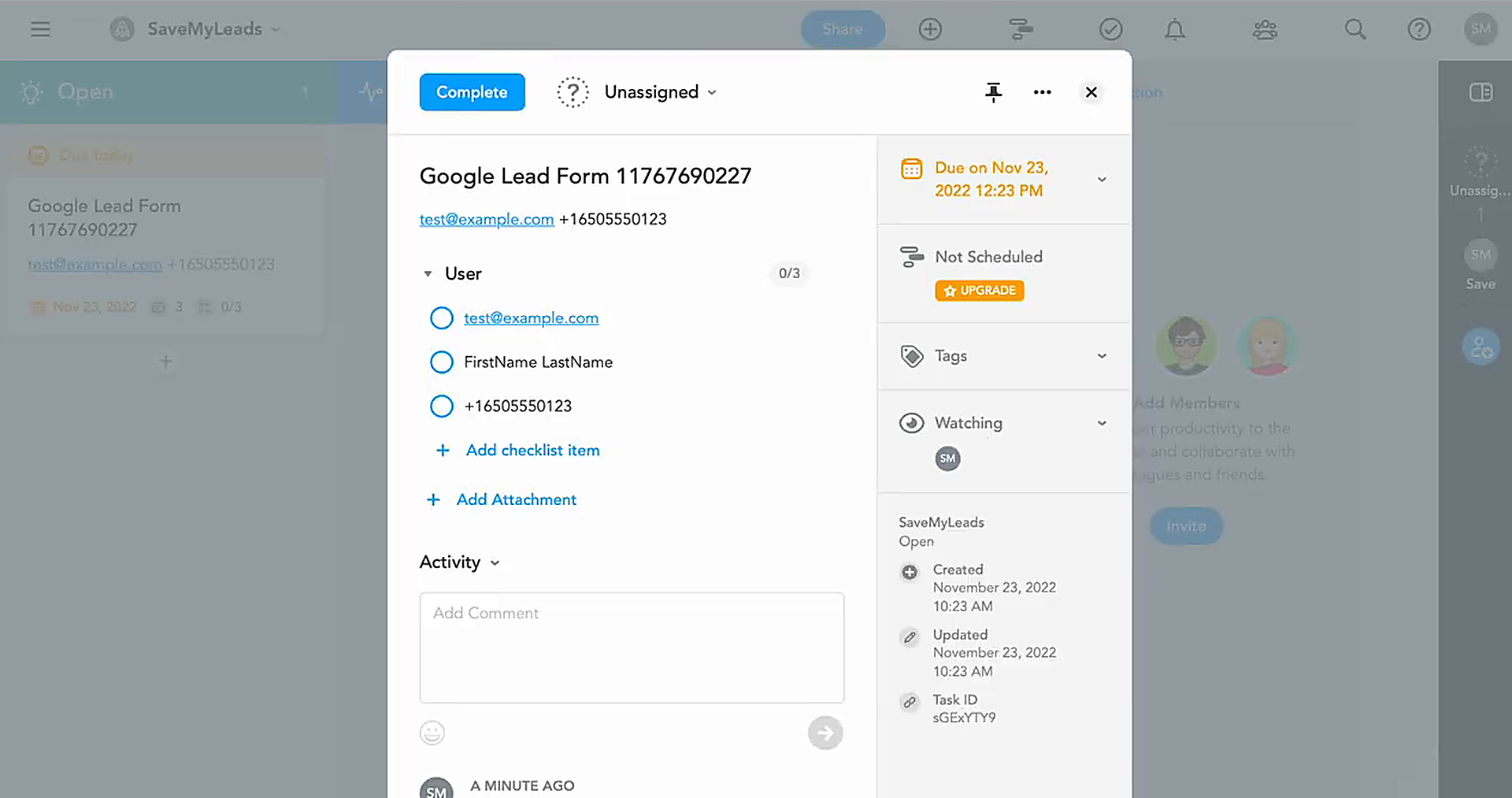
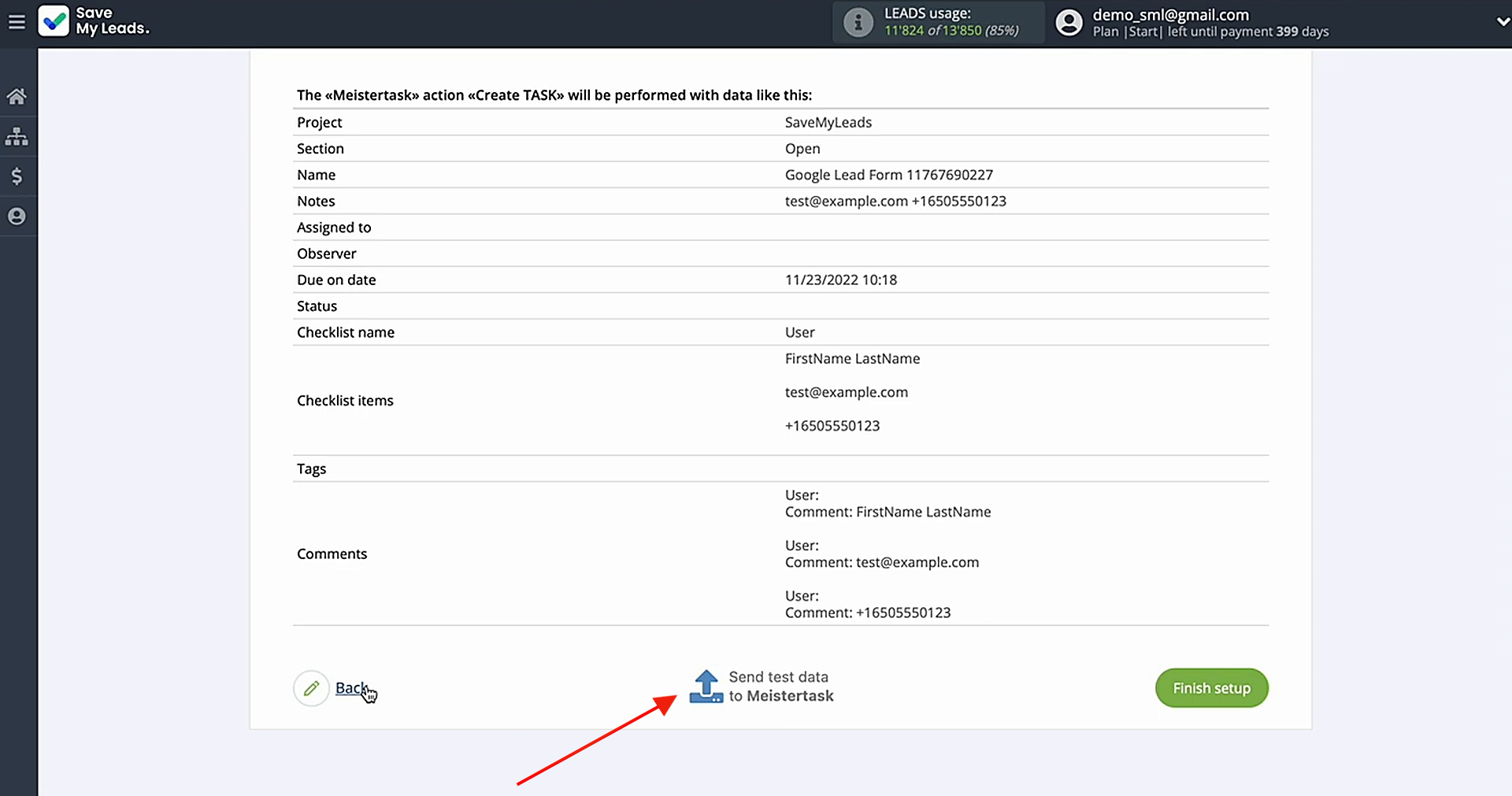
You will see a sample of the data that will be sent to your MeisterTask account with each new Google Lead Form submission. If the data looks correct, click Send test data to MeisterTask to check the configuration.
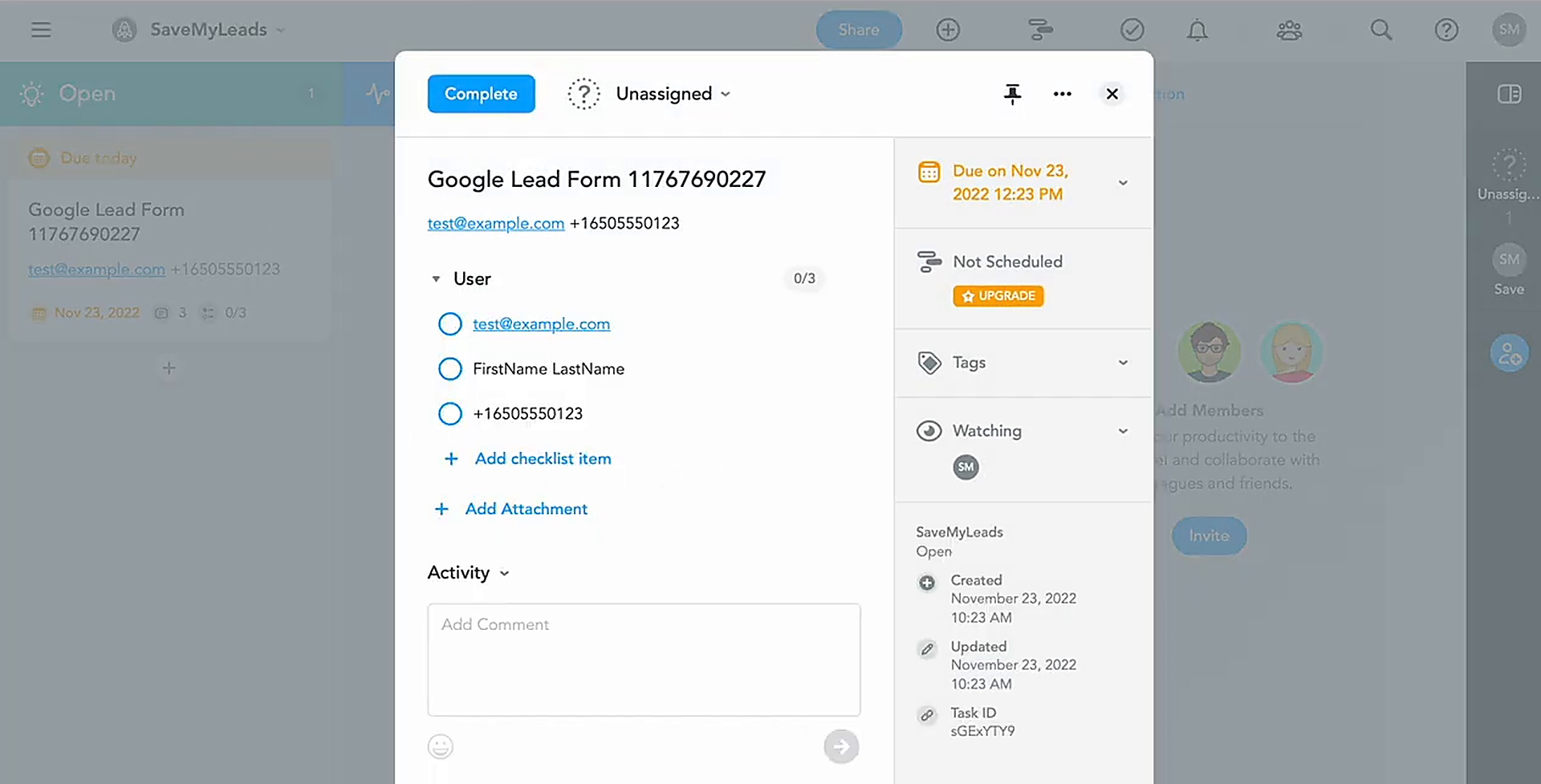
Verify the result in your MeisterTask account.
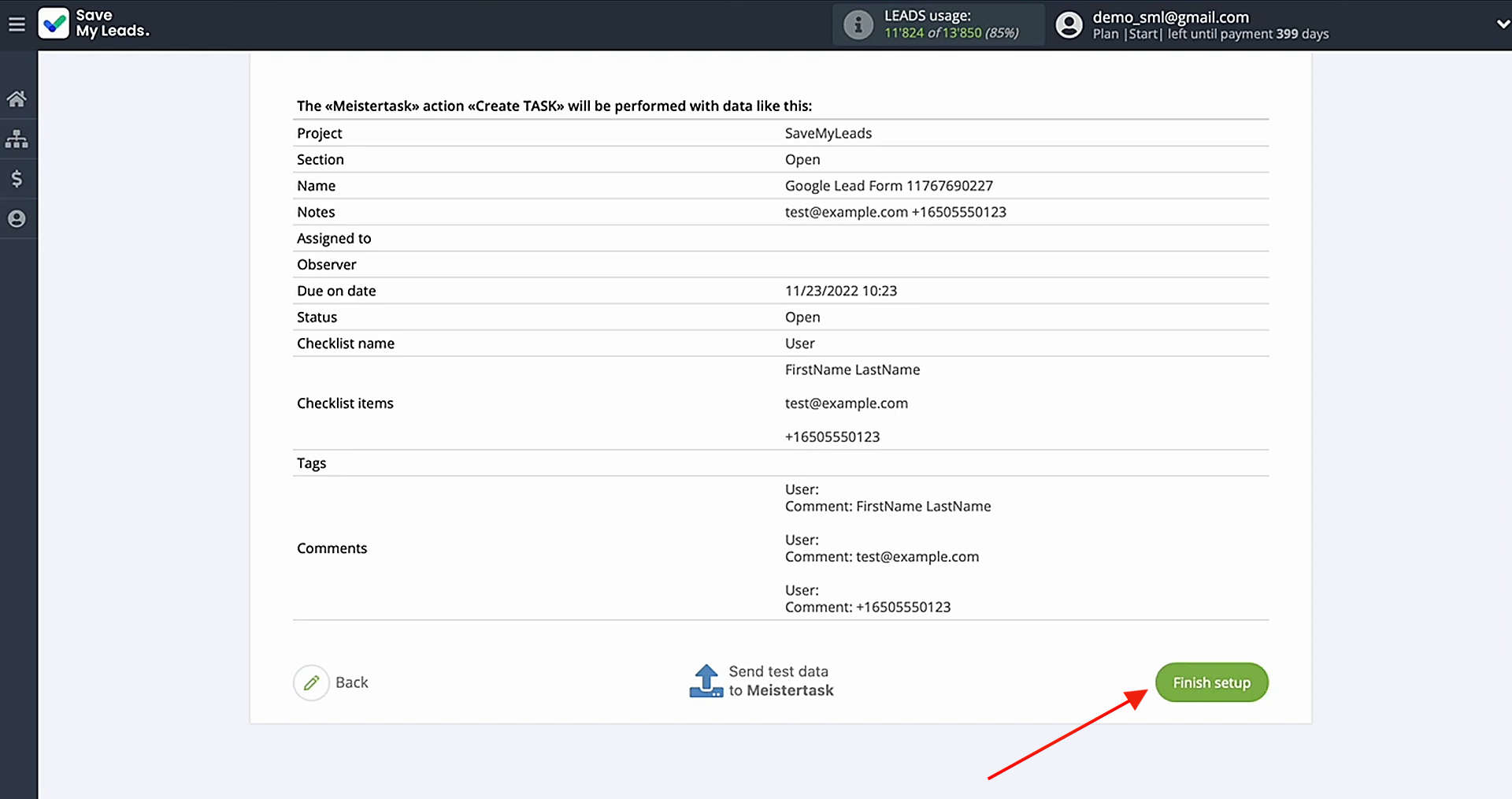
Return to SaveMyLeads to finalize the setup.
Enable Auto-Update
Click Finish setup to activate the connection. With this option enabled, all new Google Lead Form leads will be transferred to MeisterTask.
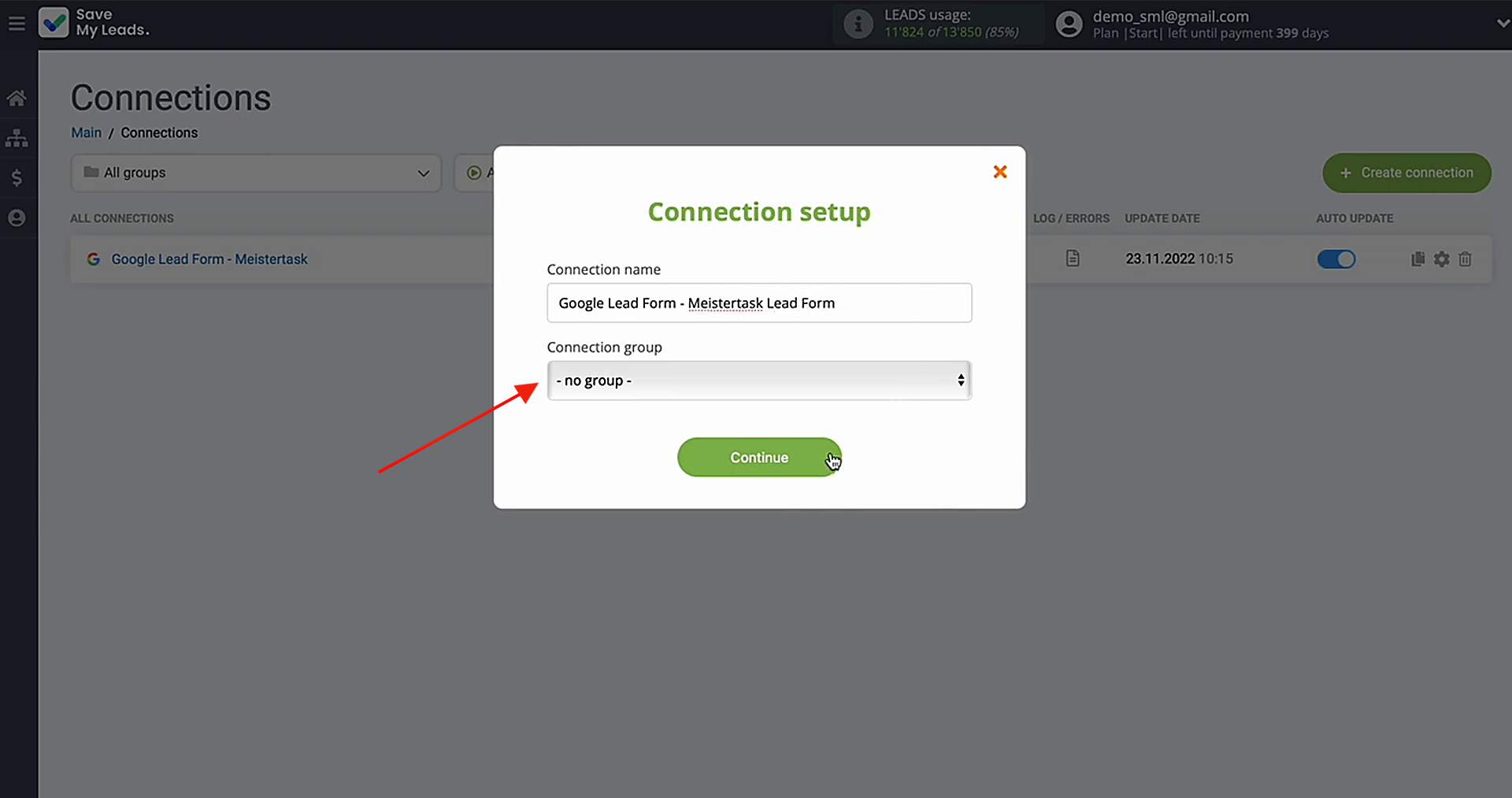
To rename the connection, open the settings by clicking the gear icon.
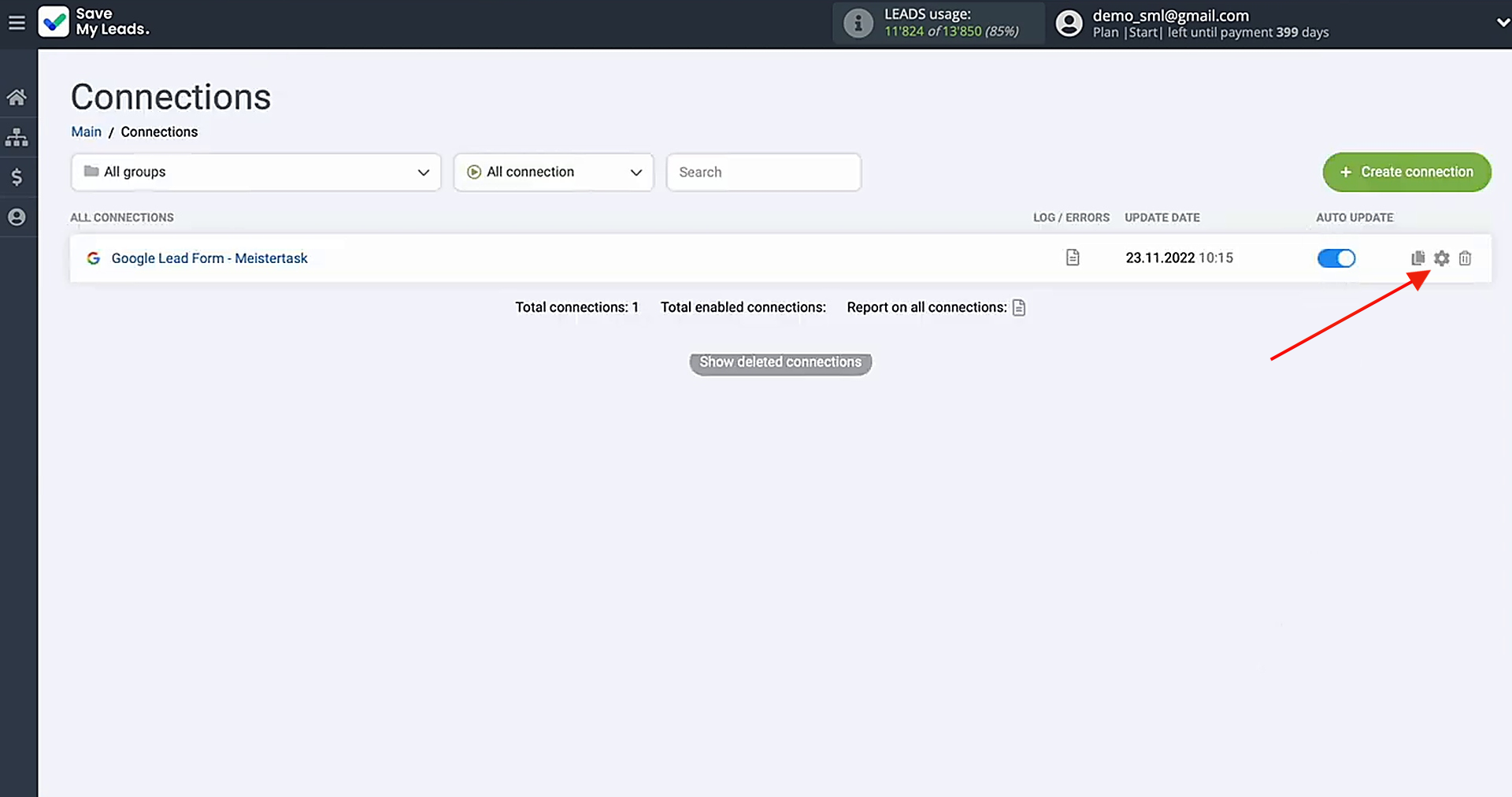
There, you can modify the connection name or add it to a specific group.
Conclusion
Businesses that automate transferring Google leads to MeisterTask get the opportunity to respond faster to customer requests, better organize the team's work, reduce the amount of repetitive manual work, and minimize customer losses due to errors. For managers, an additional benefit is the increased efficiency of the advertising budget.
Step-by-Step Guides for Setting Up Integrations:
- How to Connect Facebook Lead Ads to Instasent Without Coding
- Google Lead Form and Asana Integration: Automatic Data Transfer
- How to Connect TikTok to Brevo: A Seamless Integration Guide
- Google Lead Form and Monday.com Integration: How-to Guide
- How to Integrate TikTok with GetResponse: Step-by-Step Guide